Gigabud RAT Attacking Android Users to Steal Banking Credentials

0
[ad_1]

Recent reports indicate that GigaBud malware has been targeting more than 99 financial institutions in Thailand, Indonesia, Vietnam, the Philippines, and Peru.

GigaBud is an undocumented Android Remote Access Trojan (RAT) and has been active since July 2022.

Investigating the samples revealed another malware codenamed “GigaBud.Loan” which acts as a fake loan application.

In addition, the malware also targeted government departments across these nations in order to mimic at least 25 financial institutions for gathering Personal information from victims.

Threat actors have been combining the functionalities of RAT and Fake loans in their previous versions. Additionally, GigaBud is capable of performing gestures on the user’s device, evading defense, and creating automated payments.

Gigabud RAT Attacking Android Users

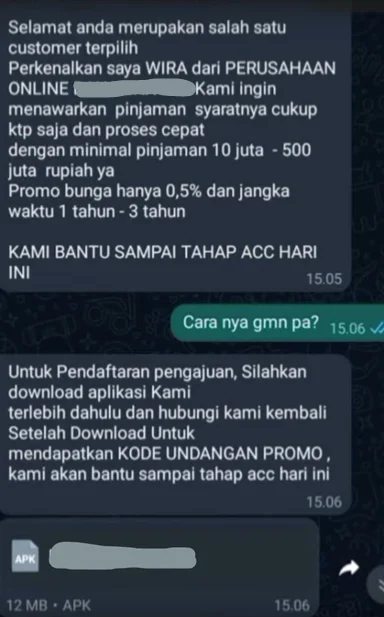
Threat actors hosted these GigaBud.Loan and GigaBud.RAT on phishing websites and delivered the links to these websites to the victims through Smishing campaigns.

These links are also distributed through social networks luring victims to these phishing websites.

GigaBud distributed through messenger (Smishing) Source: Group-IB)

Besides, threat actors also deliver malicious APK files to the victims through these phishing campaigns. Android devices block third-party application installations by default.

However, these malicious APK files are installed with the “REQUEST_INSTALL_PACKAGES” request, which bypasses the “Install from Unknown sources” setting and has been categorized as high-risk by Google.

GigaBud RAT Attacking Financial institution

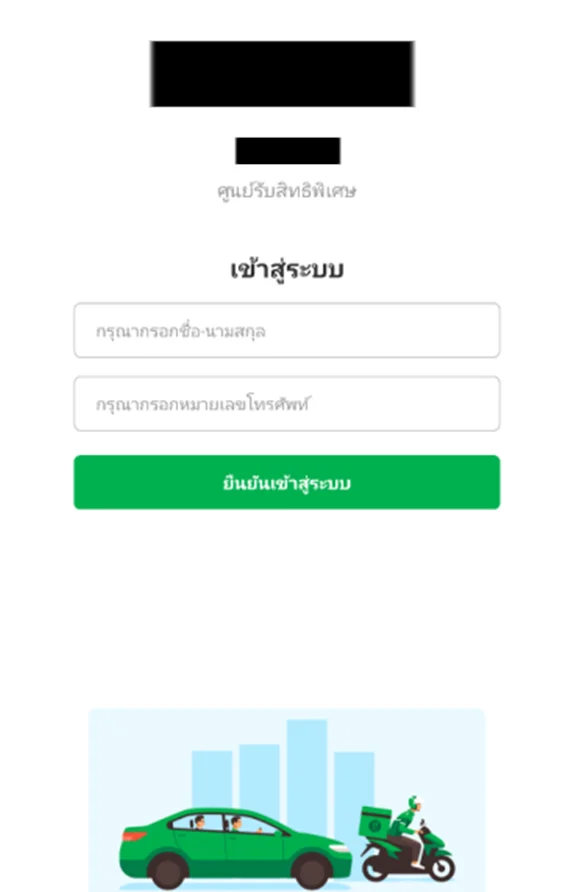
GigaBud.RAT is a trojan mimicking a legitimate app such as a government or financial institution. It can capture screenshots and acts as a keylogger for capturing credentials and other sensitive information. 

GigaBud login page (Source: Group-IB)

It can also bypass authentication and 2 factors, replacing bank card numbers in the clipboard and making automatic payments from the victim’s device through remote access.

GigaBud Fake Loan App

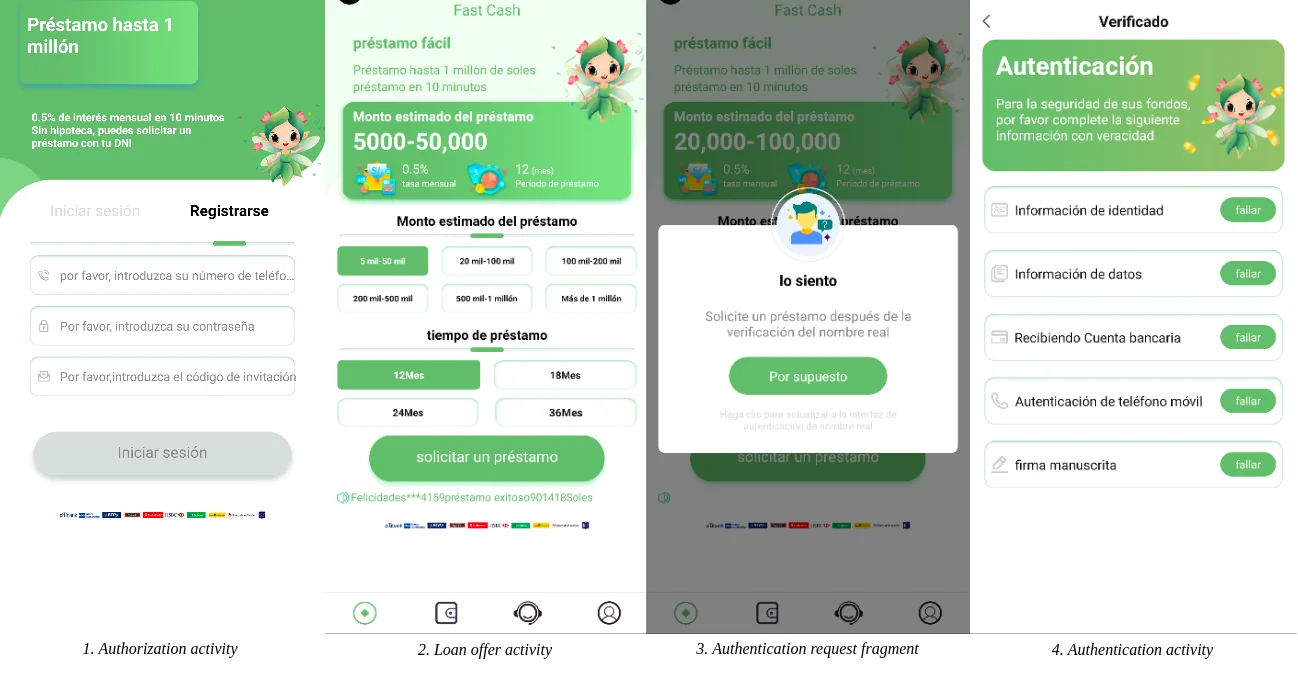
GigaBud.Loan acts as a fake loan version of GigaBud but has no Remote Access capabilities. It poses as a financial institution that does not exist for collecting personal information such as full name, identity number, digital signature, bank card information, and phone numbers in the name of processing a loan.

Fake loan request stages (Source: Group-IB)

In some cases, these Fake loan requests also ask for upfront fees from the victim or provide personal information such as bank account numbers baiting loan application processing.

A complete report has been published by Group-IB, which provides detailed information on these GigaBud malware. Users are requested to take extra precautions when installing applications from third-party sources other than legitimate app markets.

Keep informed about the latest Cyber Security News by following us on GoogleNews, Linkedin, Twitter, and Facebook.


[ad_2]
Source link

25 most popular websites vs Browser Guard

0
[ad_1]

We put Malwarebytes Browser Guard up against the top 25 websites. It knocked out 172 trackers and other unwanted items.

Do you know how many see-everything-you’re-doing-on-the-web trackers get loaded into your browser when you watch a YouTube video? Would you care to guess?

It’s about sixty.

Sixty. Six zero. Sixty trackers when you load one video. I know this because I decided to take Browser Guard, the Malwarebytes’ browser extension that blocks ads and keeps you safe from trackers, scams, malvertising, and other online threats, for a wander through the web’s top 25 sites.

Web users have always spent a disprorportionate amount of their time on the web’s most popular sites, and websites like Facebook, Twitter, and Twitch are designed to keep you hanging around for as long as possible. So what happens on the top sites has an outsized effect on users because the top sites don’t just reach more people, they also keep people for longer.

Before I get into the why I was counting how many things Browser Guard blocks, take a look at the numbers in the table below.

The table shows the number of items—ads, cross-site trackers etc—that Browser Guard blocked on a single page on each of the top 25 most visited websites. I looked at one page on each site, and chose pages that were broadly representative of what somebody might go there to do. So, on Google I looked at a search results page, on YouTube I looked a page displaying a video, and so on. Where I was asked to log in and I had an account, I logged in, and where I was asked to accept cookies I did.

Browser Guard blocked a total of 172 items across the 25 pages tested. That’s a mean average of seven on each site, and a median of two. The mean average is heavily skewed by YouTube and Samsung, which accounted for 100 items between them.

(Note that if you try to repeat this experiment you might get slightly different results, although we expect them to be similar to ours. Because of the way that ad tech works, different numbers of items may be downloaded for apparently identical page loads.)

How tracking affects security and privacy

So why does it matter?

Cross-site ad tracking follows you from site to site and builds up a rough picture of your likes, dislikes, and demographics, which is then used to help ad providers choose relevant, targeted ads to show you (or at least, that’s the theory.)

This model comes with advantages, but it also comes with significant risks to both your privacy and security.

You are the product

The price you pay for the popular, free-to-use-websites like Facebook and YouTube is that somewhere, somebody is amassing a whole lot of data about you. You likely don’t know who they are, what they know or how much, how securely the data is stored, how long it’s kept, or who it’s been shared with, sold to, or stolen by.

Some people see this kind of tracking as benign, or at least a necessary evil. The ad economy is what keeps sites like Facebook and YouTube free after all, and they would rather see ads that might at least appeal to them than something chosen at random. For others, the targeted ad economy and the cross-site tracking it relies upon are an unacceptable violation of their privacy.

But that’s not the whole story. Ads and trackers aren’t just a privacy problem, they come with a pair of security problems too.

Efficient threat distribution

The first is that ad distribution networks—the amazingly efficient, just-in-time auction houses that fill ad slots as a page loads—are just as good at distributing scams, links to phishing sites, and malware downloads, as they are at distributing ads. Ad companies don’t encourage this, but despite their efforts malicious advertising—malvertising—is resurgent in 2023. A lot of malvertising works by impersonating well known brands, and the scammers do it so well that you have almost no chance of spotting it.

Simply, the more ads and ad networks you’re interacting with, the more likely you are to encounter something bad. And if you do, you probably won’t spot it until it’s too late.

Criminals with “God mode” access

The second problem is that ad networks and cross-site tracking generally rely on components pulled from third-party websites as a page is loaded. This means that when you visit a page with a single tracker on it, your browser is actually talking to two websites: The website you’re looking at and the website it’s loading the tracking code from.

But lots of sites have far more than one tracker. If you visit a page with 20 trackers, your browser could be assembling the page you’re looking at from as many as 21 different websites. Scarily, each website you load a component from gets full access to the page the component is included in. FULL access.

Among many other things, the third-party components are allowed to alter the code of the page you’re looking at in any way they like, they can all see anything you type into a form on that page, even if you don’t submit it, and they can copy any authentication cookies you have for that site too, which effectively means they can steal your password.

In other words, any site that suppliies any content for the page you’ve loaded gets “God Mode” on that page. So if you’re looking at a page with 20 trackers, that’s as many as 21 sites with God Mode on that page.

That’s bad enough if you trust everyone concerned, because even legitimate companies have been known to play fast and loose with that level of access. But it gets really serious if any of those organisations are compromised, because now you’re giving God Mode to a malicious hacker.

Browser Guard

There is simply no way for an individual, even a highly skilled one, to know when they’re using a website that includes a third-party component compromised by criminal hackers or operated by a company prepared to bend the rules at the expense of your privacy and security. And while legitimate ad companies offer opt outs from tracking, staying on top of them is unworkably hard.

Technologies like Browser Guard fill the gap, staying on top of the known nasties and blocking ads that can harbour malvertising, scams, and other threats, even on the biggest websites.

If you want to find out how much Browser Guard can block for you, download it today.

[ad_2]
Source link

Redmi Pad SE is an affordable 11-inch tablet with a 90Hz display

0
[ad_1]

In addition to the Xiaomi Pad 6 Max, which launched recently, Xiaomi also announced a budget tablet. The device’s name is the Redmi Pad SE, and it actually launched in Europe.

The Redmi Pad SE is here, Xiaomi’s latest budget tablet

The device has flat sides, along with a single camera on the back. The power/lock button sits at the top (when the tablet is in vertical orientation), while the volume up and down buttons are placed on the right side. That’s also where you’ll find a microSD card slot.

This tablet has an 11-inch fullHD+ (1920 x 1200) display, and its refresh rate can jump between 30 and 90Hz. This display is certified for low blue light emission, and it also has Flicker Free certification from TÜV Rheinland.

The Snapdragon 680 SoC fuels the Redmi Pad SE, while the tablet comes in 4GB, 6GB, and 8GB RAM variants. All of those models include 128GB of storage, and that storage is expandable via a microSD card (up to 1TB).

It has an 8,000mAh battery, and ships with Android 13 out of the box

Android 13 comes pre-installed here, along with MIUI 14. An 8,000mAh battery is also a part of the package, while the tablet supports 10W charging. A charger is included in the box, by the way.

You’ll find an 8-megapixel camera (f/2.3 aperture) on the back of this tablet. A single 5-megapixel camera (f/2.2 aperture) sits on the phone’s front side. Face scanning is supported, and the tablet utilizes the selfie camera for that purpose.

The Redmi Pad SE does include an audio jack, while it also has a set of stereo speakers. Dolby Atmos is supported here as well, as is Bluetooth 5.2.

The device measures 255.5 x 167.1 x 7.4mm, while it weighs 478 grams. It comes in Graphite Gray, Lavender Purple, and Mint Green color variants. Its three models (4GB, 6GB, and 8GB RAM ones) are priced at €199 ($219), €229 ($250), and €249 ($272), respectively.


[ad_2]
Source link

This app could bring iMessage to Android… if Apple doesn’t ruin the fun

0
[ad_1]

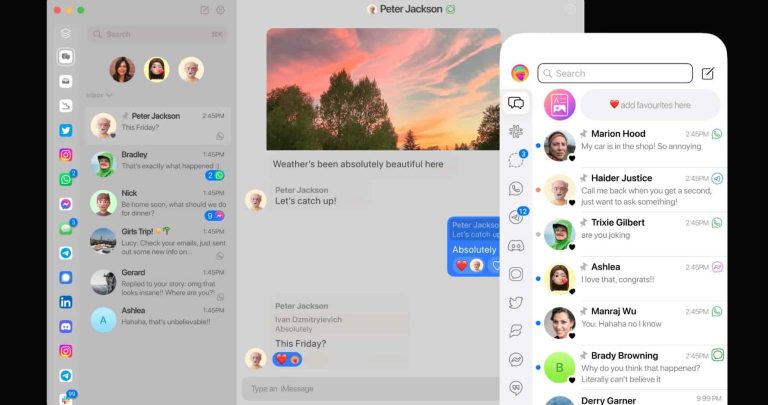
There is a new app out there that wants to bring iMessage to Android, and it’s called Beeper. This app actually wants to unify all your chat services under one roof, ranging from iMessage and Twitter DMs, to Facebook Messenger and WhatsApp.

An app called Beeper could bring iMessage to Android, if Apple doesn’t ruin things

The company is listing 15 chat networks at the moment, including (in no specific order): Facebook Messenger, Instagram, iMessage, Google Chat, Discord, Slack, LinkedIn, WhatsApp, Twitter/X, Telegram, Android SMS, Signal, Beeper, IRC (Libera.chat), and Matrix.

Beeper image 2

That’s quite a list, needless to say. The company also notes that all messages are encrypted on Beeper, and messages from other chat networks that support encryption are re-encrypted.

It’s available on all relevant platforms, but unfortunately via an invite only

Beeper is available in an invite-only form at the moment, but Gizmodo managed to get an early access to it. Beeper is available on Windows, Mac, Linux, Chrome OS, iOS, and Android. So it has a wide range of availability.

You can submit your application via this link, but do note that the experience is not exactly smooth at the moment. Well, at least when it comes to iMessage. Beeper actually uses the Apple ID info to sign in as you on a Mac mini, which is used as a server for relaying messages. That could cause you to get some warning messages from Apple.

On top of that, you won’t get access to all the features from the aforementioned apps, of course. You’ll need to use the proprietary app for that. You can, however, use any of them for sending and receiving messages, if you really want to unite all those services under one roof.

You’ll also need to an iPhone or an iPad to set things up, you can borrow one

Also, do note that you can technically use iMessage on Android this way, but you’ll need to borrow someone’s iPhone or iPad in order to set everything up to work with the Apple ID email address. So it’s not as simple as you may think.

So, the thing works, for now, but Apple could always ask Beeper to remove iMessage, which will likely happen. At which point you won’t be able to use it anymore. In fact, other companies may do the same for their services, we’ll see.

Sign up for Beeper

Beeper image 1


[ad_2]
Source link

X reportedly delayed traffic to websites criticized by Elon Musk

0
[ad_1]

X is making the headlines once again. The rebranded version of Twitter keeps bringing new updates and features regularly. But that’s not all – X’s owner, Elon Musk, is also making waves with his online feud against Meta’s owner, Marc Zuckerberg, and the cage fight between them, which might actually never happen.The Washington Post has revealed that X had been reportedly slowing down traffic to websites that Elon Musk isn’t fond of. This includes big names like Facebook, Instagram, Thread, The New York Times, and Reuters. Users who clicked on links from X to these targeted websites had to wait about five seconds before the page loaded. This delay initially caught the attention of users on the Hacker News forum and was tested by The Washington Post.All these websites have previously faced public criticism from Musk. By supposedly slowing down traffic to these sites, Musk and X might have been snatching away their visitors and ad revenue. In our fast-paced lives, we tend to get impatient if a page takes more than a second or two to load, often moving on to the next thing.

Similar to other platforms, X uses the t.co domain – a link-shortening service – to gather information about users who click on shared links. This domain reroutes traffic, allowing X to monitor or, in this case, supposedly limit activity to the targeted site.

When a link, such as one from The New York Times, takes significantly longer to load through X’s link-shortener than other sites using the same service, it raises suspicions. Cybersecurity researcher Will Dormann told CNN that these discrepancies indicate some sort of trickery is afoot.

This isn’t the first time Musk has let his personal grudges impact the social network. He had previously blocked links to Threads and other rivals. Earlier this year, he labeled The New York Times as “propaganda” and revoked the news organization’s verification checkmark.

As of the time of publishing this article, things seem to have returned to normal, and links to these websites are functioning as they should be.

[ad_2]
Source link

Ford says it’s safe to drive the cars with a WiFi vulnerability

0
[ad_1]

A vulnerability in the SYNC 3 infotainment will not have a negative effect on driving safety, says Ford.

Ford has released information about a buffer overflow vulnerability in its SYNC 3 infotainment system.

Ford learned from a supplier that a security researcher had discovered a vulnerability in the Wi-Fi software driver supplied for use in the SYNC 3 infotainment system available on some Ford and Lincoln vehicles. The company said it started an investigation and subsequently decided that the vulnerability does not affect vehicle driving safety.

Ford’s SYNC 3 system exists in Ford models from 2015 onward. Other than recent vehicles that have the newest version, most Ford vehicles have SYNC 3. If you have a Ford Owner account, you can go to the Vehicle Dashboard to see what version of SYNC your car has.

Lincoln drivers can check their version on the Lincoln Support site (you will need to enter your VIN number).

The SYNC 3 vulnerability is CVE-2023-29468: a vulnerability in the TI WiLink WL18xx MCP driver. An attacker within wireless range of a potentially vulnerable device can gain the ability to overwrite memory of the host processor executing the MCP driver. Exploiting this vulnerability involves a malicious actor crafting a specific frame to trigger a buffer overflow, potentially leading to remote code execution (RCE).

A buffer overflow is a type of software vulnerability that exists when an area of memory within a software application reaches its address boundary and writes into an adjacent memory region.

Ford’s assessment of the vulnerability is that it is highly unlikely to be exploited, since it requires a highly skilled attacker within close proximity of the target vehicle, and the vehicle need to have the engine running and WiFi support enabled. Ford said it isn’t aware of any instances of exploitation.

And even if an attacker were to gain RCE on the SYNC 3 system using this vulnerability, the potential damage would be limited, since the system is isolated from critical control functions like steering, throttling, and braking.

Ford says that if drivers are worried, they can disable the WiFi support in the SYNC 3 infotainment system in the Settings menu, which will stop an attacker from being able to exploit the vulnerability.

Ford is still working on a patch, which is expected in the coming weeks and will be presented including instructions how to manually install the patch using a USB flash drive.


We don’t just report on encryption—we offer you the option to use it.

Privacy risks should never spread beyond a headline. Keep your online privacy yours by using Malwarebytes Privacy VPN.


[ad_2]
Source link

7 Best Cases for the Google Pixel 7a for August 2023

0
[ad_1]

The Google Pixel 7a is now official, and actually available for purchase. So after you purchase your new Pixel 7a, you’ll want to pick up a new case or two for your phone. Here, we are rounding up the very best cases for your new Pixel 7a. So you can get the perfect case for you. Whether you need a rugged case, a clear case, or something customizable like dbrand’s Grip Case.

Poetic Neon Series

718d4 qJSsL AC SL1500

Price: $18.95

Where to buy: Amazon

The Poetic Neon Series case is a durable and stylish case that is perfect for protecting your smartphone. It is made of a two-layer design that provides superior protection from drops and bumps. The outer layer is made of a hard polycarbonate shell that absorbs shock, while the inner layer is made of a soft TPU material that provides a snug fit and protects your phone from scratches.

The Poetic Neon Series case also features a raised lip around the screen that helps to protect it from scratches and cracks. It also has precise cutouts for all of your phone’s ports and buttons, so you can easily access them without having to remove the case.

The Poetic Neon Series case is available in a variety of colors, so you can find one that matches your phone’s style. It is also very affordable, making it a great value for your money.

Poetic Neon Series – Amazon

dbrand Grip Case

damascus warzone 0

Price: $49.90

Where to buy: dbrand

The dbrand Grip case is a premium smartphone case that is designed to provide maximum protection and grip. It is made of a durable, impact-resistant composite material that can withstand drops from up to 10 feet. The case also features a textured surface that provides a secure grip, even in wet or sweaty conditions.

The dbrand Grip case is available for a wide range of smartphones, including Google Pixel 7a. It comes in a variety of colors and finishes, so you can find one that matches your phone’s style.

One of the best things about the dbrand Grip case is its price. It’s very affordable, making it a great option for budget-minded shoppers.

If you’re looking for a durable, protective, and stylish case for your smartphone, the dbrand Grip case is a great option. It’s affordable, durable, and available in a variety of colors and finishes.

dbrand Grip Case – dbrand.com

Ringke Fusion

71RQ WpUipL AC SL1500

Price: $12.99

Where to buy: Amazon

The Ringke Fusion case is a great option for Google Pixel 7a users who are looking for a protective and stylish case. It is made of a durable two-layer design that provides superior protection from drops and bumps. The outer layer is made of a hard polycarbonate shell that absorbs shock, while the inner layer is made of a soft TPU material that provides a snug fit and protects your phone from scratches.

The Ringke Fusion case also features a raised lip around the screen that helps to protect it from scratches and cracks. It also has precise cutouts for all of your phone’s ports and buttons, so you can easily access them without having to remove the case.

The Ringke Fusion case is available in a variety of colors, so you can find one that matches your phone’s style. It is also very affordable, making it a great value for your money.

Ringke Fusion – Amazon

i-Blason Armorbox Lite

61z4sYBxwNL AC SL1171

Price: $15.99

Where to buy: Amazon

The i-Blason ArmorBox Lite case for Google Pixel 7a is a great option for users who want a protective case that doesn’t add a lot of bulk to their phone. The case is made of a durable, impact-resistant TPU material that can withstand drops from up to 6.6 feet. It also has a raised lip around the screen and camera to protect them from scratches and cracks.

The i-Blason ArmorBox Lite case is available in a variety of colors, so you can find one that matches your phone’s style. It is also very affordable, making it a great value for your money.

i-Blason Armorbox Lite – Amazon

Spigen Ultra Hybrid

7115kD3e6 L AC SL1200

Price: $17.99

Where to buy: Amazon

The Spigen Ultra Hybrid case for the Pixel 7a is a great option for users who want a protective case that doesn’t add a lot of bulk to their phone. The case is made of a durable, impact-resistant PC and TPU material. It has a raised lip around the screen and camera to protect them from scratches and cracks.

The Spigen Ultra Hybrid case is available in a variety of colors, so you can find one that matches your phone’s style. It is also very affordable, making it a great value for your money.

Spigen Ultra Hybrid – Amazon

Ringke Onyx

81 2QM3QH0L AC SL1500

Price: $14.99

Where to buy: Amazon

The Ringke Onyx case is a great option for Google Pixel 7a users who are looking for a protective and stylish case. It is made of a durable two-layer design that provides superior protection from drops and bumps. The outer layer is made of a hard polycarbonate shell that absorbs shock, while the inner layer is made of a soft TPU material that provides a snug fit and protects your phone from scratches.

The Ringke Onyx case also features a raised lip around the screen that helps to protect it from scratches and cracks. It also has precise cutouts for all of your phone’s ports and buttons, so you can easily access them without having to remove the case.

The Ringke Onyx case is available in a variety of colors, so you can find one that matches your phone’s style. It is also very affordable, making it a great value for your money.

Ringke Onyx – Amazon

Spigen Liquid Air

71DtkNZmFoL AC SL1200

Price: $17.99

Where to buy: Amazon

Spigen Liquid Air is a popular case that is known for its slim profile and durable construction. It is made of a TPU material that is both flexible and protective, and it has a raised lip around the screen and camera to protect them from drops.

The Liquid Air case is available in a variety of colors, so you can find one that matches your phone’s style. It is also very affordable, making it a great value for your money.

Spigen Liquid Air – Amazon


[ad_2]
Source link

A mysterious chip was found next to the iPhone 15’s USB-C charging port

0
[ad_1]

The EU was able to successfully twist Apple’s arm and make it adopt the USB-C technology for the upcoming iPhone 15. The company wasn’t happy about it, and it even wanted to develop a new standard called USB-C for iPhone. While it’s not doing that, a mysterious 3LD3 chip was spotted in the iPhone 15 along with the other charging components.

In case you don’t know, the EU has been working to make USB-C the standard across the continent. So, it’s not targeting Apple specifically. Basically, any and all devices that could be powered by a USB-C port will be. Larger devices and appliances are excluded from this list, of course; your refrigerator won’t be powered by a USB-C port.

Mysterious 3LD3 chip was found in the iPhone 15

This report comes to us from Majin Bu on Twitter (via Phone Arena). The post shows us a series of leaked images of the iPhone 15’s charging components. Along with those, there’s this random chip. We see that it’s an Apple-made chip, and it has the text 3LD3 on it.

iphone 15 3ld3 chip

At the moment, we don’t know what its purpose is. However, it’s rather convenient that this chip pops up right when Apple needs to reluctantly switch to a new charging standard. One thing that Apple Analyst Ming-Chi-Kuo noted is that Apple will make Apple-certified USB-C cables. People who use those cables will have faster charging and data speeds.

If that’s the case, then this chip could be used to tell if the user is using an Apple-certified cord or a third-party cord. This is probably the next best thing to create a standard specifically for iPhones. This will push people to pay for Apple-made cords over third-party cords. That might seem weird, but it’s not very different from how things are with the lightning cable. Many companies make third-party lightning cables, but Apple also sells its own.


[ad_2]
Source link

PCMag ranks Malwarebytes #1 cybersecurity vendor

0
[ad_1]

PCMag readers named Malwarebytes the #1 most-recommended security software vendor in its list of Best Tech Brands for 2023. 

PCMag, one of the most trusted publications by IT professionals, named Malwarebytes the #1 most-recommended security software vendor on its list of Best Tech Brands for 2023. 

The ranking is based on a Net Promoter Score (NPS), a composite rating based on customer reviews from PCMag’s Reader’s Choice and Business Choice surveys, meaning the score reflects real user feedback.

Malwarebytes ranked #3 out of ALL tech brands, ahead of Apple and Bose, with a NPS score shooting up from 77 in 2022 to 83 in 2023 for security suites, demonstrating the growing trust IT teams and MSPs place in our EDR and MDR solutions.

Why readers chose Malwarebytes 

There are a number of reasons why PCMag readers ranked Malwarebytes as the #1 cybersecurity brand ahead of vendors like Webroot and Bitdefender. It all starts with superior prevention.

Malwarebytes consistently ranks #1 in third-party evaluations, with a 100% detection rate with zero false positives. For example, we’re the only vendor to win every MRG Effitas certification & award in 2022 and so far in 2023 on the rigorous independent lab tests.

The behavior-based detection techniques and proprietary anti-exploit technology of Malwarebytes EDR is proven to detect and block more malware and advanced threats than any other vendor.

But todays IT constrained organizations need endpoint security solutions that not only prevent the most advanced threats, but that are easy to use as well. Malwarebytes’ customers rank our EDR highly for its ease-of-use, remediation capabilities, and total ROI.

Award-winning EDR Solution 

Malwarebytes EDR has been recognized for having the Best Support, being Easiest to Do Business With, having the Easiest Admin, being the Easiest to Use, Most Implementable, and the Easiest to Set Up.   

“The Nebula console is one of the most user-friendly interfaces we’ve come across. We can’t recommend it enough.” – Justin N. 

“Malwarebytes makes it simple to deploy. Additionally, the user interface has minimal impact on the end-user, so its win-win. Support are happy to help when you do hit the occasional bump and the portal is easy to use and very responsive.” – John K. 

We remediate better

Unlike other EDR solutions, Malwarebytes is born out of remediation, with a long history of finding and fixing what other solutions miss—as seen in our Remediation Map of Malwarebytes’ superior detection in action.  

Automated and thorough malware removal is hard, and vendors too often focus only on deleting the active malicious executables. Malwarebytes’ proprietary technology removes dynamic and related artifacts to thoroughly remediate infections and prevent reinfection.

“Prior to Malwarebytes, we spent many hours and days cleaning up viruses and malware that other products failed to identify and remediate. We now have close to zero need for after infection cleanups which frees us up to do other things.” – Ron M.

Highest ROI 

Ranked #1 EDR in G2’s Summer 2023 report, Malwarebytes provides the best estimated ROI of all endpoint protection suites based on a unique combination of rapid implementation and time to ROI. 

“The best part about Malwarebytes is the set it and forget it. It has saved us so much time on deployment and remediation that it pays for itself in no time at all.” – Ron M.

“It keeps our working environment much more secure than our previous solution. Much easier to manage in real time. This thing is a money saver and pays for itself.” – Tyson B.

Why organizations choose Malwarebytes MDR 

Customers not only love the easy effectiveness of our  EDR; our Managed Detection and Response (MDR) managed service receives high praise too.  

The powerful and affordable threat detection and remediation services of Malwarebytes MDR has rescued many an IT team member from persistent threats and sleepless nights. Drummond, a Florida-based print company, experienced the benefits of 24×7 monitoring and threats investigation to stop attacks firsthand:

“Cyber threats are 24/7, and my team needs to sleep. The MDR team watching our network around-the-clock gives us a chance to sleep without worry. With Malwarebytes MDR backing us up, I also finally got to step away and take a two-week vacation. I’m just glad to know that we have a security team watching over our shoulder and making sure it’s all clear.” – Dennis Davis, IT Systems Manager, Drummond 

Try Malwarebytes for Business today 

Most of all, we appreciate the trust and support of our customers in making Malwarebytes the #1 cybersecurity solution for IT teams and MSPs.  

Interested in seeing why PCMag readers recommend Malwarebytes? Learn more below.

Get a free demo today.


[ad_2]
Source link

Whatsapp will use generative AI to help boost your chats

0
[ad_1]

AI is not a craze, it’s not a phase, it’s here to stay. More companies are hopping onto the generative AI train, and it was a matter of time before WhatsApp hopped on. Thanks to a new report from WABetaInfo (via 9To5Google), WhatsApp could let you use AI to generate stickers to use in chat.

Tons of features enter beta for WhatsApp, but not all of them make it to the public. These AI stickers are also in beta testing, so there’s no telling if the general public will see them. In any case, with how explosive the AI boom has been, it seems likely that the company will push this to the stable version.

WhatsApp could use AI to generate stickers

We’ve all scrolled through a feed of stickers to find the right one to express our moods. However, there are times when we just don’t find the right one. While there are a ton of stickers out there, it’s still a finite amount.

This is where generative AI comes in. It was spotted in the WhatsApp beta version 2.23.17.14, and the folks at WABetaInfo were able to get it working. In the screenshot, we see an open chat. When in the Stickers section on the keyboard, you’ll see a banner stretch across the top of the keyboard. It prompts you to generate your own sticker with the “Try it” text in green. Under that, you’ll see a Create button with the classic sparkle icon that’s become the standard icon for generative AI.

WhatsApp AI generated sticker

When you do that, you’ll see a new page with a text field up top. Here, you’ll describe what you want WhatsApp to create. Under that, you’ll see your sticker as the result.

The speed of generative AI has improved since the early DALL-E days and, since we’re talking about generating a tiny picture, we shouldn’t expect the app to take long to make your sticker.

At this point, we don’t know when WhatsApp will launch this feature if it decides to. Right now, it’s being tested with a limited number of users, so if you’re on the beta, you can check and see if you have it.


[ad_2]
Source link