So, instant messaging apps. They are everywhere nowadays. What started out with just a few apps here and there — back when a stable internet connection on your phone was just becoming a thing — is now pretty much its own industry. And we know that all of you best phone owners use at least one such app.And while WhatsApp and Messenger take most of the limelight — maybe even Viber or Telegram from time to time — Signal is also a cool alternative. I mean, can you name another app that has a feature that lets you change its icon for privacy reasons? Secret agent levels of secrecy much?
Signal also has a public beta on Android, which you can become a part of. And the latest update is seemingly less about the 007 mode and more about providing a bit of character and clarity through Text formatting.
Yep. We’ve gotten to a point where this doesn’t come pre-packaged sometimes. Oh well.
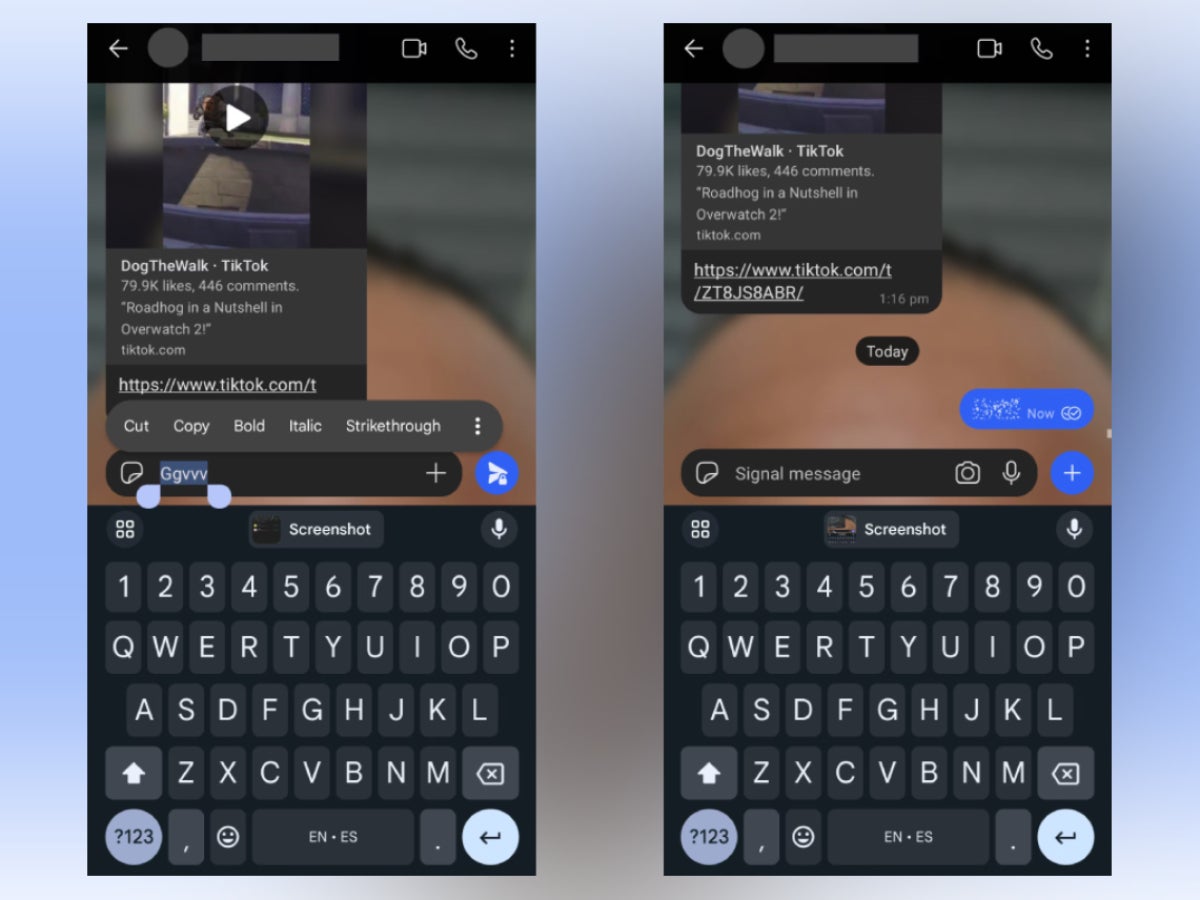
Some example screenshots, thanks to Android Police.
So, most of you probably associated formatting with
positioning like this
or maybe even extreme cases like this.
But this highly-advanced technical term also includes exhilarating concepts of the future such as:
Marking a text as Monospace in order to make something stand out as a different type of info
Utilization for strikethrough, if you’d like to go back and redact a part of a chat as no longer valid
The always appreciated bold and italic
And one that makes your text appear like alien radio waves from outer space!
Okay, I’ll elaborate. Remember how I wrote “seemingly” earlier in this text? Well, that is because I lied. You see, with this update, there is a spoiler effect, which may want to trick you with its name, but the way it looks on screen is very, very Agent of S.H.I.E.L.D.
You can still use it to hide actual spoilers. It’s just way less fun than hiding top-secret information. Or whatever.
But what about using all of these cool features? I thought you’d never ask:
Type something out
Mark your text via holding down on it with your finger and then adjusting the range
Hold down your finger
Voila! The features should have appeared, as long as you’ve joined the Beta
This one definitely falls within the “fun to use and appreciated” category of app updates. However, keep in mind that it is — as of now — only a part of the Signal beta on Android, so if you are eager to try it out: check if you can apply to join through the app’s Google Play Store listing.
The industry’s first-ever directory of virtual Chief Information Security Officer service providers has gone live today at www.thevcisodirectory.com. This extensive list of virtual CISO (vCISO) providers, collated by Cynomi, means that small- and medium-sized businesses (SMBs) can easily tap the expertise of qualified cybersecurity professionals to protect their digital assets and ensure compliance.
Cyberattacks are on the rise, with Check Point Software’s Mid-Year Security Report revealing a 42% global increase in malicious incidents during the first half of 2022. In this climate, strong cybersecurity measures are crucial. However, most small and medium size companies do not have a CISO of their own, usually because they lack the budget to fill such a position. This problem is compounded by the talent gap that makes it difficult to find individuals with the necessary skill and specialized experience. According to research by Datto, only 50% of SMBs have a dedicated, internal IT person who manages their cybersecurity needs.
To address this gap and help organizations shore up their cyberdefenses, managed service providers (MSPs,) managed security service providers (MSSPs) and consultancies have developed vCISO services. They enable businesses to avail themselves of the expertise and skills of a professional CISO to improve their cybersecurity posture, while only paying for an agreed scope of work, usually a fraction of the cost of an in-house security expert. Cynomi, by publishing the industry’s first vCISO directory, is making it simple for businesses to access this expanding pool of resources.
At launch, the vCISO directory contains more than 200 listings of U.S.-based providers, together with details on the specific services they offer and the technology platforms they use to guide and implement their security strategies. The directory will be continually updated and expanded globally to incorporate international providers.
“Thousands of small and mid-sized businesses globally could benefit from the expertise and support of a traditional CISO, but on a more consultative or part-time basis”, said David Primor, co-founder and CEO of Cynomi. “This is where the vCISO services come in. Our new directory enables businesses to find all vCISO service providers in one place and make an informed choice between the different benefits of the many providers available.”
“Couple of years back we weren’t prioritizing our cybersecurity services, but then we started getting consistent security-as-a-service requests,” said Chris Bevil, CISO of InfoSystems, an MSP located in Tennessee, U.S.A. “We realized that setting up a robust vCISO offering was in our best business interest. In the present climate, this has been a significant boost to our business and positioned us as a leading MSP in our region.”
MSPs and MSSPs offering vCISO services that are not yet included in the directory can submit their details for consideration here.
About Cynomi
Cynomi’s AI-driven platform empowers MSSPs, MSPs and consultancies to offer vCISO services to SMEs at scale and provide them with proactive cyber resilience. Combining proprietary AI algorithms with CISO-level knowledge and knowhow, Cynomi’s platform streamlines the vCISO’s work while automating manual time-consuming tasks including risk assessment, compliance readiness, cyber posture reporting, creation of tailored security policies and remediation plans, as well as task management optimization.
Cynomi helps partners overcome the cybersecurity skill gap and scale their business, allowing them to offer new services, upsell and increase revenues while reducing operational costs.
Established in 2020 with the vision that every company deserves a CISO, and with a channel-only approach, Cynomi now serves more than 50 partners worldwide.
To learn more about Cynomi’s solution for MSPs, MSSPs, and cyber consultancies visit www.cynomi.com
Samsung‘s massive June update for the Galaxy S23 series has reached Europe, even as the company appears to have halted the rollout in some other regions. This update brings a host of camera features and other goodies. For starters, it adds a 2x zoom option for portrait shots, on top of the existing 1x and 3x options. The company has also improved the quality of Night mode photos and fixed the “banana blur” issue. The latter issue existed on the Galaxy S23 and Galaxy S23+. It caused blurry patches in photos.
This update also improves the haptic feedback of the new Samsung flagships. Additionally, the company has improved system animations and transitions to give you a smoother navigation experience.
Moving through various system menus on the Galaxy S23 phones will feel a lot more pleasing following this update. Last, but not least, it brings the latest security patch and possibly some other minor changes. The June 2023 SMR (Security Maintenance Release) for Galaxy devices contains fixes for more than 60 vulnerabilities.
The June update for the Galaxy S23 series is a massive one and that is reflected by its OTA (over-the-air) size. It weighs almost 2.2GB. The new build number in Europe is S91*BXXU2AWF1 (via GalaxyClub). As usual, you can check for updates from the Settings app. Go to the Software update menu and tap on Download and Install to see if you have a pending OTA update. Samsung may expand it to other markets, including the US, in the coming days. But considering the reports of bugs, the update may be delayed in some regions.
This Galaxy S23 update is said to contain bugs
Samsung began rolling out the latest update to the Galaxy S23 series last Friday. It was released in a handful of Asian countries but never made it past them all this while. This led to rumors that the update contains bugs, with reputed tipster Ice Universe chipping in to say the same. Some users reported heavy battery drain, but there haven’t been many reports.
Meanwhile, Samsung Was spotted working on multiple new firmware builds for the Galaxy S23 series, possibly to fix the bugs. But it’s now pushing the same build to European users. According to Ice Universe, this is because the “AWF1” build for the Galaxy S23 model number SM-S91*B has already entered the “Open” stage.
Samsung will not pull it back. Instead, it will push a separate update to fix the bugs if need be. Users on other markets, meanwhile, may get a new build with necessary patches. We will keep a close eye on this development and will keep you posted.
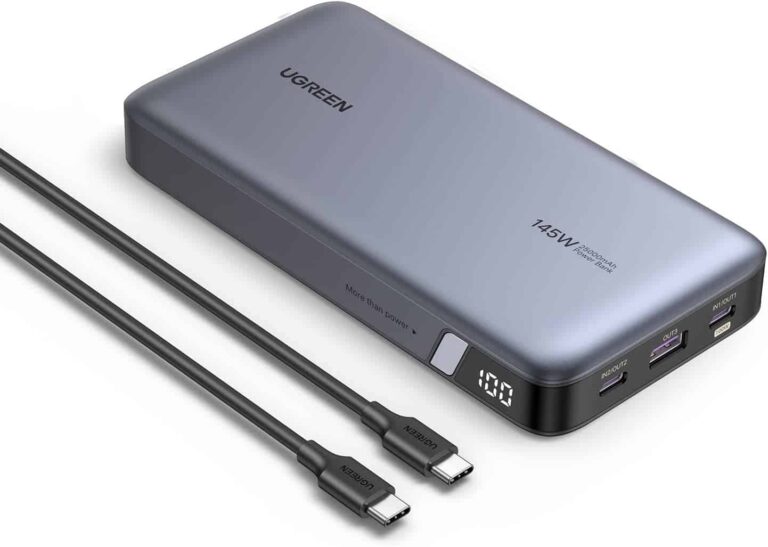
Our devices have changed over the years, but the need to keep them charged while on the go hasn’t. UGREEN just released a massive charging bank that’s guaranteed to keep your devices charged whether you have a phone, tablet, or computer. It’s the UGREEN 25,000mAh charging that can deliver a whopping 145W of power.
Portable charging banks typically come in a range of capacities, but they’re usually low. They’re to keep your phone from dying while on a trip. However, this portable charger takes things to the next level.
This UGREEN charging bank also has blazing-fast charging
One of the main areas where typical power banks fall short is the charging speed. It doesn’t matter if your phone supports fast charging when connected to the wall. Most banks just aren’t built to deliver a lot of power at once. This power bank flips the script.
The UGREEN power bank supports PD3.0 and QC3.0, and it can deliver up to 145W of power. Since some new phones come out with 120W fast charging, you’ll know that you’re covered no matter how fast your device’s charging is.
Most new phones from Chinese companies give their phones 120W charging. Even the new Samsung Galaxy Books have 68W charging. It doesn’t matter what the device is, it’ll be charged up quickly.
What if you have more than one device? No worries, as this power bank can charge three devices at the same time. Why not charge your tablet alongside your phone? You can do that to keep productive. You won’t need to plug your phone into your computer just to keep it charged.
Speaking of computers, you’re able to charge your computer as well. If your computer charges via the USB port, then you can plug into this power bank. It has a massive 25,000mAh capacity, so there’s a ton of power to feed off of.
The company says that it can charge a 2022 13″ Macbook Air in just 90 minutes. You won’t have to worry about your computer dying on you if you’re out and about.
If you’re looking into picking one of these power banks up, you can order it from Amazon US and Amazon UK. It costs $149.99/£139.99.
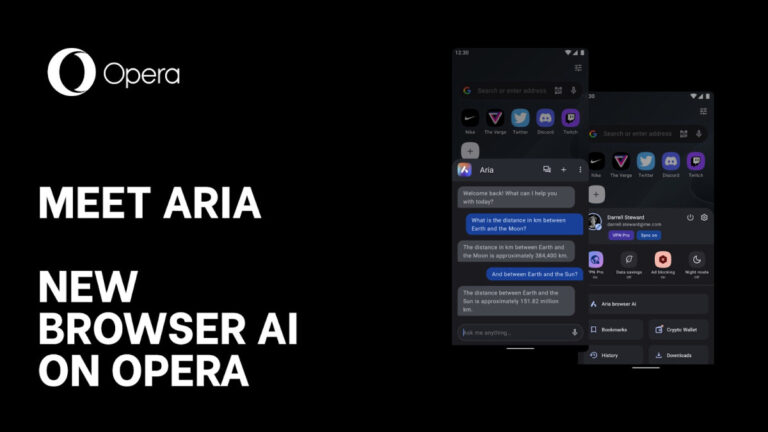
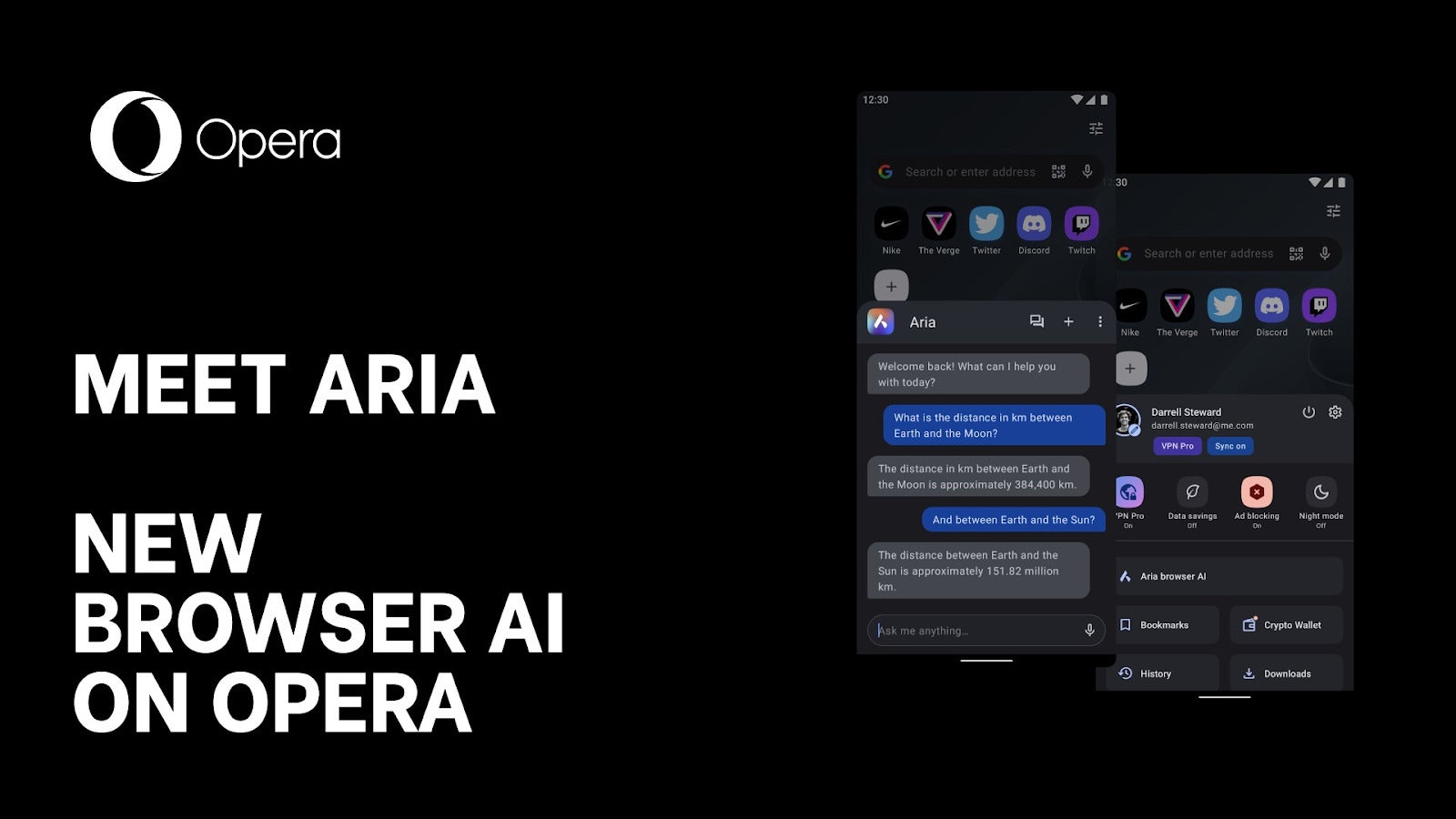
Aria, the native AI browser developed by Opera and OpenAI, is now available for all Android users, as well as on desktops. Marketed as a “free service giving users access to a popular GPT tool paired with live results from the web,” Opera Aria promises a new browsing experience.
With the usage of AI tools on the rise, the launch of new native AI browsers that leverage the power of these tools to enhance productivity is not out of the ordinary. Based on Opera’s Composer infrastructure, Aria connects to OpenAI’s GPT technology, which is further enhanced by additional capabilities, including the ability to add live results from the web.
The AI in Opera provides a user-controlled experience, which means that users have the choice to opt in or not, depending on whether or not they need AI services. Those who do want to try out Aria’s AI services are promised “smart insights and answers, fresh ideas,” as well as the ability to respond to voice commands at will.
To make use of Aria’s powerful AI features, users in more than 180 countries worldwide, including the EU, you’ll need to log in with your Opera account or register for free if you don’t have one. Then, simply open the browser AI in the main many and start checking out the new features. Also, Aria is also available in Opera One, the software company’s redesigned flagship browser.
Motorola is back with the Razr, and its second true attempt at a foldable. And on the surface, it seems like Motorola has really hit out of the park. Motorola addressed basically everything that users complained about with other flipping phones, and also lowered the price. That includes adding a larger cover display, a larger battery that lasts longer, and a cheaper price tag. But was that enough to make the Motorola Razr+ a best-seller for the company? It might be. But let’s find out in our full review.
Table of Contents
Motorola Razr+ Review: Hardware & Design
The design of the Motorola Razr+ is actually a bit different than you might expect from Motorola. With their previous foldable, they did keep some of the unique design choices that made the Razr so popular in the 2000s. After all, the Razr v3 did sell over 130 million units worldwide, so it was a big seller for the company. So it makes sense to reuse that name here. But it didn’t make sense to keep the chin.
With the Razr+, the chin is gone. That does get rid of one of its more differentiating factors however. And now, it looks like every other flipping phone on the market. And it has less of an industrial design this time around.
Motorola has outfitted the Razr+ with curved sides, which make it feel better in the hand. It also has the power button and volume rocker on the right-hand side. The power button also doubles as a fingerprint sensor. Making it easier than ever to get back into your Razr+. That fingerprint sensor works really well, and I really wish every phone went with a power button fingerprint sensor.
On the opposite side, you’ll find the SIM card slot. While there is support for eSIM, it is not the only way to use the Razr+. Unlike the iPhone 14 series which is eSIM only. So that’s good to see.
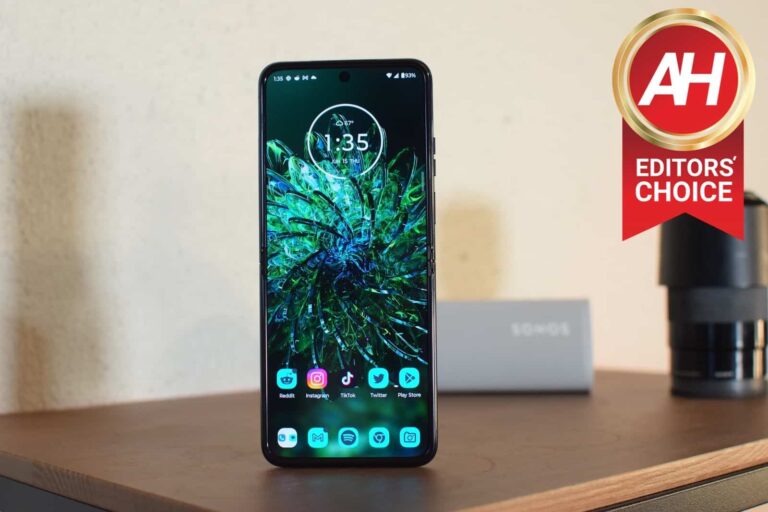
The back of the phone is going to be frosted glass, unless you get the Viva Magenta color (exclusive to T-Mobile and Motorola.com) which is a vegan leather back. It feels great in the hand, whether folded or not. Inside, you’ll find the massive 6.9-inch display, along with the cut out for the front-facing camera, and a lifted bezel. This is the case for most foldables these days, where the bezel is actually raised, to protect the folding display.
Let’s address the elephant in the room. It does not fold completely flat. This isn’t new. Most foldables do not fold completely flat, because of the hinge. But it became a big deal after a few leaks of the Pixel Fold came out, saying it didn’t fold flat. That’s still the case here on the Razr+. But you won’t notice, unless you are looking for it.
It’s one of the most stunning foldables I’ve seen, so far. Now, this does come ahead of Samsung announcing the Galaxy Z Flip 5 (and Fold 5) next month, so that might change. But Motorola has really hit it out of the park, at least from a hardware and design standpoint.
Motorola Razr+ Review: Display
Like most foldables, the Razr+ does have two display. The inner display is a 6.9-inch FHD+ 165Hz AMOLED display. While the outer display is a 3.6-inch 144Hz AMOLED display, it has a resolution of 1056×1066, so it’s almost a square.
The inner display is quite nice actually. It’s great to see Motorola using a proper AMOLED here instead of a pOLED display. While they are similar, AMOLED displays are a lot more vibrant and reproduce color a lot more than pOLED does. It’s really a great display, with one problem. It’s a problem that I’ve gotten used to with the Razr+, and that’s the aspect ratio. This is a taller device than most others on the market. With the inner display being a 22:9 aspect ratio. This makes it tougher to reach the top of the display, when using it one hand.
Now, I don’t know for sure, but I’d assume that making this taller is what allowed for the larger front-display on the Razr+. Though, a slightly wider phone wouldn’t be too bad either. It’s something you’ll get used to after a few days, but it’s another thing to keep in mind.
Large Front Displays are in
I spent a good two months using the Galaxy Z Flip 4 as my daily driver last year, because it was really the first Flip phone that had decent battery life – thanks to the Snapdragon 8+ Gen 1, the same chipset in the Razr+. And the main thing I disliked about the Flip was, having to open it tens if not hundreds of times a day for every little thing. With the Razr+, you don’t need to.
The front display can be used to reply to emails as well, as it can fit the entire keyboard on that screen. Now it will be hard to see what you’re typing, but it is possible. I’d say you’re more likely to reply to text messages, than write an email with this screen. Unless it’s a super short email.
Apps do work on the front display, and in fact, every app works on it. Motorola said that they built it so that any Android app should work on the display, some will look better than others, however. We did try a number of apps on this front display. Particularly ones that don’t generally work well on these weird aspect ratios, like Instagram. And it worked. Now was Instagram the best looking on this square display? No, of course not. But it does work. Other apps we tried included Twitter, Amazon, and Google News, to name a few. They all worked, but other than Twitter, I’d prefer to use them on the internal display.
Since this outer display is a 144Hz panel, you might be thinking about games. And yes, there are some games that work here. They are powered by the Game Snacks that Google has been working on for Android Auto. Which is pretty interesting. There’s games like Marble Mayhem which you have to tilt the phone to get the marble through the maze, and then it drops into the camera. Which is neat. Other games that are pre-installed include Astro Odyssey, Scooter Xtreme, Tiger Run, Stack Bounce and 99 Balls 3D. Obviously, these are not AAA games, and really lightweight games. Which is what you’d expect for playing on such a small display.
These are mostly games you’d play when you have time to kill, like waiting at a doctor’s office, or something like that. Probably not something you’d use often, but still cool to have.
Motorola Razr+ Review: Performance
Inside the Razr+, there’s the Snapdragon 8+ Gen 1, with 8GB of RAM and 256GB of storage. Now some of you might have noticed, that is an older processor. It is, but it’s not that old. It’s just now hitting a year since it was announced. But it’s still a really good processor, and that is likely how Motorola was able to put the Razr+ out for under $1,000.
The Snapdragon 8+ Gen 1 performs as well here as it has on every other phone that has used this processor over the past year. That means that it is pretty fast, while staying cool, and very battery efficient. While using the Razr+, I never really noticed any overheating. Now, the phone did get hot while using the camera for extended periods of time and playing games, as it would normally. But otherwise, it was pretty cool.
For others 8GB of RAM likely feels like its kind of old at this point. But it’s plenty of RAM. When using the Razr+, apps didn’t really need to be redrawn, and it did keep apps in memory quite nicely. That’s surprising, compared most other Android smartphones from Google and Samsung do not do that, with the same amount of RAM.
Overall, performance here was quite nice. It’s not the most powerful smartphone on the market, but it does a good job at everything it needs to do. And everything you might throw at it.
Motorola Razr+ Review: Battery life & Charging
This section is going to have some good, and some bad news. Let’s start with the good news, battery life.
Battery life on the Motorola Razr+ hit my expectations. Comparing it to the Galaxy Z Flip 4, which has a slightly smaller battery at 3700mAh, while the Razr+ has a 3800mAh battery. And the processor is the same, while the Razr has a slightly larger display and a higher refresh rate. I figured I’d get about the same battery life, and, I was actually wrong. The Razr+ outperformed the Galaxy Z Flip 4, slightly.
When I reviewed the Galaxy Z Flip 4 last year, I was usually getting six or seven hours of screen on time. With the Razr+, I’ve been getting eight hours on most days, but no less than seven hours. That’s pretty good. Not quite on the level of some non-folding phones like the Galaxy S23 Ultra, but it is better than the Pixel 7 Pro.
Wireless charging should have been skipped
Now, onto the bad news. Charging speeds. Motorola has pretty decent wired charging speeds at 30W. Sure, faster would be nice, but even at 3800mAh, this does charge pretty quickly. The bad news though, is the wireless charging speed. It’s 5W, which is just, so bad. That’s about as slow as you can get. Now, I understand that Motorola was looking to cut some corners and save money, while also protecting the battery. But 5W? Motorola should have just omitted the wireless charging and maybe given us a slightly larger battery with that space.
The other bit of bad news is, Motorola is joining the OEMs that no longer include the charger in the box. Now, Motorola did include a charger in our reviewers kit, but that won’t be in the retail boxes that ship in late June. Most of us likely have a 30W capable USB-C charger, but if not, you’ll need to buy one.
Motorola Razr+ Review: Software
For the most part, Motorola has stuck to a vanilla Android approach on its phones. And that includes the Razr+. So you’ll notice that it is very similar to what the Pixel offers. Though it does ditch some of the annoyances of the Pixel software, like the battery life screen only updating every two hours – obviously, that’s really only an issue for reviewers like myself.
With Motorola sticking to a vanilla approach here, that does mean that Material You is available on the Razr. But it’s not the same method as other smartphones. Basically, it’s not located in the Wallpaper screen. Instead, long-press on the home screen and tap on Personalization. In here, you’ll see a number of options for personalizing the Razr+. This includes themes, fonts, colors, icon shapes, and so much more. In the colors section, you’ll find the Material You options for the icons. It includes basic colors and wallpaper colors. So it uses a single shade instead of up to four shades, like stock Android uses. It’s unclear why this is, but it is what it is.
Motorola has added some curated live wallpapers that react to you opening and closing the Razr. Like a flower opening as you open the Razr and closing as you close it. It’s the little things that make all the difference and this is one of them. Of course, you can set any wallpaper you’d like, but some of these are really cool, to be quite honest.
The company has also added a ton of gestures that you can use on the Motorola Razr, to get the most out of this phone. Like the Sidebar, which is a quick way to jump into other apps for multitasking. You can also turn on gestures to double-tap the screen to put the phone to sleep or wake up. Interestingly, these are two separate options. So you can turn one on for turning off the display and keep the one off for turning on the display, if you wish to do so.
Motorola also allows you to swipe across the screen to jump into split screen mode. Making it much easier then going to the recents menu and doing it. And there’s so many more. If you go to Settings > Gestures, you’ll find about 20 different options there. Of course, an oldie but goodie is still there. And that’s the chop to turn on the flashlight. That’s a gesture Motorola added on the original Moto X, way back in 2012, when Google owned them.
The software on the Motorola Razr+ is really fluid and I have not had any issues with it at all while reviewing this device. Everything’s been super smooth and quick responding. But that’s what you get when you stick to a relatively vanilla approach to Android. Something we wish more smartphone makers did.
To wrap up the software section, it’s important to talk about updates. According to Motorola, they are promising three OS updates. Which means this will get Android 14, 15 and 16. As well as 4 years of security updates. That does put them in line with most other OEMs, and a big departure from its previous stance of maybe updating their phones to the next version of Android. So good on Motorola there.
Flex View mode is incredible
Flex View is nothing new for foldables. Samsung was the first to do this, back on the original Flip, and others have added this feature as well. But basically, on the Razr+, Flex View is great for using with the camera. When you take a photo, the front-display will automatically show the viewfinder, even if you are not in Flex View mode. If the phone is flat, it’ll still show the viewfinder. So those you’re taking photos of, can see how they look. You can also use this when closed, so the front-facing camera is pretty much pointless.
There’s more that the camera can do in Flex View mode as well, like the ability to take multiple photos back to back, like a photo booth. You can also take photos hands free, and the viewfinder will take up the top half of the display, while the controls take up the bottom half.
It also works in a few other apps like, YouTube. Which will show the video in the upper half of the screen, with all the controls at the bottom. But most of the Flex View features are in the camera app, currently.
Motorola Razr+ Review: Camera
The cameras on the Motorola Razr+ aren’t the most feature-rich, and they aren’t going to be the best cameras on a smartphone. We kind of expect that from Motorola these days. But they will get the job done. The cameras are actually pretty good, though some of its non-folding competitors will perform better – like the Galaxy S23 Ultra and Pixel 7 Pro.
On the Razr+, we have a 13-megapixel ultrawide sensor, and a 12-megapixel main sensor. The main sensor is fairly large at 1.4um, in fact, those are larger pixels than what the Pixel 7 Pro uses. This means that Motorola’s camera can let in more light. So even though it is only a 12-megapixel shooter, it does provide some really great looking photos.
In my testing of the Razr+, I found that the colors were pretty accurate, and not saturated at all. So that’s a win over the Galaxy S23 Ultra already. It was also able to take photos of my dog that didn’t get super blurry. Typically, her face becomes blurry on any non-Pixel smartphone. Due to her being black and not staying still for more than a fraction of a second. So that means that the focus is accurate and the shutter is fast. That’s always a good thing.
Macro mode done right
Motorola has often times been an offender of adding a dedicated macro sensor that was just complete trash. Usually a 2MP or 5MP macro sensor, just to be able to say there’s two or three sensors on the phone. But with the Razr+, Motorola decided to use the ultrawide for Macro. What they call “Macro Vision”. This is the new trend as of late, and it works out really well. I was able to get up pretty close to a number of objects and get some really good macro shots.
Macro mostly works better on trees, signs and plants outside. That is because of the natural sunlight. Remember when you are that close to something, you’re also blocking the light. Making it tough to get enough light to get a good picture. I took a few pictures at my desk, and they didn’t come out quite as nice.
Here’s a few samples of the macro shots I was able to get.
Portrait mode on the other hand, is also fairly good. It’s not perfect, especially on objects. Like with a lot of other phones, portrait mode works better on humans than objects. But I was still pretty impressed with it. Motorola might take the second best portrait mode photos behind the Pixel.
Should you buy the Motorola Razr+?
The big question here is, whether you should buy the Motorola Razr+? I really want to say yes. But a foldable is not for everyone. Even for myself, I’m not sure I could live with this phone for two, three years, before it’s time to upgrade again. And that’s not to say it’s a bad phone, it’s quite the opposite. I just don’t know if I’m ready for having to open my phone hundreds of times a day to do things.
However, if you are looking to get a foldable, this might be the one to get. And there are plenty of great deals available right now, where you can get it for nothing, or very little money. If you want something a bit cheaper, the Razr will be launching in a few months, with an even lower price tag.
The threat actor “Midnight Blizzard” is engaging in increasing credential attack activity.
They conceal the origin of their assaults by employing residential proxy services.
These attacks target governments, IT service providers, NGOs, the defense sector, and vital manufacturing.
Numerous password spray, brute force, and token theft tactics are used in these credential assaults.
Microsoft has detected increased credential attack activity by the threat actor Midnight Blizzard using residential proxy services to obfuscate the source of their attacks. These attacks target governments, IT service providers, NGOs, defense industry, and critical manufacturing.
— Microsoft Threat Intelligence (@MsftSecIntel) June 21, 2023
Employing Low-Reputation IP Addresses & Proxy Services
Midnight Blizzard (NOBELIUM) has also carried out session replay assaults using stolen sessions, most likely obtained through illegal selling to get initial access to cloud resources.
Threat actors’ connections made with compromised credentials can be obscured by utilizing low-reputation IP addresses, such as those provided by residential proxy providers.
Microsoft Threat Intelligence reported that “the threat actor likely used these IP addresses for very short periods, which could make scoping and remediation challenging.”
Details of Midnight Blizzard Threat Actor (Microsoft)
Microsoft noted in a series of tweets that, making issues even more difficult, the threat actor only uses these IP addresses occasionally, creating substantial obstacles for effective scoping and remediation operations.
It is important to note that the same organization, known as Midnight Blizzard or NOBELIUM, was responsible for the disastrous SolarWinds breach in late 2021.
Microsoft has strengthened its defenses to combat this growing danger. To defend against these attacks, Microsoft Defender Antivirus, Defender for Endpoint, Defender for Cloud Apps, and Azure Active Directory have all been given strong security features and improved detection capabilities.
Manage and secure Your Endpoints Efficiently – Free Download
US military personnel have become unsuspecting recipients of unsolicited smartwatches delivered straight to their mailboxes. Recent reports indicate that these seemingly innocuous devices, once activated, automatically connect to Wi-Fi networks and establish unauthorized connections with users’ cell phones, potentially exposing sensitive personal data.
It has been discovered that these smartwatches are not only capable of accessing a vast array of user information but may also contain malicious software, including malware. This was revealed on June 15th, 2023, by the Department of the Army Criminal Investigation Division in a press release.
This malicious software grants the sender unrestricted access to saved data, including but not limited to banking information, contacts, and account details such as usernames and passwords. The consequences of such breaches could be far-reaching, compromising not only personal privacy but also financial security.
Moreover, security experts have warned that the embedded malware might enable unauthorized individuals to remotely exploit the smartwatches’ voice and camera functionalities.
This would grant malicious actors the ability to monitor private conversations and gain unauthorized access to online accounts tied to these devices, further exacerbating the potential risks faced by the affected military personnel.
This incident is somewhat similar to the one in March 2020, in which malware-infected USBs were sent with unsolicited Best Buy gift cards. According to researchers, the USB drives contained an Arduino microcontroller ATMEGA32U4 and were infected with GRIFFON malware.
The unsettling discovery has raised concerns among military officials, prompting investigations into the origins and intentions of these unsolicited smartwatches. While the exact motives remain unclear, experts suspect that these devices might be part of a larger scheme known as “Brushing.”
This deceptive practice involves sending counterfeit products to unsuspecting individuals in order to generate positive reviews under their names, enabling unscrupulous companies to compete with established products.
To combat this growing threat, military personnel who receive these unsolicited smartwatches are urged to exercise caution and follow specific protocols. First and foremost, recipients are strongly advised not to turn on the device under any circumstances. Instead, they should promptly report the incident to their local counterintelligence or security manager.
Additionally, individuals can utilize dedicated reporting channels such as the “Submit a Tip – Report a Crime” portal to ensure swift action is taken to mitigate the risks posed by these rogue smartwatches.
As investigations continue, it is crucial for military personnel and the wider public to remain vigilant against potential cybersecurity threats and promptly report any suspicious activities. By raising awareness about this issue, steps can be taken to safeguard personal privacy, financial well-being, and national security.
In the face of these emerging challenges, it is imperative for authorities, technology companies, and individuals alike to work together to stay one step ahead of those who seek to exploit our vulnerabilities in the digital realm.
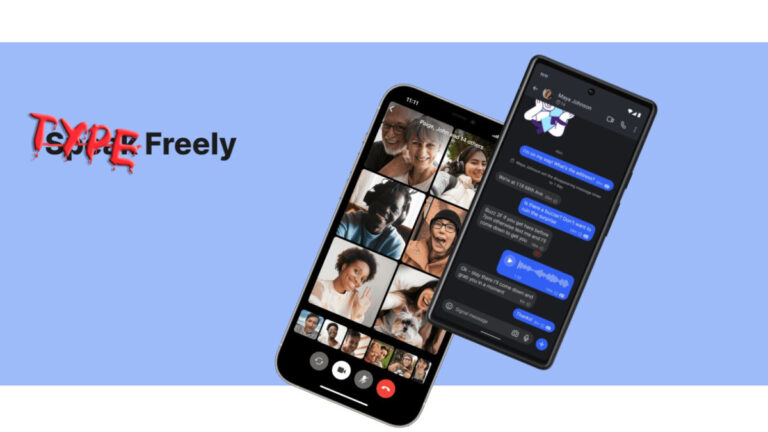
Privacy-focused messaging app Signal is adding text formatting. You can italicize your message, make it bold, strike through a word or phrase to discard it, share code in monospace, or use a spoiler effect to hide your message from the recipient (more about it below). These formatting options are currently available to beta users. A stable release may follow in the coming weeks.
The latest beta update for Signal brings text formatting
Signal has made itself a name in the messaging space thanks to its extensive privacy features. The app regularly adds new features, such as camouflage icons, to further bolster its privacy-centric approach. However, it still lacks in some other areas. Text formatting has been one of the missing features, and it’s now on the way.
Version 6.24.1 of the Signal beta for Android lets you format your message in various ways before sending it. You can format a single word or the whole message by selecting it in the compose field (press and hold on to a word). This will bring a pop-up menu with multiple action buttons, including Cut and Copy. Next to those are formatting options, such as Bold, Italic, Strikethrough, Monospace, and Spoiler (tap the vertical three dots to see more).
Most of you may be already familiar with these options, or at least the former three. Bold will make the selected word/phrase bolder to emphasize it, while Italic will italicize the text. Strikethrough puts a line through the text to make it look like you have discarded it without erasing the text. Monospace, meanwhile, is usually used to separate codes or other technical information from the main text. In this format, all characters have the same breadth.
Finally, Signal has added a Spoiler effect that hides the message with an animation. The recipient can choose to see it by tapping on the message bubble, but the message will not show up until they manually opt to see it. This can be handy in group chats where you don’t want to reveal the plot of a new movie to a friend who hasn’t watched it yet but want to discuss it with others who have watched the movie.
As said earlier, these text formatting options are rolling out with version 6.24.1 of Signal beta for Android. If you are part of the beta program, check for an update for the app in the Google Play Store. If not, you can join the beta program here. Those who are not willing to use the beta build will have to wait until these features arrive in the stable channel. You can click the button below to install the latest version of the Signal app.
The iPhone SE 4 info has been all over the place for over half a year at this point. The latest piece of information claims that the iPhone SE 4 is coming, but that its launch got delayed again.
The iPhone SE 4 launch gets delayed yet again, unsurprisingly
Barclays analysts said, to MacRumors, that the phone’s 2024 launch window is “unlikely”. They say that the reason for that is Apple’s in-house 5G modem. That modem was supposed to debut inside the iPhone SE 4, and it still is, hence the delay.
As some of you may know, Apple acquired Intel’s 5G modem division back in 2019. At some point since then, Apple has been trying to produce its own 5G modem, but things don’t seem to be proceeding as expected.
Apple most likely acquired Intel’s 5G modem division due to a public clash it had with Qualcomm back then. Qualcomm accused Apple of patent infringement. That has been settled a long time ago, but Apple is still working on its own 5G modems.
The rumors have been all over the place, to put it mildly
In any case, at the beginning of the article, I said that the iPhone SE 4 rumors have been all over the place. That could not be more true. Back in December last year, a report surfaced claiming that the iPhone SE 4 is not coming at all.
Then, in February, a follow-up came, saying that the device will launch, but in 2024. After that, 2025 was mentioned as the launch year, and the latest rumor before this one claimed that the iPhone SE 4 is just a prototype for 5G modem testing, and that it’s not coming.
Saying that the rumors are all over the place is an understatement. If you decide to put faith in the latest one, the one we’re talking about today, the iPhone SE 4 will become a reality, but not until 2025.
The iPhone SE 3 launched with a very affordable price tag, but it came with a number of compromises, ranging from its dated design, to very poor battery life, to camera performance.
With the iPhone SE 4, if it ever sees the light of day, Apple will update the design. It will no longer use the iPhone 8 chassis.





.png
)