Do you like to keep your snapshots and even video recordings neatly organized and grouped together by their subject or location? Then you must be familiar with the powerful and incredibly helpful face grouping tool built into the hugely popular Google Photos service.
As the name suggests, this relies on facial recognition technology, either automatically adding a (previously created) label to a pic detected as featuring one of your close friends or family members or allowing you to manually do that when the app is not entirely sure of a person’s presence in a photograph.
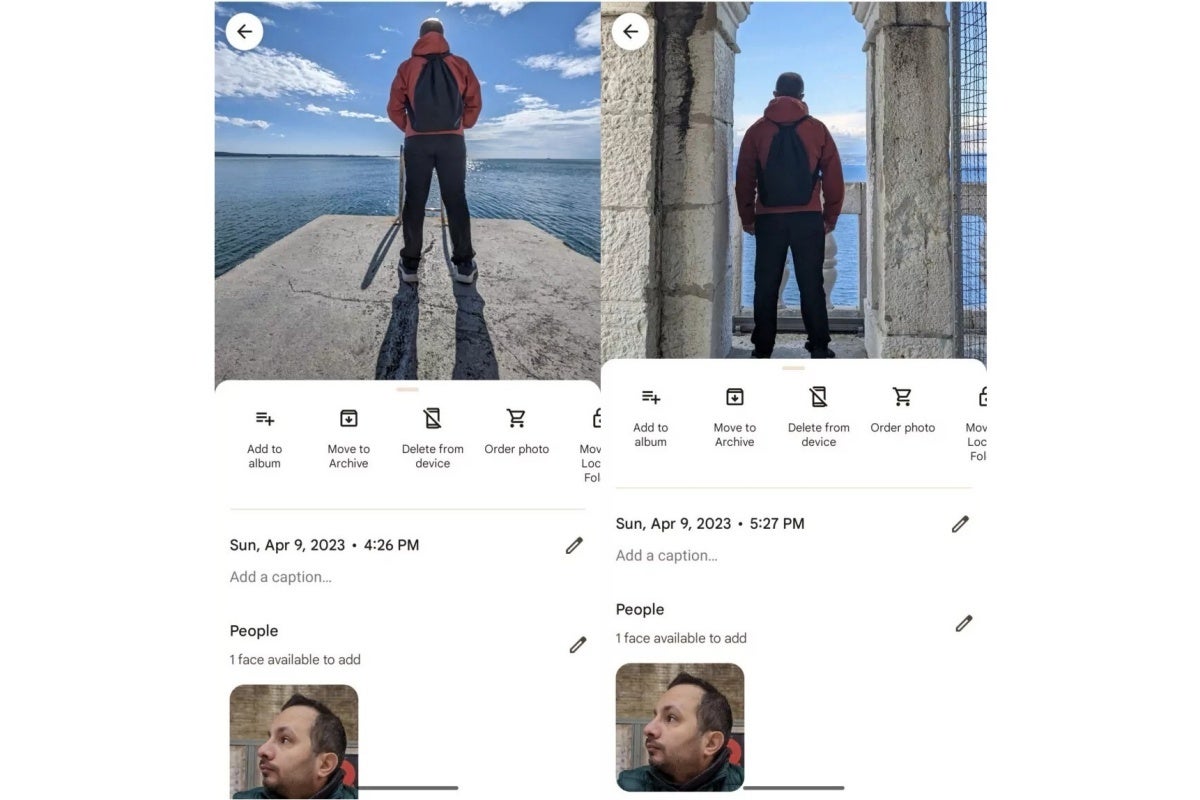
But what if someone has their back turned on you in an image (or a dozen) saved in your Google Photos account? You’d probably expect, well, nothing to happen, and while that may have been true until recently, it appears that Big G has somehow improved the app’s face recognition capabilities and basically expanded them to also cover the back of one’s head.
The neat new (non-) facial recognition trick doesn’t work perfectly 100 percent of the time, but it still looks like it could save some users a little bit of hassle in trying to keep all artsy pics of loved ones grouped together. Of course, Google is well aware that the expanded feature can be wrong in its scans, letting you manually add face labels to photos recognized in this (relatively) new way rather than doing that automatically to avoid possible errors.
By no means magical (even though it might seem that way at first glance), the Google Photos face grouping tool most likely associates similar pictures showing the same person from the front and back. That’s definitely not rocket science or the search giant’s most advanced machine learning capability by a mile, but it makes for an undeniably cool end result.
Researchers caught a sneaky adware campaign targeting Android users for months. This campaign used several fake Android apps mimicking different utilities like pdf readers, weather apps, VPNs, game cracks, streaming services such as Netflix and YouTube, etc.
Fake Android Apps Deployed Adware
According to a recent report from Bitdefender, they detected 60,000 fake Android apps stealthily running adware campaign since (at least) October 2022.
The researchers caught the malware following the alerts from the anomaly detection technology in the Bitdefender Mobile Security.
Briefly, unlike most adware campaigns exhibiting intrusive behavior, this campaign spread organically. The malicious apps would appear to a target user upon searching for certain apps, such as mod games, free VPNs, etc. Then, owing to their apparent legitimacy, the app ads would lure users into downloading the malicious app.
After reaching the device, the malware relies on the default strategy for Android app installation, requiring user input. Then, once the user taps the “Open” button to launch the newly installed app, the malware executes in the background.
However, on the screen, an error message appears to trick the user into believing that the app failed to install. Yet, the lack of an app icon makes it difficult for the victim to uninstall it.
Upon gaining persistence on the device, the malware remains dormant for some time. Then, after receiving the relevant commands from its servers, the malware starts displaying ads on the device when the user unlocks the phone.
Bitdefender caught this campaign because the malware used the device’s browser to show the malicious ad, which their Mobile Security tool efficiently detected. Similarly, the malware also displays full-screen web view of ads.
The researchers have shared the following demonstration of the malware in action.
As always, to repel such threats, users must avoid interacting with apps or links from unknown sources. Likewise, equipping their devices with robust antimalware solutions is the key to preventing most malware attacks.
Dish could be in some financial trouble, as its deadline to cover 70% of the US with 5G comes up next month. The company is expected to meet that deadline, however, the company is going to need to spend billions more to cover 75% of America by 2025. And that’s billions that Dish does not have right now.
That brings us to Dish and DIRECTV potentially merging. The two have been posturing and position around a merger publicly for a few years. They are the two largest satellite TV providers in the US, and with cord cutting accelerating, a merger is likely inevitable. But now, the talks have stalled, reportedly.
Both Dish and DIRECTV have entered into the streaming world
Both of these satellite TV companies have their own Streaming TV service. With Dish having Sling TV, and DIRECTV having DIRECTV Stream and DIRECTV via Internet, which are basically the same service. Clearly both companies know that streaming is the future, and it would make sense for the two of them to finally merge.
This would be a similar merger to Sirius and XM satellite radio merging 14 years ago, to form SiriusXM. If Dish and DIRECTV did merge, they could end up being a viable competitor to AT&T. With DIRECTV’s satellite and streaming TV service, and Dish’s services along with its internet business.
Now the other big question is, even if they do come to an agreement, would the regulators allow this deal to go through? Since they are the only satellite TV providers in the market right now, there’s likely going to be some pushback. Then again, satellite TV is dying, and this merger would be more about Internet and streaming TV, so it could be allowed to happen.
We’ll likely see a lot more about this potential deal in the coming weeks, especially if this while thing is one side trying to pressure the other into meeting their demands.
Samsung has reportedly begun the development of its own ChatGPT-like AI tool. The company plans to introduce the new LLM (Large Language Model) solution as early as the end of July 2023. The in-development product doesn’t yet have a name.
According to the Korean media, Samsung Research is leading this project. It has devoted substantial resources and manpower to the project to ensure swift development. The firm has even restricted or limited other business units from using GPU resources between June and July. Since training LLMs require a massive amount of GPU power, it doesn’t want any additional burden on its GPUs during the development of its AI tool.
Samsung will use this AI tool for internal business purposes
Rumors of Samsung working on a ChatGPT-like AI tool first emerged in May. The company was said to be in talks with domestic tech firm Naver to jointly develop the tool. The report suggested the initial version of the new AI solution may debut in October this year.
However, a new report coming out of South Korea says Samsung plans to complete the development of the first-gen model in just two months. Moreover, there’s no mention of it co-developing the AI tool with Naver. The company reportedly decided to go solo after a recent high-level management meeting attended by Executive Chairman Lee Jae-yong. Potential collaborations with Open AI, Microsoft, and Google were also discussed before deciding to develop an in-house solution as soon as possible.
Unlike the AI tools from these companies, Samsung’s solution won’t be available to the public. At least not the initial version. The company plans to use it for internal business purposes. It sees AI helping boost or speed up various business processes. The Korean behemoth wants to leverage AI in software development, document summarization, translation, and other internal operations. It believes “AI could drastically shorten the period of software development and semiconductor design,” Chosun.com reports.
Samsung tried using external AI tools for these purposes earlier. In March, it gave some employees in the semiconductor division access to ChatGPT in hopes of speeding up business processes. However, the OpenAI-made tool ended up leaking confidential company information, forcing the company to ban the use of all such external tools. It is now hurrying to come up with an in-house solution that doesn’t pose such risks.
Given the current AI landscape, Samsung may eventually release a public version of its AI tool, but the initial development appears to be intended for internal use. If the rumored launch timeline of “July end” is accurate, we may hear the company talk about AI during its Galaxy Unpacked event on July 27 where it will launch new foldables, tablets, and smartwatches.
South Florida is the current focus of the sports world. The Florida Panthers hockey team barely made the playoffs, shocked the record-setting Boston Bruins in the first round, defeated the Toronto Maple Leafs, and swept the Carolina Hurricanes to make it to the Stanley Cup Finals. The Miami Heat also took a similar route to the NBA Finals by upsetting the Milwaukee Bucks in the first round, beating the New York Knicks in the second round, and stunning the Boston Celtics in the Eastern Conference Finals.
It feels like LeBron taking his talents to South Beach all over again
The Miami Marlins are also showing some life and are battling the Atlanta Braves for the National East title in Major League Baseball and if the season ended today, the team would be one of the three wild card squads to make the playoffs in the NL. That’s pretty heady stuff for South Florida sports fans, but on the international stage, nothing tops the decision made by soccer (excuse me, football) star Lionel Messi to join MLS team InterMiami. It feels like LeBron taking his talents to South Beach all over again.
Apple offers MLS Season Pass through Apple TV+
While we are not a sports publication, let me just add that we have seen this story before when Pele joined the New York Cosmos in 1975 and put soccer on the map in New York where the Cosmos would sell out Giants Stadium and 75,000 attended Pele’s last professional game. But outside of New York, NASL (North American Soccer League) attendance was poor and once Pele retired, attendance declined even though the Cosmos had other international stars including Giorgio Chinaglia and Franz Beckenbauer. The league disbanded not too long after Pele hung up his spikes.
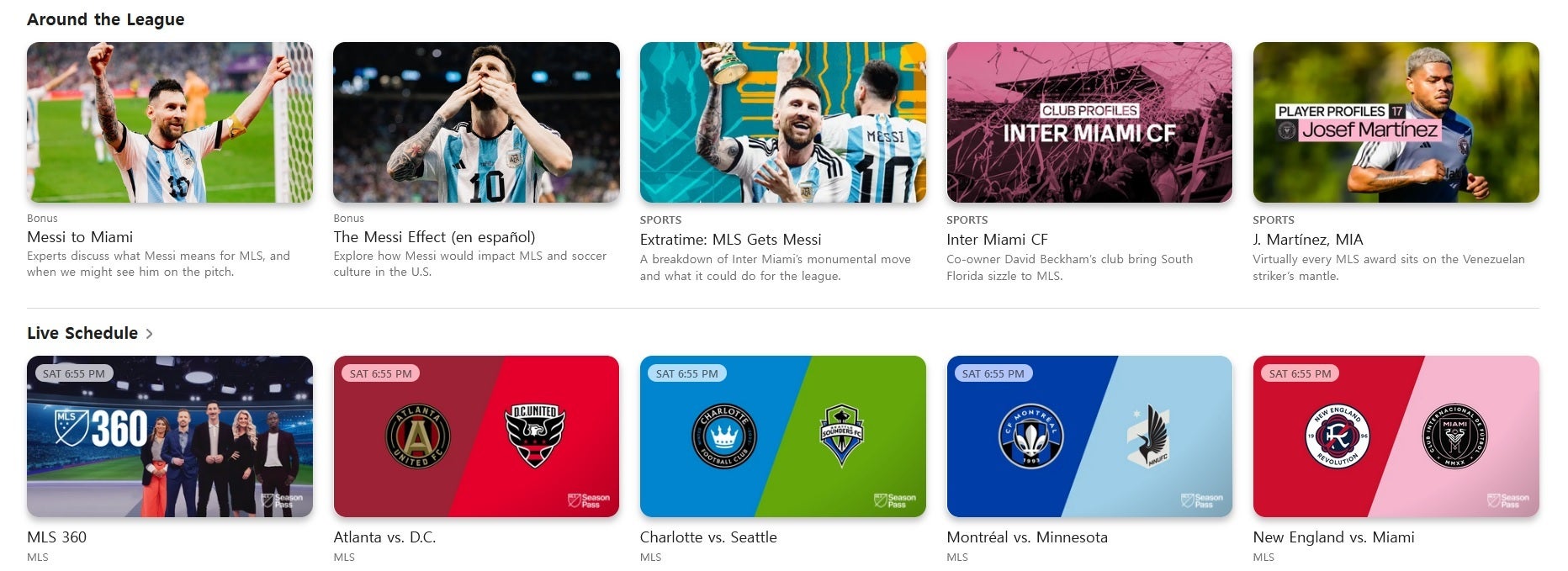
But this time, things could be different as Apple will play a big part in selling Messi, InterMiami, MLS (Major League Soccer), and soccer to the U.S. Per The Verge, Apple has the streaming rights to MLS for the next 10 years. This technology was not available during the Cosmos’ heyday. Messi, who just won a World Cup with Argentina, is the type of superstar that Apple can exploit to whip up demand for MLS Season Pass subscriptions which it offers through Apple TV+.
And kicking off Messimania in the U.S., Apple will show a four-part documentary on the star which will stream over Apple TV+. Speaking of Messi and Apple TV+, reportedly the forward will get a piece of Apple’s partnership with MLS.
How to subscribe to MLS Season Pass via Apple TV+
If you are a soccer/football fan or are interested in becoming one, the MLS Season Pass does offer every MLS and League Cup game. You can sign up for MLS Season Pass without having an Apple TV+ subscription for $14.99 per month or $49 for the rest of this season. If you pay the $6.99 per month for Apple TV+ (after a seven-day free trial), you can get an MLS Season Pass subscription for a discounted $12.99 per month or $39 for the remainder of this season.
Will Messi and Apple be able to finish the job that Pele and the Cosmos started in the mid to late 70s? Messi is a name that U.S. sports fans are familiar with and the original Apple TV+ show Ted Lasso has been very popular. In fact, Apple has started selling Ted Lasso merchandise. The show is about a U.S. college football coach who is hired to coach a professional soccer club in England. The cross-promotional opportunities for Apple here are tremendous. Messi’s former manager made a guest appearance on Ted Lasso last season.
If there is a fourth season of Ted Lasso, we wouldn’t be surprised to see Lionel Messi show up in at least one episode. Lionel Messi’s move to MLS should make soccer more popular in the U.S. and with Apple’s help, the sport could take a huge step forward in America. And Apple will also profit (of course) from the increased attention on MLS in the states.
CurseForge, a gaming platform that offers a wide range of video game modifications and add-ons, has released a tool to detect infected Minecraft mods.
Did you know that Minecraft has been declared the most malware-infected game? This should not come as a surprise, as Minecraft players have been urged to refrain from downloading any new mods or plugins until cybersecurity experts can uncover a remedy for the rapidly spreading malware that is wreaking havoc within the game.
Dubbed “Fracturizer,” this insidious worm virus has been discovered deeply embedded within popular Minecraft modpacks. These modpacks amalgamate various game themes, allowing players to effortlessly switch between multiple mods, expanding their gaming experience. However, the convenience comes at a cost, as the malware exploits this mechanism to rapidly propagate itself.
Researchers delving into the Fracturizer GitHub repository have classified this malware as “extraordinarily perilous.” Furthermore, they caution that any device infected by this virus should be deemed entirely compromised by the malicious threat actors responsible for its creation.
Intriguingly, GitHub contributors stumbled upon malicious files dating back several months, with some even tracing back to the ancient era of 1999, a peculiar aspect observed within the CurseForge platform.
CurseForge is a gaming platform that offers a wide range of video game modifications and add-ons for popular titles such as World of Warcraft, Minecraft, and StarCraft.
Attempting to alleviate the concerns of its user base, CurseForge issued a statement on June 7th, 2023, emphasizing that the platform itself remains uncompromised. The platform has also released a tool to detect infected mods and taken immediate action by suspending accounts associated with the malware, while simultaneously assuring its community that a resolution is actively being pursued.
We are looking into an incident where a malicious user uploaded projects to the platform. This is relevant only to Minecraft users and we have banned all accounts involved.
CurseForge itself is not compromised in any way! Please follow the thread below for more information 👇
In a positive development, GitHub disclosed that a command-and-control server linked to Fracturizer has been successfully suspended by its hosting provider, significantly impeding the malware’s ability to communicate with compromised systems.
For Minecraft mod enthusiasts seeking reassurance, GitHub has published a comprehensive set of instructions to identify potential exposure to Fracturizer. These instructions guide users on detecting indicators of compromise and implementing mitigation measures promptly.
“Our understanding of the full extent and purpose of this malware is currently limited. Therefore, utmost caution must be exercised until we discover a foolproof method to eradicate any symptoms,” urged the researchers behind the Fracturizer GitHub project. “The information provided is solely based on our current knowledge. We strongly advise staying vigilant and monitoring the team’s communications for any critical updates.”
As the Minecraft community anxiously awaits a comprehensive solution to this menacing malware, players are advised to remain cautious and refrain from engaging with suspicious modpacks or plugins. This ordeal serves as a stern reminder of the ever-present threats lurking within the digital realm and the importance of maintaining robust cybersecurity practices.
Android 14 is materializing more as time goes on, and we’re getting wind of what this platform will offer when it officially launches. If you’re using a stylus with your Android 14 device, then there’s some good news. Google could make Android 14 a great platform for those using a stylus.
There are several Android devices on the market that utilize a stylus to boost the experience. While these all use Google’s software, the stylus support is mostly handled by the OEM. It’s just something that the company adds on top of Android. However, that could change.
Android 14 could bring great stylus support
This is something that we see all the time; individual OEMs bring forth a feature that Google eventually implements into Android. After that, everyone can use the feature. A good example is split-screen apps.
According to Mishaal Rahman (via 9To5Google), Google is planning on adding improved stylus support to Android 14. Right now, there aren’t many useful tools to customize your stylus experience. However, in Android 14, it looks like Google is going to really focus on improving the stylus experience across all devices.
Rahman posted a tweet showing how this feature is going to look. For starters, he posted a picture of the settings page for a stylus device. We see the option to ignore all stylus input. Also, you’ll have the option to choose the default notetaking app when you’re using it.
The rabbit hole goes deeper than that. In a tweet, Rahman also found some keycode constants in the software. These point to the software having support for four stylus buttons. There are codes for a Primary, Secondary, and Tertiary button along with a button on the tail.
The tail button seems like it would be used as the eraser, but that might not be the case based on the code. It looks like it will be used to open the default notetaking app.
This will be a great move on Google’s part. Tons of people use styluses on tablets. Since Google has been making Android more tablet-friendly, this could have a positive impact on the Android tablet market.
Hulu has been around for many years, but what’s new is the + Live TV portion of the service. Hulu + Live TV is the company’s streaming Live TV service, it offers over 65 channels for only $69.99 per month.
Much like YouTube TV, Hulu + Live TV was designed as a way for users to cut the cord from traditional cable companies, but still be able to watch their favorite shows on cable TV. The Live TV streaming service is in addition to the Hulu library, which has grown to be quite large over the last decade or so. Which arguably makes it one of the better options out there for streaming TV.
Table of Contents
What is Hulu + Live TV
Hulu + Live TV is exactly what it sounds. It’s Hulu, along with the streaming Live TV service that we all want.
The service was announced in May 2016. Launching in Beta on May 3, 2017, originally called “Hulu with Live TV” then changed to “Hulu + Live TV”. At launch, it came with 50 channels for users to stream, and included five OTA channels – ABC, CBS, NBC, Fox and The CW – for most markets.
Initially it was priced at $39.99, making it very competitive with YouTube TV at the time, which was $35. In December 2019, Hulu upped the price to $54.99 per month. This was after it continued to add more channels. Hulu raised prices in December 2020 to $64.99 per month. And again in December 2021 to $69.99. This latest price increase was to bundle in Disney+ and ESPN+. Making it a really good option, and technically a price decrease.
Hulu + Live TV has just under three million subscribers, according to the latest estimates. Which puts it at the second-biggest streaming Live TV service in the country.
Hulu + Live TV costs you $69.99 per month currently, for the base subscription. This comes with all of the channels listed below (current count is around 75). It also includes the entire Hulu on-demand library, which has over 10,000 titles. Mostly from networks owned by Disney, NBCUniversal and some from ViacomCBS. Essentially, you get the ad-supported version of Hulu included with the Live TV service.
For that price, you are also getting the full Disney bundle. So for $70/month, you’re getting Hulu, Hulu + Live TV, Disney+ and ESPN+.
Add-ons
What Add-ons are available?
There are some add-ons available for Hulu + Live TV as well. You can add STARZ for $8.99 per month, Cinemax for $9.99 per month, Showtime for $10.99 per month and HBO MAX for $14.99 per month.
Additionally, you can upgrade your cloud DVR service from only 50 hours to 200 hours for $10 per month. And you can upgrade to unlimited simultaneous screens for $10 per month. Or you can bundle the enhanced cloud DVR and unlimited screens together for $15 per month.
There’s also a new sports add-on which will cost you $10 per month. It includes Redzone, MAVTV Motorsports Network, Outdoor Channel, Sportsman Channel, TVG and TVG2.
Finally, there are two more add-ons that are available. There’s an Entertainment Add-On and an Espanol Add-on that will bring you additional channels. The Entertainment Add-on brings American Heroes Channel, CNBC World, Cooking Channel, Destination America, Discovery Family, Discovery Life, DIY Network, FYI, LMN, and Science for $7.99 per month. Hulu added five ViacomCBS channels to this add-on in April 2021: BETher, MTV2, NickToons, TeenNick and MTV Classic. While the Espanol Add-on brings you content from CNN en Español, Discovery en Español, Discovery Familia, ESPN Deportes, History Channel en Español, and Universo for $4.99 per month.
There are plenty of options available with Hulu + Live TV, and plenty of ways to add more content to your Hulu subscription. But it can get expensive pretty quick.
Can I bundle it with Disney+
Disney used to allow you to bundle Disney+ and ESPN+ with Hulu + Live TV. But as of December 21, 2021, they are automatically bundled in Hulu + Live TV for $70 per month.
This move was done in a way to streamline the different plans that Disney has for its different streaming services. Remember that Disney has a majority-ownership in Hulu. Comcast owns a small sliver of the service, along with a few other companies. Disney owns around 60% of Hulu.
There is another bundle available for $82.99 per month, which gives you Hulu and Disney+ without ads. Along with ESPN+ (with ads).
As of December 2021, Hulu + Live TV has 75 channels available in its base subscription plan. They are listed below.
ABC
ABC News Live
CBS
CBSN
Fox
NBC
A&E
Animal Planet
BET
Big Ten Network (BTN)
Boomerang
Bravo
Cartoon Network
CBS Sports Network
Cheddar Business
CMT
CNBC
CNN
CNN International
Comedy Central
Cozi TV
CW
Discovery Channel
Disney Channel
Disney Junior
Disney XD
E!
ESPN
ESPN 2
ESPN News
ESPN U
ESPN College Extra
ESPN Bases Loaded
ESPN Goal Line
Food Network
Fox Business
Fox News
FS1
FS2
FreeForm
FX
FXM
FXX
FYI
NBC Golf
HGTV
History Channel
HLN
Investigation Discovery
Lifetime
MSNBC
MotorTrend
MTV
National Geographic
Nat Geo Wild
NBCSN
NFL Network (Added July 29, 2021)
Nickelodeon
Nick Jr.
Olympic Channel
Oxygen
Paramount
Pop
ESPN SEC Network
SyFy Channel
TBS
Turner Classic Movies (TMC)
Telemundo
TLC
TNT
Travel Channel
Tru TV
TV Land
Universal Kids
USA
Viceland
VH1
What premium channels are available?
Hulu + Live TV does allow you to subscribe to a few premium channels within your subscription as well. These include STARZ, SHOWTIME, Cinemax and HBO MAX. These can also be subscribed to independently, but subscribing through Hulu, makes it easier to pause or unsubscribe completely. These also work with TV logins. Just look for the option to login with Hulu Live TV in each of these premium network apps, and you’ll be good to go.
Supported Devices
What devices are supported?
Hulu + Live TV can be watched in the browser on your laptop or desktop computer. As well as on most devices that have regular Hulu available.
These include Amazon Echo, Echo Show, Fire TV, Fire Tablets, Android, Android TV, Chromecast, Apple TV, iOS, NVIDIA SHIELD, Nintendo Switch, Xbox 360, Xbox One, Roku, as well as the following smart TV brands: Hisense, Samsung, Sony and VIZIO.
Currently, you can watch Hulu + Live TV on Chromecast with Google TV, but it does integrate with the “Live” tab on Google TV yet. That is reserved for YouTube TV only right now.
So it is available on virtually every platform that you can think of. Allowing you to watch TV virtually anywhere.
Hulu + Live TV is not quite as feature-rich as some of the other streaming Live TV services on the market. But it does have a few features that help to set it apart. Of course, that is likely why it is cheaper than a lot of its competitors. These features include Cloud DVR, multiple users, unlimited simultaneous screens, enhanced playback and much more.
Enhanced Cloud DVR
Like most other streaming Live TV services, Hulu also has its own cloud DVR.
Included with the base plan for $55/month, you will be able to record 50 hours of content. Hulu does have an upgrade available that will get you 20 hours of storage for $9.99/month. That’s pretty much the industry standard, and not the exception (YouTube TV is the exception).
The 50 hours that everyone gets, may not seem like a lot. But keep in mind that you do also have access to Hulu’s massive on-demand library. So you likely won’t be recording as much content as you would on FuboTV or YouTube TV.
You will be able to access everything that you have recorded by going to “My Stuff” within the Hulu app. This is also where you’ll find anything that you have bookmarked or saved to watch later on.
Keep in mind that what you record will be able to fast-forward and rewind. But things that are available on-demand or live TV, you won’t be able to fast-forward or rewind.
Unlimited Screens
One of the features of live TV services that most people don’t talk about, is the simultaneous streams. Most of them are capped at around two or three streams, including Hulu + Live TV.
Hulu only allows two simultaneous streams for watching Live TV. However, you can upgrade it to unlimited. But, the “Unlimited screens” upgrade does have a big asterisk next to it. For $9.99/month, you can upgrade to unlimited screens and that allows for unlimited TVs, but you are still limited to three mobile devices. Those mobile devices include tablets and smartphones.
For most people, the two screens should be plenty, but having the option to upgrade to unlimited is a really nice feature to have. Even if you do need to pay $10/month for it.
Multiple users
Much like any other streaming service, Hulu also allows for up to six users per account. Now, these do not work like YouTube TV, where each user has their own login. You’d be using the same login, and you click on your profile.
Each profile has their content tailored to their preferences and interests, as expected. There are some unique parental controls available too. Where subscribers can create profiles that will restrict viewing to specific content, and they can block certain types of programs. There is also an option to limit searches to only return viewing options that meet their specific requirements.
It’s better than nothing, but offering up the ability for each user to have their own login would be better, and more secure. As you’re not sharing passwords.
Enhanced Playback
Hulu has some enhanced playback features available too. Viewers are able to rewind most live channels to the beginning of the show or movie currently running. This is in contrast with other services that only allow you to rewind to when you started, or fast-forward til you are live. Unless it is a show that you have recorded or are recording.
Additionally Hulu ad-free subscribers have the ability to download movies and shows to watch while on the go. Even if you don’t have mobile data or WiFi available. This is not available for Live TV because, well it needs to connect to something to get the Live content.
Yes, unlike most cable companies, Hulu does allow you to continue to watch Live TV when you are not at home.
So if you’re going to be gone when the Super Bowl is on, you can watch it on your phone, on your laptop, or anywhere else, even if it is not at your home.
If you are outside of your market – say for example you live in Chicago and are visiting family in Atlanta – you will still be able to watch Live TV. The only caveat is that you won’t get your locals. You will get the locals for the channels in the market you are currently in.
Is it available in 4K?
Hulu as well as its Live TV counter-part, streams in 720p, 1080p and 4K UHD. Unfortunately, most streaming live TV channels do not broadcast in 4K. But you will get either 720p or 1080p depending on the channel. Most channels do 1080p now, so you’ll get a really good looking stream here.
As far as non-live TV content, the majority of the newer content is filmed in 4K and there is even support for Dolby Vision on a lot of these titles.
Is there a free trial available?
No.
Hulu used to offer a free trial for its Live TV product. But as of December 21, 2021, that free trial no longer exists. However, it does still have a free trial for regular Hulu, just not for its Live TV product.
Is Hulu + Live TV worth it?
Hulu + Live TV is perhaps the best value for streaming Live TV. And that is largely due to its vast on-demand library that it has been building up for over a decade. Most of its competitors have only a fraction of the content that Hulu does. So even if you don’t opt for the Live TV option, you can get Hulu and have plenty of content to watch, with new episodes landing daily and weekly.
At $54.99 per month, Hulu + Live TV is also far cheaper than some of the other services out there. FuboTV, YouTube TV and AT&T TV NOW are all priced at $64.99 per month now. Sure they have more channels, but not that many more. And they also don’t have that vast Hulu library of on-demand content available. That makes Hulu + Live TV a pretty impressive option. And it’ll continue to add more channels in the coming months. However, fingers crossed that it doesn’t see as many price increases as other services have recently.
You can sign up for Hulu + Live TV by clicking the link below.
If you were one of the many people on social media (or in real life) who predicted doom and gloom for the world’s most popular video streaming platform after it effectively outlawed what had turned into a global password sharing phenomenon, prepare to be disappointed by the latest Antenna report.
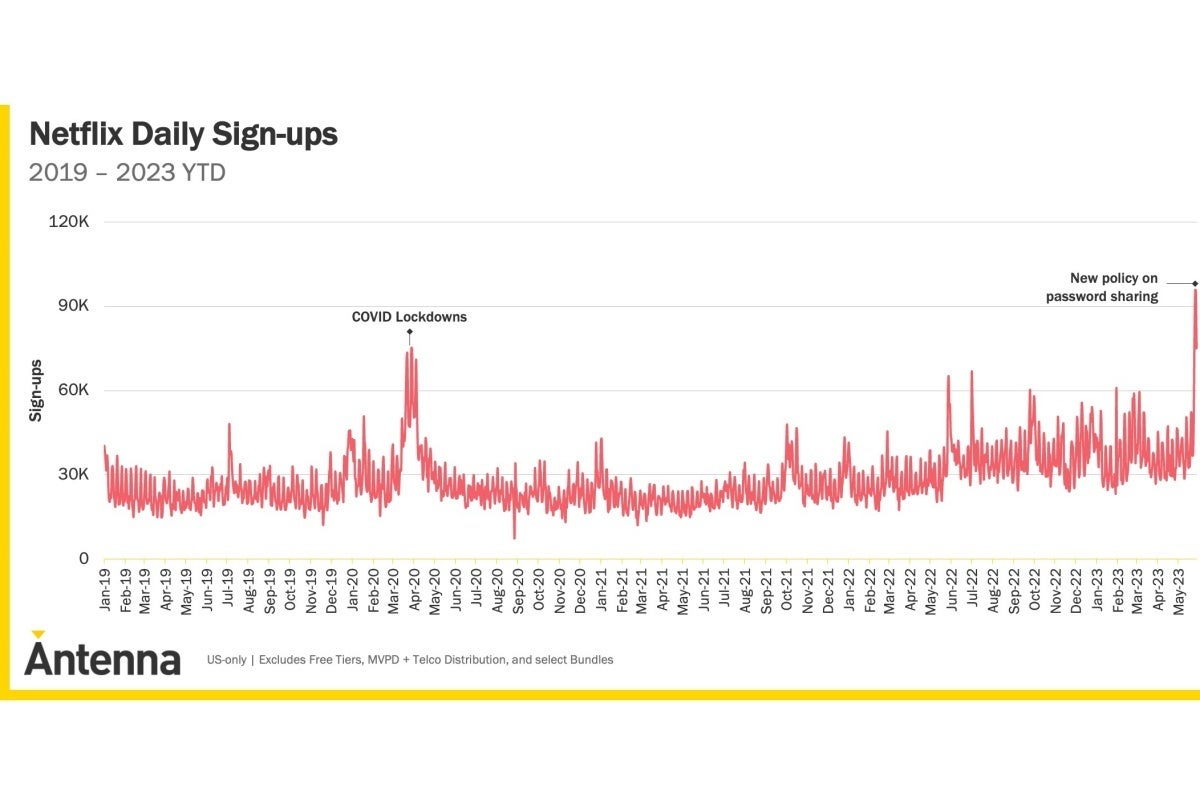
This is an analytics firm that’s been keeping an eye on various types of Netflix data and numbers (among others) for the last four and a half years, and believe it or not, the service recently had its four best days of that entire period in at least one key department.
Now, it could be a coincidence that US Netflix sign-ups absolutely exploded shortly after the password sharing crackdown began in earnest in many countries around the world, but, well, that’s almost certainly not the case.
Instead, hundreds of thousands of “moochers” probably opted to create their own accounts rather than lose access to hit shows like “Beef”, “FUBAR”, and “The Night Agent” when facing the impossible choice.
According to Antenna, daily sign-ups jumped an incredible 102 percent from an unspecified 60-day average preceding the password sharing ban to “nearly” 100,000 on both May 26 and May 27.
That’s a mind-blowing figure unrivaled even by Netflix’s early pandemic peaks from March and April 2020, and before you ask, cancellation counts were much lower on the same dates. Higher than the pre-password sharing ban average, of course, but low enough to guarantee decent net gains in the overall subscriber tally.
While we are only talking about a few days and this is unofficial data, Netflix is likely to proclaim its universally hated password policy change as a financial win at its next official quarterly report release. Love it or hate it, the move makes perfect sense from a business standpoint, and despite a lot of mostly anecdotal evidence to the contrary, it could result in long-term subscriber additions as well.
The Huawei FreeBuds 4 were one of my favorite earbuds from 2021. They offered open-ear design, and sounded great. They noise-canceling wasn’t as good as on earbuds that come with a silicone seal, but it was really good nonetheless. Not everyone likes those seals, so the FreeBuds 4 catered to those consumers. Last year, the FreeBuds Pro 2 launched as the company’s flagship truly wireless earbuds. We’re back to the “regular” FreeBuds line, as the FreeBuds 5 got announced by Huawei, and those are the earbuds we’re here to review.
The Huawei FreeBuds 5 are the company’s flagship true wireless earbuds for 2023, as the Pro 2 were for 2022, and FreeBuds 4 for 2021. That being said, the Huawei FreeBuds 5 look entirely different than both of those models. These still offer open-ear design, and are still a direct successor to the FreeBuds 4, but… well, they’re different. We’ll talk about that most in the hardware/design category below. So if you’re interested in finding out more about these odd-looking earbuds, read on.
Table of contents
Huawei FreeBuds 5 Review: Hardware / Design
Huawei opted to go with an entirely different design this time around. The FreeBuds 4 looked like regular true wireless earbuds, they had the regular stem and everything. Well, the FreeBuds 5 take things in a different direction. You’re getting a much fatter stem, which, truth be said, looks a bit odd in the ear. There is a reason for this design, though. That stem is designed in a way to touch your earlobe, and essentially lock the entire earbud in place. That works really well, at least with my ears. Granted, open-ear true wireless earbuds usually fit me well, so… take that into account. Still, even when I shake my head, these earbuds stay in place, which is great. One thing to note is that Huawei included silicone tips in the box, three different sizes. So, if the earbuds without a silicone seal don’t fit you well, you can always place a seal on them, and find what works for you.
They’re quite comfortable and light
I found them comfortable to wear over long periods of time. Each earbud weighs 5.4 grams, they’re quite light, despite the fact they may look a bit chunky when you first see them. I was quite skeptical over this design, but the FreeBuds 5 managed to win me over rather fast. Each of the two earbuds also has touch sensors on them. You can use them to play/pause music, answer/drop calls, switch between songs, activate noise canceling, and so on. Those actions are customizable via the AI Life app. Do note that you’ll need to install Huawei’s AppGallery from this website in order to be able to get the AI Life app, though. It is not available in the Google Play Store. More on that later.
Speaking of touch sensor, they work great. They’re large enough so that I didn’t even have to get used to them. I didn’t have to get used to where exactly to tap. You can actually tap at the very top of each earbud, there’s no need to go low and possibly move the earbud while you do it. I really like the way Huawei designed this. You can use touch sensors all you want without moving earbuds in your ears or possibly knock them out, which is great. That’s definitely not the case with every pair of true wireless earbuds.
Matte finish on the case is appreciated
Huawei opted for a vertical case this time around. It’s egg-shaped, and the cover is at the top when the case is held vertically, not horizontally. The case itself is made out of plastic, as are the earbuds, but this is matte plastic, unlike the glossy plastic used on the earbuds themselves. That simply means that Huawei listened to complaints, as glossy plastic not only looks cheaper, but it picks up fingerprints and grease from your fingers like nobody’s business. The case feels really nice in the hand, not cheapish or anyting of the sort. The flap/cover also feels nice, not like it’s going to fall off any day now. I actually dropped this case twice during my review period, and I can’t see any damage whatsoever. Speaking of which, the case is slippery, as are the earbuds, so take that into account.
There is a single LED light on the case, on the outside, which shows you the battery levels and charging status. A Type-C port is located at the bottom, while there is also a quick pair button on the side. The FreeBuds 5 come in Frost Silver, Ceramic White, Coral Orange colors. We got to test the latter, and quite frankly, it subjectively looks the best out of the bunch, though it won’t appeal to everyone, of course. Do note that only the Front Silver and Coral Orange variants have a matte plastic case, the case on the Ceramic White variant is still glossy. All in all, the Huawei FreeBuds 4 do look odd, but… I don’t have any major complaints on this design, in fact, I really like it. Not only do the earbuds looks nice, but they’re functional this way too.
Huawei FreeBuds 5 Review: Sound & Call quality
The Huawei FreeBuds 5 are equipped with 11mm dual-magnetic dynamic drivers. They have a 16Hz to 40kHz frequency response range. They also support Bluetooth 5.2, and offer dual connection support as well. In other words, they can be connected to two devices at the same time. Wear detection sensors are also a part of the package, as are the touch panels that we’ve talked about in the design section. On top of all that, Huawei included a high-bitrate LDAC codec here, as well as Huawei’s L2HC 2.0 codec. The company says that these earbuds are 30% more sensitive at low frequencies than their predecessors. You also get access to the equalizer via the AI Life app. More on the app a bit later on You will find three microphones on each earbuds, and they do offer AI call noise cancelation.
They offer balanced sound quality & are more than good at handling voice calls
That being said, the sound quality here is really good, and that includes voice calls too. They are definitely above average in that regard. The sound is balanced, and you’ll never feel uncomfortable with the output. They’re great for acoustic music and instrumentals, while you can also boost bass via the equalizer. Lows, mids, and highs are well-balanced, and quite frankly, I enjoyed listening to whatever I fired up via these earbuds.
Now, the active noise cancellation is not the best. That is to be expected considering these are open-ear earbuds, though. When you put a seal on them, things do improve a bit. The Huawei FreeBuds Pro 2 are definitely a better choice if you’re looking for better ANC support. It’s also not the most natural-sounding ANC out there, but Huawei could improve that via updates. All in all, ANC is not bad, but it’s not great either. Don’t expect miracles in that regard. I’m glad to report that I didn’t have any connection issues whatsoever. They didn’t lose connection at all during my testing, not even for a second.
Huawei FreeBuds 5 Review: Battery
Huawei included a 505mAh battery inside the charging case. You’ll find a 42mAh battery inside each of the two earbuds. When it comes to reviewing earbuds, I always like to check out what the companies are claiming in terms of battery life, and see how accurate they are. Huawei actually says that you can get 3.5 hours of use from these earbuds with ANC on, and 5 hours with it off. The charging case extends those two values to 20 and 30 hours, respectively.
I haven’t really tested how much the charging case will provide, but the claims regarding battery life with ANC on and off are accurate. I even managed to get a bit over 5 hours of use when I kept the ANC off, at times. Though it was mostly between 4.5 and 5 hours of use. I managed to get between 3 and 3.5 hours with ANC constantly running. Those are not bad numbers at all, though not class-leading, that’s for sure.
You do get fast charging here, though. In only 5 minutes of charging you can get two hours of listening time. It’ll take you 20 minutes to fully charge the earbuds inside the case. The case itself charges for 40 minutes via a cable. You can also charge the charging case wirelessly (Qi charging), but it’ll charge noticeably slower, so keep that in mind.
Huawei FreeBuds 5 Review: AI Life app
In order to take full advantage of these earbuds, you’ll need to install the AI Life app. That application is available via the AppGallery app store, from Huawei. First, you’ll need to grab that app from this website, and then download AI Life from there. It’s not available in the Google Play Store. Once you do that, and the app recognizes the earbuds you paired up or will pair up, you’re good to go.
This application not only shows you the battery status of both the charging case and the earbuds, but has a ton of useful features built-in. You can toggle noise cancellation here, set up the gestures for both earbuds the way you want them, and even mess around with the equalizer. If you misplace your earbuds, this app can help you find them too, and you’ll also be updating the earbuds this way. You should definitely install this app, it’s worth it, even though you can technically use the FreeBuds 5 without it.
Huawei FreeBuds 5: Should you buy it?
So, are the Huawei FreeBuds 5 worth it? Well, if you have the money to spend, these are some of the best truly wireless earbuds you can get for it. These are open ear earbuds, but you do get silicone tips in the box. They offer really good sound quality, excellent touch gestures, and you can set them up to fit in your ears well. They do look a bit odd at first, but you do get used to it. On top of everything, fast charging is included, as is wireless charging. There’s not much to complain about here, well, other than noise canceling, which is not the best.
You should buy the Huawei FreeBuds 5 if:
You like open-ear earbuds
You liked the Huawei FreeBuds 4
You want a different-looking pair earbuds
You’re fed up with poor touch pads on truly wireless earbuds
You want to have access to an equalizer
You want good battery life
You want good connection stability
You shouldn’t buy the Huawei FreeBuds 5 if:
You rely on great noise canceling
You don’t want to download two additional apps on your phone