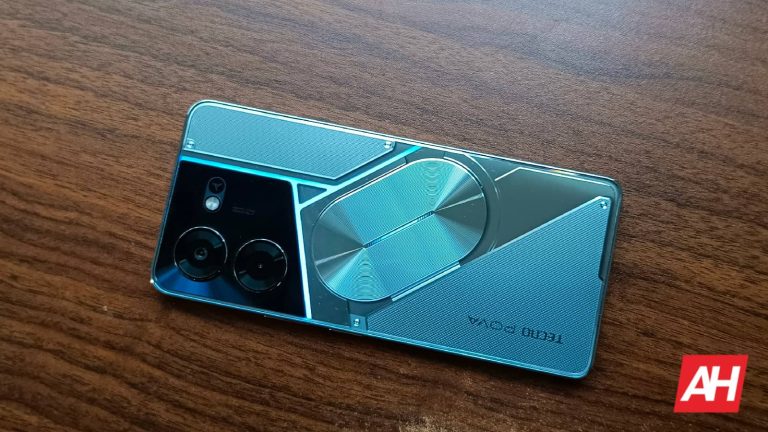
TECNO is set to broaden its POVA lineup with the anticipated unveiling of the TECNO POVA 6 Pro 5G at the Mobile World Congress (MWC) 2024 in Barcelona. The TECNO POVA 6 Pro 5G, confirmed by TECNO (via MySmartPrice), recently surfaced on the Google Play Supported Devices List under the TECNO-LI9 model number.
While the listing does not disclose the specifications of the device, it further validates the device’s imminent release. Notably, MySmartPrice claims that the POVA 6 Pro 5G will support Dolby Atmos, possibly adding an immersive audio experience to its features. Although further details are scarce at this point, the new model will succeed the POVA 5 Pro, which made its debut in August last year. For those unfamiliar, here’s a look at the offerings of the TECNO POVA 5 Pro. It will give an idea of what to expect.
TECNO POVA 5 Pro hardware specification
The POVA 5 Pro, TECNO‘s predecessor to the upcoming model, boasts impressive specifications. It sports a 6.78-inch display with Full HD+ resolution and a 120Hz refresh rate, ensuring a decent visual experience. The device boasts the Dimensity 6080 processor coupled with a Mali-G57 MC2 GPU. Users can get 8GB LPDDR4x RAM with storage choices of 128GB or 256GB. The POVA 5 Pro also offers the option to expand storage using a microSD card.
In the camera department, the POVA 5 Pro features a 50MP primary camera with AI enhancements for improved photo quality. On the front, a 16MP camera caters to selfie needs. The device offers a side-mounted fingerprint sensor.
Connectivity options include dual 4G VoLTE, Wi-Fi 802.11 ac, Bluetooth v5.0, GPS/GLONASS/Beidou, USB Type-C port, NFC, and also retains the 3.5mm audio jack, which is certainly a notable feature in smartphones these days. The device houses a 5,000mAh battery that supports 68W fast charging.
ESET researchers have published the names of recently discovered Android apps that primarily exist to keep tabs on users who download them.
Six of the apps were available on Google Play, and the remaining were hosted on VirusTotal. Eleven of the apps look like legitimate messaging apps. One is disguised as a news app.
The apps silently run remote access trojan (RAT) code known as VajraSpy and are part of a Patchwork APT campaign. Their primary functionality is to spy on people and their snooping capabilities are related to the permissions granted to them.
The apps can steal your contacts, files, call records, and text messages. Some of them can even access WhatsApp and Signal chats, record phone calls, and intercept notifications. The apps also send device locations and the names of the apps installed to their command and control centers.
Their most disturbing capability is that they can take pictures of victims and record surrounding audio.
The apps primarily target users in Pakistan and India. The ones available on Google Play were downloaded 1,400 times.
The things we do for love
The cybercriminals behind the apps use a honey-trap or love-trap scam to trick victims into downloading them. The bad actors probably found their targets on a social media platform and then exhibited romantic interest to convince them to install the malicious apps.
Here are the names of the apps that were found on Google Play:
1. Rafaqat (an Urdu word that means fellowship)
2. Privee Talk
3. MeetMe
4. Let’s Chat
5. Quick Chat
6. Chit Chat
Although these apps have been kicked out of the Play store, if you have them on you phone, you must delete them to stay safe.
Apps found on VirusTotal:
1. YohooTalk
2. TikTalk
3. Hello Cha
4. Nidus
5. GlowChat
6. Wave Chat
The apps seem to offer standard messaging functionality and ask the user to create an account using their phone number. Even if the account creation process isn’t successful, they continue to run in the background.
If you are lonely or looking to settle down, we recommend you give that person your mom recommended a shot or let your friends set you up, instead of cozying up to random strangers, particularly those who insist on taking the conversation to a shady messaging app.
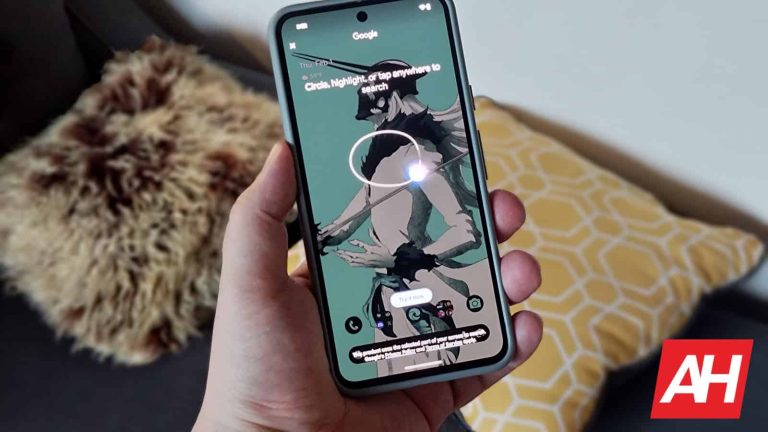
The Circle to Search feature that Google announced back in January has started to roll out to the Pixel 8 and Pixel 8 Pro. If you have either one of these devices, then you should be able to use it as a means for searching for more information about content on-screen.
You can use it virtually anywhere. No matter what you’re browsing or what you’re doing on the phone. Once you circle something, Google will populate a box on-screen that surrounds the item or words you circled. The results of the search then pop up in a panel from the bottom of the screen.
Circle to Search on Pixel 8 makes for easy and intuitive searching for everything
Google’s Circle to Search feature is intended to give users a quicker, more intuitive way to gather information about stuff. And it can be a super fast method for finding additional information about products. Say you’re at the grocery store and you see an item you want to know more about. You can simply take a photo of the item, then open that photo and circle it to search for information. Super easy and relatively fast. To use the feature you do have to activate it but that doesn’t take much effort.
You can activate it in two ways. Either long press on the nav handle at the bottom if you’re using gesture navigation, or long press on the home button if you’re using the three-button navigation. This brings up the circle to search overlay where you can circle or tap the area you want to search. You can also draw a line over the area you’re searching and that works too.
Additionally, it’s possible to add text to the search and potentially more precise results. If you circle to search for something and you don’t get the results you were looking for, you can easily resize the box that pops up and drag it around to see if the results change too. You can use this feature to highlight text as well. To do this, activate circle to search and then tap on or draw a line over any text you want to highlight. Google also makes it possible to scroll around the page to look at something else by using two fingers to scroll around.
This feature began rolling out to Pixel 8 devices on January 31. So there’s a good chance you have access to it already. Google does like to roll things out in waves though so don’t be too surprised if it isn’t active on your device yet.
Apple and OnePlus have very compelling flagship smartphones to offer at the moment. We’re here to compare those two phones, the Apple iPhone 15 Pro Max vs OnePlus 12. The OnePlus 12 global variant launched quite recently, while the iPhone 15 Pro Max arrived in September last year. These two smartphones are very different, but they’re both big flagship units, so comparing them makes all the sense in the world.
Before we get into this, do note that the OnePlus 12 is considerably more affordable than the iPhone 15 Pro Max. You may not be able to tell while using them, but that’s the case. With that in mind, we’ll first list their specifications, and will then move to compare their designs, displays, performance, battery life, cameras, and audio performance.
Specs
Apple iPhone 15 Pro Max vs OnePlus 12, respectively
The iPhone 15 Pro Max is made out of titanium and glass. It has flat sides all around, with slightly curved edges. The OnePlus 12, on the other hand, is made out of aluminum and glass, and it’s considerably more curvy than the iPhone 15 Pro Max. Apple’s flagship has a flat display and a pill-shaped camera cutout on the front. OnePlus’ offering includes a curved display, and a centered display camera hole, a single one.
On the back, both devices have three cameras. The iPhone 15 Pro Max has its recognizable camera layout in the top-left corner. The OnePlus 12’s camera island sits in a similar spot, and it looks reminiscent of what the OnePlus 11 offered, design-wise. Apple’s power/lock button sits on the right-hand side, while the volume up and down buttons are on the left, along with an Action Button. The OnePlus 12 includes physical buttons on the right side, while the alert slider sits on the left.
The in-hand feel is completely different in comparison, but both devices are quite slippery. The iPhone 15 Pro Max is a bit shorter and a bit wider, while it’s also a bit thinner. They weigh almost the same, there’s only a 1-gram difference between them. Both smartphones come with an IP certification for water and dust resistance. The iPhone 15 Pro Max offers IP68 certification, while the OnePlus 12 has IP65 certification. Both devices are immensely slippery in the hand, so using a case could be a good idea. They do feel great to hold and use, though, very premium.
Apple iPhone 15 Pro Max vs OnePlus 12: Display
Apple’s flagship features a 6.7-inch 2796 x 1290 LTPO Super Retina XDR OLED display. That panel is flat, and it offers an adaptive refresh rate up to 120Hz. Dolby Vision is supported, as is HDR10 content. This panel goes up to 2,000 nits of theoretical brightness, and it has a 19.5:9 aspect ratio. Apple is using the Ceramic Shield glass in order to protect the iPhone 15 Pro Max’s display.
OnePlus 12
The OnePlus 12, on the other hand, features a larger 6.82-inch QHD+ (3168 x 1440) LTPO AMOLED display. Its display is curved, and it can project up to 1 billion colors. It also has an adaptive refresh rate of up to 120Hz, and Dolby Vision is supported. HDR10+ content is also supported, while this panel has a theoretical display brightness of 4,500 nits. It is protected by the Gorilla Glass Victus 2.
When it comes to displays, there’s really not much to complain about on either side. Both displays are bright, vivid, and have great viewing angles. They also have those deep blacks we’re used to in AMOLED displays. The OnePlus 12’s panel does technically get brighter, but both panels are bright enough, even outdoors in direct sunlight. The touch response is also good on both. You can’t go wrong here, it’s only a matter of preference between flat and curved panels.
Apple iPhone 15 Pro Max vs OnePlus 12: Performance
The iPhone 15 Pro Max is fueled by the Apple A17 Pro processor. That 3nm chip is backed by 8GB of RAM and NVMe flash storage. The OnePlus 12 includes a 4nm Snapdragon 8 Gen 3 processor, along with up to 16GB of LPDDR5X RAM (up to 24GB in China), and UFS 4.0 flash storage is also included here. They’re both quite powerful from the hardware standpoint, and that does show on the performance side of things too.
Both smartphones do a great job in regular, day-to-day performance. They’re immensely smooth with great animations. Jumping between apps is very fluid, apps load fast, and all actions ranging from browsing the internet to processing images and video can be done without a hitch. Both software iterations are well-optimized, and albeit completely different, both offer great performance.
What about gaming? Well, the same can be said for gaming, actually. Both of these phones can tackle anything you throw their way, though it’s worth noting that the OnePlus 12 has a huge vapor chamber, and does stay cooler during longer gaming sessions. They both can tackle any game you’ll find in their respective app stores, though, and on the highest possible settings, so no worries there. These are actually some of the best-performing smartphones on the market at the moment.
Apple iPhone 15 Pro Max vs OnePlus 12: Battery
Apple’s flagship has a 4,441mAh battery on the inside, while the OnePlus 12 comes with a 5,400mAh battery pack. Apple’s iPhones usually have smaller batteries, but the OnePlus 12 actually has an unusually larger battery for its form factor. OnePlus did a great job fitting it in there, as many people expected a 5,000mAh battery pack at first. Both devices do offer great battery life, but the OnePlus 12 is a level above the iPhone 15 Pro Max.
What is interesting is that the iPhone 15 Pro Max lasted longer in our battery drain test, a bit longer. However, the OnePlus 12 offered more in day-to-day performance in terms of screen-on-time. The iPhone 15 Pro Max managed to cross the 8-hour screen-on-time regularly, while the OnePlus 12 beat that with over 9 hours of screen-on-time on a regular basis. Do note that gaming was not a part of usage on almost all days, as we did that only for testing. The phones were used for various other tasks, though. Either way, both of these smartphones managed to reach those levels, and still have some battery juice left in the tank. You will be happy with battery life on both of them, that’s for sure
When it comes to charging, the OnePlus 12 has a huge advantage. It supports 100W wired (80W in the US), 50W wireless, and 10W reverse wireless charging. It also comes with a charger in the box. The iPhone 15 Pro Max, on the other hand, supports 20W wired, 15W MagSafe and Qi2 wireless, 7.5W Qi wireless, and 4.5W reverse wired charging. Not only does it have much slower wired and wireless charging, but its reverse charging is slower, and it doesn’t come with a charger in the box.
Apple iPhone 15 Pro Max vs OnePlus 12: Cameras
There is a 48-megapixel main camera included inside the iPhone 15 Pro Max. The phone also has a 12-megapixel ultrawide unit (120-degree FoV), and a 12-megapixel periscope telephoto camera (5x optical zoom). The OnePlus 12 features a 50-megapixel main camera, a 48-megapixel ultrawide unit (114-degree FoV), and a 64-megapixel periscope telephoto camera (3x optical zoom).
Apple iPhone 15 Pro Max
Both smartphones do provide great results, and quite frankly, there is no clear winner here. They trade blows based on the scene they’re capturing. During the day, they provide very detailed images that pop, and the HDR situations are also handled with ease. We preferred the colors that the OnePlus 12 provided most of the time, while the iPhone 15 Pro Max images were warmer more often than not. Their ultrawide cameras do a great job of keeping the color palette of their main cameras, and both do a great job. The periscope telephoto cameras do a great job on both sides, and trade blows depending on the scene and how far you’re zooming in. The OnePlus 12 mostly does better at 3x and 4x, while the iPhone usually comes on top at 5-10x zoom ranges. As I said, that’s not the rule.
In low light, both do a great job but provide different images. The iPhone 15 Pro Max tends to offer images that are a bit brighter, while the OnePlus 12 images are usually more contrasty, and closer to real life. Both smartphones do a great job of capturing details in low light. The main cameras do perform the best in such scenarios, but other cameras are also usable in low light, definitely.
Audio
You will find a set of stereo speakers on both of these phones. The ones that the iPhone 15 Pro Max provides do get a bit louder at the highest of volumes, but both sets are very good in general. They’re well-balanced and are pleasant to listen to.
There is no audio jack here, on either phone. They do have Type-C ports that you can utilize to connect your headphones via a wire. If you prefer to go wireless, the iPhone 15 Pro Max offers Bluetooth 5.3, while the OnePlus 12 comes with Bluetooth 5.4.
The OnePlus Open is now getting Android 14, but you may not get it straight away
What’s going on? Well, the stable update is rolling out, but it’s rolling out to people who were a part of the Close Beta and Open Beta program in India first. So, everyone else might have to wait a bit longer in order to get the update.
This will give a chance to OnePlus to iron out any additional issues that may pop up. Chances are that all other users will have to wait a couple more weeks to get the update but that’s just a wild assumption.
A bunch of core Android 14 changes are included in this update, though they’re not a part of OnePlus’ changelog. In that changelog, the company only listed changes made directly to OxygenOS, as per usual.
New functionality has been added, and the whole system should run even smoother now
The company has added ‘Aqua Dynamics’ with this update. That is a new way of interacting with “morphing forms”. It basically allows you to view up-to-date information at a glance.
This update also adds ‘File Dock’, so you can now drag and drop to transfer content between apps and devices. ‘Content Extraction’ has also been added. OxygenOS 14 can recognize and extract text and images from the screen with a single tap.
The ‘Smart Cutout’ feature is now also here, and it allows you to separate multiple objects in a photo from the background. You can then save that image or share it, whatever you want. This is great for making stickers and making some neat-looking images.
OnePlus has also improved the ‘Shelf’
The ‘Shelf’ has been improved too, as more widget recommendations have been added. Photo and video-related permission management has been improved. The same goes for system stability, as apps should launch even faster now, and the animations should be smoother too.
Aquamorphic Design was updated with a ‘natural, gentle, and clearer color style’. Aquamorphic-themed ringtones have been added, and system notification sounds have been revamped in this update.
On top of all that, OnePlus added carbon tracking AOD that “visualizes the carbon emissions you avoid by walking instead of driving” to the OnePlus Open.
Anonymous Sudan claims responsibility for the cyber attack, citing their belief that the UAE is providing support to the Rapid Support Forces (RSF) in Sudan as their motive.
Anonymous Sudan, the pro-Palestinian and Russian hacktivist group, has taken credit for a series of Distributed Denial of Service Attacks (DDoS attacks) on Flydubai, an Emirati government-owned airline in Dubai, United Arab Emirates.
The group’s latest claim closely follows their January 16th, 2024 announcement of targeting Thuraya Mobile Satellite Communications Company, an international mobile-satellite service (MSS) provider based in Dubai, United Arab Emirates (UAE).
It is worth noting that in both cyber attacks, the motives revealed by Anonymous Sudan were the UAE’s apparent support to the Rapid Support Forces (RSF) for communication. Notably, RSF is a paramilitary force formerly operated by the Government of Sudan, accused by the hacktivists of committing war crimes against the Sudanese people.
The alleged cyber attack was announced on February 1, 2024, by the group through its official Telegram channel. Anonymous Sudan typically announces its attacks via Telegram, with no known website utilized by the group thus far.
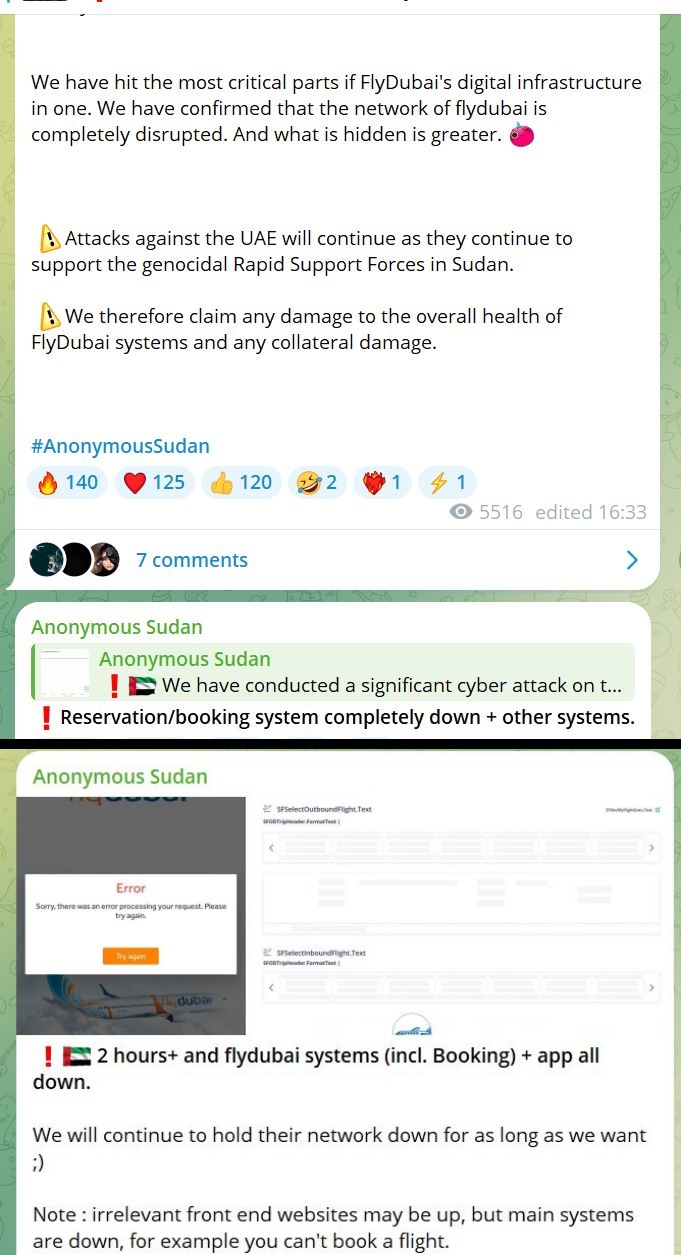
“We have conducted a significant cyber attack on the digital infrastructure of FlyDubai. We have hit the most critical parts of FlyDubai’s digital infrastructure in one. We have confirmed that the network of Flydubai is completely disrupted. Attacks against the UAE will continue as they continue to support the genocidal Rapid Support Forces in Sudan. We therefore claim any damage to the overall health of FlyDubai systems and any collateral damage.”
Anonymous Sudan
Despite Flydubai’s official website remaining online, Anonymous Sudan claimed in a subsequent message a few hours later that Flydubai’s infrastructure, including the reservation system, had been severely affected, leaving the airline’s website as the only functional asset.
However, Hackread.com’s attempt to book a ticket on Flydubai’s website proved successful. Here’s what Anonymous Sudan had to say on Telegram:
Anonymous Sudan on Telegram (Screenshot: Hackread.com)
Hackread.com has reached out to Flydubai for a comment, and should the company respond, we will update this article accordingly. Nevertheless, DDoS attacks have emerged as a significant concern for businesses of all scales. According to Kaspersky’s report, the DDoS economy is flourishing on the dark web, with an increasing number of cybercriminals setting their sights on critical infrastructure.
While there are DDoS attack-mitigating companies out there, the first line of defence is to secure your IoT devices from becoming a zombie for botnets utilized in such attacks. Therefore, whether you are an unsuspecting user at home or administering a large corporation, make sure your cybersecurity defences are as strong as possible.
In an unusually emotional and unified setting, the Senate Judiciary Committee found common ground for the need to protect children online yesterday.
On January 31, 2024, the CEOs of the most widely used social media platforms appeared before the Committee. Meta’s Mark Zuckerberg, X’s Linda Yaccarino, TikTok’s Shou Chew, Snap’s Evan Spiegel, and Discord’s Jason Citron listened to accusations and answered questions about what they were doing to protect children using their platforms.
The main concerns about children on these platforms center around sexual abuse and mental health. The parents that were present in the room had direct experience of children with either or both issues, as the senators pointed out.
In his opening statement, Ranking Member Senator Lindsey Graham held Mark Zuckerberg and the other CEOs to immediate account:
“Mr. Zuckerberg, you and the companies before us, I know you don’t mean it to be so but you have blood on your hands. … You have a product that’s killing people.”
Meta CEO Mark Zuckerberg addressed the families of children who died as a result of online suffering:
“It’s terrible. No one should have to go through the things that your families have suffered. And this is why we invest so much and are going to continue doing industry-leading efforts to make sure that no one has to go through the things your families have had to suffer.”
In November 2023, a Meta whistleblower revealed some shocking numbers around children’s experiences of its platforms. He told Congress that his research showed that 13% of Instagram users younger than 16 were subjected to unwanted sexual advances in a given seven-day period.
In response to the Committee’s questions, the social media CEOs largely agreed upon hiding inappropriate content and some sort of age verification. More substantial were the promises of Snap and X, who both publicly endorsed a prominent bipartisan bill, the Kids Online Safety Act (KOSA).
KOSA was introduced in February 2022 and aims to enhance children’s safety online. It is thought to be the child online safety bill with the best chance of passing Congress.
One of the main points of KOSA is to set up accountability for social media platforms to act in preventing and mitigating content that could harm minors. Such content includes the promotion of unlawful products for minors (e.g. gambling and alcohol), self-harm, substance abuse, eating disorders, sexual exploitation, and suicide.
We’ve heard from whistleblowers that algorithms are consistently used to prioritize the companies own profits over users’ health and safety. Those profits are large, as Senator Klobuchar pointed out:
“Social media platforms generated $11 billion in revenue in 2022 from advertising directed at children and teenagers, including nearly $2 billion in ad profits derived from users age 12 and under.”
In that light we see welcome steps forward, both with the promise made by TikTok to increase its investment in safety by $2 billion—although it was a bit vague—and X’s commitment to support the Strengthening Transparency and Obligations to Protect Children Suffering from Abuse and Mistreatment Act (STOP CSAM) — a bill giving child sexual exploitation victims the right to sue online platforms.
Unfortunately, legislative efforts at the national level have mostly failed, but state legislators have introduced more than 100 bills across the country that aim to regulate how children interact with social media.
We asked Oren Arar, Malwarebytes’ VP of Consumer Privacy how he felt about these developments.
“Recent congressional hearings highlight the efforts social media companies are making to mitigate these dangers. However, their business models do not primarily focus on safety, which often relegates such critical concerns to the back burner. Consequently, the onus of protection falls heavily on parents and guardians.
In an age where children gain access to social media and online platforms at an increasingly young age, the importance of safeguarding their privacy and security cannot be overstated. The virtual landscape, while offering numerous benefits, also harbors risks from malevolent actors who may disguise themselves as harmless peers. These risks are not solely external; they can also emanate from within a child’s own social circles in the form of cyberbullying.
To fortify our children against these virtual threats, a two-pronged approach is essential: relentless awareness and privacy-centric technology.
Awareness is pivotal. It necessitates ongoing, open conversations with our children to instill a deep-seated wariness of strangers online and to reinforce the dangers of in-person meetings with online acquaintances. Doubts and unusual encounters should be brought to an adult’s attention without hesitation. Vigilance through regular check-ins is imperative, not just to monitor online interactions but to detect any behavioral shifts that could signal cyberbullying. Immediate and supportive intervention is crucial to maintain a child’s sense of security and wellbeing.
While parental control tools might not be favored by all, the use of privacy-led technology is a substantial defense mechanism. Ensuring that social media accounts are locked down with robust privacy settings, particularly disabling automatic geolocation sharing, is a start. Strong, unique passwords and two-factor authentication add a layer of security to prevent unauthorized access. Advising children against sharing personal information and encouraging the use of VPNs can also significantly enhance their online privacy.”
Tips to keep your children safe online
To keep your children safe there are several things you can do up front.
Keep webcams covered when not in use.
Use parental controls and features like SafeSearch.
Familiarize yourself with the platform your child uses, so you know the options and pitfalls.
Look at the privacy settings of the device, the browser, and frequently used apps.
Be open in communication with your children and lead by example.
What you should teach your children:
Do not fill out personal information online. Pay special attention to not giving away your location.
Be careful who you share pictures with, especially when asked.
Steer away from threatening environments and private conversations with strangers.
Don’t let others use your device(s).
Ask a trusted grown-up whenever you’re worried about something.
Get permission before you install new apps.
We don’t just report on threats – we help safeguard your entire digital identity
Cybersecurity risks should never spread beyond a headline. Protect your—and your family’s—personal information by using Malwarebytes Identity Theft Protection.
Those of you who still love Nokia smartphones, well, you can now say goodbye, as they won’t be coming any longer. HMD Global, the company that was releasing Nokia-branded phones for years, has decided to cut the cord.
You can now say goodbye to Nokia smartphones, HMD Global is moving in a different direction
HMD Global will start selling its devices without the Nokia branding. The company also decided to tease a lineup of devices with its own branding, simply ‘HMD’. You can expect smartphones, tablets, and wireless earbuds to arrive at MWC 2024 in Barcelona. The teaser video is available below.
Do note that most of the current Nokia smartphones and tablets are on discount at the moment, until supplies last. It’s also worth noting that all Nokia Mobile socials are now blocked, with all the followers gone, as shown below.
The old website name is gone, HMD is here to replace it
The old website has also changed its name, to HMD. HMD stands for ‘Human Mobile Devices’, in case you were wondering. The company wants to make “tough, fun, secure, fast, and affordable” phones.
This has been a rather long partnership, as it started way back in 2016. That’s when HMD Global got exclusive rights to the Nokia brand for mobile phones. Since then, the company launched quite a few devices.
Things obviously didn’t work out as HMD Global envisioned, however, and after 7+ years, HMD Global has decided to part ways with the Nokia brand. The company will move forward with its own branding.
This is kind of sad, though these were Nokia smartphones only by name. Many people said goodbye to Nokia devices a long time ago, either before Microsoft got their hands on them, or after. Either way, we won’t be seeing Nokia smartphones anymore, which marks the end of one of the most recognizable brands in the history of (smart)phones.
Apple’s biggest launch in a long time, the Vision Pro, is releasing in a few hours, right on schedule. Priced at $3,499, it is exclusively available in the United States. Even at that price, one report suggests that over 200,000 units have already been pre-ordered. Perhaps, at the same time, Microsoft has announced its share of wishes to Apple as it launches its suite of Microsoft 365 apps on the App Store for Apple Vision Pro.
Microsoft 365 apps landing soon on Apple Vision Pro
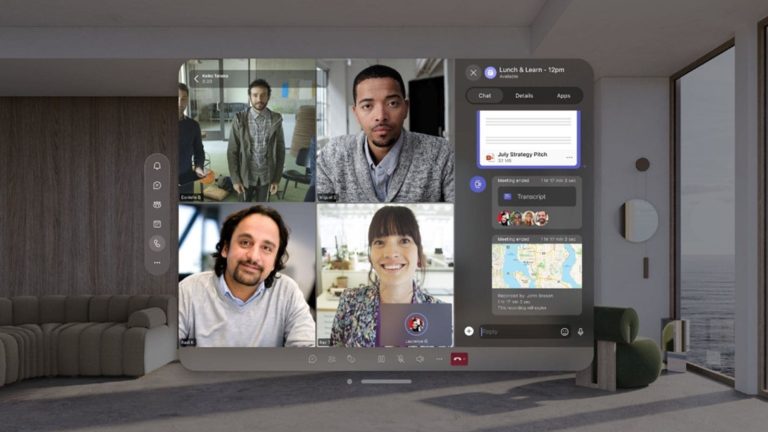
Microsoft has announced “some exciting news” that Microsoft Teams, Word, Excel, Powerpoint, Outlook, OneNote, and Loop are coming to the App Store for Apple Vision Pro on its launch day i.e., Friday (February 2nd). This means that Apple Vision Pro users can download and use the Microsoft 365 apps as soon as they bring home the big-budget Apple’s “mixed reality” headset.
It’s noteworthy that Apple has long called its Vision Pro “an ideal productivity tool,” and Microsoft 365 apps are synonymous with the term. So, it’s no surprise that they’re coming. More importantly, Apple Vision Pro users will be able to use an AI-powered Copilot on the headset. This means they could do things like making drafts, summarizing documents, and creating PowerPoint presentations just by using voice.
How’d the experience be while using Microsoft apps on Apple Vision Pro?
Well, we don’t know yet but the initial feedback on the Apple Vision Pro seems mostly positive. However, there are concerns about its weight and discomfort during prolonged wear. According to CNET, Apple Vision Pro is well-suited for tasks like using it as a work computer and enjoying movies.
Microsoft talks about a focus mode in Word. This will help users avoid distractions or fully focus on completing an overdue assignment. With Teams, your digital avatar can join work meetings, adding a personal touch. PowerPoint offers a special environment for practicing presentations in front of a virtual audience. In Excel, you can easily move documents to other apps by using the headset’s pinch and drag feature.
During the peak of its notable decline, Netflix implemented one of its most hated changes, the password-sharing crackdown. Many viewed this as the nail in the coffin for Netflix, but it proved successful. Now, after Disney+ has followed suit, Hulu is going to bring its own password-sharing crackdown.
Other streaming services and the internet at large pretty much laughed at Netflix when it started cracking down on password-sharing. However, when Netflix officially brought down the hammer, it actually proved successful in bringing more users to the platform. Once this happened, our cynical brains assumed that other companies would blindly follow suit and bring their own password-sharing restrictions.
Well, our cynical brains were not wrong; Disney+ also restricts password-sharing. This is a major blow, as the company saw a price hike that boosted the ad-free subscription to $10.99\month.
Now, Hulu is going to bring its own password-sharing crackdown
This shouldn’t come as much of a surprise, as Disney owns Hulu. So, with Disney+ restricting password-sharing, we all knew that Hulu was not far behind. News of Hulu’s password-sharing crackdown came right from the company’s mouth.
Several Hulu users have reported seeing a new email from the company letting them know that password-sharing will no longer be tolerated. A user on Reddit posted a screenshot of the email the company sent. Just like with Netflix, only people within the same household are allowed to use the same password. So, if you set up an account, and give your friend who lives across town your password, Hulu will be very upset.
In the email, Hulu referenced a new addition to its terms of service. If you read through the terms of service, and you are unfamiliar with this, it’s because Hulu very recently changed its subscriber agreement. So, as the email reads, Hulu will “analyze the use of your account” to see if you’re sharing your password across different houses. Then, as you can imagine, the app will then limit or terminate your access to the service. We’re not sure what the company is going to do exactly. It’s possible that the secondary home will lose access to Hulu with no consequences to the account holder. However, that remains to be seen.
People will be upset
While Netflix’s password crackdown led to more sign-ups, that’s not to say that people are happy about it. At this point, there’s no telling if bringing a password crackdown will for sure increase Hulu’s subscriber count. Netflix is only one example.
We have to think about the bigger picture. Sure, it worked for Netflix, but as more streaming services adopt a password-sharing policy, more people are going to get tired of it. We have no idea how long people are going to tolerate it before they start to give up on streaming altogether. So, there’s no way of telling if this will work out for Hulu or not. Prices have been on the rise for so long, and they can only go so high before people unsubscribe en masse.