Gen-Z might argue that Facebook is a bygone social media platform. However, it remains the most popular social media platform even in 2023, according to a Statista report. Although Meta decided to discontinue payments to news publishers on Facebook News Tab, it remains the go-to source for news in the U.S.
Every 3 out of 10 U.S. adults read news from Facebook
Despite the rise of other social media platforms, Facebook remains the most popular source of news among adults in the U.S. Over 30% of users regularly consume news on the platform, per Pew Research.
YouTube follows closely behind with 26% of users, while Instagram secures third place with 16%. While not as widely used for news, TikTok, X, and Reddit still play a role in informing the US population, with 14%, 12%, and 8% of users, respectively.
Although, the percentage of users getting news from Facebook has declined from 54% in 2020 to 43% in 2023. It still remains the most popular social media platform for news consumption.
TikTok has experienced a surge in news consumption, with 43% of users now turning to the app for news, up from 22% three years ago. Among all the social networks surveyed, X (formerly, Twitter) has the highest percentage of users (53%) who go to the website for news.
Men mostly read news from Reddit; women prefer Nextdoor
The study reveals a gender divide in social media news consumption. It notes that Men primarily use Reddit, X, and YouTube for news. Meanwhile, women prefer Nextdoor, Facebook, and Instagram. Despite the decreasing reliance on social media for news, a significant portion still uses social media for daily news. And with great power, comes great responsibility.
That’s why social media companies must remain vigilant in combating the spread of misinformation, even if their focus shifts away from news delivery. Social media has previously been accused of spreading misinformation in the past, especially during times of conflict or global tension. These accusations have focused on social media’s role in promoting fabricated reports and undermining public trust.
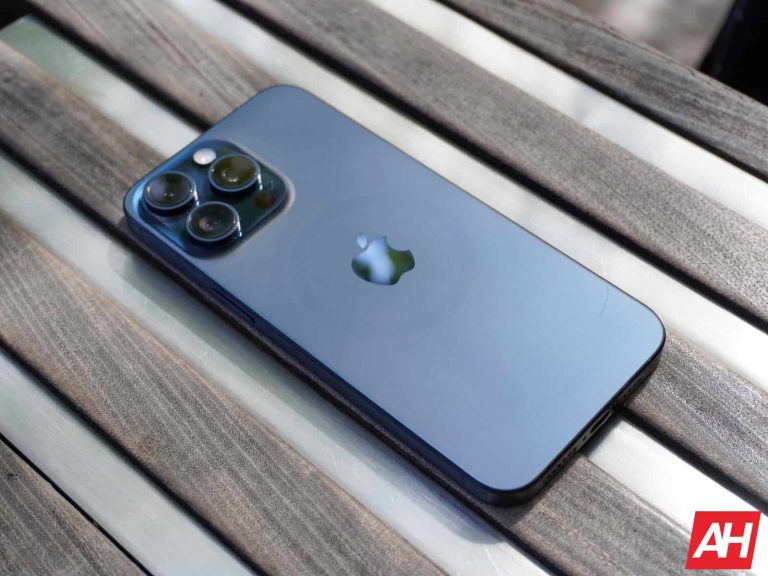
Well, it turns out that miracles CAN happen. You might want to watch out for flying pigs today because Apple just announced that it’s going to implement RCS messaging into the iPhone next year. This was a surprising move from the company because it was vehemently resistant to adopting it.
In case you don’t know what RCS (Rich Communication Services) messaging technology is, it’s the next evolution of SMS (Short Messaging Service) technology. SMS technology has powered several generations of phone users over the years, but it’s far out of date. Internet-based messaging technology has arisen thanks to the likes of apps like Facebook Messenger, WhatsApp, Telegram., Google Chat, etc. They offer a much more robust experience while SMS is stuck in the early 2000s.
Android has already implemented RCS technology into its phones, and everyone has been waiting for the other major mobile OS to do the same. Apple has long been a stick in the mud when it comes to implementing RCS technology. It opted to keep its iPhones on the older SMS technology. This way, it can have more control over its messages (and keep its monopoly over the sacred blue bubbles).
But, Apple finally announced that it’s implementing RCS technology
Love it or hate it, Apple is finally jumping on the SMS train. This comes after years of pressure from competitors like Google and Samsung. Not only them, but governmental regulators have also been weighing on the company’s shoulders.
The thing about RCS technology is that it’s leagues ahead of SMS. You’re able to make group chats, send larger files, share your locations, get read receipts, enjoy end-to-end encrypted messages, and more. Apple offers some of these features through iMessage, but only iPhone users can use them. Android users were left out of the party. This is a bummer, as Android users can enjoy these features with other Android users, but iPhone users are left out in that regard.
Apple is going to bring RCS messaging through a software update next year. It said that this will happen laternext year. We’re not sure when the company is going to launch it, but it would make sense if it were to launch the feature with iOS 18. It could be one of the headlining features of the update.
iMessage is going nowhere
While Apple is opening up to RCS messaging, it’s still doubling down on iMessage. The company said that the end-to-end encryption in iMessage is stronger than RCS, and it will still exist as its own service. This shows that Apple is still not ready to give up what it’s built with iMessage. In any case, it is nice to see that the company is finally implementing the technology.
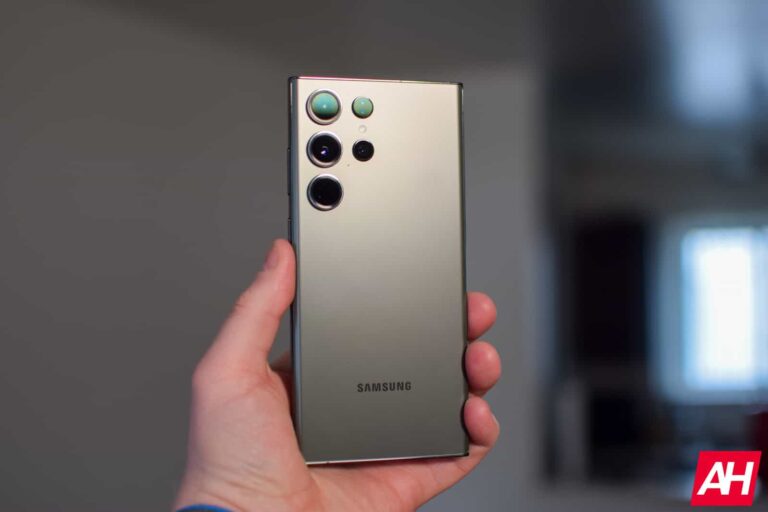
In late October, Samsung released the Android 14 stable update for the Galaxy S23 series, with One UI 6.0 on top. It brought a plethora of new features and improvements. The company has now taken out time to detail the new camera and gallery features of One UI 6.0.
Samsung details One UI 6.0 camera features
Samsung‘s latest camera updates start with a custom homescreen widget that lets you set shortcuts for different shooting modes. You can pick a separate location for saving the photos you take through different camera modes. The company has also diversified the Auto FPS settings to give you more control when shooting videos in low-light conditions. You now have the option to selectively apply Auto FPS to 30fps videos only or both 30fps and 60fps.
The shutter speed controls that were previously only available through the Camera Assistant app are part of the stock camera app with One UI 6.0. You can prioritize faster shooting speed with minimum optimization and post-processing or maximize optimization for improved image quality and slower shutter speed. There’s also a balanced option that gives you optimal shutter speed and image quality.
The new One UI version also separates the document scanning feature from the Scene optimizer. This lets you scan documents even when you have disabled the Scene optimizer. Samsung has added an auto-scan tool too, so your Galaxy S23 will automatically scan documents when recognized. If the document has a QR code, the device will detect that as well. You can choose to scan the QR code, simply take its photo, or scan the whole document.
The big update adds a dedicated button to quickly change the camera resolution when shooting in Photo or Pro mode. The button appears at the top of the screen. Samsung says it added this feature based on user feedback. Last but not least, One UI 6.0 lets you disable the swiping gesture (up or down on the screen) for twitching between front and rear cameras. This will prevent accidental switching of cameras.
New video editing tools and more
Samsung’s One UI 6.0 update for the Galaxy S23 series brings new photo and video editing tools. The Studio feature, which comes built into the gallery, offers advanced tools for high-quality video editing. It has a multi-layer editing structure and lets you easily add or move photos, video clips, stickers, and subtitles. Samsung has improved the built-in photo editing features too.
Additionally, the gallery now supports a two-finger drag-and-drop gesture for moving files between folders or albums. With One UI 6.0, document scanning works through the gallery too. If you have a picture of a document, you can quickly scan it to improve its clarity. You can also extract text from the photo and edit it using Samsung Notes or other text processing tools.
Elsewhere, cropping images and turning them into stickers is a breeze with the improved Image Clipper. The feature even supports videos. Simply pause the video at the desired scene and select the object you want to turn into a sticker. The system video player is now more feature-rich too. Samsung has added options to move feature positions and adjust the playback speed.
The new camera and gallery features will roll out to other Galaxy devices with the One UI 6.0 update. As usual, hardware limitations may prevent Samsung from pushing every new addition to older models, but flagships will get most of them. Budget and mid-range devices will miss out on some new features. The big update will reach more models in the coming weeks.
Having the largest mobile app store (Play Store) on the most extensive VR headset (Meta Quest VR) isn’t possible. This is a result of one party turning down an offer from the other to work together. Yes, Google turned down Meta’s offer to bring the Play Store to the Quest VR headsets for users to enjoy.
Even though the Quest VR headsets run on a modified version of Android, the availability of Android apps for use is limited. Why is this, are there some technical drawbacks that prevent porting Android apps to Meta’s VR headsets? As Meta’s CTO, Andrew Bosworth, explains, there are no technical limitations that prevent bringing more Android apps over to their VR headsets.
Developers can bring their apps from Android over to VR headsets for usage. However, the major problem lies in the distribution of these apps, as an actual app store is required for this. Google, having the necessary means to provide Android apps to Meta VR headset users is not willing to do so.
For some reason, Google isn’t willing to bring the Play Store to the Quest VR headset
During an AMA session on Instagram, Meta CTO Andrew Bosworth answered some questions from the Quest community. Among the questions that community members threw at him was related to the availability of Android apps on the VR headset. In response to this, he said that “nothing is preventing Android developers” from bringing their apps to Quest VR headsets.
He goes on to say that all developers have to do is send them their APKs to make their apps available to users. There might be some modifications to the APKs to make them suitable for usage on VR headsets. However, there is a lack of a distribution channel for these APKs between the developers, Meta, and the end users.
Meta’s CTO goes on to point out that Google has been approached to bring the Play Store to Quest VR headsets. Well, the tech giant refused to grant this request, hence the need for a workaround. But what exactly is the reason behind Google’s decision on this issue?
Well, there is no clear-cut reason as to why Google takes this stand, but one can imagine it’s all about competition. It’s no news that Google is nurturing some VR dreams and aspirations. So will its refusal to bring the Play Store to Quest VR headsets help its VR dreams and aspirations?
Well, there’s no proof to back that line of thought and it might be false in itself. However, users of the Quest VR headset will be more than thrilled to have Android apps on their headsets. Meta might be working on a way to bring these apps to their VR products, but only time will reveal its efforts.
This week marked the Redmond giant Microsoft’s monthly security updates for its products. With Patch Tuesday November, Microsoft addressed fewer vulnerabilities – over 60 only, including five zero-day flaws.
Five Zero-Days Patched With Latest Microsoft Updates
Microsoft addressed five different zero-day vulnerabilities with November Patch Tuesday updates.
Interestingly, none of these vulnerabilities lead to code execution, nor do they boast a critical severity rating. However, their public disclosure and active exploitation (for three of them) make them severe issues requiring immediate patching. These important severity vulnerabilities include the following.
CVE-2023-36025 (CVSS 8.8): a security feature bypass in Windows SmartScreen that went under attack before a patch. An adversary could exploit this flaw by tricking the victim into clicking a maliciously crafted URL, after which the attacker could bypass Windows Defender SmartScreen prompts.
CVE-2023-36038 (CVSS 8.2): a denial-of-service vulnerability impacting the ASP.NET Core. Despite public disclosure, Microsoft detected no exploitation attempts for this flaw.
CVE-2023-36033 (CVSS 7.8): a privilege escalation vulnerability affecting the Windows DWM Core Library. Exploiting the flaw could let an attacker gain SYSTEM privileges. Microsoft confirmed detecting active exploitation of this vulnerability.
CVE-2023-36036 (CVSS 7.8): another privilege escalation issue in the Windows Cloud Files Mini Filter Driver, allowing SYSTEM privileges. Microsoft confirmed finding this vulnerability under attack.
CVE-2023-36413 (CVSS 6.5): another security feature bypass in Microsoft Office allowing an adversary to trick the victim into opening a maliciously crafted document in editing mode, bypassing the protected view.
Other Important November Patch Tuesday Updates From Microsoft
This month’s update bundle also addressed three critical severity issues alongside the zero-days. These include an information disclosure vulnerability affecting the Azure CLI REST Command (CVE-2023-36052; CVSS 8.6), a remote code execution vulnerability in the Windows Pragmatic General Multicast (PGM) (CVE-2023-36397; CVSS 9.8), and privilege escalation vulnerability impacting the Windows HMAC Key Derivation (CVE-2023-36400; CVSS 8.8).
In addition, the update bundle fixed 51 other important severity vulnerabilities and four moderate severity issues across different Microsoft products.
As the updates have been released publicly, users must rush to update their devices immediately to avoid potential threats.
Samsung‘s Android 14-based One UI 6.0 update brought a host of new camera features to the Galaxy S23 series. The company has already detailed everything it added to the flagship lineup with the big update. Separately, it pushed new features and improvements to its standalone camera apps as well. Expert RAW, Camera Assistant, and Galaxy Enhance-X all picked up new tools. Let us have a close look at those.
One UI 6.0 improves Samsung’s Expert RAW and Camera Assistant apps
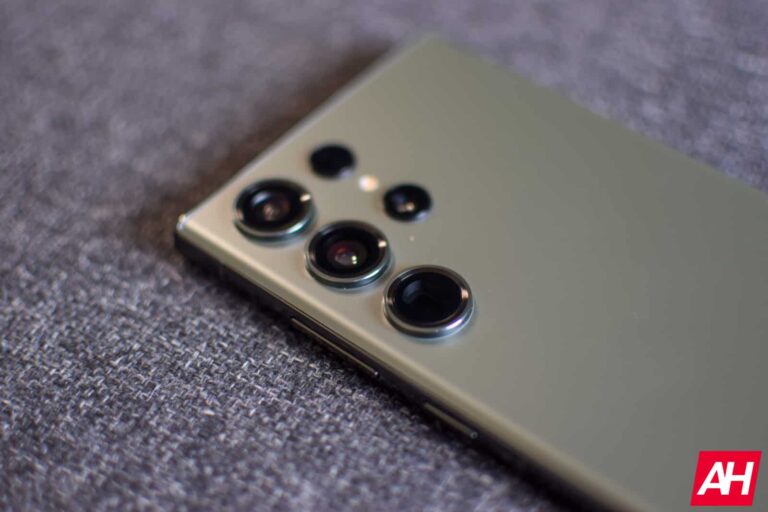
The big new update for the Galaxy S23 series adds ten types of AI-powered ND (neutral-density) filters to Expert RAW. These filters let you capture natural movements such as waterfalls or waves by reducing light. No matter how bright the environment is, simply pick the right filter and your phone will work out the magic. Samsung has also significantly improved the image quality in low light.
For Camera Assistant users, One UI 6.0 adds a digital zoom upscale feature to improve soon shots. Automatic lens distortion correction is also now more effective. It corrects the distortion effect of the main and ultrawide cameras on the back and the selfie camera. The feature is on by default. The Crop Zoom feature added a few months back has been renamed to 2x Crop Zoom.
This update further adds the option to move the shooting speed controls from Camera Assistant to the stock camera app. The tool lets you prioritize shutter speed or image quality (maximum post-processing and optimization). A faster shutter speed would reduce optimization and let you capture shots in quick succession. It’s nice to see Samsung migrating features from standalone apps to the main camera experience of Galaxy phones.
The Galaxy Enhance-X app is getting new features too
Samsung’s SingleTake camera feature lets you capture multiple photos and a short video of a scene with a single tap of the shutter button. With Android 14-based One UI 6.0, this feature moves to the Galaxy Enhance-X app. The app also lets you create a 24-hour time-lapse video of 12 seconds using a single photo. Simply select a bright outdoor photo at the app will work its magic to add the changes that occur throughout the day.
The Sky Guide feature lets you study constellations and famous celestial objects through night sky photos. If your photo has more than 20 visible stars, Galaxy Enhance-X will analyze the patterns of the stars to give you more information, including the locations of constellations. The automatic long exposure tool, meanwhile, allows you to apply a long exposure effect to existing videos of up to 60 seconds.
With One UI 6.0, Galaxy Enhance-X also lets you watch short videos (up to ten seconds) in slo-mo—0.25x of 0.5x speed—without requiring you to enter a separate menu. The app helps in document scanning too, cleaning and sharpening the text for better results. Last but not least, it can detect blurry lenses (due to fingerprints or dust) and automatically fixes blurry images correct brightness and dynamic range.
In addition to the Galaxy S23 series, the improved Galaxy Enhance-X app will be available to the Galaxy S22, Galaxy S21, Galaxy S21 FE, Galaxy Z Fold 5, Galaxy Z Flip 5, Galaxy Z Fold 4, Galaxy Z Flip 4, Galaxy Z Fold 3, Galaxy Z Flip 3, Galaxy A54, Galaxy A53, Galaxy A34, Galaxy A33, Galaxy M54, Galaxy M53, Galaxy M34, and Galaxy M33 (some features may not be supported). The One UI 6.0 update will reach these devices in the coming weeks.
Microsoft is one of the biggest companies in the entire world, yet it’s shied away from developing its own in-house chips. Its phones, consoles, and other components use chips manufactured by other companies. However, the company just announced that this is about to change. According to a new report, Microsoft is developing its own in-house chips, and, as you would guess, they’re centered around AI.
Microsoft, along with the rest of the world, has been jumping on the AI craze as of late. Companies are pouring billions of dollars into developing smarter and more intuitive AI. Heck, Microsoft basically adopted OpenAI as a child after chat GPT launched. So, it should come as no surprise that Microsoft is developing its own silicon for AI.
Microsoft is developing its chips to help boost its AI capabilities
These new chips from Microsoft are targeted at cloud-based artificial intelligence. They’re named the Cobalt 100 chip and Maia 100 chip and the company is going to use these chips for different purposes.
The Maya 100 chip will be used to train AI models. This is similar to how people have been buying Nvidia’s h100 GPUs en masse to train their AI models. Just recently, Elon Musk bought a ton of Nvidia GPUs to train the AI models for his companies. As for the Cobalt 100 chip, this ship will be used to power the company’s Azure Cloud platform.
For the time being, Microsoft has had to rely on other companies like Nvidia for chips to power its AI ventures. However, with its own in-house chips, Microsoft will be able to cut costs. It’s always cheaper to manufacture your own components than to buy from third-party sellers.
Right now, the company is still working on manufacturing these ships, so you won’t see anything soon. However, the report states that these chips should be coming out sometime in 2024. This means that Microsoft has been working on them for some time.
This shows how extremely committed Microsoft is to AI technology at this point. We expect it to be implemented into more of the company’s services. However, we don’t know exactly how many.
Android 14 QPR2 Beta 1 began to rollout yesterday for the Pixel 5a, 6, 6 Pro, 6a, 7, 7 Pro, 7a, Pixel Fold, and Pixel Tablet (with the Pixel 8 series to follow soon) along with the November 2023 security patch. Although this release included mostly bug fixes and UI refinements, there was one key user-facing feature that made a surprising debut — the ability to screen record or cast a single app instead of the entire screen.
Hands-on: I finally got this fully working, so here’s a full demo of Android 14’s new partial screen recording feature.
This feature lets you record a single app without any System UI elements or notifications appearing in the video!
This can be very helpful in cases where you want a clean output without the status bar, notification icons, or notification popups. What you get is just the app itself without anything else that surrounds it.
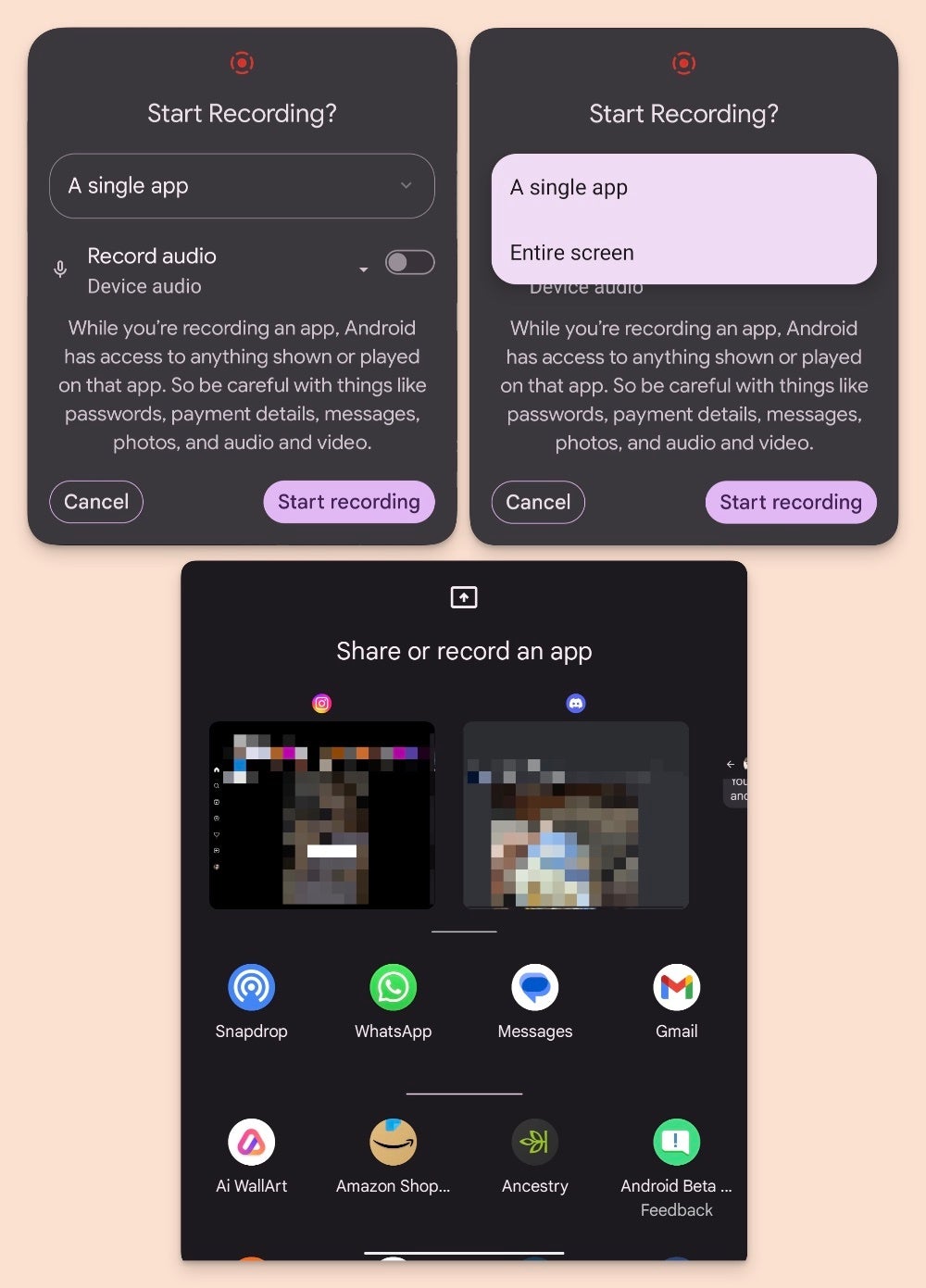
The way it works right now on Android 14 QPR2 Beta 1 is that as soon as you start a screen recording, you are presented with a dropdown asking whether you want to record just the app or the entire screen. At this point, if you choose a single app, you are then shown an app selector with the most recent apps you have opened, with the top two or three shown as a thumbnail preview.
Android 14 single app recording prompts
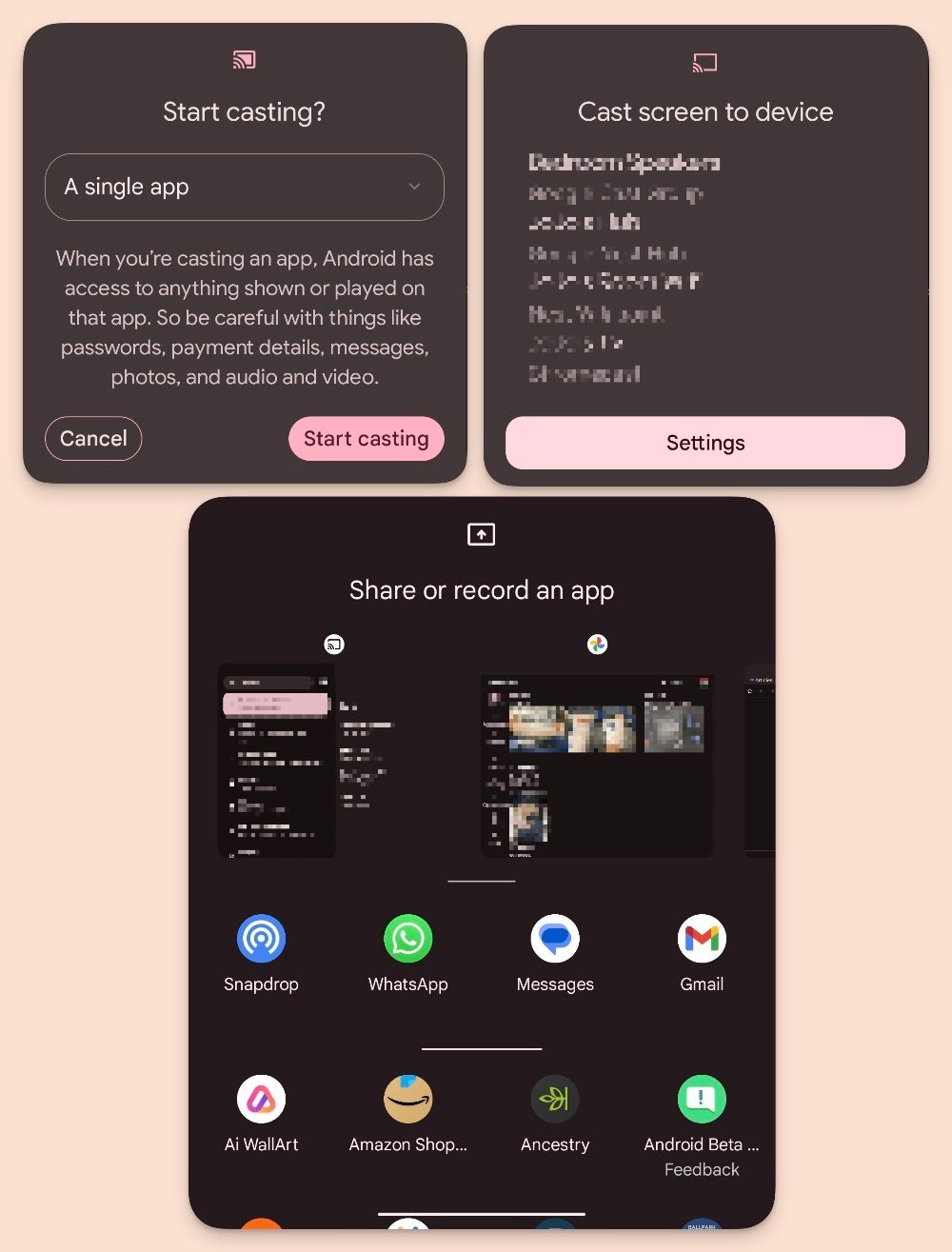
The casting function offers a very similar choice, with an option to cast only a single app right before requesting the device you want to cast to. Both the screen recording and casting prompts include a warning stating “When you’re casting an app, Android has access to anything shown or played on that app. So be careful with things like passwords, payment details, messages, photos, and audio and video,” further educating users on the dangers of doxxing yourself.
Android 14 single app casting prompts
Since it is currently present in the latest beta, there is still a possibility that this feature will evolve and change as the QPR beta period progresses. If all goes well, it is expected that this will make its way to stable Android 14 soon, hopefully in the next Pixel feature drop.
ManageEngine, one of the most widely used IT infrastructure management platforms that offers more than 60 Enterprise IT management tools, has been discovered with an Information Disclosure vulnerability which is tracked as CVE-2023-6105.
This vulnerability affects multiple ManageEngine products, including ADManager, ADSelfService, M365 Manager, Endpoint Central, Service Desk, Access Manager, and many others. The severity of this vulnerability has been given as 5.5 (Medium).
This information disclosure vulnerability exposes encryption keys and exists on multiple ManageEngine products.
A low-privileged OS user with access to the host on an affected product can view and utilize the exposed key for decrypting the product database passwords, resulting in access to the ManageEngine product database.
Additionally, the encryption key is stored in the “CryptTag” configuration in <PRODUCT_INSTALLATION_DIR>\conf\customer-config.xml, and the usernames and passwords for ManageEngine product database can be found in the <PRODUCT_INSTALLATION_DIR>\conf\database_params.conf.
However, the database password can be decrypted using the encryption key from the XML file and the .conf file. An attacker with access to the product database can run OS commands with SYSTEM privileges or some administrative account privileges.
Added to this, the threat actor can reset the password of an administrative user and view data contents that possess sensitive information. A has been published, which provides detailed information about the Python script used for decrypting the password and its output.
A complete report and proof of concept for this vulnerability has been published by Tenable, which provides detailed information about this vulnerability and its patches.
Affected Products
Service Desk Plus prior to version 14304
Asset Explorer prior to version 7004
Service Desk Plus MSP prior to version 14305
Support Center Plus prior to version 14304
Access Manager Plus prior to version 4310
PAM 360 prior to version 5700
Password Manager Pro prior to version 12300
OpManager prior to version 125632 on Windows and version 127243 on Linux
Firewall Analyser prior to version 125632 on Windows and version 127243 on Linux
Netflow Analyser prior to version 125632 on Windows and version 127243 on Linux
Network Configurations Manager prior to version 125632 on Windows and version 127243 on Linux
OpUtils prior to version 125632 on Windows and version 127243 on Linux
Creator On-Premise prior to version 2.0.0
Analytics Plus On-Premise prior to version 5300
ADSelfService Plus prior to version 6304
ADManager Plus prior to version 7210
ADAudit Plus prior to version 7251
Cloud Security Plus prior to version 4170
Data Security Plus prior to version 6126
Exchange Reporter Plus prior to version 5713
M365 Manager Plus prior to version 4539
M365 Security Plus prior to version 4539
SharePoint Manager Plus prior to version 4405
Recovery Manager Plus prior to version 6074
Log360 UEBA prior to version 4050
Endpoint Central prior to version 11.2.2322.01
Endpoint Central MSP prior to version 11.2.2322.01
Remote Monitoring and Management prior to version 10.2.11
Mobile Device Management prior to version 10.1.2204.2
Remote Access Plus prior to version 11.2.2328.01
OS Deployer prior to version 1.2.2331.1
Browser Security Plus prior to version 11.2.2328.01
Patch Manager Plus prior to version 11.2.2328.01
Vulnerability Manager Plus prior to version 11.2.2328.01
Application Control Plus prior to version 11.2.2328.01
Patch Connect Plus prior to version 90124
Device Control Plus prior to version 11.2.2328.01
Endpoint DLP Solution prior to version 11.2.2328.01
Secure Gateway Server prior to version 90091
Users of these ManageEngine products are recommended to apply vendor-specific patches for affected installations to prevent this vulnerability from getting exploited.
Patch Manager Plus, the one-stop solution for automated updates of over 850 third-party applications: Try Free Trial.
Chromebooks used to be the afterthought when it came to laptops but they’ve grown over the years into fully fledged portable computers that do really anything a Windows or Mac laptop will do. They even come with some powerful components these days and you can play games on them. Not just Android games either. Full PC games from Steam and other PC clients.
Five years ago if you said Chromebooks would eventually be capable of accessing my Steam library and letting me play games from it, I’d have called you a liar. But that’s exactly what you can do with them these days. And they’re all the better for it. They also make excellent laptops for students of just about any age. So much so that many schools which provide laptops to their students use Chromebooks.
The point is, Chromebooks are great laptops no matter what you need a laptop for. Whether it’s coding, casual browsing, other work-related stuff, studying, and even gaming. And the best part is that many Chromebooks are actually quite affordable. They boot up in seconds and run fairly smooth too. With the holidays coming up and the shopping season in full swing, it might be time to think about what to get and if you’re looking at Chromebooks as an option, we’ve rounded up the best Chromebooks you can buy right now that you should consider. This is for a gift after all.
Best Chromebook Overall: ASUS Chromebook Flip CX5
A harmonious union of features, specs, build-quality, and reasonable pricing put this above all
Leave it to ASUS to create the best possible Chromebook you can currently buy right now. ASUS has a long history of quality computing products and it’s not surprising it creates the best overall Chromebook. Coincidentally ASUS is also our choice for the best overall gaming laptop. And it again comes down to a combination of reasonable pricing for the build quality and features you get.
That is just as true here with the Chromebook Flip CX5 and its smooth to the touch chassis. Which is also still durable and can hold up to the everyday abuse it might incur. We’re not saying it’s ok to beat this thing up. It’s still a regular consumer laptop and should be treated with care. But tossing it in your bag or onto the coffee table or night stand isn’t going to hurt it any. As long as you’re not actually tossing it. You get the idea.
Aside from build quality the Chromebook Flip CX5 is surprisingly quiet. Then again it is a Chromebook and it’s not like it’s packing a state of the art processor and graphics card that need noisy fans to keep the temperatures down. What most will probably appreciate with this Chromebook is its ability to be used in various different orientations. Use it like any other regular laptop. That’s what it’s for. But you can also flip the screen back to where the laptop sits in tent mode.
And this is going to be the perfect way to watch movies or TV shows if you’re taking a break while using it. Plus, it is a touchscreen so you won’t need to use the keyboard or trackpad for typing or clicking. You can even flip the screen all the way back until the laptop essentially becomes a tablet. Which is what you would want to do if you were browsing the web for some online shopping or maybe reading a book. ASUS has also packed this thing with 128GB of SSD storage and 8GB of RAM, along with two USB-C ports, one HDMI 2.1 port, and one USB-A port. There’s a headphone jack and a microSD card slot too. Plus Harman Kardon audio for decent sound.
All of that equals out to a pretty reasonable price of $649. Factor in the games like Minecraft which is now available on Chromebook, and access to Steam and other PC game stores through GeForce NOW which supports Chromebook as well, and you have yourself a great little machine. It’s not the most affordable Chromebook but it’s not extremely expensive either for what you get. And that’s why we picked it as our best overall Chromebook.
Acer has put together a laptop that’s available at a similar price point to the ASUS model above and it comes with mostly the same specs. Although it does use eMMc for storage instead of SSD. This isn’t really a major issue but it won’t exactly be as fast as the SSD method. That aside you do get the same amount of storage at 128GB and it has 8GB of RAM too. Acer also designed the chassis in this really nice Mist Green color.
Additionally you won’t have to give up the convertible features either. You can flip the screen around to the back and use it as a tablet or put it in tent mode to watch video. One unconventional use that you might find enjoyable as well is laying the screen flat. This allows you to share the content on screen with others who may be sitting with you while still having access to the keyboard and trackpad.
A portable yet capable Chromebook that’s perfect for travel
The Lenovo IdeaPad Duet 3 is in a slightly weird space that’s not quite tablet and not quite Chromebook. It’s both, but also neither at the same time. Like we said it’s a little weird but ultimately this is also an awesome little device. Rest assured this is a full-fledged Chromebook with Chrome OS so it does everything any other Chromebook will. But it also has a few really neat tricks that you won’t find on any other Chromebook on this list. Let alone any other Chromebook on the market (unless it’s another version of Lenovo’s Duet).
The big thing here with the Duet 3 is that it comes with a keyboard cover. This solution is what turns this into a Chromebook and it also keeps both the screen and the back of the tablet protected. The Duet 3 will magnetically connect to the keyboard cover via some contact pins and it fits nice and snug but is also easy to pull away when you want to use it as a tablet. It has a built-in kickstand too.
Which you’ll need for propping this up like a laptop if you want to use it as such. Worth noting is that the kickstand isn’t built into the back of the tablet itself but rather it’s a separate cover that magnetically attaches to the back. You can then snap the kickstand part away to lean the Duet 3 screen back like you would a laptop.
What makes this such a nice device to use as a tablet compared to the other two Chromebooks we’ve listed above is its size. It has an 11-inch screen which is infinitely more portable and definitely easier to hold in the hand. And because you can detach both the keyboard and the kickstand cover it weighs less too. This makes it great for reading or browsing or even watching movies.
And just as good for playing games from the Play Store if games are your thing. Now it’s only got 4GB of RAM and it has a less powerful Snapdragon processor compared to the Intel and AMD processors used in the laptops above. So it will ultimately be a less powerful Chromebook. But it should be plenty powerful for most users anyway.
One nice little bonus if you like games is that it comes with one free month of access to Xbox Game Pass. But not just any tier of the service, Xbox Game Pass Ultimate. Which is normally a $14.99 per month subscription fee. You can use this to play Xbox console games in the cloud including newer titles like Starfield while you’re on the go. As long as the tablet stays connected to the internet while you want to play.
You will of course also need a compatible controller like the Xbox wireless controller. Which is what we’d recommend if you plan to use that Game Pass trial. Now for the best part, the price. The Duet 3 is only $269 right now because it’s on sale for Best Buy’s early Black Friday sale. And this is really kind of a steal. Normally it costs $379 which is still good for this kind of hybrid device. But $269 really makes it stand out.
This is still a 2-in-1 Chromebook but it loses a little bit of what makes the Duet 3 such a compelling device. Namely the ability to be used as a standalone tablet without the keyboard attached. This is going to impact the weight if you’re looking for something extra portable and lightweight. But overall it can still be used in a tablet orientation.
Another thing to consider is that this only comes with 32GB of eMMc storage. It bumps up to a 12-inch screen as well. Although this can play to its advantage since you end up with more screen real estate for taking notes or really anything else. That being said, it’s also on sale for $269 when it’s normally $329. So unless you really want the larger 12-inch display, the IdeaPad Duet 3 is the better option for a 2-in1 Chromebook device while it’s still available at the $269 discount.
Best Premium Chromebook: HP Dragonfly Chromebook Pro
The Chromebook for those who want everything
Chromebooks aren’t usually sold as premium laptops but HP is trying to change that with the Dragonfly Chromebook Pro. This isn’t the first premium Chromebook that was ever released but it is the current option that has all the fancy and extra luxurious features you won’t find elsewhere. Top-notch screen? Check. Powerful speakers for music and video? Check. Performance that surpasses every other Chromebook on the market? Double check.
This thing even has an RGB backlit keyboard if that’s your thing. Though we suspect most might not be looking to buy this Chromebook for the RGB. Since that’s more of a gamer aesthetic and gamers looking to spend this kind of money are looking at proper gaming laptops. Still, it’s nice that it’s there because you can keep the keys backlit and certain colors might be easier for you to see in different light sources.
Or maybe you just prefer a certain color for the backlighting. Either way you have backlit keys here and not all Chromebooks will offer that. And really, at the price of this thing, RGB backlighting should be there. The HP Dragonfly Chromebook Pro runs at a cost of $999 so it’s anything but inexpensive. However, it’s most certainly worth if you want a Chromebook but also want one with exceptional performance and lots of extras.
The standout feature of this laptop really should be the high resolution display, and that’s what stands out for us the most. It comes with a 14-inch display so it rides that line between being just big enough to enjoy for consuming media and getting some work done on. But it’s not so big that it won’t fit in your backpack or be too heavy to carry around. It’s slim and sleek to boot. More important than the size though is the high resolution and brightness.
The resolution is 2,560 x 1,600 so colors and picture quality are going to be vivid, crisp, and vibrant. And the peak brightness is 1,200 nits which is far above what many other Chromebooks offer. This alone is really what helps colors pop off the screen. Which trust us, will matter if you’re watching content where color is important. It’s even more important if you’re using this for work and need something as color accurate as possible.
Oh, and it doesn’t hurt that glare will be nothing but an afterthought for you. When it comes to performance, the Dragonfly Pro Chromebook lives up to its price tag. Showing no signs of stutter or hiccups even with more demanding projects or activities.
That being said, the Dragonfly Pro Chromebook isn’t perfect. While it’s still excellent and the best premium Chromebook you can buy, it does miss the mark a little bit. For instance, you only have four USB-C ports to work with. There’s no HDMI and no USB-A. Furthermore there’s no ethernet or 3.5mm headphone jack. Ethernet aside, the other ports are almost standard across most other cheaper Chromebooks. At least when it comes to the headphone jack and USB-A. Then again these missing ports might not matter to you. And in the end you can always pick up adapters to use devices that need those ports if you really plan to use them.
While the HP Dragonfly Pro Chromebook is a better overall premium Chromebook, Dell’s Latitude Chromebook is a close second. It has an Intel Core i5 CPU inside with a large amount of storage at 256GB. It does lose half the RAM since it dumps down to 8GB and the screen isn’t as high resolution. It’s not quite as bright either. But it still carries a more sleek design than most and what it lacks from the HP laptop it makes up for with stuff the HP is missing. Like all those missing ports. And at a full price of $720 you save a little bit of money too.
The portability with an OLED display is just a little bit magical
Take all of the goodness of the IdeaPad Duet 3 and cram an OLED display in it for some vibrant, immersive viewing, and you have the IdeaPad Duet 5. The Duet 3’s older, more mature sibling with just a little bit extra. While we still prefer the Duet 3 for a slightly more portable experience thanks to its smaller display and lighter build, the difference of those two factors isn’t much. So if the added size and weight don’t bother you, it’s definitely worth going for the Duet 5 to get the OLED panel. Because it’ll definitely make for a more enjoyable experience.
Games, movies, TV, and even browsing the web or scrolling through socials will be noticeably better. And because this is still part of the Duet family, it comes with those awesome keyboard and kickstand attachments. Both of which attach magnetically for a secure grip but can also be easy to detach quickly. Another thing that makes this more enjoyable than the Duet 3 is the fact the display is 13.3-inches. So there’s just a bit more screen real estate to work with. Having said that, the Duet 3 has a 2K display for some additional sharpness. Whereas the Duet 5 is Full HD.
Even as good as the display is though, the best part we think is the battery life. The Duet 3 is up to 10 hours which is already pretty good. But the Duet 5 pumps the battery life up to 12 hours at maximum. Even with a larger display the Duet 5 skates by with more time on the clock from a single charge. And there’s a good chance that’s going to make a big difference if this is your tablet/laptop for basically everything. Students or professionals for example will definitely benefit from having a couple extra hours of use.
Whether it’s late-night cramming for a test or pure entertainment at the end of a long day. Speaking of work, you should be able to do more tasks at once with the Duet 5 since it has 8GB of RAM instead of 4GB like on the Duet 3. And as any long-time user of the Chrome browser will know, the more RAM the better.
As with all of these devices, the Duet 5 is great but that doesn’t mean perfect. Its strengths can also work against it depending on your own personal needs or desires for a Chromebook. For instance, the larger 13.3-inch display being an OLED panel is great for school and/or work. And if you decide to play games on this bad boy (it comes with a one-month trial of Xbox Game Pass Ultimate too by the way), you’ll be happy for the size. But some might find it just a smidge too big for tablet use.
Though we suppose that really all depends on personal preference. Like we mentioned earlier, we prefer the Duet 3 because the 11-inch screen is still pretty nice for school and work, and it’s more portable. But you might want the larger screen. Either however, is a great option. Especially if ultra portability is one of your main goals. It’s a pretty good value at $500 but because Best Buy has started its Black Friday deals early, the Duet 5 is currently down to $329 and that price makes this a really good buy.
Best Chromebook for Gaming: ASUS Chromebook Vibe CX55 Flip
A 144Hz display makes this unmatched for all your cloud gaming needs
Gaming on Chromebooks is starting to make some headway beyond the slate of Android games you can pick up from the Play Store. And NVIDIA GeForce NOW has a big part in driving this sector of Chromebooks forward. Sitting at the top of the heap for gaming is the 15-inch Chromebook Vibe CX55 Flip from ASUS. Its larger 16-inch variation (the Chromebook Flip CX5) is our pick for best overall Chromebook. But this model is tailored more towards gaming and those gaming-centric features are definitely going to make a difference. While mostly aesthetic, the backlit WASD keys can be a nice touch.
Personally this makes it easier to identify the keys if I ever happen to look down at the keyboard. Which admittedly isn’t often but it does happen from time to time. And as I play games late a lot it’s often dark and this can help keep them easy to find. Though rest assured the entire keyboard is backlit with RGB and not just the WASD keys. Of course, the RGB backlit keyboard isn’t what really makes this the best Chromebook for gaming. Because really most modern Chromebooks can play games as they should all be compatible with GeForce NOW.
The reason this is the best one is because of the fast refresh rate and the ethernet port. This is hardly the only Chromebook with an ethernet port but it’s the pairing with the fast refresh rate that set ASUS’s Chromebook Vibe CX55 Flip apart from the pack.
With a refresh rate of 144Hz, the CX5 is faster than competing gaming Chromebooks. Both Acer’s Chromebook 516 GE and Lenovo’s IdeaPad Gaming Chromebook have 120Hz displays. Which doesn’t sound like much but it definitely can make a difference in the heat of the moment. Worth noting is that GeForce NOW will support the 144Hz refresh rate too if you’re subscribed to the Ultimate tier membership. Speaking of which, buyers of this Chromebook also get free access to the top tier membership for three months. The offer is only valid through January 2024 though. So that means you’ll want to claim the offer before then so you don’t miss out.
And if you’re worried about gaming in the cloud on a laptop, you shouldn’t be as long as your connection is fast and reliable enough. Some key features that will help this are this laptop’s support for WiFi 6E and the included ethernet port. That way you can game over fast WiFi and then jack in with an ethernet cable when it’s available. One thing I’ve noticed that most Chromebook’s won’t offer is an anti-ghosting keyboard. This allows for faster multi-key input so you can make quick reactions in whatever game you’re playing.
At a price of $699 it’s not the least expensive Chromebook out there. But compared to actual gaming laptops you’ll save potentially hundreds of dollars. What’s nice is that since this relies mostly on playing games in the cloud, you’ll get a lot more battery life out of this than you would a regular gaming laptop. About 9 to 10 hours on a single charge. Which is enough to game all day before having to plug this thing in.
That being said, we wouldn’t leave the charger at home if you plan to be out all day. All of that aside, there’s currently no better option for gaming when it comes to Chromebooks. So if gaming is your ultimate goal when choosing a Chromebook, the Chromebook Vibe CX55 Flip is your absolute best option. Although if you can forfeit the high refresh rate and the anti-ghosting backlit keyboard, you have some other solid choices for less money.