WhatsApp is rolling out a new update through the Google Play Beta Program that includes a new feature to hide locked chats. The feature is currently in development, but it is expected to be available to all users in a future update.
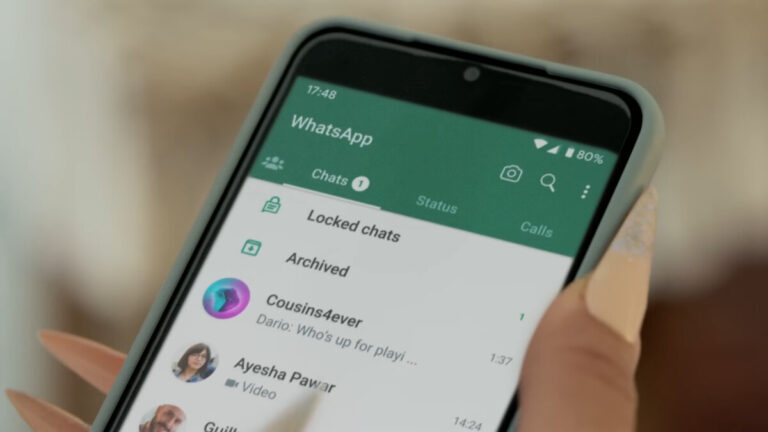
WhatsApp officially rolled out the Chat Lock feature back in May as a way to keep your most sensitive conversations private. When you lock a chat, it will be protected by a password or biometric authentication. This means that only you will be able to open and read the chat, even if someone else has access to your phone.
However, as spotted by WaBetaInfo, WhatsApp is now taking this one step further by adding a new feature to hide these locked chats altogether, which will make it even more difficult for someone to access them. This addition is now live on the latest WhatsApp beta for Android, version 2.23.22.9.
Credit – WaBetaInfo
Without the feature enabled, anyone with access to your phone could still be able to see that you have locked chats and may be able to guess the password or biometric authentication. However, when the feature enabled, the list of locked chats is completely removed from the chat list, making it almost impossible for someone to even know that you have locked chats without having your secret code.
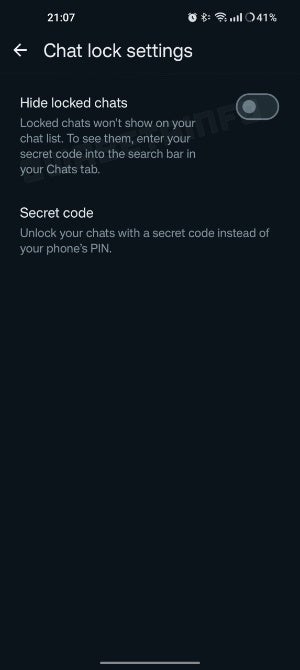
The option to turn this feature on is accessible within the app’s settings, with a clear “Hide locked chats” toggle in the Chat lock settings section. Once turned on, users will need to enter their secret code into the search bar to unlock the locked chat list.
This new feature will improve user privacy by making it more difficult for anyone with access to the phone to even realize that locked chats exist. This is especially important for users who have sensitive or confidential conversations that they want to keep hidden from prying eyes.
It doesn’t matter what messaging app you’re on, there are always those conversations that you don’t want people to see. For whatever reason, some chats are just not meant for prying eyes. WhatsApp, one of the biggest messaging companies, actually has a way for people to keep peeping Toms at bay. According to a new report, WhatsApp will allow you to hide your locked chats.
At the moment, this is being tested in the beta version, so you can’t access it yet. Also, since it’s a beta test, there’s a chance that we won’t see it launch. So, you’ll want to take this with a grain of salt.
WhatsApp might let you hide your locked chats
Right now, WhatsApp has a feature that lets you keep our chats a secret. You can lock your chats so that no one else can access them. You’re able to lock individual or group chats in your feed. Once locked, you will need to enter a password or use your biometrics to access it. It’s a great way to preserve your security. However, there was one thing missing that would make the more paranoid people among us worried.
The locked chats are sorted in a dedicated Locked feed. If someone happens to see that you have locked chats, that could raise some questions. “Locked chats? What are you trying to hide?”
So, according to a new report, WhatsApp is looking to take this feature forward. We have a screenshot showing the option for people to hide their locked chats. It will be under the Chat Lock settings. Once activated, your locked chats won’t be visible at all.
via WABetaInfo
WhatsApp actually has a nifty way to resurface your chats. Rather than having to go back into the settings and deactivate the feature, you’ll set a secret code. Then, when you want to see your chats again, just enter that secret code into the search bar. It’s a quick and easy way for you to find your chats quickly and easily.
MediaTek’s Dimensity 9300 appears to be a powerful new flagship smartphone chipset in the making. It recently showed up on Geekbench, outperforming Qualcomm’s upcoming Snapdragon 8 Gen 3 in multi-core tests. An AnTuTu benchmark for the chip has now surfaced online, and it’s a record-high score.
The Dimensity 9300 sets a new AnTuTu record
The Dimensity 9300 scored a whopping 2,055,084 points in this AnTuTu benchmark run. It’s a new high score on the platform. The chip led the scoring chart for every single component. Its CPU tests yielded a score of 485,064, while GPU tests returned a score of 899,463. The memory or RAM tests scored 357,691 points and the UX score came in at 312,866 points.
With these scores, the new MediaTek set a new record for AnTuTu benchmarks. It’s the first time the score has crossed the two million threshold. However, this benchmark run may have been carried out on a pre-production phone or perhaps a prototype. That’s because the test device is unknown. It has 16GB of LPDDR5X RAM and 512GB of UFS 4.0 storage. The device has a 120Hz display and runs Android 14.
The aforementioned Geekbench run involved an unidentified Oppo phone with the model number PHZ100. It had similar specs too. Considering that this is an unreleased device, we should be looking at the raw performance rather than a true measure of real-world usage scenarios. However, the Dimensity 9300 still appears to be outperforming the Snapdragon 8 Gen 3 by a huge margin.
Based on early AnTuTu scores, the new MediaTek chip has a 65 percent faster CPU and 55 percent faster GPU than the competing Qualcomm solution. The memory score is 33 higher, while the UX score surpassed the competition by a 50% margin (via). The gap in real-world performance may be smaller, but it’s looking good for the Dimensity 9300 at the moment.
MediaTek has opted for an unusual CPU setup here
The new Dimensity processor features an unusual CPU setup. MediaTek has used four prime CPU cores and four mid-cores here, with no efficiency cores. The Taiwanese firm has clocked one Cortex-X4 prime core at 3.25GHz and three more Cortex-X4 cores at 2.85GHz. The four Cortex-A720 cores are clocked at 2.0GHz. MediaTek has paired the CPU with the Immortalis G720 MC12 GPU.
As of this writing, MediaTek hasn’t announced a launch date for the Dimensity 9300. Qualcomm, on the other hand, is all set to unveil the Snapdragon 8 Gen 3 during its Snapdragon Summit 2023, which kicks off tomorrow, October 24, in Maui, Hawaii. A major leak has already revealed pretty much everything we need to know about the new Snapdragon chip. Stay tuned for the official announcement.
So, it’s been a pain in the neck waiting for all of your favorite apps to bring the Material You-themed icons. People are still waiting for the day that they can have a unified home screen. Well, this wait is drawing a little closer to a close, as Instagram is finally bringing its theme icon to Android, according to Mishaal Rahman.
Google has already themed all of its apps, and it’s been waiting on third-party companies to do the same. It started testing themed icons with Android 13, so companies have had about a year to bring their icons. We’ve already seen companies like LinkedIn, Reddit, Spotify, and many more implement their apps.
Instagram is now bringing a themed icon
In case you don’t know what themed icons are, Google introduced Dynamic Colors with Android 12. This means that the software would take the colors present in your wallpaper and apply them to your phone’s screen. This was great, and Google took this to the next level with Android 13. It brought the color palette to your app icons.
Instagram is an app that occupies many smartphone screens, so it’s surprising that the company has waited until now to bring the themed icon. As you can imagine, the themed icon will have a minimalistic Instagram logo with a background reflecting your system’s theme.
It also depends on whether you are in light mode or dark mode. The icon will have two colors, one is bright and one is dark. If your phone is in light mode, then the icon’s background will be light while the logo is dark. However, if your phone is in dark mode, then it will be reversed.
If you don’t see this new icon, make sure that your app is updated. After that, you should see the icon. if not, then you’ll just want to wait a little bit.
A day before Qualcomm’s Snapdragon Summit 2023 in Hawaii, where it will unveil the Snapdragon 8 Gen 3 processor, a major leak has revealed everything we need to know about the new chip. The full spec sheet for the unannounced SoC has leaked, leaving nothing to the imagination.
Major leak bares it all about the Snapdragon 8 Gen 3
The Snapdragon 8 Gen 3 is Qualcomm’s next-gen flagship smartphone chipset. Built on TSMC’s 4nm process node, the octa-core SoC has a 1+5+2 CPU structure. It features one ARM Cortex-X4-based prime Kryo CPU core clocked at 3.3GHz, five Cortex-A720-based mid-cores clocked at 3.2GHz, and two Cortex-A520-based efficiency cores clocked at 2.3GHz. Leaks originally reported lower CPU speeds but we recently learned that Qualcomm is increasing the speed.
According to the leaked spec sheet, the new processor will be 30 percent faster and 20 percent more efficient than the previous-gen solution. The Adreno 750 GPU is also 25 percent faster and more efficient. It boasts real-time hardware-accelerated ray tracing with global illumination and supports Unreal Engine 5. Qualcomm has equipped the chip with various other graphics and visual technologies for an immersive gaming experience.
The Snapdragon 8 Gen 3 can handle up to 144Hz on-device displays of QHD+ resolution. It also supports external displays with up to 240Hz refresh rate. The chip offers 10-bit color depth, HDR10+, and Dolby Vision. It supports USB 3.1 Gen 2, LPDDR5x RAM, UFS 4.0 storage, Bluetooth 5.4, and WiFi 7. The new Qualcomm processor comes with an integrated Snapdragon X75 5G modem for cellular connectivity.
Coming to the cameras, the chip is said to support up to 108MP cameras (the Galaxy S24 Ultra features a “For Galaxy” version of the SoC with 200MP camera support). It can record 4K videos at 120fps (frames per second). It also supports 3D Time-of-Flight (ToF) sensors for accurate depth mapping. Other features include AI-powered photo expansion, object eraser for videos, night vision for videos, and generative AI backgrounds.
On-device AI performance should get a huge boost
With generative AI expanding into proactive AI, chipmakers have been focusing on improving the NPU for more powerful on-device AI processing. Samsung‘s Exynos 2400 and Google’s Tensor G3 emphasize a lot on this. Qualcomm’s Snapdragon 8 Gen 3 is no different. The new Hexagon NPU found on this chip is 98 percent faster and 40 percent more efficient than last year’s flagship Snapdragon chipset.
With this leak, there isn’t much left to know about the Snapdragon 8 Gen 3. Nonetheless, we will keep you posted with all the latest announcements at Qualcomm’s upcoming summit. We are still awaiting information about its market debut. It’s said to ship with the new Xiaomi flagships later this month. In the meantime, you can find its full specs in the infographic below, shared by MSPowerUser (via). Stay tuned for the official announcement.
Google, which has been advocating for RCS messaging for a long time, has now started using the Play Store to promote it to Apple users. A new card in the Play Store’s horizontal-scrolling carousel explains the benefits of RCS, and how it’s already enabled by default in the Google Messages app.
Unless you have been living under a rock, you’ve likely caught at least some part of Google’s ongoing campaign to sway Apple’s position on RCS and its refusal to incorporate it into its existing iMessage application. The pressure campaign began last year and has taken many forms, from subtle hints on Twitter/X to full blown websites dedicated to getting Apple loyals to join in on the fight.
However, none of these efforts have been successful. Apple CEO, Tim Cook, has been quoted as saying “Buy your mom an iPhone” to those questioning his decision not to adopt the messaging standard that has been said to be the successor to SMS and MMS, stating that this isn’t a feature his users have asked for — since iMessage exists. Still, Google has not given up its efforts and has recently even been joined by Samsung on this plight.
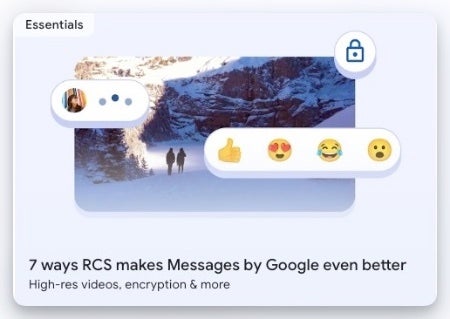
In a new effort to convince Apple to adopt Rich Communication Services (RCS), Google has placed an ad for RCS on the Play Store, as spotted by Android Police. The card is only visible on the web version of the of it, though, which is most easily accessible on operating systems where the Play Store app isn’t available, namely iOS, macOS, and Windows. This suggests that Google is targeting Apple users with its RCS promotion.
RCS ad on the web version of the Google Play Store
The Play Store ad for RCS is a full-fledged article that explains the benefits of RCS and how it’s already enabled by default in the Google Messages app. The ad is a relatively recent addition, with the oldest copy of the webpage created on October 2, 2023, and placed in a prominent location on the Play Store website.
It remains to be seen whether Google’s latest attempt to promote RCS to Apple users will be successful. However, it is clear that the company is determined to see RCS become the standard messaging platform for everyone.
The US-based software firm Okta has discovered malicious activity using a stolen credential to access Okta’s support case management system. An attacker was able to view sensitive files uploaded by Okta customers.
According to the company’s public statement, the Auth0/CIC case management system and the Okta service in production are unaffected by the hack. The firm has contacted each consumer who this issue has impacted.
DocumentFREE Demo
Implementing AI-Powered Email security solutions “Trustifi” can secure your business from today’s most dangerous email threats, such as Email Tracking, Blocking, Modifying, Phishing, Account Take Over, Business Email Compromise, Malware & Ransomware
Users’ Sensitive Information Exposed
The support case management system compromised in this attack contained HTTP Archive (HAR) files, which facilitates troubleshooting by replicating browser activity.
Cookies and session tokens, among other sensitive data, can be found in HAR files and used by malicious actors to pose as legitimate users.
Okta stock fell 11% today 😭😭😭
… after they admitted they got compromised (again) through their support system (again) and the Threat Actor(s) tried to pivot to clients (again).
To safeguard their customers, Okta has investigated with the help of the affected customers and taken steps, such as revoking embedded session tokens.
The two customers who acknowledged they were the target of the most recent attack on Okta’s support system are BeyondTrust and Cloudflare.
“Within 30 minutes of the administrator uploading the file to Okta’s support portal an attacker used the session cookie from this support ticket, attempting to perform actions in the BeyondTrust Okta environment”, BeyondTrust reports.
According to BeyondTrust, on October 2nd, it discovered an identity-centric attack on an internal Okta administrator account and swiftly stopped the attack using its identity security technologies, with no harm or exposure to the company’s infrastructure or its clients.
On October 18, 2023, Cloudflare discovered attacks on their system; they asserted that no customer data or services were compromised.
“The threat actor was able to hijack a session token from a support ticket that was created by a Cloudflare employee. Using the token extracted from Okta, the threat actor accessed Cloudflare systems on October 18,” Cloudflare reports.
“Our Security Incident Response Team’s (SIRT) real-time detection and prompt response enabled containment and minimized the impact on Cloudflare systems and data.”
Recommendation
Okta advises sanitizing all login information, cookies, and session tokens before sharing a HAR file. In General, enabling Hardware MFA for all user accounts is advised.
As part of the investigation, Okta provided indicators of compromise that included IP addresses and User-Agent info related to the attackers. This helps to assist customers who wish to perform their threat-hunting activity.
“We recommend referring to our previously published advice on how to search System Log for any given suspicious session, user, or IP. Please note that the majority of the indicators are commercial VPN nodes according to our enrichment information”, the company said.
Protect yourself from vulnerabilities using Patch Manager Plus to patch over 850 third-party applications quickly. Take advantage of the free trial to ensure 100% security.
PCI DSS compliance in e-commerce safeguards cardholder data, fortifying trust in online transactions with robust security measures. Protecting sensitive information, it’s the foundation of a secure e-commerce ecosystem.
There’s no doubt that e-commerce development has transformed shopping and financial transactions for the better. But with the benefits of online shopping comes the responsibility of protecting sensitive financial information.
Here’s where the Payment Card Industry Data Security Standard (PCI DSS) comes in. PCI DSS compliance is an essential side of e-commerce, as it safeguards cardholder data. In this article, we will explore the PCI DSS and its requirements for e-commerce businesses, along with some other compliance best practices.
Understanding PCI DSS
PCI DSS is a collection of security standards designed to protect cardholder data. It was established by the largest credit card companies – Visa, MasterCard, American Express, and others – to create a single approach to data security.
The major goal of PCI DSS is to exclude data breaches and secure sensitive financial information. It applies to any organization that keeps, processes or transmits credit card records, which spans most e-commerce websites.
PCI DSS Core Requirements Every Business Must Follow
PCI DSS is divided into several core requirements, arranged into six control objectives that businesses must adhere to:
Create and Maintain a Secure Infrastructure
The first core requirement of PCI DSS involves establishing and maintaining a secure environment. This is a fundamental step in safeguarding cardholder data. This requirement suggests the following:
Firewall Protection: Install and maintain a firewall to create a barrier between your internal and external networks, like the Internet. Firewalls help resist unauthorized access and protect sensitive data.
Change Default Settings: Take your time to change default passwords and security settings on all network devices and systems. Using default settings makes it easier for attackers to get access.
Secure Network Devices: Keep network devices, such as routers and switches, physically secure to prevent tampering and unauthorized access.
Protect Cardholder Data
This requirement focuses on encrypting and securing cardholder data. Make sure you won’t miss the following practices:
Data Encryption: Encrypt cardholder data during transmission and when stored. Use quality encryption mechanisms and cryptographic protocols to confirm data remains confidential.
Access Controls: Apply access controls to narrow the number of staff who can access cardholder data. Assign unique IDs to those with computer access and restrict physical access to sensitive data storage areas.
Maintain a Vulnerability Management Program
When you deal with sensitive information, it’s important to take initiative. This way, you should:
Regularly Update and Patch Systems: Keep systems and software up to date with the most recent security patches. Frequent updates help protect against known vulnerabilities that attackers may exploit.
Use Anti-Virus Solutions: Install anti-virus solutions on all systems that could be exposed to malware. Make sure that it’s regularly updated to provide adequate protection.
Secure Coding: Use secure coding methods when building apps or websites that deal with cardholder data. This helps prevent vulnerabilities in custom software.
Implement Strong Access Control Measures
Access control is a must to guarantee that only authorized people can access sensitive data. Therefore, it’s necessary to leverage:
Least Privilege Principle: Limit access to cardholder data to only those who need it for their tasks. Ensure that access rights are assigned based on job responsibilities.
Unique User IDs: Provide unique user IDs to staff with computer access. This promotes easy tracking and monitoring of who is accessing cardholder data and when.
Control and Test Networks
Regular control and network tests are necessary for recognizing and handling potential security issues. To meet this requirement, use the following:
Continuous Monitoring: Check access to all network resources and customer data. Keep an eye on all unusual or suspicious activity.
Penetration Testing and Vulnerability Scanning: Perform regular vulnerability assessments and penetration tests to find and get rid of potential weaknesses in your e-commerce infrastructure.
Create an Information Security Policy
Creating and maintaining an information security policy is a critical aspect of PCI DSS compliance:
Policy Development: Develop and maintain a comprehensive policy that explains information security to all employees. This policy should outline expectations, responsibilities, and security protocols.
Employee Awareness: Ensure that every team member understands the significance of data security and their roles in safeguarding cardholder data. Regular cybersecurity training and awareness initiatives can mitigate the risk of human error.
Compliance Best Practices for E-commerce
Establishing and maintaining PCI DSS compliance is a must for every e-commerce business. Non-compliance can lead to massive fines, loss of customer trust, and data breaches. Here are some best practices for assuring PCI DSS compliance:
Understand Your Compliance Level
PCI DSS classifies businesses into different levels based on their transaction volumes. These levels have specific compliance requirements, so it’s important to determine where your e-commerce business falls.
Minimize the Amount of Data
Only collect and store the data you need for business operations. The less cardholder data you handle, the easier it is to protect. Minimizing data collection reduces the potential risk and simplifies compliance efforts.
Use Secure Payment Processors
Consider outsourcing payment processing to trusted and PCI-compliant third-party payment processors like PayPal, Stripe, or Square. By doing this, you can reduce the burden of PCI DSS compliance on your business because the payment processor takes on more responsibility for the security of cardholder data.
Regular Scanning and Testing
Perform regular vulnerability assessments and penetration tests to find and handle potential weaknesses in your e-commerce infrastructure. These measures help you stay ahead of potential security issues and vulnerabilities.
Employee Training
Make sure your employees receive comprehensive training in security protocols and best practices. Regular training and awareness programs can greatly reduce the chance of human error, which is a common thing in data breaches.
Encrypt Data
Employ robust encryption protocols to safeguard cardholder data during both transmission and storage. Encrypting data is a basic aspect of PCI DSS compliance and adds an extra layer of protection to sensitive information.
Regular Updates
Keep all software and systems in line with the newest security measures and updates. Regular updates are necessary for minimizing vulnerabilities and providing the security of your e-commerce infrastructure.
Access Control
Limit access to cardholder data to only those who need it for their duties. Implement multi-factor authentication for confidential accounts to fortify security measures and reduce exposure to unauthorized access.
Emergency Response Plan
Develop an exhaustive emergency response plan (PDF) to cope with any potential security breaches. A well-developed strategy can minimize the damage associated with security incidents.
Document Your Compliance
Keep all records of your compliance activities, including revisions, updates, and audit results. This documentation will prove your compliance in case of a sudden audit and demonstrate your adherence to data security.
Conclusion
PCI DSS compliance is not an option that you can overlook. It is a vital component of providing the security of cardholder data, protecting your reputation, and avoiding enormous financial penalties.
By following the PCI DSS requirements and best practices, e-commerce businesses can create a secure environment for both their customers and themselves, promoting trust and stimulating growth in the long run.
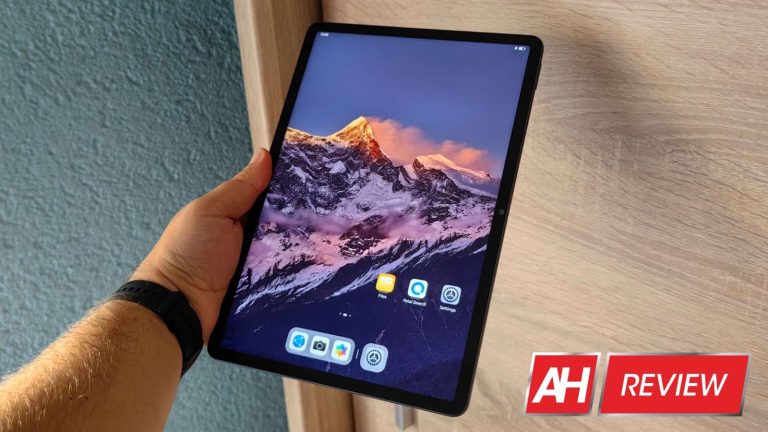
Huawei introduced its new mid-range tablet in two variants. The name of the device is the Huawei MatePad 11.5-inch, and I’m here to review it. Now, this tablet comes in a regular version, the name just mentioned, and a special ‘PaperMatte Edition‘ model. The two tablets are almost identical, which is why I’m reviewing them at the same time. The main difference is in the display category, as the PaperMatte edition has a new anti-reflective coating, which actually does wonders, but we’ll talk about that later. The only other difference is in the RAM section, the PaperMatte Edition comes with 8GB of RAM compared to the regular model. That’s basically it. That’s why we’ll check out both at the same time, as I’ve been using them for a while now, certainly enough to form an opinion. Let’s get down to it, shall we?
The two tablets look exactly the same, aside from the screen reflection, of course. They have the exact same look, and even dimensions and weight. The Huawei MatePad 11.5-inch series is made out of metal, it features a metal unibody design. The sides are ever so slightly rounded, and the in-hand feel is great. I simply love the feel of cold metal in the hand, and actually miss metal unibody designs, so I’m right at home here. Both tablets feel very premium in the hand as well, and have rather thin bezels on the front. Well, thin for tablets, of course, they’d look thick on smartphones. Either way, there’s just enough bezel there that you can grip the device properly.
These tablets feel premium (build-wise) through-and-through
When you hold the device in landscape mode, there is a selfie camera located at the top. It’s etched into the bezel, so it won’t bother you within the display itself. When you hold either device in portrait mode, the power/lock button is at the top, while the volume up and down buttons sit high on the right side of the tablet. Type-C port is also a part of the package, as are four speakers. Another thing you’ll notice are metal connectors on the bottom, for accessories. On the back of the device, you’ll notice the company’s logo, and a single camera. That camera sits on a small camera island, and there’s no LED flash here.
They’re not too heavy, but they are slippery, though
Overall, Huawei did a great job designing the Huawei MatePad 11.5-inch series. Both tablets feel outstanding in the hand, like very premium products, even though they’re technically just mid-range tablets. They sit well in the hand, as the sides are not too sharp. Both tablets have enough heft to them to feel good, and yet not too much to be too heavy. I never felt like they were too heavy during my usage or anything of the sort. All in all, I don’t have a single complaint when it comes to the design here, not at all. They are both slippery, but you can’t really avoid that when it comes to all-metal build.
Accessories
Huawei did send me an accessory for these two tablets, the Huawei Smart Keyboard, which I believe ships with the regular MatePad 11.5. From time to time, Huawei refreshes/improves the design of its smart keyboard. That serves as both a case, and a keyboard attachment for their tablets. It also serves as a stand, by the way, as it’s detachable. One part of it is a case, in which you place the tablet in. The other part is the keyboard, and they magnetically attach one to the other. You can easily fold one over the other for safekeeping.
Well, this is a new version of that accessory. The latest Huawei Smart Keyboard is also the best one yet. The material feels like something between rubber and leather, and it’s quite grippy. The tablet is well-protected on the inside, and the keyboard is not half bad. The key travel is sufficient, even for me, a person who spends almost his entire work day at a desk, typing. The magnets that connect the case and the keyboard are also very strong, which is always good to see. It works great with both tablets, and even the pairing process is extremely simple. A pop-up appears, and that’s it.
These displays are two aspect where the two tablets differentiate the most, and yet, the specs are basically the same. You’re getting an 11.5-inch 2200 x 1440 TFS LCD (IPS) display here. That is an LTPS display with a refresh rate that jumps between 60 and 120Hz. We’re looking at a 229 PPI here, and the display is flat. That’s the same on both tablets. The PaperMatte Edition’s panel does look considerably different, though, as you’ll immediately notice the reduced glare. You’ll notice that immediately, even when the display is off. On the regular model, you can see yourself in the reflection, on the PaperMatte Edition, not so much. In fact, you cannot see yourself at all. Think of it as a matte glass on the back of a phone you own, or someone you know owns. Fingerprints are less visible on this display, but they’re also a bit more difficult to wipe off when you see them.
Below this paragraph, on the other hand, you can see the difference in reflection in daylight (with the sun shining, but not directly on the tablets). Instead of reflection on the PaperMatte display, you do get glare, white glare. It does look different, but it is glare nonetheless. Do note that you will see that only if you’re not looking at the display straight on, so it will be a non-issue for most of all.
The PaperMatte Edition adds much needed friction for the stylus
Another important aspect of the display is the friction it adds. To the touch, it’s as smooth as silk, even when your hands are not completely dry. It’s much smoother to run your finger over than a regular display on the MatePad 11.5-inch. The real magic happens when you use a stylus, though. If you utilize the M-Pencil that Huawei sells separately, you’ll be able to use it with both of these tablets. The thing is, the friction will be a lot more pronounced on the PaperMatte edition, and thus it will feel a lot more like you’re writing/drawing on an actual paper. You will feel the difference, that’s for sure. I can’t draw to save my life, but I did notice a major difference.
Huawei used “nano-level anti-glare etching technology” for the PaperMatte Edition model
Huawei used a “nano-level anti-glare etching technology” in order to make this happen. The company also adds that it “eliminates 97% of all light interference”. Does it? Well, I can’t confirm that percentage, of course, but it is a massive difference. What many of you are probably wondering, however, is whether the image is worse on the PaperMatte Edition of the tablet as a result. Does this special etching tech affect the quality of the represented image. I’ll tell you one thing, it affects the brightness effect that you get with a regular display, that’s for sure. That is the trade-off. Don’t get me wrong, the display still looks very good, but it does seem a bit dimmer in comparison. Well, perhaps the right word is “duller”.
Another thing that you’ll notice is different on this display is, well, it has the same effect as matte screen protectors, in a way. I don’t know if you’ve used one of those, but if you have, you’ll know exactly what to expect here. If you look at the display close-up, you’ll see some graininess, kind of. That’s not the right word, but it will look like the display has extremely tiny droplets that light reflects off of. It’s kind of difficult to explain, but it’s visible if you look for it. I did include some images below, in which I try to depict it, but you can’t really see it properly in photos. You need to look for it in real life. This is not a big problem at all, quite frankly most of you probably won’t even notice it, but it’s worth mentioning it.
Each of them have trade-offs, you have to decide what matters to you
So, what I realized, after using both of these tablets for a while is… each of them has tradeoffs. Or, better yet, each of the two displays has its tradeoffs. The regular display has the reflection problem, as any other (normal) display on the market. Many of you are familiar with it. The PaperMatte one does not have that issue, but it does have some other tradeoffs we talked about. You basically have to decide what works best for you.
The Snapdragon 7 Gen 1 SoC from Qualcomm fuels both of these tablets. That’s not the latest or greatest chip the company announced, quite the contrary. It arrived back in May last year, and it was a mid-range offering back then. That chip is really good, though, and in combination with Huawei’s HarmonyOS software, it functions great here. The two tablets offer basically identical performance, despite the fact one of them has less RAM. Even with only 6GB of RAM, the MatePad 11.5 works great, to say the least (8GB RAM model is also available, for the regular tablet). The experience has been nothing but smooth, and that’s a pattern when it comes to Huawei smartphones, tablets, and smartwatches I’ve used in the last couple of years.
The performance is really good, while the animations are great
I was able to jump between various different apps without a hitch, and the animations are great as well. Huawei has some of the best animations out there, and if you’re annoyed by jittery software, that’s not what you’ll get here. More on that later, though. App opening times were also really good, and the overall experience was very positive. Some of you are probably wondering about the gaming aspect, though. Well, you can play games on this tablet, but it’s definitely not meant for that. It ran almost everything I threw at it without a problem, though truly graphically-demanding games could be a problem. If you’re a casual gamer, both of these will serve you perfectly fine.
Each of these two tablets includes a 7,700mAh battery. They both support 18W wired, charging, and do come with a charger in the box. Wireless charging is not supported, of course. This is not the biggest battery capacity we’ve seen on 11-inch tablets, but it’s a solid battery size. Yes, that does translate into good battery life too. I don’t really use tablets all that much during the day, and for my specific use cases, I was able to get several days’ worth of battery life out of both. It all depends on how much you use them, of course. I use tablets (when reviewing them) for light typing, answering emails, scrolling social media, and… of course, consuming content. I also replied to some emails during my usage, and more. Even if you’re a power user, you should get good battery life out of both of these. Oh, and by the way, the battery life was basically the same between them, I did not notice any major differences in longevity.
18W wired charging is supported, and charger included
What about the charging? 18W does not exactly sound fast, especially when it comes to a 7,700mAh battery. Well, you’d be right if you made that assumption. It’ll take over two and a half hours to fully charge these tablets. You can get them to the 50-percent mark in just over an hour, though, it took me around 70-75 minutes to get there.
Huawei MatePad 11.5-inch & PaperMatte Edition Review: Camera
Using a tablet to take pictures is basically never a good idea. I always cringe when I see people using them for picture-taking, though luckily that’s almost never happening where I live. It’s mostly some people in touristy places. Either way, my point is that tablets are basically never focused on offering a great camera experience, especially not mid-range ones. That’s the case here as well. There is a 13-megapixel camera with an f/1.8 aperture on the back of the MatePad 11.5 and PaperMatte Edition. That camera can be used to take pictures and video, but it’s not exactly good. The shutter is quite slow, and the images don’t really end up looking great either.
They end up looking washed out, and the HDR performance is not the best either, and neither is the white balance. The colors are a bit off, and so on. This is something I’ve been seeing on many tablets, so it’s not exactly something new. If you need to take a quick photo, it’ll do the trick, just don’t expect to show you photography prowess by using this camera. The video is in the same boat. In regards to the selfie camera, well, it is okay. It does a good job for video calls, at least it did for me, as long as you’re in okay lighting. That’s basically what you’ll be using it for, so… there you go. You can also take a quick selfie if you need to, but don’t expect the same quality a good camera on a phone would offer.
Shooting low light photos or videos is not the best idea
You can find a bunch of camera samples below, though do note that I didn’t include any low-light ones. I tried taking some, but they ended up looking really bad, so all I’m going to say is that you shouldn’t use this camera in low light. That goes for every single tablet camera, basically, though.
As per usual when it comes to Huawei smartphones and tablets, we have to let you know that Google app support is not available here. In fact, the company’s smartphones and tablets don’t come with Google’s services, so you don’t have access to the Google Play Store either. Huawei’s services are included, along with the company’s AppGallery app store. You also have Petal Search to install apps that you may not find in the AppGallery. There are also ways to get Google apps going too, via GSpace and similar emulation apps that have come a long way. That’s something worth noting in every Huawei smartphone and tablet review, to be quite honest, as there are apps missing from the AppGallery, even though the store has grown a lot in the last couple of years.
AppGallery is good, but apps are still missing from it
Speaking of AppGallery, the offerings in it did grow over the years, but some problem apps crept in there too. Huawei has a high level of security for AppGallery, that’s for sure, but you’ll still find some close apps floating around. That may be more of an issue here than on the Play Store, as you may be looking for an app that is usually available on the Play Store, but not on AppGallery, and then you stumble upon a clone of some sort. Those apps are usually easy to spot, but you should be careful nonetheless.
In any case, the Huawei MatePad 11.5-inch and PaperMatte Edition have the same software, basically. HarmonyOS comes pre-installed on both devices, on top of Android 12. The general Android version is not all that important here, as you’re not getting Google’s features here, but Huawei’s own set of software offerings. Huawei has a replacement for basically everything, and HarmonyOS works great on both tablets. We also touched upon everything in the performance section, but it’s the truth. Every time I use one of the company’s HarmonyOS-based devices, I have a good time performance-wise. The OS looks nice, has outstanding animations, and everything just works.
There is a rather useful side bar included here
On the home screen, these tablets have a navigation bar which, unfortunately, does not follow you on other screens. But there is a separate side bar which you can activate by swiping from the right, and holding for a second or two. This side bar is customizable, and it can be a valuable addition to your repertoire if you’re a heavy multitasker. Activating multi-window from this bar is easy, as is launching apps in a window view. You can drag an app out to utilize multi-window mode, or simply tap it to open it in a separate window.
If you use more than one Huawei product, the company’s ‘Super Device’ feature is truly useful. Sharing files between them, keeping one clipboard across devices, and more is possible. It also works really well, without hiccups, in my experience. You do also get a layer of customization on these tablets, as support for themes, custom icons, and more are available. By default, there is no app drawer on these tablets, all the apps are thrown on home screens. You can easily change that via the ‘Home screen / wallpaper’ menu in the settings, though. The overview mode looks great, as it places your opened apps into two rows, as it should on such a large display.
HarmonyOS is very good, but it’s not for everyone
So, the bottom line is, everything works really well here. You may have some issues finding apps that you want on the AppGallery, so feel free to utilize Petal Search. Do note that Petal Search tracks down apps from app repositories, so you’ll be installing them from there. And yes, you can keep them updated this way too. I mentioned earlier that GSpace is an option for Google apps, and it has come a long way since its inception. It works really well now, and you can even place shortcuts on the home screen, if you want. The battery consumption for GSpace can be improved still, but it’s nowhere as bad as it used to be.
All in all, HarmonyOS is a really compelling UI. It not only works great, even with mid-range hardware, but it looks great, and offers really sleek animations.
Huawei MatePad 11.5-inch & PaperMatte Edition Review: Should you buy it?
Should you buy any of these two tablets? Well, they’re not for everyone, and only you can answer that question. The first thing you need to decide is whether you can live without Google apps, or are you willing to use GSpace. Then, if you’re ready to use Petal Search and app repositories. If the answer to those questions is ‘yes’, then sure, considering both of these tablets. They’re basically the same in all aspects except the displays. They are considerably different. Each of them has its advantages, so be careful which one you choose.
The PaperMatte Edition has an interesting display, but…
If you’re looking for a more regular display experience, go for the Huawei MatePad 11.5-inch. You’ll get a nice IPS LCD panel with a high refresh rate, with the usual glare problem. The ‘PaperMatte’ edition is great for some people, but it’s not for everyone. You may not see your reflection on the screen, but the light creates a white glare if you’re looking at the tablet from the side. If you’re looking at it straight-on, that’s not an issue at all. If glare really bothers you, and you’re using your tablets outdoors much, the PaperMatte may be an ideal solution for you.
Huawei managed to create two really compelling devices that have one major difference, and because of it should appeal to two completely different user types. Options are great to have, and that’s exactly what you’re getting here.
You should buy the Huawei MatePad 11.5-inch & PaperMatte Edition if you:
Want to use a mid-range tablet
Are not bother by the lack of Google services & apps
Need great performance on mid-range products, and love smooth animations
Are not bothered by having the latest version of Android on your devices
Want the option of a great keyboard/case accessory for your tablet
Hate the glare/reflection that you get on regular displays (PaperMatte Edition is the solution for you)
You shouldn’t buy the Huawei MatePad 11.5-inch & PaperMatte Edition if you:
Use many apps, are don’t want to mess around with Petal Search & app repositories
Apple has seemingly been caught off-guard by how quickly and how popular the likes of ChatGPT and Google Bard have become. So now, the company is scrambling to get their own AI features out the door.
According to Gurman’s latest edition of the Power On newsletter for Bloomberg, Apple is planning a new, smarter Siri next year, as well as some Generative AI features. Gurman, as usual, is not super in-depth about what to expect from either aspect of this AI endeavor from Apple. Especially since it’s not coming til next year.
However, Gurman did stated that Apple’s senior vice president of machine learning and AI strategy, John Giannandrea and senior vice president of software Craig Federighi are apparently leading the AI efforts at Apple. With its vice president of services, Eddy Cue, being involved in the push for AI as well. Giannandrea’s team is reportedly working on a new “smarter version of Siri”. Which isn’t saying much, because right now, Siri is not very smart at all.
Expect to see AI added to everything
As we’ve seen with Google and Microsoft already, Apple is planning to add AI to just about every Apple app they have. This includes auto-generated playlists in Apple Music, and using AI to help with writing and creating slide decks in Pages and Keynotes, among other things. Apple is also reportedly testing the use of generative AI for internal customer service apps within AppleCare.
Generative AI has become a hot buzzword for many of Apple’s competitors. The most recent one being Google. Which launched the Pixel 8 series earlier this month, with plenty of Generative AI features. Including AI Wallpapers, where you can give it a few prompts and then create a number of different wallpapers for your phone. Or Magic Editor, which is able to replace the sky in your photos, remove people and objects and do so much more.