This week on Lock and Code, we speak with Lisa Kaplan about why every business with an online presence should ready themselves against a potential disinformation campaign.
When you think about the word “cyberthreat,” what first comes to mind? Is it ransomware? Is it spyware? Maybe it’s any collection of the infamous viruses, worms, Trojans, and botnets that have crippled countless companies throughout modern history.
In the future, though, what many businesses might first think of is something new: Disinformation.
Back in 2021, in speaking about threats to businesses, the former director of the US Cybersecurity and Infrastructure Security Agency, Chris Krebs, told news outlet Axios: “You’ve either been the target of a disinformation attack or you are about to be.”
That same year, the consulting and professional services firm Price Waterhouse Coopers released a report on disinformation attacks against companies and organizations, and it found that these types of attacks were far more common than most of the public realized. From the report:
“In one notable instance of disinformation, a forged US Department of Defense memo stated that a semiconductor giant’s planned acquisition of another tech company had prompted national security concerns, causing the stocks of both companies to fall. In other incidents, widely publicized unfounded attacks on a businessman caused him to lose a bidding war, a false news story reported that a bottled water company’s products had been contaminated, and a foreign state’s TV network falsely linked 5G to adverse health effects in America, giving the adversary’s companies more time to develop their own 5G network to compete with US businesses.”
Disinformation is here, and as much of it happens online—through coordinated social media posts and fast-made websites—it can truly be considered a “cyberthreat.”
But what does that mean for businesses?
Today, on the Lock and Code podcast with host David Ruiz, we speak with Lisa Kaplan, founder and CEO of Alethea, about how organizations can prepare for a disinformation attack, and what they should be thinking about in the intersection between disinformation, malware, and cybersecurity. Kaplan said:
“When you think about disinformation in its purest form, what we’re really talking about is people telling lies and hiding who they are in order to achieve objectives and doing so in a deliberate and malicious life. I think that this is more insidious than malware. I think it’s more pervasive than traditional cyber attacks, but I don’t think that you can separate disinformation from cybersecurity.”
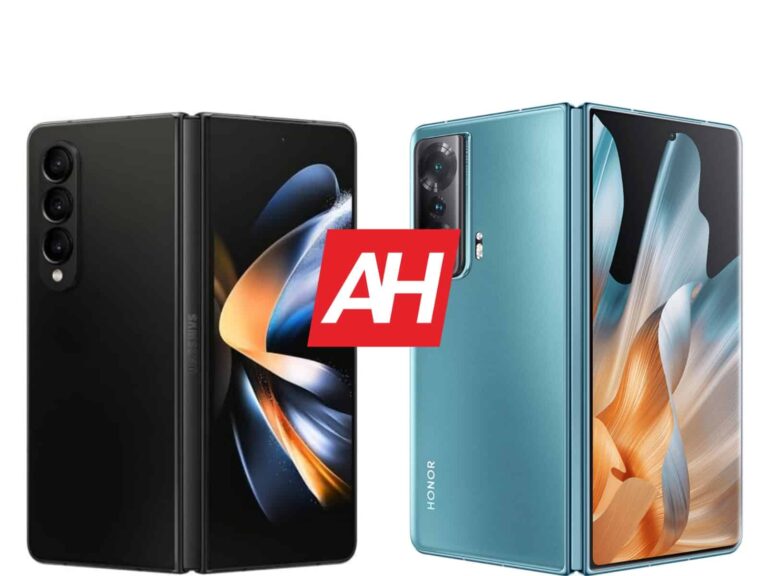
The Galaxy Z Fold 5 is right around the corner, but many of you may still consider getting the Fold 4 instead. The Galaxy Z Fold 5 will offer some improvements in comparison, but seemingly not a lot. Having said that, in this article, we’ll compare Samsung’s current-gen book-style foldable to an offering from HONOR. We’ll be comparing the Samsung Galaxy Z Fold 4 vs HONOR Magic Vs.
The HONOR Magic Vs is one of those book-style foldables that is not exclusive to China. Therefore, it competes with the Galaxy Z Fold 4 in more markets. These two phones are fairly different, though, not only from the design standpoint, but from the software standpoint as well. That should make for an interesting comparison, though. So, let’s get started, shall we?
Both of these phones are book-style foldables, but they feel a bit different to use. The Galaxy Z Fold 4 is narrower than the HONOR Magic Vs, quite a bit. Its cover display is even too narrow for some people, to the level of making it odd to type on. The Magic Vs has a more regular aspect ratio, but that’s something we’ll talk more about in the display section. Both phones are narrow enough to feel good to use, even with one hand, despite the fact they’re not small by any means, as they’re quite tall.
The HONOR Magic Vs is taller, wider, and thinner than the Galaxy Z Fold 4. Part of the reason why is because it folds flat, unlike the Galaxy Z Fold 4. The Magic Vs also has larger displays, by the way. Both phones are made out of metal and glass, though there is also an eco leather variant of the Magic Vs, but in China only. They have considerably different hinges, as the Magic Vs’ has a lot fewer moving parts on the inside. The Galaxy Z Fold 4’s hinge does allow for better control, but it doesn’t allow the phone to fold flat.
The two phones are very similar in terms of weight, the difference is only a couple of grams. The Galaxy Z Fold 4 does have the advantage of offering water resistance. It comes with an IPX8 rating, which is something the HONOR Magic Vs does not offer. Both phones feel like premium devices in the hand, but as I said, they do feel different to use.
Samsung Galaxy Z Fold 4 vs HONOR Magic Vs: Display
The Galaxy Z Fold 4 features a 7.6-inch 1812 x 2176 main display. That is a Dynamic AMOLED 2X panel with a 120Hz refresh rate. It supports HDR10+ content, and gets up to 1,200 nits of peak brightness. The cover display on the phone measures 6.2 inches, and it offers a 2316 x 904 resolution. This is also a Dynamic AMOLED 2X panel with a 120Hz refresh rate, and it’s protected by the Gorilla Glass Victus+. It has an aspect ratio of 23.1:9.
Galaxy Z Fold 4
The HONOR Magic Vs includes a 7.9-inch 1984 x 2272 foldable OLED panel. That display can project up to 1 billion colors, and it offers a 90Hz refresh rate. It supports HDR10+ content, and gets up to 800 nits of brightness at its peak. The cover display measures 6.45 inches, and it’s an OLED panel with a 120Hz refresh rate. It can project up to 1 billion colors, and supports HDR10+ content. This panel gets up to 1,200 nits of peak brightness, and has a resolution of 2560 x 1080.
The Galaxy Z Fold 4 does have the advantage of having two 120Hz displays, while its main panel is also a bit brighter outdoors. Do note that you likely won’t notice the difference when it comes to refresh rate, as the main panel on the HONOR Magic Vs feels great to use, and it’s quite smooth while scrolling. All displays are vivid, and offer good viewing angles. Another thing worth noting is that neither the Fold 4 nor the Magic Vs are great at crease control. All things considered, however, all displays are quite compelling.
Samsung Galaxy Z Fold 4 vs HONOR Magic Vs: Performance
These two phones include the same SoC. Both are fueled by the Snapdragon 8+ Gen 1. That is no longer Qualcomm’s flagship SoC, but it’s the closest thing to it. The Galaxy Z Fold 4 also includes 12GB of LPDDR5 RAM, and up to 1TB of UFS 3.1 flash storage. The HONOR Magic Vs, on the other hand, comes with up to 12GB of LPDDR5 RAM, and up to 512GB of UFS 3.1 storage.
Both of these phones are on a high level when it comes to performance. Regular, everyday tasks are a breeze, while they can also fire up pretty much any game from the Google Play Store with no issues. You will notice the difference in software, though. The Galaxy Z Fold 4 has far more software features for foldables than the Magic Vs. HONOR still has some catching up to do, but it’s slowly getting there.
Samsung Galaxy Z Fold 4 vs HONOR Magic Vs: Battery
The Samsung Galaxy Z Fold 4 packs in a 4,400mAh battery. On the other hand, the HONOR Magic Vs, has a 5,000mAh battery on the inside. Truth be said, Samsung’s foldable does have smaller displays, but it also has a higher refresh rate on its main panel. The good news is, the battery life is really good on both phones.
Getting to around 7 hours of screen-on-time with the Galaxy Z Fold 4 proved to be doable. The HONOR Magic Vs is on the same playing field. Your mileage may vary, of course, but during our usage, these two phones provided similar numbers. Around 7 hours of screen-on-time in a single day, sometimes a bit more, with light gaming, and rather intense usage otherwise.
What about charging? Well, the Galaxy Z Fold 4 supports 25W wired, and 15W wireless charging. On top of that, it also supports 4.5W reverse wireless charging. The HONOR Magic Vs has support for 66W wired charging, and 5W reverse wired charging. It does not support wireless charging. The Magic Vs does, however, ship with a charger in the box, unlike the Galaxy Z Fold 4.
Samsung Galaxy Z Fold 4 vs HONOR Magic Vs: Cameras
There is a 50-megapixel main camera on the Galaxy Z Fold 4. A 12-megapixel ultrawide camera (123-degree FoV) is also included, as is a 10-megapixel telephoto camera (3x optical zoom). The HONOR Magic Vs includes a 54-megapixel main camera, a 50-megapixel ultrawide unit (122-degree FoV), and an 8-megapixel telephoto camera (3x optical zoom).
HONOR Magic Vs
The Galaxy Z Fold 4 takes good photos, with plenty of detail, and they end up looking sharp too. At times, they can seem a bit too sharp. The HONOR Magic Vs also provides enough detail during the day, though the Galaxy Z Fold 4 does a better job in demanding HDR conditions, and the images do end up looking slightly sharper. Still, the images from the Magic Vs do look closer to real life. Ultrawide cameras do a good enough job, but they’re a step below the main units.
In low light, the Galaxy Z Fold 4 has a tendency to light up the scene a lot more than the Magic Vs. As a result, the photos do end up looking a bit unrealistic, but great at the same time. The Magic Vs tries to keep such photos closer to real life, but it loses a bit of detail as a result. Neither telephoto camera is great, but they are usable. You may want to stick to the main camera in low light, though.
Audio
There is a set of stereo speakers on both of these phones. They sound good on both devices, but the Galaxy Z Fold 4 seems to have a wider soundstage, at least it seems like it. Its speakers are also slightly louder.
Neither phone has an audio jack, however, so you’ll need to use their Type-C ports for wired audio connections. On the wireless side of things, Bluetooth 5.2 is supported on both smartphones.
According to recent reports, the coming iPhones might be way more durable than the current generations. This improvement in the durability department might surface in the coming years. So fans might need to wait for a while, but the fact that this is a possibility makes a lot of difference in the iPhone community.
For years now, iPhone users have got familiar with the glass back of their devices. This design makes the devices look cool, but it also poses a threat to the users as they can easily break their devices. Once broken, it will cost a lot to fix a new glass back on their iPhones, for this reason, most users stick to using protective cases.
So, instead of relying on a case to protect your phone, Apple seems to be on a mission to make your iPhone more durable. This can be seen from a recent super strong glass patent the company has been granted. Development of the glass might not take place immediately, but the patent shows Apple’s desire to work on the project.
A recent patent shows off super strong glass technology for coming iPhones
The folks at Creative Bloq recently drew the attention of netizens to a new Apple patent. This patent shows off a new type of abrasion-resistant housing that Apple might be bringing to its devices. From the patent diagram, it is clear that the technology is displayed on a smartphone-sized device.
However, the tech company might make use of this glass technology on other of its products as well. This means that devices like future iPads, MacBooks, and other Apple products might also benefit from this technology. The available information on this technology is rather sparse, but there are a few takeaways that one can glean.
One such takeaway has to do with the result of the entire patent. Producing this super strong glass involves the disposal of abrasion-resistant materials into a mould cavity. The disposal method will make these materials interlock within the cavity, hence improving the strength.
Apple calls this disposal method “Spatial composite” and the mould comes with cavities with up to 100-micron spacing between themselves. The available patent images do not give away the details of the technology, but some experts are putting a thing or two together. By doing this, they are trying to throw more light on this new Apple patent that might make the coming iPhones more durable.
Apple won’t give away the details of this patent to prevent the competition from working on their ideas. All that is available is that this technology will help make your future Apple device more durable and abrasion-resistant. More details on this patent and the technology it showcases will be made available in the coming months.
YouTube has a lot of great features to make the video-watching experience a treat. But, that doesn’t mean much if the company keeps taking them away. YouTube took away the video sorting feature that would sort a channel’s videos from the oldest to newest. However, according to Android Police, it seems that this feature could be making a comeback (maybe).
The feature would make it a lot easier to see the oldest video on a channel. The traditional method is to go to the channel and scroll until you can’t scroll anymore. That wouldn’t be a problem for channels with a few dozen videos, but major brands with hundreds if not thousands of videos will be a major pain.
While people enjoyed this feature, YouTube took it away. We knew that it was going away for some time, but the company officially took it away last October.
Well, YouTube might bring back the ability to sort videos by oldest
Apparently, this feature was more sought-after than the company thought because it’s making its way back to some corners of the YouTube ecosystem. Several Redditors have noticed the feature pop up again. There’s a screenshot below showing the Oldest Chip on the Android Headlines YouTube channel. The screenshot showed the mobile version of the app.
There are some oddities with this return. For starters, only a handful of people actually see this option. We were able to see the feature on our phone as you can see above. However, we don’t know how widespread this is.
Also, it appears that this feature isn’t visible on the desktop version of YouTube. That could be an issue for people who typically use that version. Lastly, it appears that this feature only works on certain channels.
At this point, we don’t know why YouTube is bringing this feature back in such a spotty way. In all honesty, we don’t know if YouTube is looking to bring this feature back at all. Only time will tell what YouTube’s intentions are.
The world is no stranger to cyber-attacks and data leaks. Reddit is currently going through a large data leak, and we’ve seen other major tech brands hacked over the last year. Well, according to a new report, it seems that more than 100,000 ChatGPT users have had their accounts stolen over the past year.
While ChatGPT only launched just shy of eight months ago, there were still active accounts months before the November 2022 launch date. So, while it wasn’t available to the public for a full year, there were still accounts stolen from a year ago.
More than 100,00 ChatGPT accounts were stolen
This news comes to us from cybersecurity firm Group-IB (via Bleeping Computer), and it paints a pretty grim picture. Over the past several months, hackers were able to steal credentials from more than 100,000 individual accounts.
Group-IB looked at accounts between June 2022 and May 2023, and the number of stolen accounts peaked just this May. During the month, more than 28,000 accounts had their data compromised. So, this means that the theft will continue as more people create accounts and use GPT to author their content.
The region hit the hardest was the Asia-Pacific region. In fact, almost half of the accounts stolen were from that area, about 41,000 accounts came from that area. Europe was much less affected with about 17,000 accounts stolen. The US trailed with about 4,700 accounts.
Any sort of hack is bad, and this one doesn’t seem as bad because it took place over the last year. However, this is something that the company should take seriously.
What are the risks?
You might not think that having your ChatGPT chat logs stolen is so bad. Sure, you don’t care if someone has access to logs of you asking it to write poems. However, as AI technology becomes more powerful, more people use ChatGPT for business purposes. This means that they’re going to be entering confidential business information for the chatbot to process.
Also, there are people who use the same email address and password combination for different services. While that’s not advised, it’s something that people do. Having this information could lead hackers to unlock more of people’s accounts. Hopefully, OpenAI is able to address this.
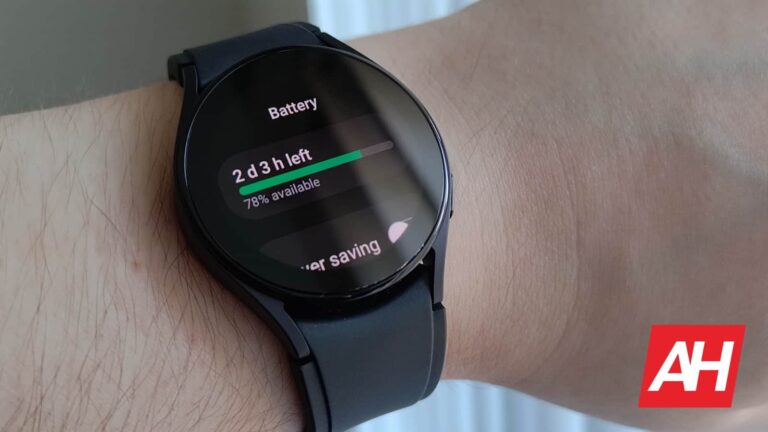
Galaxy Watch 6 battery life is rumored to be a significant improvement over the Galaxy Watch 5. The Galaxy Watch 6 is expected to make an appearance at Samsungs upcoming Galaxy Unpacked event in July. There’s a lot still that is yet unknown about Samsung’s upcoming smartwatch. But every year there’s one thing that users probably continue to hope for. Better battery life.
A smartwatch with poor battery life is hard to stick with. Because the last thing you want to be doing is charging it all the time. Even if it does charge up fast. The solution to that is an improved battery that lasts longer. Whether that comes in the form of a battery with a larger capacity or software that makes more efficient use of the hardware.
In the case of the Galaxy Watch 6, it could end up being both. Twitter tipster Ahmed Qwaider (via Android Central), claims the Galaxy Watch 6 will come with a larger battery than last year’s equivalent. Which is the Galaxy Watch 5.
Galaxy Watch 6 battery to have 20% better performance
When Samsung announced the Galaxy Watch 5 series, one of the big talking points was its increased battery life. This was in part due to the larger capacity battery compared to the Galaxy Watch 4. But also thanks to Wear OS 3 which had optimizations designed to make use of the battery more efficiently by drawing less power. Even with these upgrades though, the battery life was still a minimal upgrade. Even if the watch itself was overall the best smartwatch for your money.
Based on the leak from Qwaider, the Galaxy Watch 6 battery will be 300mAh for the 40mm version and 425mAh for the 44mm version. The Galaxy Watch 6 Classic will be the same for its 43mm and 47mm. The more important detail though is the 20% improvement to battery performance. Since none of this is official we don’t have an estimate of how many days that translates to. But When Samsung does announce the watch that should be one of the details the company highlights.
With the Galaxy Watch 5 and Galaxy Watch Pro, the number of days of use on a single charge was a big selling point. And that shouldn’t change here. And ultimately it may be a driving factor in people deciding to pick the watch up.
⭕️Exclusively🔥 screen size 20% ⬆️ Back norgin 30% ⬇️
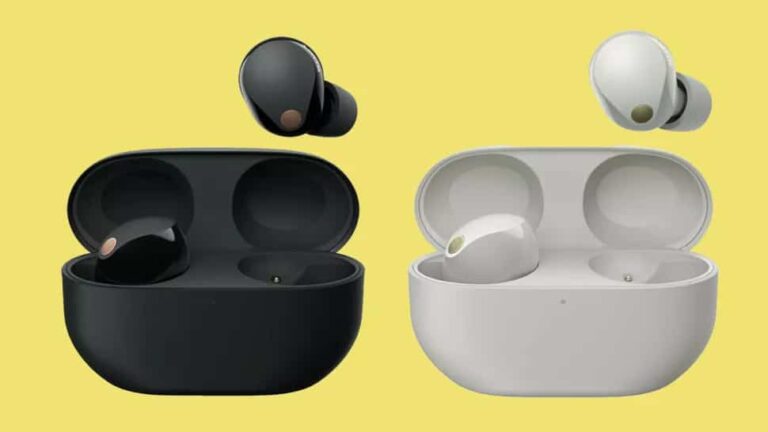
The Sony WF-1000XM4 was undoubtedly one of the best earbuds to have launched in 2021, giving the AirPods Pro a run for its money. Now, according to recent rumours, the next-gen of Sony’s earbuds, the WF-1000XM5, will come packed with significant improvements, promising enhanced audio quality and extended battery life.
A wave of new features
Although the earbuds have previously made appearances on the FCC and Wireless Power Consortium, the new leaks from WinFuture suggest that each earbud would only weigh 5.9 grams, thus finally ensuring a comfortable experience during longer sessions.
In addition to the sleek design, the Sony WF-1000XM5 earbuds will include a Dynamic Driver X with an 8.4-millimetre diameter, dual-feedback microphones, and two new in-house processors designed to support Hi-Res Audio and Sony’s DSEE Extreme audio technology. Moreover, the earbuds might also include bone conduction sensors and Precise Voice Pickup technology, ensuring clear voice transmission even in noisy environments.
While specific details regarding the individual playback time per earbud on a full charge are yet to come out, the WF-1000XM5’s charging case will have a 500mAh battery, potentially extending the total playback time of the earbuds to an impressive 24 hours. Additionally, reports also claim that a mere three-minute charge will provide an hour of playback time, although the charging case itself will take about 2 hours to fully charge. However, the estimated use when using ANC remains unclear.
Bluetooth 5.3 will be supported
When it comes to connectivity, the Sony WF-1000XM5 will support the latest Bluetooth 5.3 standard, enabling users to effortlessly connect the earbuds to smartphones and tablets. Additionally, the earbuds might also sport an IPX4 rating for splash resistance, making them suitable for workouts and outdoor activities.
Although pricing and availability details are scarce, considering the number of features, the new WF-1000XM5s could cost as much as or even more than their predecessor.
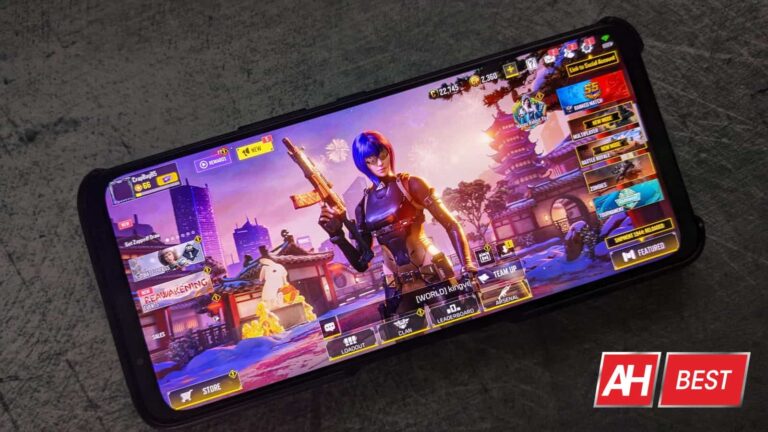
Like action games, some of the best shooter games for Android can be some of the most fun if you enjoy things like fast-paced combat, multiplayer gameplay, and general moment to moment action. This day and age there are literally tons of options in just about every game genre on Android, and this includes shooters.
Even just limiting the genre down to shooters still leaves you with a ton of options. So which ones do you decide to try? We’ve rounded up some of the best shooter games for Android and listed them below so you have less to sift through. While the ones we’ve chosen aren’t the only good options, these all stand out and are shining examples of shooter games on mobile done right.
Best shooter games for Android
Game
Download Cost
In-app cost (per item)
Call of Duty: Mobile
Free
$0.99 – $99.99
PUBG Mobile
Free
$0.99 – $199.99
T3 Arena
Free
$0.99 – $99.99
Catalyst Black
Free
$0.99 – $99.99
Fortnite
Free
$3.99 – $79.99
Free Fire
Free
$0.49 – $109.99
DOOM
$4.99
$0
Mech Arena
Free
$0.99 – $99.99
Call Of Duty: Mobile
Download Cost: Free
In-App Cost: Yes
Download Size: 3GB
Google Play Rating: 4.3 out of 5 stars
Call Of Duty: Mobile is definitely the pinnacle of a shooter game on Android and one of the best shooters it has to offer. It certainly has its work cut out for it with a few other games on this list though. With Call Of Duty: Mobile, it’s exactly what you would expect from an official game in the franchise.
Excellent multiplayer FPS gameplay, numerous modes, and for those that like the big-scale battles, a battle royale mode. Though it can feel heavy-handed at times with regard to the micro transactions, the game overall is very fun to play if you like first-person shooters and are a fan of the Call Of Duty franchise. Gunplay is great, feels great, and is for the most part pretty well balanced.
There’s a multitude of maps to play on, and new ones are always being rotated in and out. As are new modes, which helps keep things fresh from season to season. Speaking of seasons, like most free-to-play games these days, you’ll have a new battle pass with every new season to contend with. Don’t dismiss the season pass here. You’ll actually get some good guns and lots of other useful in-game items by completing it. Including the game’s premium currency, CoD points.
If you don’t fall prey to the growing list of cool-looking skins for guns and operators, you can skate by without ever having to spend a dime on this game and still get good weapons. Which is all you really need.
PUBG Mobile is the other mega behemoth when it comes to popular shooter games on Android, and is partly why it’s one of the best options. It’s popular for a reason. And that reason, mainly, is because it’s a good game. This is a third-person battle royale title. So expect the majority of gameplay to be focused around being the last person standing on a massive map that is closing in on you.
You’ll drop in with basically nothing and need to scavenge for useful items like weapons, armor, vehicles and more. Anything that can help you knock your enemies out of the running so you can continue advancing. There are also smaller scale modes like 4v4 available if you want a more traditional multiplayer shooter game experience.
There are seasons and battle passes present here too and at the very least you’ll want to keep an eye on them so you don’t miss out on anything good.
T3 Arena is best described as an Overwatch clone. Though don’t let that deter you from the quality of the title. It’s actually pretty good and if you like team shooters then you should love this one. And so far it’s probably the best iteration of a team shooter on the Android platform, which makes it one of the best shooter games on Android in general.
T3 Arena boasts “dozens of game modes” which should help things feel fresh, and there’s a decent number of heroes to choose from with varying play styles. If you like Overwatch, give this a game a try should be seeking that kind of experience on a mobile device.
Catalyst Black feels like a slept-on shooter but it’s definitely worth your time. This is an arena shooter so it mixes some of the gameplay elements of titles like League Of Legends: Wild Rift with a top-down twin stick shooter.
What makes Catalyst Black cool is the fact that your character has the capability to turn into a super powerful being called a primal that does massive damage to the other team. You don’t get this ability right away though and have to build up to it. To do so, you’ll need to move around the map getting kills on your enemies using a handful of different gun types like snipers, shotguns, assault rifles more.
By far the game’s best feature though is the drop-in feature. Which was designed to allow you to drop into games your friends are already playing. This promotes both quick match setups and playing with friends often.
While I personally don’t care for Fortnite’s mix of third-person shooter battle royale and building mechanics, there’s no denying this is one of the best shooters on Android. It has set itself apart from all other games by securing highly-prized collaborations that expand the customization aspect of your character. Dragon Ball Z, Naruto, Marvel super heroes and villains, Star Wars, Halo, Destiny 2, you name it. If you can think of a popular IP with recognizable characters, there’s a good chance you can be those characters in Fortnite.
Aside from the customization, Fortnite makes itself accessible. It’s available on just about every single platform. And although you can’t download this game directly from the Play Store, you can still get it directly through Epic Games.
It’s also cross-platform. So you can play with your friends no matter where they play. One friend can be on Android, one can be PS4 or PS5, one can be on Xbox Series X, and another on PC. And you can all group up. This is probably the biggest reason why it’s so popular.
Free Fire is a lot like PUBG Mobile but it throws in some unique twists. For one it features the ability to battle with companions. A big draw with Free Fire is also the fast match times. Which are around 10 minutes or less. Making it possible to crunch in plenty of matches in a short period of time.
Much like PUBG Mobile you’ll find loads of character skins, gun skins, vehicle skins and more for customization. As well as seasons, a battle pass and anything else you’d find in similar games.
Another thing worth considering is that Free Fire has a massive player base. So it shouldn’t take long to find matches when jumping in.
DOOM really doesn’t need an explanation. Bethesda ported the original DOOM to Android devices and it’s just as good as you remember it. There are however some new features. Like split-screen PvP. If you’ve ever wondered what it was like to face off against your friends in the original DOOM, now you can find out.
This is also the only premium shooter game on this list with absolutely no micro transactions. And that’s worth consideration right there.
Last but not least is mech arena. This is more or less another team shooter but with mechs instead of heroes like in T3 Arena. There’s more than 25 unique maps to play and a fairly good-sized combination of different mech builds. With the number of mech combinations you can mix and match stuff to create your own mech that fits your play style and it should help matches feel more varied.
As far as game modes goes, you have options like Deathmatch and Control Point Clash among others. Matches are also 5v5 or 2v2, and only take around 5 minutes to complete. Making this one of the best shooter games on Android and one that has some of the quickest matches. Which means you can fit in more of them.
A.I., artificial intelligence, deadly computers. Whatever you want to call it, it’s now a part of our world. The progress of A.I. has exploded over the past several months with chatbots like ChatGPT leading the pack. However, a new study finds that working with A.I. might have some negative psychological effects.
As with any scientific study, you don’t want to take this as a representation of AI as a whole. We’re talking about a study done with a limited set of workers. Still, it’s important to take it as a word of caution, especially if you own or manage a company with workers using AI tools.
A study shows the possible negative psychological effects of using A.I.
Journal of Applied published a new study that compared workers who heavily relied on A.I. tools and those who didn’t. These workers were comparable so as to get the best results.
When the results came in, they painted a pretty grim picture for A.I. They revealed that the workers who used the A.I. tools actually experienced increased loneliness and insomnia and saw an uptick in after-work drinking. If you’re interested in reading the full study, you can read it right here.
The study also found that the workers using A.I. were also more willing to help other workers with their projects. One point brought up by INC.com stated that this could be an effect of the tools letting them finish their projects faster, giving them more time to help others.
So, what does this mean?
As stated before, this shouldn’t be taken as a faithful representation of A.I. as a whole. However, it’s still necessary to understand. A.I. has made its way to many corners of the technological landscape, but we still don’t know what effect it can have on the fragile human psyche. Hopefully, this won’t happen on a much wider scale.
Spam calls! Nobody likes them, and phone companies are doing what they can to minimize them. People using WhatsApp are also prone to receive a ton of annoying calls throughout the day, but Mark Zuckerberg just announced a solution (Android Central). WhatsApp will automatically silence unknown callers.
A lot of people use WhatsApp as their main mode of communication. It’s one of the most popular messaging platforms in the world, and it’s got a ton of features to make using it a treat. However, this means that users are liable to receive a ton of spam calls throughout the day.
WhatsApp will silence callers from unknown numbers
Spam calls get so bad that, if you get a call from an unknown number, it’s most likely to be a spam caller. This is a huge bother because no one wants their day interrupted by a call from someone who they don’t want to talk to.
So, WhatsApp now has a solution. This is a feature that’s been in testing for a little while, and it’s finally making its way to the public. This feature will automatically silence incoming calls from unknown numbers. This will keep those numbers out of your way.
When this feature is enabled, your phone won’t even ring when getting these calls and you won’t see them. It’ll be as though they never happened.
Now, this is something that could backfire, as you can imagine. Blocking all of the calls can mean that you’ll miss calls from genuine people who you want to talk to.
However, you’re able to check your call logs for a list of the calls that came in. If you feel like you missed an important call, or if you just want to check up on your logs, you can check them out.
In order to enable this feature, you’ll want to go to your Privacy settings and tap on the Calls button. When you do that, you’ll be taken to a page with one option at the top. Once you flip that toggle, you’ll be blocking all of the unknown callers.