In a move that one Italian minister has called “disproportionate”, Italy has temporarily banned ChatGPT due to data privacy concerns.
Italy has made the decision to temporarily ban ChatGPT within the country due to concerns that it violates the General Data Protection Regulation (GDPR). GDPR is a law concerning data and data privacy which imposes security and privacy obligations on those operating within the European Union (EU) and the European Economic Area (EEA).
The Italian data protection agency, Garante per la Protezione dei Dati Personali (also known as Garante) said there was an “absence of any legal basis that justifies the massive collection and storage of personal data” to “train” ChatGPT, in addition to accusing OpenAI of failing to verify the age of users of ChatGPT.
Italy’s ban has led to privacy regulators in Ireland and France contacting the country’s data privacy agency to find out more regarding the decision to ban ChatGPT.
A spokesperson for Ireland’s Data Protection Commissioner told Reuters: “We are following up with the Italian regulator. We will coordinate with all EU data protection authorities in relation to this matter.”
Not all those are in favor of the ban, however, with Italy’s transport minister and leader of the League party, Matteo Salvini, stating in an Instagram post that the ban is “hypocritical” and “disproportionate”.
Salvini added: “Every technological revolution brings great changes, risks and opportunities. It is right to control and regulate through an international cooperation between regulators and legislators, but it cannot be blocked.”
OpenAI has disabled ChatGPT in Italy as per the agency’s request, but noted that it actively works to prevent the use of private data in the training of its machine learning models. The company also said that it would be working with Granate to “educat[e] them on how [its] systems are built and used”.
Everyone needs a password manager. Yes, even you. And there are quite a few good options out there, but we’ve rounded up the very best password managers that are on the market.
The first one that likely comes to mind is LastPass. They’ve been around for a very long time, and has been a very popular name in the space. But they are actually why we decided to make this list. There’s been a decent amount of bad news coming out about LastPass in the past year, from essentially forcing everyone to pay for LastPass, to it using over seven different trackers. Which could lead to data leakage. Not something you want to hear about your password manager.
So here are some alternatives for LastPass, and to keep your passwords safe and sound.
Why do I need a Password Manager?
Password managers make your life so much easier. Instead of having to remember hundreds of passwords – in fact, I have over 500 in my password manager right now – you only need to remember one password. This also means that you can use more complex passwords than just “1234567890” or your birthday, or something else that is going to be super easy to guess.
These password managers all work on every platform too. From iOS, to Android, to Windows, MacOS, Linux and even most browsers. Making it easier to login to your accounts on your smartphone, desktop or even your tablet.
Additionally, there is usually a feature that allows you to store your credit cards in your password manager, meaning that not just anyone can use your credit card number to buy stuff – like your kids. And finally, most have a notes feature, to store notes behind a pretty secure password. Which can be useful for more sensitive content.
Best Password Managers
Switching password managers can be pretty tough, and annoying, but luckily most of them have a way to export your passwords, so you can easily add them all to the new manager, and be on your way.
This list has the best password managers that are currently available. Now this may change over time, as new ones get better and old ones fizzle out. But let’s check out the best password managers that are currently available.
NordPass
Price: Free, paid accounts are $2.50 and up
Free trial: No, but there is a free account available
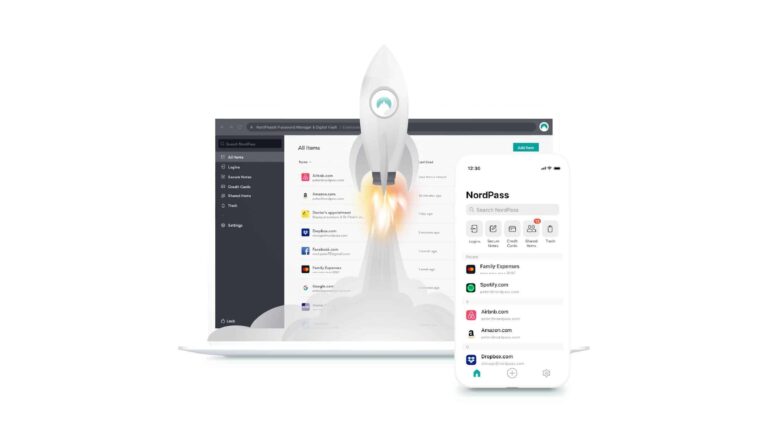
NordPass is one of the newer password managers out there, and it comes from the same folks that made NordVPN. One of the best VPN’s on the market.
With NordPass, you’re getting a pretty nice looking design in the app, which is also pretty modern. You also get the ability to save unlimited passwords – even on the free account. You can also use it on up to six devices at the same time (one for the free account).
NordPass can automatically sign into different sites for you, making the sign in process painless. There’s also a feature to scan for password breaches, with the premium version. It makes sharing passwords super simple, and you also have the ability to use two-factor authentication.
1Password is a good choice for the tech geeks out there. This is a very secure password manager, that includes using a “secret key” to get into your vault. I actually found this quite annoying when trying to login to things quickly. But the encryption level here is top-notch, and that’s important for keeping your passwords protected.
Like with most of the best password managers, 1Password also has a password generator. So you can generate a super secure password for every account you save.
With Watchtower from 1Password, you can also see which passwords have been compromised, which are vulnerable and which are weak and need to be changed. So you won’t need to worry about your accounts being hacked.
Dashlane is another household name when it comes to password managers. It’s been around for quite some time, and does offer a free account, as well as paid accounts. And the free account is actually usable.
Not only can you easily save your passwords on Dashlane, but you can also easily change them. Additionally, you also have the ability to share them with anyone. Like your Netflix password, you can easily and securely share it with someone else.
Dashlane also can save your notes, credit card numbers and much more.
Bitwarden isn’t a big name or owned by a big company like some other names on this list, so they are able to offer their service for much cheaper. There is a free plan, along with a premium account for $10/year and a family plan for $40/year. Which is insanely cheap.
With Bitwarden, you can save unlimited passwords on all accounts – even the free one. It also makes it easy to login to your accounts. On the family account, you can add six accounts, making it easier to share passwords between family members.
If you have a premium or family account, you can also securely store some notes and credit card numbers. You get 1GB of secure storage for non-password data.
Keeper offers a few different plans for its password manager, with more and more features. But you can get it for as low as $2.91 per month. Much like other password managers on this best of list, it can autofill your passwords, as well as auto-generate new passwords for new accounts for you as well.
By upgrading your account, you can get dark web monitoring too. To make sure that your passwords have not been compromised or are vulnerable.
It can save unlimited passwords, and be used on unlimited devices as well. Allowing you to use it on your smartphone, tablet and/or desktop.
Password Boss includes all of the usual features from the best password managers on this list. That includes being able to autofill your passwords, as well as generating new passwords. There’s a secure browser available, which is nice for logging into things like your bank account and such.
For security, it has 256-bit AES encryption, as well as two-factor authentication.
For one of the cheaper password managers on this list, Password Boss is pretty feature rich and secure.
LastPass is a really great password manager, but you’d better splurge for a premium account. As the free account will only allow you to use it on one specific device type. That means either on mobile only or on desktop only.
Otherwise, it has a bunch of other great features available, like generating new passwords for you, alerting you to compromised passwords, and there’s also a security challenge, to keep your passwords nice and strong.
One thing that LastPass does that a lot of other best password managers don’t do, is save WiFi passwords. This is useful for those that do a lot of traveling.
Apple has announced that its WorldWide Developer Conference will take place from June 5 through June 9, at Apple Park in Cupertino, California. Once again, this event is going to be open to the press and a small group of developers for the keynote on June 5. While all the sessions will be available online, as it has been since 2020.
In this article, we’re going to go over everything you need to know about WWDC. Like what is it? What’s going to be announced? and so much more.
What is WWDC?
WWDC stands for WorldWide Developer Conference, which is Apple’s annual developers conference that it has held since 1987. It has been held in various venues across the Bay Area since its inception in 1987. Starting out at the Santa Clara Convention Center, then moving to the San Jose Convention Center, then the Moscone West convention center in San Francisco. It went back to the San Jose Convention Center in 2017 up until the pandemic in 2020 shut it all down.
Now, WWDC is held at Apple Park. And it’s really just the keynote that kicks off the conference, with all the sessions being available online.
Typically, at WWDC, Apple will announce the next versions of each software platform that it has. And sometimes we will see some new hardware. It is quite common to see new hardware, but it doesn’t happen every single year. So do keep that in mind here.
Remember that WWDC is a developers conference, so they do announce quite a few things specifically for developers. This is where Apple is able to court developers to get them to develop for their platform. And also provide new tools to make that job easier. As well as making money from it.
When is WWDC 2023?
As it has been for the past many years, WWDC is taking place the first week of June. That’ll be June 5-9, 2023.
It’ll take place at Apple Park, similar to 2022. It’s really just the keynote that will be at Apple Park. As the sessions will all be virtual. And the good thing here is that developers don’t have to scramble to get tickets and pay $1,599 to attend. Instead, it’s free to everyone.
What announcements are expected at WWDC 2023?
There are some things that we know for sure will be announced at WWDC 2023, like iOS 17 and iPad OS 17. But there’s also a few surprises that many are expecting to see. So that’s what we’ll go over here.
iOS 17 & iPad OS 17
Every year, Apple announces the next version of its mobile operating system at WWDC. The developer beta becomes available later that day, with the public beta launching the following month.
There’s been many rumors that this year, iOS 17 and iPad OS 17 will not be huge upgrades compared to previous years. Instead, this is going to be more of a bug squashing update. While that might sound boring, it is sorely needed. And Apple has done this before. Launching a new version of iOS with very few features, in the hopes of squashing some longtime bugs.
Though part of the reason for that is the fact that Apple has reportedly moved a lot of resources over to xOS or RealityOS, which is their new operating system for the AR/VR headset, which we also expect to be shown off at WWDC this year.
watchOS 10
There’s been less rumors about watchOS 10, which is actually quite common for Apple. But according to Bloomberg’s Mark Gurman, watchOS 10 will be a “fairly extensive upgrade”. Gurman says that we should expect notable changes to the user interface. Which would be the first time we’ve seen substantial upgrades to the UI since the first Apple Watch, nearly 10 years ago.
However, the Apple Watch Series 9 won’t be major. Which is fine, there’s not much more Apple can do with the watch hardware, besides give us better battery life.
macOS 14
Then there’s macOS 14. There’s even fewer rumors about this than some of the other products here. We don’t even know what the name will be for this one. During the Mac OS X stages, they were named after different cats like Tiger, Snow Leopard, Puma, and others. In 2013, Apple started naming versions based on California locations. Like Mavericks, Big Sur, Yosemite and El Capitan. With the current version being Ventura.
Names being rumored for macOS 14 include Mammoth, Sequoia, Sonoma and Redwood.
There’s not many rumors about features here, so we could see another iOS 17-esque update for the mac. Where it is mostly a bug fixing update, which we wouldn’t be mad at either.
AR/VR Headset & xOS
Apple has been rumored to be launching an AR/VR Headset for many years, and they have been working on it for quite some time. In fact, Apple’s CEO, Tim Cook was talking about it way back in 2016. And rumors are pointing to it being announced at WWDC. While the launch is going to be pushed back until later in the year. So it’s possible that Apple shows it off at WWDC to developers and then actually starts selling it in the fall.
The headset is not going to be cheap, we’ve seen rumors of it costing $3,000 and even $4,000. That’s quite pricey, but AR and VR combined into one headset is not cheap to do, and there’s not many competitors out there either.
Rumors point to this headset having over a dozen cameras around it that can read facial expressions, detect body movements and even map the surrounding area. It’ll use Iris Scanning for authentication as well. Apple is going to be using 4K micro-OLED displays inside, which are not cheap and are actually pretty rate. But for VR, you need ultra high-resolution screens, since they are so close to your eyes.
Mac Pro
Still a bit niche, but likely will get a bigger reaction than the headset, is the Mac Pro. When Apple announced the Mac Studio in 2022, it teased that it had one more Mac to move to Apple Silicon, the Mac Pro. But it has yet to talk about it at all. In fact, there’s been very few credible rumors about the Mac Pro, which is very surprising.
What is expected here is an updated design of the Mac Pro, with Apple Silicon inside. The design likely won’t change much. Now what chipset that is, is another story. It could be the M2 Ultra, but we haven’t even gotten the M2 Max just yet. Which has a lot of scratching our heads. But we are hoping this is announced at WWDC.
The FBI and European authorities have seized Genesis Market’s clearnet domains as part of the ongoing Operation Cookie Monster.
Genesis is one of the largest marketplaces on the dark web while its presence on clearnet is also quite significant. In the latest, clearnet domains belong to Genesis marketplace have been seized by the FBI under the ongoing Operation Cookie Monster.
When accessed, the marketplace’s domain displays a banner stating that the website is inaccessible because the FBI has executed a seizure warrant.
Although the marketplace administrator(s) have not been identified or caught yet, it is evident that authorities have only seized clearnet domains while its main dark web domain remains online, which suggests that they have not been able to take down the entire Genesis infrastructure.
Regardless, it is still too early to make any assumptions or predictions about what might happen next.
The Dark Web domain of the Genesis market is still online and shows no seizure notice.
How Did the Seizure Happen?
According to the FBI, the seizing was carried out with the collaboration of multiple organizations from the private and public sectors, and international law enforcement agencies.
The seizure notice displayed on the domain also had a message for the site visitors, which read:
“Been active on Genesis Market? In contact with Genesis Market administrators? Email us, we’re interested,” followed by an official email address.
The bureau noted that around two dozen partners were on board for this operation. The seizure was followed by a worldwide applicable search and arrest operation. A federal court in the Eastern District of Wisconsin had issued the seizure warrant.
It is currently unclear who was operating this marketplace as they have maintained a low profile over the years, indicating they have sufficient operational security know-how.
That’s what the Genesis market’s homepage shows right now
By 2020, Genesis had become the world’s most popular marketplace for buying stolen credentials, cookies, and device fingerprints. Considered the largest platform in the world for illicit activities, Genesis Market offered stolen credentials for corporate and consumer accounts.
This market provided access to an extensive range of services with accounts from Gmail, Netflix, Facebook, PayPal, WordPress, Amazon, Zoom, eBay, Cloudflare, Reddit, Spotify, Twitter, and LinkedIn. Therefore, it is understandable that seizing such a thriving platform will be a huge blow to its users.
The seizure of Genesis marketplace should not come as a surprise. This development came just a month after the FBI arrested PomPomPurin (aka Pompompurin, aka Pom), the owner and admin of popular hacker and cybercrime forum Breach Forums, a hacker forum that surfaced as an alternative to the popular and now-seized Raidforums.
How did Genesis Market operate?
The market operators used information stealers to collect login credentials with fingerprint data, such as time zones, IP addresses, cookies, device information, etc.
The operators earned profits from renting the account identities via bots, including stolen accounts, and browser plug-ins that imported the login and fingerprint data of the compromised account to let attackers assume the real owner’s digital identity. As per the account type, buyers paid up to $10 to get access to an account for a specific period.
The Samsung Galaxy Tab S9 Plus appeared in CAD-based renders recently. Even the S Pen for the Galaxy Tab S9 series got certified. Well, now, the Galaxy Tab S9 Ultra specs leaked, and they do reveal a truly powerful tablet.
The Galaxy Tab S9 Ultra specs appear to reveal a powerful tablet
This information comes from Ice Universe, a well-known tipster. Chances are they’re accurate, as he has an excellent track record. That being said, the ‘Ultra’ model will be the most powerful Galaxy Tab S9 model, of course.
The tipster says this tablet will include a 14.6-inch WQXGA+ (2960 x 1848) display. That will be an AMOLED display, of course, and will offer at least a 120Hz refresh rate, even though that wasn’t mentioned.
In any case, the tipster says that the Snapdragon 8 Gen 2 for Galaxy will fuel the device. An 11,200mAh battery will be included, while 45W wired charging will be supported. The charger won’t be included in the package, though, almost certainly.
The Galaxy Tab S9 Ultra will feature 16GB of LPDDR5X RAM, and will also be IP68 certified for water and dust resistance. It will measure 208.6 x 326.4 x 5.5mm, while it will weigh 737 grams.
It will have the exact same dimensions as its predecessor
So, it will have the same exact dimensions as its predecessor, the Galaxy Tab S8 Ultra. It will, however, be a bit heavier than that device, for about 10 grams or so.
It seems like Samsung plans to announce three tablets once again. Three Galaxy Tab S8 tablets arrived last year, and the same will happen with the Galaxy Tab S9 series this year.
The thing is, Samsung opted not to announce the Galaxy Tab S9 series alongside its Galaxy S23 devices this year. Those tablets will arrive later on. Now, there’s a chance Samsung will announce them in the near future, but it’s more realistic it will wait until August. Those tablets could arrive alongside the company’s brand new foldables, the Galaxy Z Fold 5 and Flip 5. It remains to be seen.
According to a new report, iOS 17 could end software support for several iPhones. The same goes for iPadOS 17 and some iPads, actually. This information comes from MacRumors, who got it from Fame_G_Monster, who allegedly has a good track record.
iOS 17 will seemingly end software support for several iPhones, here’s a list
The source did list the devices that will be dropped. Based on this info, iOS 17 will end support for the iPhone 8, iPhone 8 Plus, and the iPhone X. On the other hand, iPadOS 17, is expected to drop support for the first-gen 9.7-inch and 12.9-inch iPad Pro, and the fifth-generation iPad.
Devices mentioned here, both iPhones and iPads, were released between November 2015 and November 2017. This would basically end support for almost all devices with a Bionic A11 chip (and older).
There are some exceptions, though. The sixth-generation and seventh-generation iPad models with the A10 Fusion chip, and the second-generation 10.5-inch and 12.9-inch iPad Pro with the A10X Fusion chip.
iOS 17 will debut on June 5, during WWDC keynote
Having said that, iOS 17 is expected to debut on June 5. That is when Apple will host its WWDC keynote. This update could end up delivering more features than initially anticipated. Don’t expect it to deliver as many changes as iOS 16, though.
The most notable change mentioned thus far is… alternative app stores. The EU basically pushed Apple’s hand on this one. The EU wants Apple to allow alternative app stores on the platform, though that doesn’t mean those stores will compete with the App Store.
This is more so that users can download games from alternative app stores, such as Epic’s store. It remains to be seen what will happen with all that, however. Apple has a game plan, but it’s unclear what it is exactly.
All new CarPlay will be coming, and support for Apple’s AR/VR headset is expected too. We do expect a number of other changes, some of which will hopefully be customization-related.
Researchers from Checkpoint found a new and previously unknown ransomware variant dubbed “Rorschach” with highly sophisticated features that target U.S. companies.
Rorschach ransomware carries technically unique and customized features and one of the fastest ransomware observed by the speed of encryption that was never found in ransomware history.
Interestingly, Threat actors behind the ransomware implemented unique features that have nowhere been found in any known ransomware.
Rorschach developed a partially autonomous that allows it to eliminate the manual actions usually performed by the other ransomware strains; instead, it automates some functions, such as creating a domain group policy (GPO).
Researchers initially found this Rorschach ransomware strain while investigating the ransomware incident in a U.S.-based company.
It was deployed using a signed component of a commercial security product, and the ransomware didn’t associate with any ransomware groups and affiliates.
Rorschach Ransomware Technical Analysis
During the behavioral analysis, as it is partially autonomous, researchers noted that the ransomware spreads itself automatically soon after it gets executed on the Domain controller and the event logs from the infected machines.
Rorschach can change the behavior based on the operator’s needs based on built-in configuration as well as numerous optional arguments.
Researchers believe that the ransomware inspired by the most infamous ransomware families also added some unique functionality, such as direct syscalls.
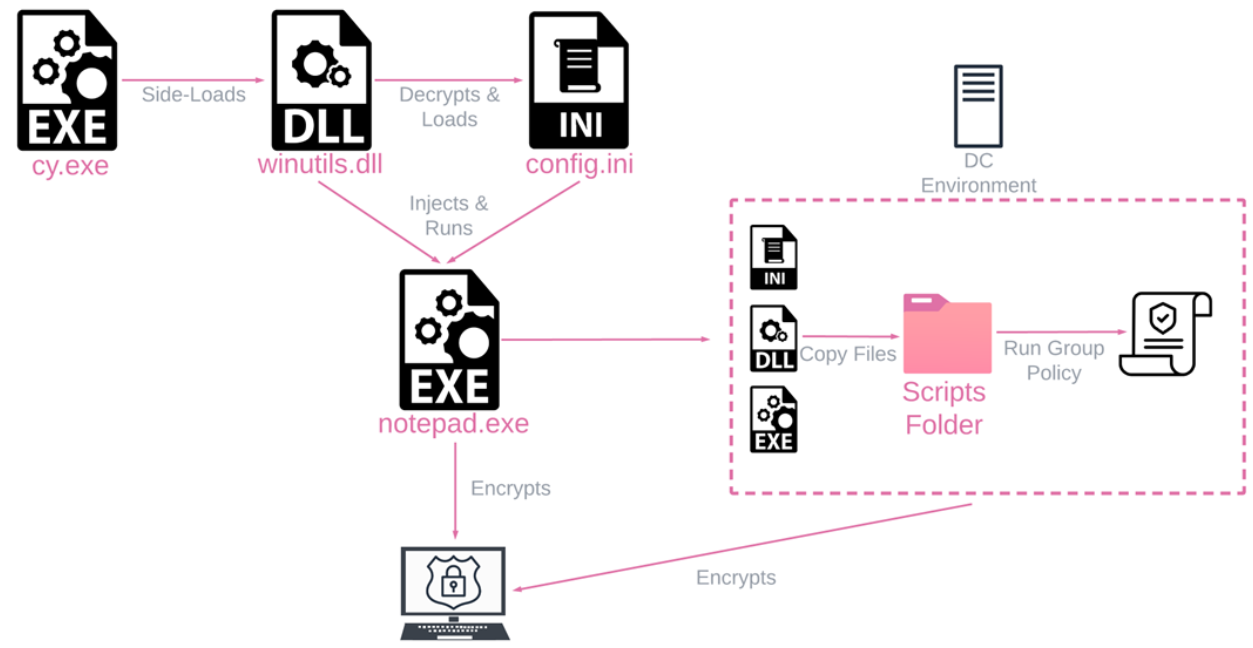
Rorschach uses Cortex XDR Dump Service Tool, a commercial security product from Palo Alto used for DLL side-loading to deploy in the targeted victim’s machine.
During the execution phases, Rorschach employed 3 files of the following:
cy.exe – Cortex XDR Dump Service Tool version 7.3.0.16740, abused to side-load winutils.dll
winutils.dll – Packed Rorschach loader and injector, used to decrypt and inject the ransomware.
config.ini – Encrypted Rorschach ransomware which contains all the logic and configuration.
Rorschach ransomware execution process
To make the analysis hard, Rorschach utilizes SUSPEND mode to run the spawns processes, deliver the falsified arguments, and make the execution unique by replacing it with the actual argument and rewritten in memory.
The above technique is used to perform the following operation.
Attempt to stop a predefined list of services using net.exe stop.
Delete shadow volumes and backups to harden recovery using legitimate Windows tools such as vssadmin.exe, bcdedit.exe, wmic.exe, and wbadmin.exe
Run wevutil.exe to Clear the following Windows event logs: Application, Security, System, and Windows Powershell.
Disable the Windows firewall using netsh.exe
Rorschach is employed the unusual technique to evade defense mechanisms. Also, the ransomware automatically creates a Group Policy, spreading itself to other machines within the domain.
Encryption Process
Rorschach uses an encryption method that is a highly effective and fast hybrid cryptography scheme that is mixed of curve25519 and eSTREAM cipher hc-128 algorithms for the encryption process.
This method helps Rorschach to encrypt the specific portion of the file instead of the entire file. “The WinAPI CryptGenRandom is utilized to generate cryptographically random bytes used as a per-victim private key. The shared secret is calculated through curve25519, using both the generated private key and a hardcoded public key. ” Checkpoint said.
” Rorschach’s encryption routine suggests not only the fast encryption scheme mentioned previously but also a highly effective implementation of thread scheduling via I/O completion ports.’
As a result of the speed test, Rorschach encrypts the files within 4 minutes, 30 seconds, when LockBit v.3 took 7 minutes.
Ransom Notes
Rorschach ransomware is not clearly associated with any known ransomware group, and the ransomware note is entirely different.
According to the report, the resulting ransom note was completely different. The note was very similar to those issued by DarkSide, which probably led to this new ransomware being named “DarkSide,” despite the group being inactive since May 2021.”
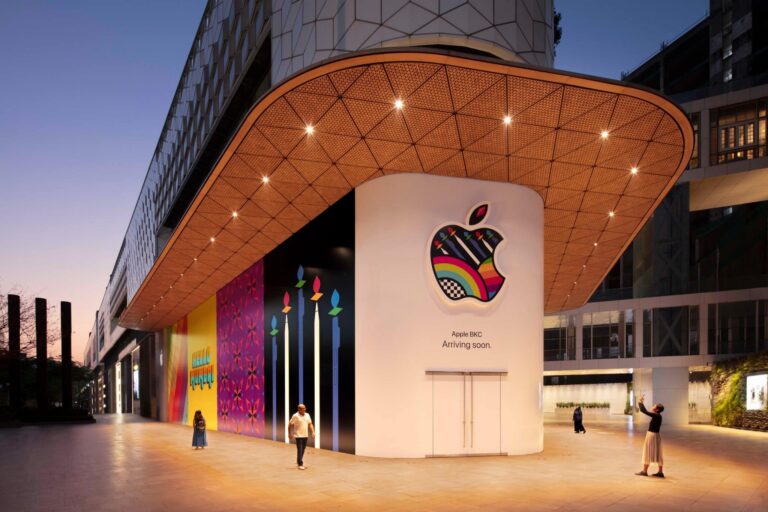
Apple has shared the first look of its first retail store in India, called Apple BKC.
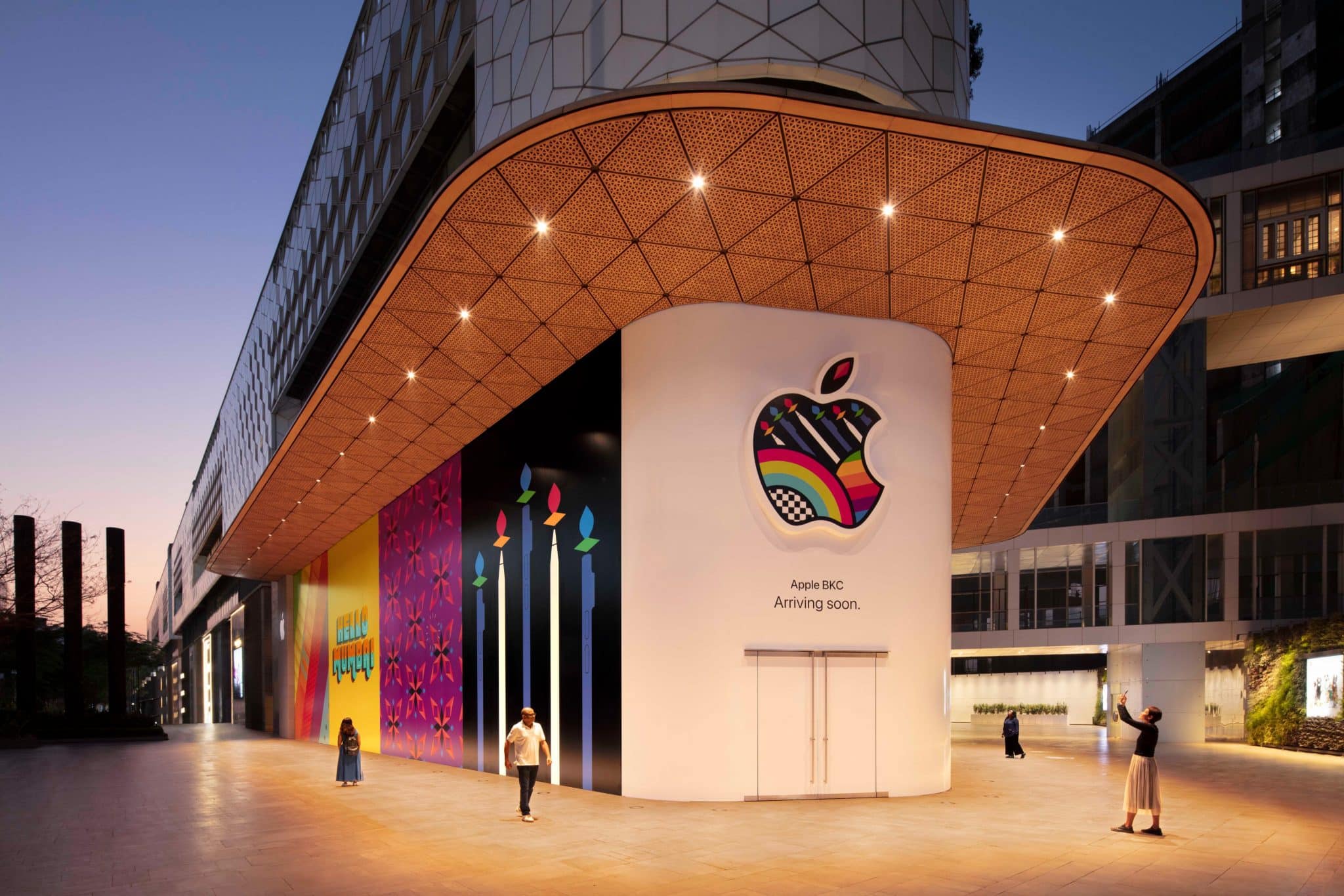
Apple has been rumored to open its first-ever retail store in India for months now. The company has now officially confirmed that it will be opening the store soon and shared a picture showcasing the store. The store is located at the Jio World Drive Mall in Bandra Kurla Complex, Mumbai. The store’s façade is decorated with the iconic interpretations of Kaali Peeli taxi art that is unique to Mumbai.
The barricade also features illustrations of various Apple products and services that customers will be able to discover in-store. Apple had initially planned to debut its first retail outlet in India in 2021 but had to delay the opening due to the COVID-19 pandemic and government regulations.
However, it is expected that the store will finally open later this month. In addition, the company is reportedly planning to open another store in New Delhi in the coming months. The Mumbai store is said to be approximately 22,000 square feet, making it a flagship Apple retail store.
In recent years, India has emerged as an increasingly important market for Apple. Although the company had a limited presence in the country previously, it is now expected that India will become a significant contributor to Apple’s revenue in the future. Apple’s contract manufacturing partners have also ramped up the local assembling of iPhone and other products in the country.
The company is now set to open its first-ever retail store in the sub-continental country soon. To celebrate the opening of the store, Apple has also created special wallpapers based on the illustrations of the barricade as well as a music playlist.
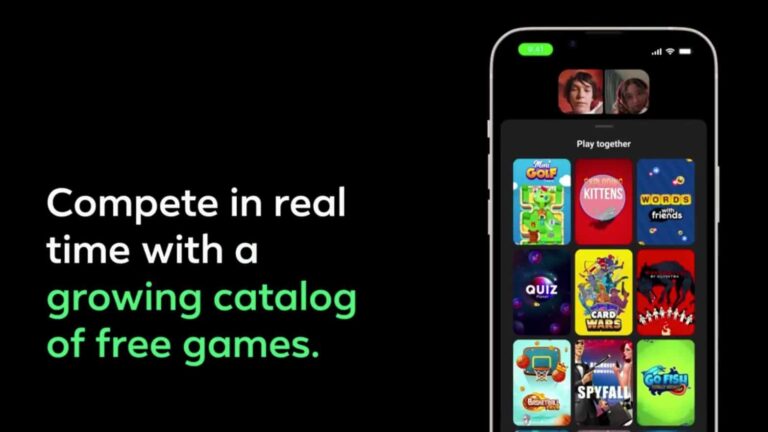
Facebook has released a rather interesting new feature to Messenger, it now allows you to play multiplayer games during video calls. There are 14 titles available at the moment, but we expect that number to grow.
Playing multiplayer games during video calls is now possible in Facebook Messenger
Do note that this feature is now available for Android, iOS, and the web as well. You don’t need to install any add-ons or anything of the sort. So that’s great, you can simply launch a game, and get at it.
There are some interesting titles available at launch. Words With Friends is available, and so is Mini Gold FRVR. Those are games that pretty much everyone is familiar with. Even some newer titles can be played, such as Card Wars and Exploding Kittens.
Another thing worth noting is that each of these games can be played by 2 or more people. As far as the maximum player numbers are concerned, well, it all depends on the game you’re playing.
So, how do you fire it up? Well, you’ll need to start a video call first, of course. Once you do that, simply tap the group mode button, and tap the ‘Play’ icon. Find the game you want to play, and fire it up.
Games are not new for Facebook Messenger, but this implementation is
Games on Messenger are not new, however, multiplayer games during video calls are. Facebook is hoping this new feature will stick. In other words, the company is hoping people will actually use it.
The company did promise more free games are coming down the line. In fact, Facebook Gaming said more such titles are coming later this year, so stay tuned for that.
It’s also worth saying that each of these games has been optimized for the Messenger interface. This feature should be available to you already, so try it out if you’re interested.
We’re quickly approaching Summer, and it’s peak camping season. While you probably already have all of the camping essentials, like a tent, a grill and more. We’re here to help you make your camping experience even better with some other cool products that you should pick up to elevate your camping experience. So here are seven must-have products for the best camping gear in 2022.
Best Camping Gear
In this list, we have a couple of power stations, one that is much bigger than the other of course. As well as a cool wood burning electric stove that also has USB-C ports available to charge your phone. Of course, there’s also a Yeti cooler and water bottle here too. So without further ado, here are the best camping gear for 2022.
The Jackery Explorer 290 is a great portable generator to take camping with you. Especially if you need just a little bit of power. As the name indicates, this battery is able to provide 290-watts of power ow continuous 200W and peak 400W output. All while being small and compact.
This battery does offer up a few ports. There’s two USB-A ports, we’d like to see USB-C here but for the price it’s not a deal-breaker. There’s also a 120V AC outlet, along with a car outlet Jackery has also included a screen to help you see how much juice is left.
Whether you have a dedicated campsite that you go to every time, or are traveling and visiting a new campsite every night, this portable grill is a good buy. It’s a portable propane grill. This one has eight adjustable burners. So it’s not super large, but it will get the cooking done.
It has a total of 20,000 BTUs, and does fold down pretty flat. So it won’t take up much space in your van, if you’re doing van life this year.
This is the most expensive product on this list, and it’s not hard to see why. The ECOFLOW Delta is a massive power station that can keep you going for probably a week of camping. It’s a 1260Wh battery pack with 6 1800W AC outlets, There’s four USB-A ports, and two USB-C ports. There’s also a car socket on the backside.
So what can this thing power? Well a lot of things. It can power an electric fry pan for up to an hour and a half. Your laptop for about 23 hours, power your drone up to 23 times. And charge your camera about 65 times. This can also be used as a home backup in case the power goes out. It can power a CPAP machine for around 18-22 hours, or a fridge for 10-20 hours.
If you’re buying the ECOFLOW DELTA, then this solar panel is going to be a good buy to go with it. As it can help replenish the juice used by the Delta, thanks to the Sun. This is a 160 Watt solar panel that can be put out to collect juice and fill your ECOFLOW Delta, or really any other ECOFLOW power station.
It’s a pretty compact solar panel, weighing in at around 15.4lbs. It also comes with a kickstand case to protect the panels and prop them up to get the most amount of sun possible.
You can’t go camping and not make s’mores right? This caddy from HERSHEY’s is perfect. While it does not come with chocolate, marshmallows or graham crackers inside, it does make it a great place to hold all of it, while you are making S’Mores.
It includes a removable tray and carrying handle. Making it perfect for camping, picnics, tailgating and more.
This is a pretty cool product to pick up. This is a camp stove that can turn fire into electricity and then charge your phone. Pretty great if you’re going camping with as little stuff as possible.
There are internal jets that have four fan speeds to circulate air for improved combustion.
You have to keep your food cold while you are out camping, right? And what’s better than a YETI cooler? This is the first ever YETI cooler that is on wheels. Making it easier to take it camping, to the beach or out to a picnic. It also has a durable welded aluminum arm with comfortable grips, so it isn’t so uncomfortable to wheel around.
It also has permafrost insulation, which helps to keep your ice, as ice. That’s thanks to the pressure-injected commercial-grade polyurethane foam in the walls and lid.
If you don’t need something quite as large as the ECOFLOW Delta, Anker is here with its 521 Portable Power Station, and this one is actually portable.
This has 256Wh of power, and thanks to it being a LiFePo4 battery, it’s going to last a lot longer, over 6,000 recharges. There are two AC outlets, a 60W USB-C outlet, as well as two USB-A ports and a car socket. It also has a very bright light below the ports that make it easier to see what’s happening. Which is a really nice touch, especially in a power outage.
This power station has actually come in handy for myself a few times, even though I don’t really ever go camping. That’s because of the powerful storms that rolled through Michigan last year, leaving us without power for a few days. And the Anker 521 Portable Power Station helped run fans, and charge my laptop without any issues.
Whether, you’re camping or not. It’s important to stay hydrated, and that’s where the YETI Rambler comes into play. This is a 360z water bottle, that is also vacuum insulated to keep your cold drinks cold and hot drinks hot. YETI does not claim how long that will last, just “until the last sip”. Again, if you’re camping, you’re probably going to be drinking quite a bit of water, so that won’t matter as much.
This one also has the chug cap, so you can pop it off and chug as much water as needed.