[ad_1]

There are several types of devices dotting the mobile tech landscape. There are flagships, mid-rangers, and budget phones. But, what happens when a mid-ranger accidentally forgets that it’s a mid-ranger and steps into the flagship space? Well, you get one of the greatest kinds of phones out there, the Flagship Killer. The Xiaomi Poco brand has been pumping out phones like these over the years, and it doesn’t seem to be stopping anytime soon. I had the opportunity to review the Poco F6 Pro. Does this phone uphold the Poco brand lineage? Let’s find out!
In case you don’t know about the Poco series, it came about in 2018 with the first phone sporting the most powerful Snapdragon chip of the day. This, coupled with some other flagship specs, made the roughly $299 price point seem like a typo. However, back in that day, the term “Flagship Killer” was in full swing, so it was just another one for the pile.
Now, in 2024, the term Flagship Killer is in flux, as the line between flagship and budget phones has blurred. So, the Poco F6 Pro has a lot of weight to pull if it wants to achieve that title.
Before jumping into this review, I recently reviewed the Poco F6. This is the less-expensive version of the F6 Pro, and it proved to be much more powerful than its price had let on. With a beautiful design, nice display, excellent performance, decent camera, and overall solid experience, it proved to be a true flagship killer. You can read my review of the Poco F6 to see if it’s the phone that you should be picking up.
Poco F6 Pro Review: Design
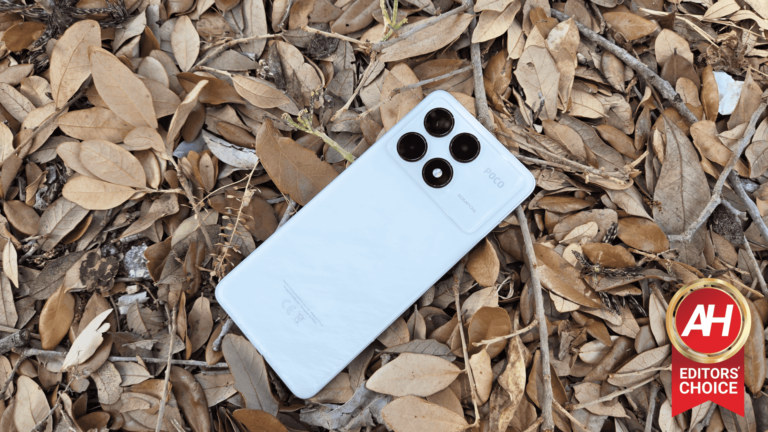
Let’s start off with the design. I mentioned that the Poco F6’s design was beautiful and that it had a mixture of two mentalities. The Pro version strays far from that design philosophy. The colorway I’m reviewing is the white version, and I’m glad I got this color because it’s jaw-dropping.
The back glass of the phone has a pattern on it that’s not just printed onto it; it looks like it was etched into the glass itself. There are abstract patterns that cover the back of the glass, and they all seem to flow in one direction. Since I got the white color, it reminds me of wintery winds blowing across the back. The patterns play with the light, and that gives it a bit of a 3D appearance to it.
The pattern on the back is the most flashy aspect of the design, as everything else is pretty standard. There’s a rectangular glass panel that stretches across the back of the phone that houses the cameras. Next to the cameras, there’s the “Poco” text with the resolution of the main camera right under it. This, with the square arrangement of the camera, and the overall boxy shape of the phone gives it that certain brick-like aesthetic.

It’s similar to the Poco F6 in that its very stern stature is juxtaposed with its very pretty colorway. It’s a fashion piece that looks premium and sturdy. Honestly, I fell in love with the design the instant I laid eyes on it. Poco has mastered the art of creating a device that both gives off the appearance of style and stability.
Poco F6 Pro Review: Build quality
In My Poco F6 review, I remarked that one of the biggest tells of an affordable device is the build quality. A phone can look as pretty as a shiny gold necklace but be made from cheap parts. The Poco F6 didn’t feel bad at all, but you could tell that Poco was pretty liberal with the plastic parts.
Well, that’s not the case with the Poco F6 Pro. Once I picked this up, I knew that Poco wasn’t pulling any punches on the build quality. The back is made from glass and not plastic, and when I touched the frame, I felt the cool sensation of metal. Honestly, this is a great-feeling phone. It’s one of the attributes of this that fool you into thinking that it costs double its actual price.
Another thing that can affect the feeling in the hand is the weight. Plastic comes at a price, and that’s the weight. When you hold a more expensive phone from Samsung, Google, or Apple, you know that you’re holding a quality device because they all feel heavy in the hand. They’re relatively thin, so you get this feeling of density with them. It feels like the internal space of the phone is being completely used up without any empty space.
This is the case with the Poco F6 Pro. I admit that it doesn’t feel quite as heavy as an iPhone or Galaxy phone, but it’s not far behind. When I pick up this phone, there’s a very satisfying heft to it. It makes me feel that Poco shelled out for materials that are meant to withstand the test of time. I know that I’m going to be holding onto this phone for quite some time.
I also performed a light bend test to listen for any sort of creaks or groans from the materials. I’m happy to report that there weren’t any. I’m not surprised; this is not a pencil-thin phone. Poco delivered a beefy handset, and I’m all for it.
Overall, this is a quality-built phone with a premium feeling in the hand. It covered all of the places where the Poco F6’s build quality lagged behind.
Poco F6 Pro Review: Display
The Poco F6 Pro’s display is a bit of a funny story. It’s tough to put a score on it because it’s so customizable. I’ll judge it using the setting that people are most likely to use, and that’s the Saturated setting. There are different ways that you can customize it, so I’ll explain them later on in this section. But, let’s start off with the…
Brightness
We’re at a point in smartphone development where sunlight visibility should not be an issue whatsoever. All of the top-tier phones hitting the market are more than bright enough to tackle direct sunlight. When it comes to more affordable phones, they’re making steps in that direction, and I’ve reviewed phones with really bright displays like the Tecno Camon 30.
In the case of the Poco F6 Pro, it brings the goods in terms of on-paper specs, but things are a little different in the real world. Don’t get me wrong, when I exit the house and walk into the bright Florida sun, the screen brightness soars. The screen is bright enough to be seen perfectly fine out in the sun. I didn’t have any issues making out text, watching videos, playing games, or otherwise interacting with the phone.
Back in the day, using a phone in the sun involved covering the screen with my hand, ducking under shade, or squinting. However, phone displays are far past the point where I can just take out the phone and use it as easily as if I were inside. So, when it comes to sunlight visibility, I have no complaints.
On paper, Poco states that this display can reach an eye-watering 4000 nits of peak brightness, but I’m not sure when that phone would need to be pushed to that point. Digging through the specs page of this phone, I found that it reaches a brightness of 1200 nits in High Brightness Mode. This is the mode that will boost the brightness when you’re in the sun.

Well, if the phone can reach 4000 nits of brightness, it would be nice to have it reach 2000 nits in the sun, at least. The screen is perfectly visible when in with its 1200-nit brightness, but I think that it could be just a bit brighter. It has the ability to go up against the likes of Samsung, Apple, Google, and OnePlus with its peak brightness.
Colors
Moving onto the colors, I’ll be reviewing the Saturated mode, as this is the mode that people will most likely use. It boosts the color saturation to give you a nice and punchy viewing experience.
The display of the Poco F6 Pro is a lesson that screen calibration is as important as the screen technology. We’re all conditioned to assume that OLED panels automatically mean ultra-saturated colors. However, that’s not always the case.
With the Poco F6 Pro, I found that the colors had gotten a nice and pleasing boost. I can see that the colors were pretty juicy, and that can make watching movies a treat. Certain parts of the UI pop off of the screen like app icons, UI elements, buttons, menus, etc. This gives the interface a nice little splash of color. It makes navigating the software that much better.
However, I think that, even with the Saturated mode enabled, the colors are a bit reserved compared to other screens. The colors are a bit punchy, but they’re not as juicy as the displays on phones like those from Tecno, Infinix, and Samsung that I’ve reviewed.
I wouldn’t say that it’s an issue. I don’t think that the colors feel bland or lifeless. They do make the screen look nice. However, I’ve reviewed some devices with LCD displays that can reach this level of color saturation like the OnePlus Pad and Samsung Galaxy S9 FE (Review).
So, the display saturation on the Poco F6 Pro is noticeably just a step behind in terms of saturation, but it’s not a major issue. If you’re craving ultra-saturated colors from your screen, you might be a bit disappointed.
Color adjustments
When it comes to the adjustments that you can make to the display, Poco really outdid itself. This way, you can truly customize the screen to suit your specific tastes. The software offers more settings than most other phones, and this includes more expensive handsets.
Starting off, there are three color saturation modes that you can choose from. I already talked about the Saturated setting, but there are two additional settings that you can pick. The Original color PRO mode will give you the most realistic color profile. It will reduce the saturation which will give everything a more natural tone. It’s for people who just want a screen to display content and don’t care about flashy colors.
With the Vivid mode, the software will automatically adjust the color saturation based on the content that you’re watching. So, you’ll see the color profile change when you switch to different types of content. You’ll want this if you want the colors chosen algorithmically.

The Saturated setting will boost the colors to their fullest saturation. Not only can you adjust the saturation, but you’re also able to change the color temperature. You’ll see a color wheel that will allow you to manually adjust the color temperature. This gives you the entire color spectrum to steer the color temperature of the screen. You’re not only tied to sandy yellow and icy blue. If you want to give your screen a green tone, you can. If you want it to be orange, purple, teal, or any other color, you have the option. You can also adjust how intense you want the color to be.
The adjustments go deeper than that, as there’s an additional page of settings that lets you further adjust the colors of your screen. You have the option between three color gamuts. Out of the box, it’s set to choose the gamut based on the content on your screen. If you want to choose for yourself, you have the option between P3 and sRGB.
Under the color gamut options, you’ll see the color space section with separate Red, Green, and Blue sliders. Below that, you’ll have a Hue slider with a Saturation and Contrast slider under that. These allow you to further fine-tune the colors.
Rounding out the settings, you have a slider for your Contrast and Gamma.
Overall
This is a display that shines in just how versatile it is. If you’re looking for the best and juiciest display experience out of the box, then you might want to pass this phone up. It doesn’t produce the punchiest colors out of the box, but that’s not a bad thing. This display is for people who like to tinker. It’s for people who want their display to appear a certain way.
In terms of brightness, it gets bright enough to see comfortably in the bright sunlight, and it can go much higher. Take these with the 120Hz refresh rate, and I have to say that this phone has a pretty great display. I’ve definitely seen more impressive displays, but its versatility is second to few.
Poco F6 Pro Review: Speakers
When dealing with more affordable phones, the speaker quality can be hit or miss. It’s understandable, as the speaker quality is sometimes sacrificed to save on cost. This is felt with many of Tecno’s and Infinix’s phones. However, there are some phones that don’t compromise on the speaker quality as much, and I think that the Poco F6 and Poco F6 Pro are two of them.
The former was able to impress me during my testing, and I didn’t expect the quality to be very different between it and the Pro version. I ran the Pro through the same tests that I ran the Poco F6 through. Aside from listening to the speakers in my day-to-day life, I used six different test tracks that emphasize different aspects of the sound: Loudness, Bass, Treble, Balance, Vocals, and Immersion.
Loudness
One thing that I remarked about in my Poco F6 review was how quiet the speakers were compared to other phones that I reviewed. They weren’t extremely quiet, and they’re more than loud enough for personal listening.
I have the same feeling towards the speakers in the Poco F6 Pro. They get plenty loud for personal and indoor listening. However, when taking them outside or in a noisy environment, you’ll have trouble hearing them even at full volume.

The test piece I used was a loud rock piece. I placed a sound meter a foot away from the phone and blasted the rock piece at full volume. The sound meter peaked at 85dB. That’s a bit lower than some of the other phones I reviewed.
Bass
Smartphone speakers typically lack in the bass department. They’re smaller speakers, so they aren’t the best at reproducing lower tones. In any case, several phone manufacturers were able to make speakers with some impressive bass.
In the case of the Poco F6 Pro, I’d say that the bass reproduction is notably good. The test piece consists of lower instruments like Double Basses, Bassoons, Contra Bassoons, and Tubas along with higher instruments to fill out the sound. I could hear the tone of the lower instruments along with a fair amount of the rumble. The lower end sounds full and warm, and it greatly contributes to the overall sound. I’d say that it’s a few steps behind what you’d hear from a Galaxy phone or iPhone, but it’s still pleasant.
Treble
While focusing on bass, you don’t want to forget about the treble. The higher tones also contribute to the overall sound, and good treble can be make-or-break in certain cases.
The test piece that I used involved Piano, Celeste, Violins, and Flute along with the rest of the ensemble, and it really accentuated the upper registers of notes. Overall, I think that the speakers did a good job of projecting those instruments.
The thing I was listening for was clarity with these instruments. What I was listening for was how crisp those higher instruments sounded. The speakers did a good job, but I wasn’t as impressed as I was with the bass. The instruments projected pretty nicely, but I think that they could have sounded just a little clearer.
Balance
Another aspect of audio that’s typically overlooked is the balance. The bass and treble are important, but what’s also important is how they play together. The test piece I used was pretty balanced with a fair amount of both low end and high end.
In terms of overall balance, I think that these speakers struck a nice middle ground between high and low. The piece in question has a combination of lower-end thumps and higher-end tones, and they both projected nicely. The treble, by itself, could be a bit clearer, but it still sounds good in a mix. The Poco F6 Pro is able to produce a nicely balanced sound.

Vocals
If you plan on using these speakers to listen to a lot of songs, then the way that they project vocals is very important. You’ll want to make sure that the voices are able to project through the rest of the music.
In terms of vocal performance, I think that these speakers are fantastic. Listening to the test piece and other songs, I found that the voices of the singers sounded crisp and clear. I could hear the unique texture of their voices.
Immersion
In terms of overall immersion, I think that everything comes together to make an immersive sound. If you plan on watching movies, then you’ll be very immersed in the action. The sound is lush, warm, and wide.
Overall
I’ve reviewed my fair share of affordable phones, and some of them were able to produce some decent results. Overall, I think that the Poco F6 is one of the best performances that I reviewed. The sound is really good, and I’d feel comfortable listening to music or watching movies without needing to reach for a pair of headphones.
Poco F6 Pro Review: Performance
Sure, the phone’s pretty, has a nice display, and has some good speakers, but how does it perform? One of the things that characterized the first Poco phone was the fact that Xiaomi stuck a flagship-grade processor in it. This phone was sporting the Snapdragon 845, and that was one of the things that turned heads.
This time around, Xiaomi didn’t quite repeat what it did with the first one, but it’s still nothing to scoff at. The company fitted this phone with a Snapdragon 8 Gen 2. This is the major flagship processor powering the most powerful phones last year. So, while this phone is technically using year-old silicon, that doesn’t mean that it’s sluggish by any stretch of the imagination.
Out of the box, this phone gave me nothing but snappy performance. I didn’t see a single dropped frame, stutter in the UI, or anything of the sort.

The same goes for opening and using apps. None of the apps I used showed any sign of slowing this phone down. Even while using this phone for a while and increasing the load, the Poco F6 Pro still powered through without so much as a hitch. This is truly flagship phone behavior. If you’re worried about an affordable phone having sluggish performance, you won’t need to. This phone flies!
The numbers
I know that benchmark scores aren’t a proper way to judge a phone’s performance. However, here are a few scores for those of you who are interested.
I ran the Poco F6 Pro through Geekbench 6. It got a single-core score of 1407, which isn’t great as far as flagship phones go. Being an older processor, it lags behind the Galaxy S24 series, but it actually scored considerably lower than the Galaxy S23 series, and they’re using the same processor. Those phones scored between 1884 and 1902.
What’s weird is that the Poco F6 Pro actually scored a bit lower than the Poco F5, which scored 1457. That phone uses the Snapdragon 7+ Gen 2. However, don’t disregard this phone just yet, as it was able to take some victories in the multi-core department.
It got a multi-core score of 5229. That score is actually higher than the scores achieved by the Galaxy S23 phones. In fact, this phone’s score was only beaten out by the Galaxy S24 phones.
So, it’s not pulling a lot of weight when it comes to single-core performance, but it’s a multi-core beast.
Poco F6 Pro Review: Gaming performance
Since the Poco F6 Pro is such a powerful performer, you should expect its gaming chops to be similarly impressive. Sometimes, phones can smoothly navigate through the software and run apps but fall short when it comes to gaming. However, when you’re dealing with flagship silicon, good general performance and gaming performance usually go hand-in-hand.
Before jumping in, it’s important to note that the Poco F6 Pro has a tool called Game Turbo. Using this tool, you’re able to boost the gaming performance to get the most out of the Snapdragon 8 Gen 2. During my testing, I used this game booster mode.
Even though I knew that there was no need to, I played a simple 2D game to test the performance. Unsurprisingly, Survivor.io ran like a dream. I chose this game because it’s one of those 2D games that can have a ton of sprites on the screen at the same time. It could prove to be a problem for weaker hardware.
Next up, I played my usual collection of mid-range 3D games. These are games that are graphically intensive and able to slow down cheaper phones. Be that as it may, they still fall short of the most graphically intensive games on the market.

The games I’m talking about are Dragon Ball Legends, Sky: Children of The Light, and Asphalt 9. At no point did I see any dropped frames or stutters. The Snapdragon 8 Gen 2 was able to conquer those games without breaking a sweat. I didn’t expect to have any issues with those games at all, so the phone was just delivering on the promise that the 8 Gen 2 is still a powerful performer.
Genshin Impact and Star Rail
You knew that this was coming; what’s the point of testing a phone’s gaming chops if I don’t include some of the prettiest games on the market? I’m talking about Genshin Impact and Honkai Star Rail. These games look like they should be on the PS3 and Xbox 360, and they’re able to cook most other phones. During my testing, I played both games with their graphics cranked up to their highest settings.
Star Rail is a little less demanding than Genshin in certain respects, but it gets intense during battles and in towns. While I was playing the game, I didn’t notice because the gameplay was consistently smooth. Some weaker phones would start to show signs of slowing down during special attacks in battles, but the Poco F6 Pro maintained the full 60fps. The same goes for the town scene. Everything was fluid.
The story is the same for Genshin Impact. We all know how lovely that game looks, and many of us are used to turning the graphics down just to get a usable frame rate. I turned all of the graphic settings up and even kept the useless motion blur on. It didn’t matter what I did, I still got fluid gameplay.
If the Poco F6 Pro can tackle these games this easily, then you shouldn’t need to worry about any other game bogging this phone down any time soon. The Poco F6 Pro ran these games smoothly, and I expected nothing less from the flagship-grade Snapdragon 8 Gen 2.

Poco F6 Pro Review: Battery
What use is playing games on your phone if it can’t last a good gaming session? One of the high points of the Poco F6 was the battery life. It lasted quite some time while displaying a 24-hour video.
I performed the same test with the Poco F6 Pro, but the results weren’t as impressive. The Poco F6 lasted 18 hours and 17 minutes on a charge, but the Pro variant lasted 14 hours and 35 minutes. I’m wondering if it’s because of the processor. The Poco F6 uses the Snapdragon 8s Gen 3 while the Pro uses the 8 Gen 2. Since the 8s Gen 3 is newer, even though it might not be more powerful, Qualcomm may have made some efficiency improvements.
As such, you won’t be getting quite the mileage that the Poco F6 has. Still, you’ll be able to have decent battery life with the Poco 6 Pro. Using it in my daily life, I was able to push the battery past a day and a half on a single charge. This is with typical use with some gaming, picture-taking, and other activities. If you’re planning on having an extended gaming session or movie-watching session, then you’re sure to see it conk out after about a day.
So, overall, the battery life on this phone is pretty decent. It’s not bad, but it’s nothing to write home about. It falls behind phones like the iPhone 15 and the Galaxy S24 series.

As for the charging, this phone supports up to 120W of charging. That’s absolutely neck-breaking, but I wasn’t able to test it out. I was sent a model with a non-American charging brick. However, you will be able to charge this phone from 0% to 100% in less than 40 minutes. So, if you do find yourself low on battery power, all you have to do is plug it in for a few minutes, and you should have enough juice to last you the rest of your day.
Poco F6 Pro Review: Camera
A telltale sign of an affordable phone is a bad camera sometimes. This makes sense, as several flagship phones don’t even have good cameras. However, the camera technology in affordable phones has gotten better over the years. The cameras in affordable phones have become more useful as time goes on, and there are some phones that stand out. In the case of the Poco F6 Pro, I think that this is a solid performer in the camera department.
Details
Starting off, I think that it did a good job of capturing finer details in the shot. I’m able to zoom into the image a fair bit before I start to see it degrade. There are some phones with similar resolutions that get blurry faster. The Poco F6 has a 50MP camera that most likely bins down to about 12MP for its pictures. If you want to capture more details, you can use the 50MP mode to use the maximum number of pixels.
Exposure/contrast
In terms of exposure, I don’t really have complaints. I think that the images that this phone produces come out pretty well-exposed. The Poco F6 tended to expose a bit bright, but the Pro was able to produce a more balanced image.
Also, I don’t really have any complaints about the contrast. The camera does a fair job of producing contrasty images. I think that, while this is the case, the camera crushes the shadows a bit in darker areas. It’s not too bad, however. In the image of the trees, I’m still able to see a fair amount of detail in the shadowy parts.
Colors
In terms of colors, it seems like there are two different mentalities between the Poco F6 and Poco F6 Pro. Whereas the Poco F6 keeps its colors more in line, the Pro pushes the saturation a bit.
I think that the phone pushes the colors the right amount to create a pleasant-looking image. I find that greens look the best. They pop out of the image without going too far. There’s also a nice balance between warmer and cooler colors. You can see this in the image of the Moses-in-the-cradles below. Both the greens and purples look nice.
I wasn’t too impressed with how the sky was presented in these images. I felt that the camera could have added just a bit more color to it.

When it comes to warmer colors, the camera does a nice job. The image of the yellow flower is beautiful, and I really like how the colors of the orange and brown leaves look.
If there’s one area where the colors are weak, I’d say it’s the reds. Typically, smartphone sensors have a hard time exposing reds. They sometimes wind up boosting the saturation to eye-watering lengths, and that’s what happened here. Looking at the image of the red flowers and the red on the leaves, you can see where the camera struggled with the balance. The pipe wasn’t too bad, but the image is still much more saturated than in real life.
Low light
When it comes to the low light performance, I think that this phone is a solid performer. Indoors with typical lightbulbs on, this camera had no trouble soaking up a good amount of light and capturing some nice details. It’s able to produce pleasant images under these lighting conditions.
Turning off the lights, the only light source in my room was my computer monitor. While that’s the case, the camera was still able to capture a fairly-detailed image. It took a one-second exposure to get all the details it needed, and the results were nice.
I then walked over to an even darker part of my room and took a picture of the headphones. For this image, the camera took a three-second exposure and it was able to expose the image nicely.

Overall
I think that the camera performance of the Poco F6 is some of the best in its price range. The images come out with nice exposure, contrast, and colors, but you’ll need to be careful around red colors. Also, you shouldn’t have to worry too much about bringing this phone out with you at night. It’s a good camera through and through.
Poco F6 Pro Review: Software
The Poco F6 Pro uses Xiaomi’s HyperOS, and this is running on top of Android 14. The software is nice with interesting animations. For example, when you unlock the phone, you’ll see the app icons fly in from outside of the screen. Also, when you summon the notification shade, you’ll see the clock smoothly grow. All of the animations are fluid, and they give the software a nice flair.
You’re able to customize certain aspects of the software like the animation speed, transitions, and app icon grid. The customizations aren’t as robust as Oxygen OS, but you still get some nice options.
By default, when you summon the recent apps screen, you’ll see the apps arranged in a grid, and you’d expect to swipe up to close them. However, that’s not the case. You need to swipe left and right to get rid of them, and that’s a bit counter-intuitive. You can change this in the home screen settings, but since it comes with this setting out of the box, I have to mention it.

One gripe that many people will have is the fact that Hyper OS takes the same approach to the notification shade as HiOS/XOS. The notification shade is split into two separate panels. Swiping down from the top left will show you your notifications and swiping down from the top right will show you your quick settings. Most Android users are used to having both the notifications and quick settings in one panel. So, if this is something that would bother you, it will take some getting used to.
Overall, I feel that the software is great. I don’t have any real complaints about it.
Poco F6 Pro Review: Final verdict
Creating a Flagship Killer isn’t just about shoving the latest and greatest specs into a phone and charging $500 for it. There’s more at play. A true Flagship Killer is great at creating the illusion of using a $1,000 phone. Why are Samsung’s and Apple’s phones so great? Is it because of the specs? Maybe it’s the design? The display? Is it because of the software? No. It’s because of the marriage of all of those elements.
People flock to Galaxy phones and iPhones because Samsung and Apple pour a ton of time into creating an overall unified experience. It starts from the moment you put your hand on the phone to the moment you put it down; everything just flows together.
A Flagship Killer is able to replicate this feeling by bringing all of its elements together. A phone can sport the Snapdragon 8 Gen 3 and have 24GB of RAM, but what’s the use if the phone feels cheap, the display’s bad, and the software is janky? Why have a beautiful screen if the camera is trash?

A flagship is a whole, not the sum of its specs, and this is a lesson that the Poco brand has taught us over the years. The Poco F6 Pro brings some flagship-grade specs and a great design, but it goes much further than that. This phone brings a core experience that really makes me feel like I’m holding a phone that can go up against true flagships. Sure, it falls behind in some aspects like the camera and screen brightness, but when I pick up this phone, I don’t feel like I’m picking up a $500 device. I feel like it should be about double that price.
As such, I highly recommend this phone!
The post Poco F6 Pro Review: You've done it again, Poco! appeared first on Android Headlines.
[ad_2]
Source link