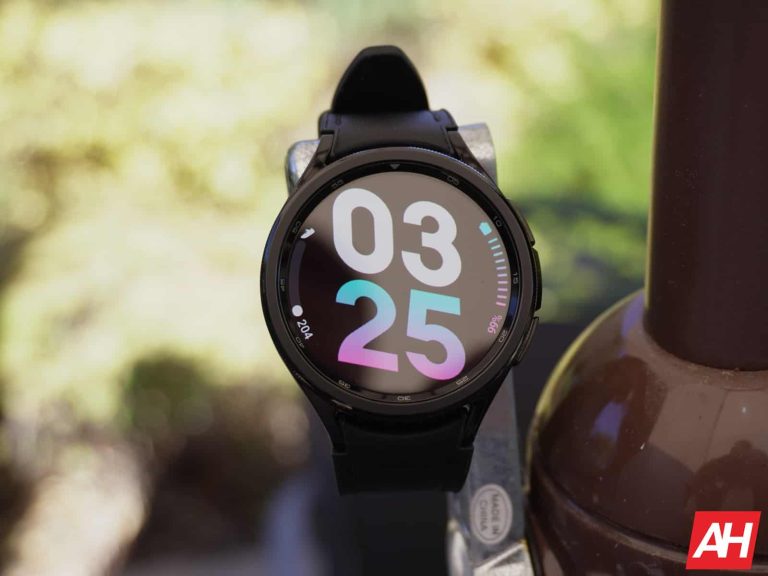
The Galaxy Watch smartwatch devices will soon have yet another uncommon health feature in the form of sleep apnea detection. Samsung announced back in October 2023 that this feature was given approval by South Korea’s Ministry of Food and Drug Safety. Now it’s been given approval by the FDA in the US.
Samsung says this feature is the “first of its kind” to gain FDA approval, which makes this kind of a big deal. Not just for Samsung, but for anyone who might end up developing sleep apnea. If you’re unfamiliar with what sleep apnea is, it’s a sleep disorder that can manifest in two different ways — obstructive sleep apnea and central sleep apnea. Obstructive is more common, and this type essentially closes up your airways making it more difficult to breathe. Central sleep apnea prevents your brain from sending signals to your breathing muscles.
In both types, the person affected ends up having trouble sleeping. Which can have a negative impact on long-term health. This new feature aims to help alert wearers of Galaxy Watch devices to possible signs of sleep apnea so they can catch it earlier on. Sleep apnea doesn’t have a cure but it is possible to lessen the impact it has on you. CPAP machines are one way you can do this. These stimulate positive airflow by keeping the breathing airways open during sleep. And with this new watch feature, you might be able to discover sooner if this is something you’ll need.
The sleep apnea feature on Galaxy Watch will detect obstructive sleep apnea only
Now that you’re aware of what two types of sleep apnea there are, here’s what you can expect from the feature on Samsung’s watches. It’ll attempt to detect signs of obstructive sleep apnea over a cycle of two nights. Users will need to enable sleep tracking on the watch and track their sleep for at least four hours. This has to be done twice in a ten-day period Samsung says. The watch will monitor for signs in people over the age of 22 who haven’t already had sleep apnea diagnosed. The feature will only detect OSA though and not CSA according to Samsung’s press release. The feature will however be able to detect signs of moderate and severe OSA.
This disorder often goes unnoticed and untreated, so Samsung is aiming to help people recognize this disorder more often. Sleep is a huge part of good health and it’s why Samsung and other brands have been so focused on providing better sleep monitoring features in their wearables. From tracking REM sleep to giving you pointers on how to improve your sleep in the future.
The feature will require a compatible Galaxy phone
Naturally, you’ll need a compatible Galaxy device to use the new sleep apnea feature once it goes live. Samsung doesn’t list when the feature will be rolled out though, or which phones will need to be connected to one of its watches. Furthermore, it doesn’t mention which watches will support this feature either.
However, it’s a pretty safe bet that the most recent watches will be compatible. This would likely include the Galaxy Watch 6 series and the Galaxy Watch 5 series. Likewise, with the phones, you can expect the Galaxy S24 series and the Galaxy S23 series to have support. That being said, it’s also highly likely that many of Samsung’s other Galaxy phones will be compatible as well.
Moondrop is a company that specializes in high-end audio products like headphones and in-ear monitors (IEMs), but it looks like the company may be looking to launch a Hi-Fi phone. What this will be exactly is anyone’s guess.
Phones that support Hi-Res audio are not so common these days although you can still find them around. For instance, As What Hi-Fi points out, the Sony Xperia 1V supports Hi-Res audio through the use of the included 3.5mm audio port. You can think of this as a Hi-Fi phone. More recently released devices like the ROG Phone 8 Pro Edition also support Hi-Res audio (as do the standard and regular Pro models) and have 3.5mm audio ports. Most phones though, especially those from the most popular brands like Samsung and Apple, have done away with headphone ports.
They’re essentially a thing of the past for the majority of brands. If you’re an audiophile, then you might be excited at the prospect of a company like Moondrop releasing a Hi-Fi phone. Especially since this is a company that specializes in high-quality audio.
The Moondrop Hi-Fi phone is being teased on the company’s website
It’s not entirely clear if Moondrop is releasing a phone, at least it hasn’t been confirmed by Moondrop. However, the company does seem to be teasing a phone release. Over on the official Moondrop website, there’s now a new “phone” category listed at the top of the page. When you click on it, you get a short message. It reads “5G HiFi Mobile Audio Device. Explore the integration of art and reason. Coming Soon.”
Now, this might not sound like a phone. Our first thought was that it sounds like something similar to Sony’s newer Walkmans powered by Android. After all, it’s a Hi-Fi audio device for listening to music and it is technically a “mobile” device since you use it while mobile. That might be splitting hairs. Sure. But it fits. All of that aside, the fact remains that Moondrop has this product listed under a phone category. So it would seem that it does indeed plan to reveal a phone.
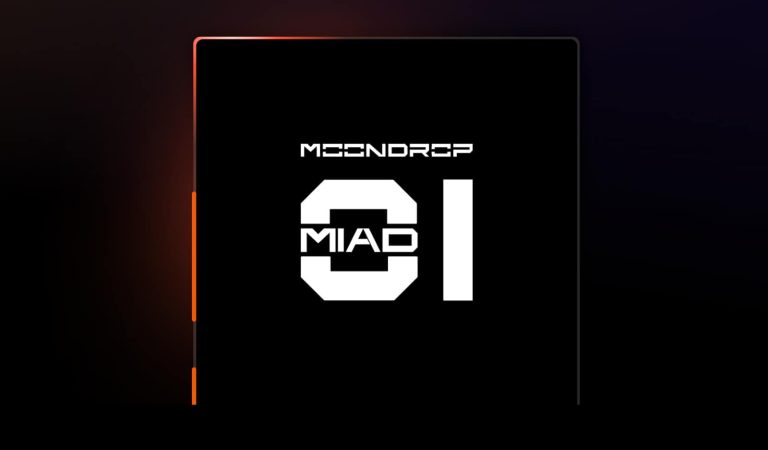
There are no mentions about a reveal date, but it does appear Moondrop has a name for this device. A tentative name, at least. The phone appears to be called the MIAD01. An animated graphic of the device also sits on the page. Although this is just a silhouette of a phone-shaped device. You don’t get to see the actual design. It looks like the volume and power buttons may be placed on the left side of the device and it could end up having some form of RGB lighting.
The presence of RGB is unclear, but the image does have a trail of RGB lighting that travels along the edge of the device’s outline. Which may or may not be part of a feature tease. Either way, if you’ve been wanting a phone that focuses primarily on Hi-Fi audio, maybe this is what you’re looking for.
So, you’re shuffling to a busy business meeting, and you get stopped by an annoying spam WhatsApp call. You have to take your phone out, unlock it, open the app, and block the number. That’s inconvenient, but WhatsApp has a solution. According to a new report, WhatsApp will let you block spam numbers from your lock screen. This comes after news of WhatsApp letting people reply to Community Announcement messages.
Spam calls are very annoying, and having to unlock your phone and open WhatsApp to block the numbers is SUPER annoying. WhatsApp does a good job of blocking spam numbers, but some do slip through, and they manage to disrupt your workflow. People want a quicker way of swatting away these annoying messages and blocking the numbers associated.
Thankfully, WhatsApp now lets you block spam numbers from your lock screen
Now, blocking those annoying numbers is as easy as 1 2 3, and neither of those steps involves you unlocking your phone. The company posted a short video showing just how the feature works. The video comes complete with a fancy animation.
Basically, when you get a call from an unknown number, you’ll see a notification pop up. Simply expand that notification to reveal the additional options. These are the Reply button and the Block button.
When you tap the Block button, you’ll see another pop-up appear. This pop-up will give you the option to report that contact. Whoever, if you want to report it, you’ll have to check the checkbox on the pop-up. This option will actually send the last five messages sent from that number to WhatsApp so that the company can see what that user has put up to.
As for the availability, this feature is rolling out now. It should be available on your device already. However, if it’s not, then you will want to check to see if your app is updated. Sometimes, updates take a little while to reach certain devices based on region. So, if you don’t see the update, you may just want to wait a few days
If you like to spend time in the outdoors, you might not think about the kinds of devices you’d bring with you. After all, you’re probably more focused on what sorts of supplies you’re going to pack. But these days, devices like smartphones and tablets can be excellent items to carry along for whatever adventures you’re planning. This is where a rugged tablet like the HOTWAV R7 comes in. It’s a rugged Android tablet that was designed to be every bit as much of an outdoor must-have as an everyday useful tech device.
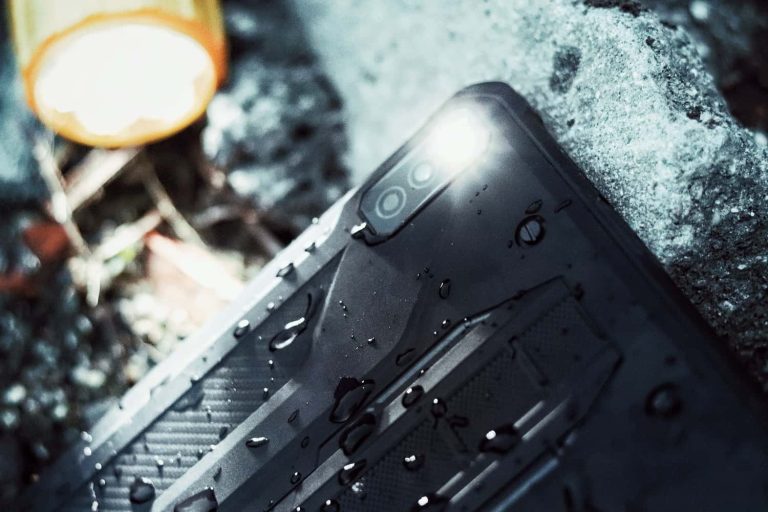
Thanks to things like its MIL-STD-810H certification, the HOTWAV R7 is built to take the bumps and bruises that can sometimes come with an outdoor excursion. Even if it’s a simple drop on the ground from waist height because it fell off your lap while you were resting in your camping chair. The R7 will be just fine as it’s resistant to shock. But it doesn’t stop there. It also has an IP68 rating so it’s resistant to water and dust. It has an IP68K rating as well. This means it can stand up to dust ingress, high temperatures, and high-pressure water. All things you could easily encounter while spending time outdoors.
To further enhance its outdoor usage, HOTWAV has added support to the R7 for multiple GPS technologies. Including Beidou, Galileo, Glonass, and GPS. Now, if you’re outdoors, chances are you might end up in a situation where it gets cold and you need to put gloves on. The good news with the R7 is that it was designed to work even while you wear gloves. So you can keep your hands warm and still use the tablet if you need to. There’s also support for facial recognition so you won’t always need to use the touch screen for unlocking the device.
The HOTWAV R7 has a useful reverse charging feature
While the tablet’s ruggedness is certainly one of the more appealing parts of it, the rest of the specs and features are great for a more affordable tablet. For instance, think about everything you might bring with you that needs to recharge. Especially if you plan to stay out longer than a day or two. Chances are you might bring your phone, a smartwatch, and maybe even some wireless earbuds. All of these things have internal batteries that will need to be recharged at some point. Well, if you have the HOTWAV R7 on you, you’re in luck. It comes with a really neat OTG reverse charging feature.
This allows you to plug another device into the tablet and use the tablet to recharge anything that’s run out of battery. You’ll need a cable to connect the two devices. But that’s easy enough to find and pack with the rest of your stuff. What’s more, is that the HOTWAV R7 comes with a large battery. So it can easily double as a power bank if you need to juice other devices back up. And when we say large, we mean it. It has a 15,600mAh battery inside which HOTWAV says can last for up to 18 hours of constant video or up to 20 hours of constant music. And if you aren’t using it all the time it’ll last for up to 900 hours in standby. In short, the battery won’t be draining on you anytime soon.
Perfect for entertainment
Now when it comes to entertainment, the HOTWAV R7 is great for that too. It has a 10.1-inch HD+ display which is perfect for watching shows and movies, playing games, or reading. With 256GB of internal storage, you’ll have plenty of room to download apps and games or a bunch of movies and music. Now, 256GB can fill up fast, but the R7 also supports up to 2TB of expandable storage with a microSD card. So you’ll have all the room you ever need. It has up to 12GB of RAM as well so it should be perfect for handling multitasking.
Worth noting is that the R7 features 6GB of physical RAM and 6GB of virtual expansion RAM, using what HOTWAV calls RAM expansion technology. Additionally, it runs on Android 13 and has two SIM card slots with 4G LTE network compatibility. However, you may want to double-check to make sure it supports your carrier’s network bands. As for cameras, it has 16MP camera sensors on both the front and back. So you can use it for photos and video, as well as video calls. It also supports 5GHz Wi-Fi networks.
What’s more, is that it has Widevine L1 support which helps expand the amount of platforms where you can access HD streaming.
Keep it secure with the included strap accessory
What’s really neat about this tablet is that it comes with a strap you can attach to the back. If you look at the back of the tablet, there are these little screws on both the top and bottom. You can unscrew these and then fasten the top and bottom parts of the strap to the tablet thanks to these metal brackets that are attached to it. This works as a means of securing the tablet to your hands so it’s less likely that you’ll drop it.
You simply slide your hand into the strap and the tablet is easier to hold onto. You may have seen similar types of straps for things like DLSR cameras and such. And they work great because the straps are tight enough against the back of your hand to keep the camera secure. This is how it works with the R7 strap. So although it is rugged enough to withstand drops and shock, you can still easily prevent that with this included accessory.
Pricing and availability
The HOTWAV R7 tablet comes in two colors — Silver Gray and Vitality Orange — and it will be launched on Amazon on February 22 in the US, Germany, France, Spain, Italy, and Poland. The price of the first 150 pieces on the US site will be just $149.99. Until the 28th, the rest will be $174.99. This is down from the regular price of $249.99. In addition to this, Android Headlines readers can use the code 03androidhl to get an additional 10% off. On the European sites, a combined 180 first pieces will sell at 137.99€, the rest will be 160.99€ until the 28th(down from the regular price of $229.99). Don’t miss out on the big discounts!
It’s been kind of a roller coaster with the upcoming Nothing Phone (2a)’s design. We had a previous leak that pointed to the company having a Glyph Interface and leaks pointing to the phone completely ditching it. Well, it appears that the latter was false. The Nothing Phone (2a) will most likely get the Glyph Interface.
Recently, we got the news that the Nothing Phone (2a) was going to ditch the classic Nothing LED lights on the back. This confused everyone, as the lights really characterize Nothing and its phones. However, that news was proven to be false. The source received a fake render. However, the publication has since printed retraction, and all is well with the world.
The Nothing Phone (2a) could still have a Glyph Interface
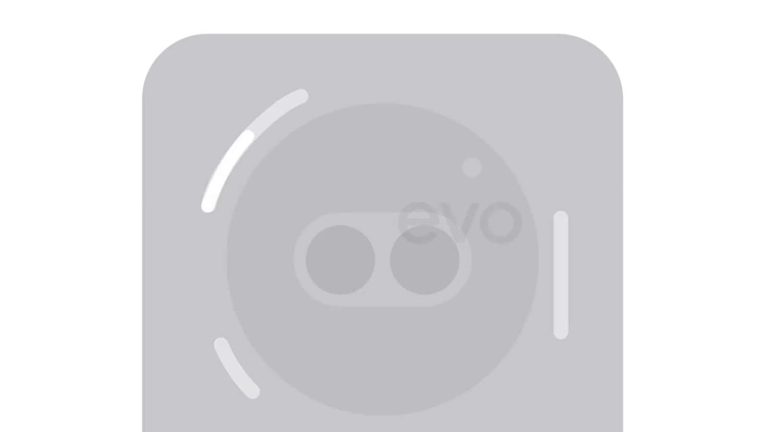
The recently rejected render showed a phone that was rather rounded on the back. It still retains the transparent aesthetic, but it didn’t have any LED lights to give a character. This phone also had a camera package on the left side of the phone as opposed to the original leak we got left showed a center-mounted camera package.
Also, the original render showed us a heavily modified Glyph Interface. We’re certain that this is how the phone is going to look when it launches, but this is still a leak, so you will want to take this news cautiously. We will have to wait to see this phone officially unveiled to really get a grasp of the whole aesthetic that Nothing is giving it.
What are the rumored specs of this device?
We don’t have any official specs, but there were some rumors floating around. The only information we have is the potential processor, which could be the Dimensity 7200 SoC. This is a pretty decent mid-range processor from MediaTek. With proper software optimization, it should be able to give you some very smooth experience.
Meet the Nothing Phone (2a)!
Model: A142. Codenames: Pacman / Aero(dactyl?).
Nothing’s next phone comes with a Mediatek SoC for the first time. The Mediatek Dimensity 7200. It has 3 Glyph parts, and a brand new design.
As for the other specs, we are left in the dark. This is speculation, but we expect a very pocketable 1080p display with 6GB to 8GB of RAM and most likely 128GB of base storage.
There’s no telling what this phone will come with until we get the official unveiling. It’s possibly going to show up during MWC this year. So, this gives us something to look forward to
This article is based on research by Marcelo Rivero, Malwarebytes’ ransomware specialist, who monitors information published by ransomware gangs on their Dark Web sites. In this report, “known attacks” are those where the victim did not pay a ransom. This provides the best overall picture of ransomware activity, but the true number of attacks is far higher.
2023 was an explosive year for ransomware.
While some ransomware trends hardly changed over the last year, such as LockBit’s continued dominance, ransomware criminals also challenged our fundamental assumptions on how ransomware gangs work, such as by exploiting zero-day vulnerabilities. Through thec onsistenciess and evolutions over the last year, one fact remains clear: 2023 broke records with its total number of 4475 ransomware attacks, a 70% increase from 2022.
Global ransomware attacks by month, 2022 vs 2023
Global ransomware attacks, 2022 vs 2023
Additionally, LockBit was responsible for a 22% of all ransomware attacks in 2023, over half as much as the next top five gangs combined. Together, the top 10 ransomware gangs were responsible for 70% of all ransomware attacks.
Top 10 ransomware gangs in 2023
Breaking 2023 ransomware attacks by sector reveals that 23% of all attacks were directed against the Services sector. Together, the top 10 sectors accounted for 80% of all ransomware attacks.
Top 10 industries attacked 2023
The USA was by far the most attacked country in 2023, with a whopping 45% of all ransomware attacks targeting the country.
Top 10 countries attacked 2023
Additionally, we’ve sifted through the backlog of our 2023 ransomware reviews to find the most important stories and trends from the last year. Here are five key takeaways from the ransomware world in 2023.
1. LockBit was… LockBit
LockBit remained the most prolific ransomware gang throughout 2023, responsible for several high-profile attacks (such as against Taiwanese chipmaker TSMC). As well, LockBit also unveiled a new variant, LockBit Green, and showed signs of expanding into macOS territory.
Ransomware gangs, including Cl0p and ALPHV, aggressively exploited zero-day vulnerabilities (e.g., in GoAnywhere MFT, MOVEit Transfer, and Citrix appliances) to launch attacks on a unprecedented scale.
4. Big blows dealt to critical infrastructure
Critical infrastructure (as defined by CISA) took a beating in 2023, with sectors such as logistics, manufacturing, healthcare, and education accounting for almost 30% of all ransomware attacks in 2023. Education alone (a subsector of the Government Facilities sector) experienced a 70% surge in attacks in the past year, increasing from 129 incidents in 2022 to 265 in 2023.
2023 was a whirlwind year for ransomware: Attacks spiked by 70%, law enforcement landed key victories, gangs pivoted to exploiting zero-day vulnerabilities, and much more.
Going into 2024 it’s safe to say that the threat of ransomware looms large for all organizations—especially those with shrinking security budgets and overtaxed IT teams, organizations located in the US, critical infrastructure sectors like education.
Fighting off ransomware gangs requires a layered security strategy. Technologies such as Endpoint Protection (EP) and Vulnerability and Patch Management (VPM), for example, are vital first defenses to reduce the attack surface breach likelihood.
The key point, though, is to assume that motivated gangs will eventually breach any defenses. Endpoint Detection and Response (EDR) is crucial for finding and removing threats before damage occurs. And for the ultimate assurance of uptime —choose an EDR solution with ransomware rollback to undo changes and restore files so that productivity continues.
How ThreatDown Addresses Ransomware
ThreatDown Bundles take a comprehensive approach to ransomware. Our integrated solutions combine EP, VPM, and EDR technologies, tailored to your organization’s specific needs, including:
For resource-constrained organizations, select ThreatDown bundles offer Managed Detection and Response (MDR) services, providing expert monitoring and swift threat response to ransomware attacks—without the need for large in-house cybersecurity teams.
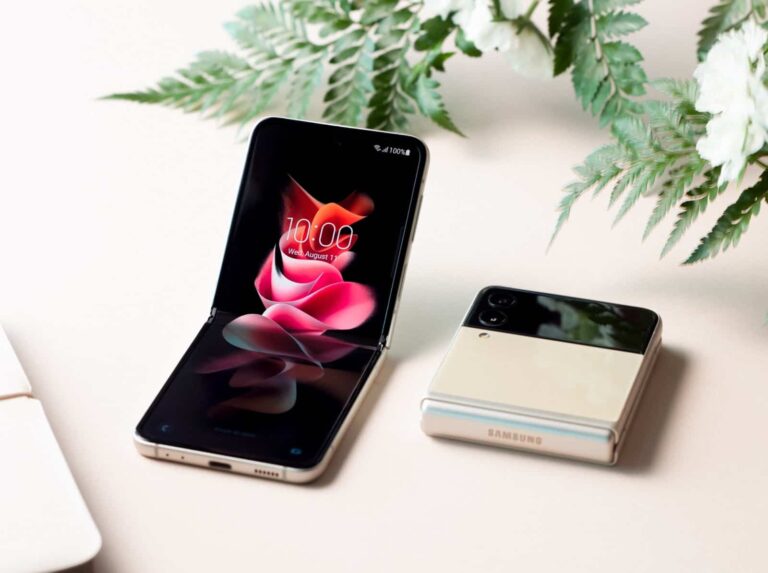
Samsung announced the Galaxy Z Flip 3 on August 11, 2021. It was announced alongside the Galaxy Z Fold 3. It is technically the third Flip smartphone to come out, though the second one was really just a 5G version of the original. And it marks the biggest changes to the Flip yet.
The Galaxy Z Flip 3 is currently the cheapest foldable smartphone on the market, coming in at $999. It’s also the only one that has broken the sub-$1000 barrier. Which means it will likely be one of the more mainstream foldables out there.
With the Galaxy Z Flip 3, Samsung made a few changes to the phone. The biggest one is the Cover Display. It’s now four times larger and a whole lot more usable among many other changes.
Before you run out and buy the Galaxy Z Flip 3, here’s everything you need to know about it.
How much is the Galaxy Z Flip 3?
The Galaxy Z Flip 3 is going to start at $999. That is for the 128GB model. Samsung will also be selling a 256GB model that will likely be around $50-$100 more expensive.
This phone is up for pre-order now and will be available everywhere starting on August 27. It does support all three carriers too. Including AT&T, T-Mobile and Verizon.
For those that pre-order the phone, you will get a $150 Samsung credit which can be used on cases, headphones and even the new Galaxy Watch 4. You will also get a free year of Samsung Care+ included when you purchase a three-year plan.
What trade-in offers are available at launch?
Samsung is offering up to $500 in trade-in credit for your old phone. As usual, the full amount will depend on how old your current phone is. The newer the phone, usually the more you’ll get for trading it in.
However, here, if you have a Samsung foldable device, you’ll get even more cash. So if you are trading in a Galaxy Fold, Galaxy Z Flip, Galaxy Z Flip 5G or a Galaxy Z Fold 2, you’ll get the most money towards a new Galaxy Z Flip 3.
If you get the full value for your trade-in, that means you can get the Galaxy Z Flip 3 for just $13 per month for 36 months.
What carriers support the Galaxy Z Flip 3?
All three major US carriers will sell and support the Galaxy Z Flip 3. That includes AT&T, T-Mobile and Verizon.
Samsung and Best Buy will also sell the Galaxy Z Flip 3 unlocked, which can still be used on any of these carriers, as well as MVNOs like Mint Mobile, Ting and others. The main advantage to getting an unlocked Galaxy Z Flip 3 is the fact that you won’t have added bloatware from the carriers installed and taking up precious space.
Where can I buy the Galaxy Z Flip 3?
You can buy the Galaxy Z Flip 3 pretty much everywhere that sells Samsung phones. As well as the three major carriers. Those include:
No matter where you buy the Galaxy Z Flip 3, you will be eligible for the different promotions and offers that Samsung is offering. However carriers and other retailers may offer some additional offers too. So it’s a good idea to look around.
What colors does it come in?
Samsung is offering the Galaxy Z Flip 3 in seven colors this time around. That’s a whole lot more than usual for Samsung. But there is a caveat here. Four colors will be available everywhere, while three will be exclusive to Samsung.com.
Every retailer and carrier will have the Galaxy Z Flip 3 in Cream, Black, Green and Lavender. While Samsung.com will have those, as well as White, Pink and Gray.
This means that it is likely a better idea to purchase your Galaxy Z Flip 3 from Samsung.com instead of a carrier. Keep in mind that you can still finance through Samsung. And Samsung typically gives you bigger promotions for trading in your current phone.
What about the specs?
Below, you can see the specs of the Galaxy Z Flip 3, and also how it compares to the Galaxy Z Flip and Z Flip 5G (which are essentially the same, minus the processor).
Folded: 72.2 x 86.4 x 17.1mm Unfolded: 72.2 x 166 x 6.9mm
Folded: 73.6 x 87.4 x 17.4mm Unfolded: 73.6 x 167.3 x 6.9mm
Weight
183g
183g
Software
Android 11, One UI 3.5
Android 10, One UI 2.5
Price
$999
$1199
What new features did Samsung add?
One of the biggest changes to the Galaxy Z Flip 3 is actually the Cover Display. It went from being a 1.1-inch ticker-like display, to a 1.9-inch display that takes up nearly half of the folded backside. And that’s where things get interesting.
Adding widgets to Cover Display
With the Cover Display being much larger this time around, you’re going to be able to do more with it. This includes seeing up to four lines of text, when notifications come in.
However, perhaps more interesting than that, is being able to adjust Quick Settings, use Samsung Pay and add Widgets.
Currently, we have not seen this in action just yet, so it’s unclear how well this is going to work. But it does look like it’s going to be pretty impressive. And add a lot of functionality to that Cover Display. Though still lack a bit of functionality compared to the Galaxy Z Fold 3’s. It’s also a quarter the size.
New Portrait Mode camera features from the S21
With the Galaxy S21 earlier this year, Samsung added some cool new features for Portrait mode. That included some AI-based improvements. Allowing the bokeh to look more natural. Now, that is coming to the Galaxy Z Flip 3 this year.
This works with Flex Mode too. So when you are in Flex Mode, the camera settings move to the bottom portion of the screen, with the upper portion being your viewfinder. Samsung said that on the original Galaxy Z Flip, about one in every five selfies was taken in Flex mode. So it is obviously very popular.
While talking about the cameras, you can still take selfies with the back cameras too. Using the Cover Display as your viewfinder as well.
120Hz refresh rate
The Galaxy Z Flip 3 is also getting 120Hz refresh rate on the main display now. Which puts it in-line with the other flagships from Samsung.
Like other flagships, this is an Adaptive Refresh Rate display. So it will not run at 120Hz all the time. This is done to conserve battery on the Galaxy Z Flip 3. And because you really don’t need 120Hz refresh rate when you are reading an email, or using the camera. But for scrolling and most other things, the 120Hz refresh rate will be very useful and look super smooth.
Stereo Speakers with Dolby Atmos
Samsung is also making the Galaxy Z Flip 3 a great phone to consume content on. It now has stereo speakers, and supports Dolby Atmos. Allowing you to watch your favorite YouTuber, or TV show on the go, with a great audio experience. Of course, pairing this with the Flex Mode panel makes it much easier to watch something and not have to hold your phone.
Should I buy the Galaxy Z Flip 3?
Samsung has made quite a few changes to the Galaxy Z Flip 3 this year, and has made it a pretty impressive foldable phone. But even though this is a much more durable phone than its predecessor, it’s still a foldable and is fragile. So keep that in mind before you do decide to purchase one.
At $999, the Galaxy Z Flip 3 is a rather impressive foldable. That puts it right at the same price of most non-folding flagship phones. And it’ll likely be cheaper than the Pixel 6. And it’s going to have a lot of people looking twice at the Galaxy Z Flip 3.
In a new blog post, Ivanti says that it has found another vulnerability and urges customers to “immediately take action to ensure you are fully protected”.
This vulnerability only affects a limited number of supported versions–Ivanti Connect Secure (version 9.1R14.4, 9.1R17.2, 9.1R18.3, 22.4R2.2 and 22.5R1.1), Ivanti Policy Secure version 22.5R1.1 and ZTA version 22.6R1.3.
Please read between the lines that there could be unsupported versions which will never see a patch for this vulnerability.
A patch is available now for Ivanti Connect Secure (versions 9.1R14.5, 9.1R17.3, 9.1R18.4, 22.4R2.3, 22.5R1.2, 22.5R2.3 and 22.6R2.2), Ivanti Policy Secure (versions 9.1R17.3, 9.1R18.4 and 22.5R1.2) and ZTA gateways (versions 22.5R1.6, 22.6R1.5 and 22.6R1.7).
Customers can access the patch via the standard download portal (login required). The instructions are somewhat complicated, to say the least. Due to all the different versions that are available, it is imperative to carefully read the instructions.
Customers can read this KB article for detailed instructions on how to apply the mitigation and apply the patch as each version becomes available. Please ensure you are following the KB article to receive updates. If you have questions or require further support, please log a case and/or request a call in the Success Portal.
Important to note:
Customers who applied the patch released on January 31 or February 1, and completed a factory reset of their appliance, do not need to factory reset their appliances again.
And once customers applied this newly released patch, they do not need to apply the mitigation or the patches released on January 31 and February 1.
The vulnerability
The vulnerability, listed as CVE-2024-22024 with a CVSS score of 8.3 out of 10, allows an attacker to access certain restricted resources without authentication.
An XML external entity injection (XXE) is a web security vulnerability that allows an attacker to interfere with an application’s processing of XML data. It often allows an attacker to view files on the application server filesystem, and/or to interact with any back-end or external systems that the application itself can access.
Ivanti found the XXE vulnerability in the SAML component of Ivanti Connect Secure (9.x, 22.x), Ivanti Policy Secure (9.x, 22.x) and ZTA gateways.
Since Ivanti claims that the vulnerability came up during internal code reviews, it is unlikely that an exploit already exists, but this type of vulnerability is usually easy to exploit, so chances are, this will not take long.
Although we have seen a pretty convincing claim that they did not find it themselves:
According to Ivanti they are unaware of any evidence of customers being exploited by CVE-2024-22024.
All in all, since January 10, five vulnerabilities have been reported in Ivanti products. And at least three of them are subject to active exploitation.
We don’t just report on vulnerabilities—we identify them, and prioritize action.
WhatsApp Communities are a great way for users to keep all of their chat groups organized. While they’re a great platform for mutual communications between admins and members, that’s not the case with the announcement groups. However,. WhatsApp is working on a feature that will bring replies to Community announcement groups. This comes after the company announced cross-platform messaging.
In case you don’t know what WhatsApp Communities are, this is a feature that allows you to create and manage multiple chat groups under one umbrella. You can create up to 50 chat groups that you can place under it. Think of it as Discord for WhatsApp. There can be different group admins for these groups and you can place these groups under different categories. It’s a great way for people running large organizations that need multiple chat groups to sustain.
WhatsApp Communities will allow for replies in the Community announcement groups
This feature was discovered by WABetaInfo. It exists in the WhatsApp beta version 2.24.4.12 for Android. If you have that version of the app, there’s still a chance that you will not see the feature. So, update your app to the latest version and see if you are one of the lucky ones.
Within a community’s chat groups, people can chat amongst themselves. This includes both members and admins. However, Communities can have an Announcement group. The announcement group acts like a Channel. It’s a group where everyone can view messages, but only one person can post, and that’s the creator of the community. This is a group that allows you to broadcast updates to everyone.
Well, it appears that WhatsApp wants to bring some more interaction with your Community announcement group. According to a new report, WhatsApp is readying a feature that will let people actually reply to messages in the Community announcement groups.
Looking at the screenshot below, we see the option to reply to it with a message in an announcement group. This will give admins a better understanding of user’s responses to the announcement. So, it could be very useful.
One thing to note is that there could be a limit. If the group has more than 1,024 members, then the feature may be unavailable. We’re not sure why, but it could probably be because announcement groups could easily become overrun if there are more than a thousand members.
This is still in testing
At this point, we don’t know if WhatsApp plans on releasing this feature. It’s still in testing, so there’s always the chance that the company could make changes or take it away. Take this news cautiously.
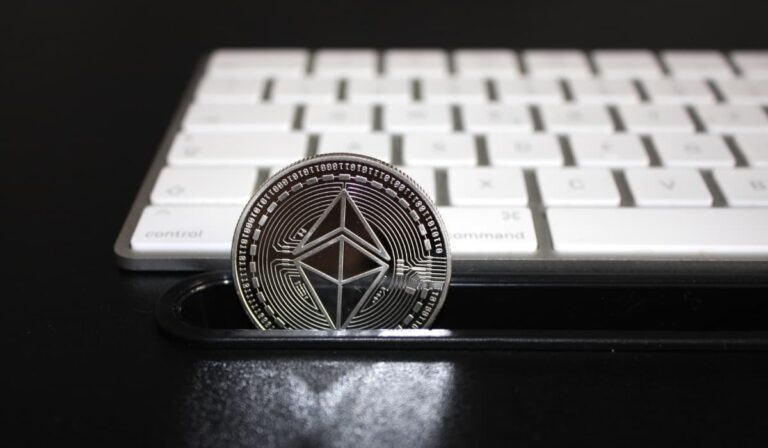
In the rapidly evolving world of digital commerce, cryptocurrencies have emerged as a game-changer, with Ethereum at the forefront. For a business looking to stay ahead of the curve, opting to accept Ethereum payments could be the key to unlocking a new world of opportunities.
Key Takeaways
Accepting Ethereum payments offers businesses global market reach, cost-effectiveness, privacy and prestige.
Setting up a business to accept ETH requires setting up an Ethereum wallet, integrating a payment gateway & informing customers about the new option.
Securing transactions can be done by monitoring in real-time with blockchain explorers & dashboards as well as converting ETH into fiat currency.
The Advantages of Accepting Ethereum Payments
Embracing Ethereum payments can offer several benefits for businesses:
It can significantly bolster a business’s global market reach.
It provides a cost-effective solution for transactions.
It offers a level of privacy that is often unmatched by traditional payment methods, appealing to privacy-conscious consumers.
This cryptocurrency is not only beneficial from a financial perspective but also provides these advantages.
Furthermore, accepting Ethereum can position a business as forward-thinking and technologically progressive. This strategic move not only enhances your reputation but also attracts tech-savvy customers who prefer using digital currencies. After all, who wouldn’t want to align their business with the likes of Newegg, Namecheap, and Microsoft, which are perceived as innovative for accepting Ethereum?
Global Accessibility
The decentralized nature and widespread usage of Ethereum contribute to its global reach and accessibility. Its inclusive network enables access for anyone with an internet connection, opening up global markets for businesses that accept cryptocurrency payments.
Furthermore, Ethereum transforms international transactions by leveraging its decentralized network. This enables:
Direct peer-to-peer transactions
Elimination of the necessity for intermediaries
A swifter, more efficient, and economical option compared to conventional financial systems
This universal accessibility unlocks global markets for businesses accepting Ethereum payments.
Lower Transaction Fees
Your business’s transaction costs can be significantly reduced by switching to Ethereum transactions. Ethereum’s utilization of smart contracts requires fewer resources for transaction processing, often resulting in reduced costs when juxtaposed with traditional methods’ relatively static fees.
The average transaction fee for Ethereum is approximately $6.64, presenting an economical option, particularly for high-value transactions. This cost-effectiveness makes Ethereum an attractive payment option for both businesses and customers alike.
Privacy
In an era where privacy is paramount, Ethereum offers a compelling advantage. Ethereum payments can be executed without revealing personal details, providing increased privacy, and security. This feature appeals to a wide array of customers, including those in sensitive industries, individuals concerned about data privacy, and those who prioritize anonymity.
Some popular businesses that accept cryptocurrency payments in their online store include:
eGifter
Bitrefill
Newegg
Rakuten
Jomashop
Namecheap
Crypto Emporium
Many businesses have leveraged Ethereum’s privacy features to appeal to a privacy-conscious clientele, indicating the potential benefits of accepting Ethereum. One such business accepts Ethereum, showcasing the growing trend in the market.
Future-Proof Payment Method
Incorporating Ethereum as a payment method signals that your business is not just keeping up with the times, but is ahead of the curve. Ethereum serves as a blockchain platform enabling the crafting of smart contracts and decentralized applications (DApps), offering an innovative solution for businesses seeking to update their payment systems and bolster trust with technology-savvy customers.
The anticipated upward trajectory of Ethereum presents businesses with a compelling rationale for integrating it as a payment method, such as ETH payments. Here are some reasons why:
Projected prices reaching approximately $2,190 by 2023
Anticipated growth following the release of Ethereum 2.0
Aligning with the currency’s potential future expansion
Setting Up Your Business to Accept Ethereum
Once you’ve decided to accept Ethereum payments, the journey to integration is a step-by-step process. This journey includes setting up an Ethereum wallet, integrating an Ethereum payment gateway, and informing your customers about the new payment option, such as accepting ETH payments.
Creating an Ethereum Wallet
Establishing an Ethereum wallet is the first step towards accepting Ethereum payments. An Ethereum wallet is a digital tool designed to securely store, receive, and send Ethereum. While there are several types of wallets available, including web and mobile wallets, it’s crucial to choose one that balances accessibility, security, and convenience for your business.
Despite the convenience of web wallets, they offer a lower level of security compared to other wallet types. On the other hand, desktop wallets offer enhanced security, making them a preferred choice for businesses seeking to safeguard their crypto assets.
Integrating an Ethereum Payment Gateway
After setting up your Ethereum wallet, integrating an Ethereum payment gateway is the next step for accepting payments. Ethereum payment gateways like CoinGate and CoinsPaid provide services that facilitate the acceptance of Ethereum and other cryptocurrencies for businesses that accept Ethereum as payment.
These gateways offer a range of solutions, including API, eCommerce plugins, and invoices, to facilitate seamless and secure acceptance of Ethereum payments. Plus, they can facilitate real-time conversion into traditional currencies, ensuring that your business operations continue smoothly.
Informing Customers
Once your Ethereum wallet and payment gateway are set up, it’s important to inform your customers about this new payment option. You can do this by:
Sharing updates on your social platforms
Reaching out to your existing customers via email.
Incorporating the Ethereum payment option details on your product page and checkout page
Providing customers with education on making Ethereum payments is also crucial. It simplifies the process for them, leading to higher adoption rates, and attracts new clients looking for businesses that support cryptocurrency transactions.
Securing Your Ethereum Transactions
Ensuring the security of crypto transactions is important, even though accepting Ethereum payments can offer numerous benefits. This involves monitoring transactions, converting Ethereum to fiat currency, and maintaining security best practices.
Monitoring Transactions
It’s important for your business to track Ethereum transactions in real-time. This can be achieved through blockchain explorers or dashboards, such as Etherscan and Doubloin, which provide live updates on incoming and outgoing transactions on the Ethereum blockchain.
You can also establish transaction monitors to receive alerts for each Ethereum transaction and utilize the transaction hash to examine specifics such as sender/receiver addresses on a blockchain explorer. This allows you to effectively track payments, maintain sufficient ETH for transaction fees, and ensure seamless payment processing.
Converting Ethereum to Fiat Currency
Converting your Ethereum to fiat currency is necessary to ensure your business runs smoothly. This can be done by utilizing a payment gateway with a conversion feature or by using exchanges such as Binance, Coinbase, and Kraken
After Ethereum is converted into fiat currency, you can withdraw the funds to your linked bank account, adhering to the withdrawal procedures established by the gateway or exchange. This ensures that you have the necessary funds to pay suppliers and fund your business operations.
Maintaining Security Best Practices
To safeguard your business from potential cyber threats, it’s important to maintain security best practices. This involves utilizing strong and unique passwords and enabling Two-Factor Authentication (2FA) to protect against unauthorized access and diverse security threats.
In addition to these, you can implement measures such as:
Verifying all transactions
Integrating hardware wallets
Using updated antivirus programs
Exercising caution against phishing
Employing cold storage for savings
Implementing two-factor authentication
Establishing limits on smart contract spending
These measures will help safeguard your Ethereum wallet from hacking attempts.
Summary
After exploring the benefits of accepting Ethereum, the steps to set up your business to accept Ethereum, and the importance of securing your Ethereum transactions, it’s clear that embracing this cryptocurrency can open doors to a world of opportunities. As we continue to advance in the digital age, adopting Ethereum isn’t just a strategic move, it’s a leap into the future.
Frequently Asked Questions
How do you accept Ethereum?
To accept Ethereum payments, go to your Store Settings, add your Ethereum wallet and create a new API key. Choose the tool to add to your checkout and you’ll be all set to start taking payments in Ethereum.
Does anyone accept Ethereum?
Yes, a number of companies, such as Overstock, Shopify, Travala, Gipsybee, Sotheby’s, Crypto Emporium, NordVPN, Chipotle, Twitch and Pacaso accept Ethereum as payment.
How do I receive payment on Ethereum?
To receive payment in Ethereum, sign up for a business account, enter an Ethereum address, create an API key and add an integration method for checkout. Then generate invoices through the Request Finance platform to receive payment.
What are the benefits of accepting Ethereum payments?
Accepting Ethereum payments can provide a business with global reach, reduce transaction costs, increase privacy, and position them as forward-thinking.
How can I ensure the security of my Ethereum transactions?
To ensure the security of your Ethereum transactions, monitor them closely, convert them to fiat currency when necessary, and employ security best practices at all times.