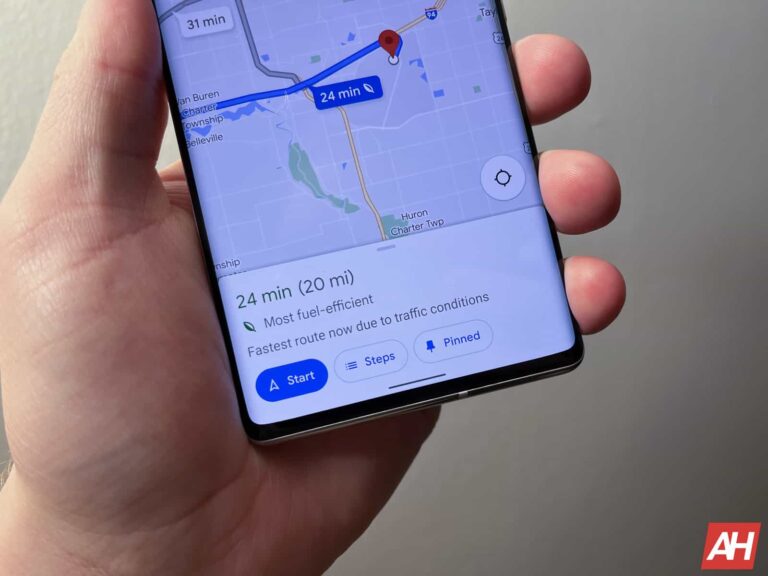
AI, or Artificial Intelligence, is everywhere these days. Not only is Google adding it to everything, but so is basically everyone else. The next Google product that could see AI being added is going to be Google Maps, and Google is planning to use Generative AI here.
Thanks to Android Police, we’re now seeing how Google would onboard new users to this new Generative AI feature, which would start with Local Guides.
There’s going to be a new card that will encourage users to Search with Generative AI, and there’s a button below that will let them take it for a spin. Google is also including a page on how Generative AI works in Google Maps. As usual, there are also a few disclaimers from Google included. That includes this being an experimental feature and how your data is shared with Google.
After going through the onboarding process, Google Maps enables the functionality for you, and now you can “Search with Generative AI”. This will appear below your saved locations like Home and Work.
Google Maps is also getting a makeover
On top of that, Google Maps is getting a design makeover that introduced a card-style layout. This also came with some handy design tweaks to the navigation UI. This is going to go a pretty long way toward improving the user experience. It’s a lot more intuitive and modern now compared to before.
Google is constantly updating Google Maps and changing things to make it as helpful as possible. Now, with these new Generative AI features, it could be a handy app for more than just directions. You can ask it for “kid-friendly activities on a rainy day,” and it’ll give you a few options, which is an elegant feature.
Generative AI in Google Maps hasn’t rolled out yet, but it does sound like it’ll be coming any day now.
The Google Assistant is an ever-evolving digital assistant from Google, and it already has a ton of commands that you can use to get things done. And in this post, we’ll be listing every single command that you can give the Google Assistant.
These commands will work on any Google Assistant device whether that’s a Nest Mini, Nest Hub Max, your Android smartphone, or even your Chromebook. The Google Assistant is mostly the same across the entire platform. The biggest difference is whether it has a display or not. So, on a Nest Mini, you’ll only get an audio response, while on a Nest Hub Max, you will get a visual response as well.
Calling on the Google Assistant
Let’s start at the beginning. To call on the Google Assistant, you’ll need to give out a specific command. This can be either “OK Google” or “Hey Google” or something similar. Basically, if you say something about “Google,” you’ll get the Google Assistant’s attention.
This works on any device that is always listening. Now, if you turn off the microphone on your Sonos One (and have Google Assistant set up on it), then saying “Hey Google” isn’t going to work. You’ll need to turn on the microphone and then talk to the Assistant.
One thing that sets Google Assistant apart from its competitors is that it understands human language. So you don’t need to say these commands word for word every time. For instead of saying, “OK, Google, how’s the weather?” you can say, “OK, Google, weather,” and it’ll give you the same response. So you don’t need to remember specific commands for Google Assistant, which is really useful.
Basic Commands
Now that we’ve talked about how to get the Google Assistant’s attention, it’s time to go over some basic commands. Here are some pretty basic commands that will work on any Google Assistant device.
Ask Google for help: “OK, Google, help.”
Adjust the volume: “OK, Google, turn it up,” “OK, Google, louder,” or, “OK, Google, turn it to 11.” (Yes, the max is 11.)
Command to halt an action: “OK, Google, stop,” “Pause,” or “Be quiet.”
Your Day
These are commands that you can use to learn about your day. From checking your calendar for appointments to hearing about the weather, checking traffic, and more.
How to hear your daily briefing: “OK, Google, tell me about my day” or, “OK, Google, good morning.”
Weather: “OK, Google, how’s the weather today?” or, “OK, Google, do I need an umbrella today?”
Show weather on Chromecast: “OK, Google, show me the weather on [Chromecast name].”
Traffic: “OK, Google, what’s the traffic like?”
Create a reminder: “OK, Google, remind me to Google Assistant Commands: Everything You Need To Know on [day] and [time]” or, “OK, Google, remind me to Google Assistant Commands: Everything You Need To Know every day at [time].”
News: “Ok Google, what’s the latest news from CNET?” or, “OK, Google, what’s in the news?”
Get a positive news story: “OK, Google, tell me something good.”
Create a reminder based on location: “OK, Google, remind me to water the plants when I get home,” or, “Hey, Google, remind me to buy eggs when I’m at the grocery store.”
Play reminders: “OK, Google, what are my reminders?” or, “OK, Google, what are my reminders tomorrow?” or “OK, what is my reminder for [title}?”
Deleting reminders: “OK, Google, delete my reminders for tomorrow,” or, “OK, Google, delete my reminder to Google Assistant Commands: Everything You Need To Know,” or, “OK, Google, delete all of my reminders.”
Check notifications: “OK, Google, what’s up?” or, “OK, Google, what are my notifications?”
Create a new calendar event: “OK, Google new calendar event” or, “OK, Google, add [event] to my calendar,” or, “OK, Google, schedule [event] for me on Saturday at 8 p.m.”
List next calendar event: “OK, Google, what’s next on my calendar?” or, “What/where/when is my next meeting?”
List calendar events for a day: “OK, Google, list all events for Jan. 1,” “OK, Google, what’s on my agenda for today?” or “OK, Google, what’s on my calendar for Friday?”
Time
These are commands that can be used to check the time in your current location, as well as others. Or to set alarms, snooze alarms and more.
Time: “OK, Google, what time is it?”
Time in other locations: “OK, Google, what’s the time in London?”
Alarm: “OK, Google, set an alarm for [time]” or “OK, Google, set an alarm for every day at [time].”
Snooze alarm: “OK, Google, snooze alarm.”
Cancel alarm: “OK, Google, cancel my alarm for [time].”
Timer: “OK Google, set a timer for [time].”
Multiple timers: “OK, Google, set a second timer for [time],” or “OK, Google, set a pizza timer for [time].”
Check timer: “OK, Google, how much time is left on my timer?”
Cancel timer: “OK, Google, cancel my timer.”
Search
Of course, the Google Assistant is good at search, after all it is backed up by the biggest search engine in the world. These commands will help you search for different things like words, special events and more.
Stocks: “OK, Google, how are Alphabet’s stocks doing?”
Calories: “OK, Google, how many calories are in [food item]?”
Authors: “OK, Google, who wrote [book title]?”
Inventors: “OK, Google, who invented [item]?”
Words: “OK, Google, what does [word] mean?”
Spelling: “OK, Google, spell [word].”
Special events: “OK, Google, when is [event]?” (Easter, for example.)
People: “OK, Google, who is [person]?”
Facts: “OK, Google, how tall is [person]?”
Things: “OK, Google, what is [thing]?”
Places: “OK, Google, what country is [location] in?”
Animal sounds: “OK, Google, what does [animal] sound like?”
Distance: “OK, Google, how far is [business name] from here?”
Restaurants: “OK, Google, what are the nearest restaurants?”
Businesses: “OK, Google, are there any [business type] around here?”
Business information: “OK, Google, how late is [business] open?” or, “Is [business] open now?”
Quotes: “OK, Google, give me a quote” or, “OK, Google, give me a love quote.”
Medical information: “OK, Google, what is a torn meniscus?”
Media
These commands can be used to play different music, find songs by artists, or albums and even set timers. Among many other things.
Play music in your default app: “OK, Google, play some music,” or, “Play some [genre] music.”
Play ambient sounds: “OK, Google, help me relax,” or ,”OK, Google, play white noise,” or, “OK, Google, play forest sounds.”
Play an artist or song: “OK, Google, play [artist],” or, “Play [song].”
Play a song by lyrics: “OK, Google, play the song that goes, ‘Is this the real life?’”
Play a Google Play playlist or album: “OK, Google, play some indie music,” or, “OK, Google, play [album].”
Ask what’s playing: “OK, Google, what song is this?” or, “OK, Google, what album is this?”
Get more information: “OK, Google, when did this album come out?”
Fast forward and rewind: “OK, Google, skip forward 2 minutes,” or, “OK, Google, skip backward 30 seconds.”
Set a sleep timer: “OK, Google, stop in 20 minutes.”
Play music on Spotify: “OK, Google, play [artist] on Spotify.”
Play music on Pandora: “OK, Google, play [artist] on Pandora.”
Like or dislike a song on Pandora: “OK, Google, dislike this song.”
Play music on YouTube Music: “OK, Google, play [artist] on YouTube.”
Play stations on TuneIn: “OK, Google, play [station] on TuneIn.”
Pull up lists on YouTube: “OK, Google, let’s look at what’s trending on YouTube on [TV name].”
Play an audiobook: “OK, Google, read my book,” or, “OK, Google, read [book title].”
Check time left in audiobook: “OK, Google, how much time is left?”
Find audiobook author: “OK, Google, who wrote this?”
Speed up playback of audiobooks and podcasts: “Hey Google, play at twice the speed.”
Ambient sound: “OK, Google, play ambient sounds.”
Kid-oriented commands
Google Assistant is kid-friendly, and here are some great commands for them to use.
Play music and sound effects as kids read certain books out loud: “Hey Google, Read Along with [book name].”
Create character-themed alarms: “Set a Teenage Mutant Ninja Turtle alarm for 8 p.m.”
Read a variety of kids’ stories: “Tell me a bedtime story.”
Easter Eggs
Google does like to have fun and has some really cool Easter Eggs in the Assistant. If you want a good laugh, try some of these commands.
“OK, Google, it’s my birthday.”
“OK, Google, it’s not my birthday.”
“OK, Google, did you fart?”
“OK, Google, always be closing.”
“OK, Google, what is your quest?”
“OK, Google, I am your father.”
“OK, Google, set phasers to kill.”
“OK, Google, are you SkyNet?”
“OK, Google, make me a sandwich.”
“OK, Google, up up down down left right left right B A Start.”
“OK, Google, do a barrel roll.”
Google Assistant on Android
If you use the Google Assistant on your smartphone, you can use it to different smartphone-specific commands. Like placing calls, finding your lost phone and much more. Here’s the complete list:
Google Assistant can now integrate with Android Messages, Hangouts, Messenger, SMS, Telegram, WhatsApp and Viber. Say “Read back replies.”
Place a call: “OK, Google, call mom,” or, “OK, Google, call [contact name],” or, “OK, Google, call the nearest coffee shop.”
Hang up: “OK, Google, hang up.”
Find your phone: “OK, Google, find my phone,” or, “OK, Google, ring my phone.”
Pair with Bluetooth: “OK, Google, Bluetooth pairing.”
Check Bluetooth status: “OK, Google, is Bluetooth active?” or, “OK, Google, is Bluetooth paired?” or, “OK, Google, is Bluetooth connected?”
Clear paired Bluetooth devices: “OK, Google, clear all devices,” or, “OK, Google, clear all Bluetooth devices” or, “OK, Google, unpair devices.”
Users also have the ability to use the Google Assistant while their phone is locked. You’ll need to enable this by clicking on the Explore icon in the top-right corner of the Google Assistant app. Then tap on Settings. Go to Assistant and then Assistant Devices and choose your phone.
Using Google Assistant to control your smart home
Of course, the most popular reason to use the Google Assistant, is to control your smart home. And the Google Assistant does support many different brands of smart home products. This includes LIFX, Philips Hue, August Smart Lock, Android TVs, and much more.
Turn smart lights on/off: “OK, Google, turn on/off my lights.”
Dim smart lights: “OK, Google, dim my lights to 50%.”
Change smart bulb colors: “OK, Google, turn my lights [color].”
Control smart thermostats: “OK, Google, turn the temperature to [temp].”
Make incremental temperature changes: “OK, Google, raise the temperature 1 degree.”
Control August Smart Lock: “OK, Google, lock the front door.”
Turn on the TV with Logitech Harmony: “OK, Google, turn on the TV.”
Change the channel with Logitech Harmony: “OK, Google, turn the TV to the Travel Channel,” or, “OK, Google, play channel 12.”
Change the channel on a Dish Hopper: “OK, Google, play CBS on the Hopper.”
Customize trigger phrases for IFTTT. For example: “OK, Google, let’s get this party started.”
Show Nest Cam feed on Chromecast: “OK, Google, show [camera name],” “Hey, Google, what’s on [camera name]?” or, “OK, Google, play [camera name] on [Chromecast name].”
Broadcast messages with Google Assistant
One of the cooler features of the Google Assistant, is the fact that you can use it as an intercom, if you have multiple smart speakers or displays in your home. And here are some of the broadcast commands that you can give to the Google Assistant.
Wake up: “OK, Google, broadcast ‘wake everyone up,’” or, “OK, Google, broadcast ‘it’s time to wake up.’”
Breakfast: “OK, Google, broadcast ‘breakfast is ready,’” or, “OK, Google, broadcast ‘breakfast is served,’” or’ “OK, Google, broadcast ‘it’s time for breakfast.’”
On the way: “OK, Google, broadcast ‘I’m on the way,’” or, “OK, Google, broadcast ‘I’ll be home soon.’”
Movie time: “OK, Google, broadcast ‘it’s movie time,’” or, “OK, Google, broadcast ‘the movie is about to start,’” or, “OK, Google, broadcast ‘let’s go to the movie.’”
TV time: “OK, Google, broadcast ‘the show is about to start,’” or, “OK, Google, broadcast ‘it’s time to watch TV,’” or, “OK, Google, broadcast ‘TV time.’”
Bedtime: “OK, Google, broadcast ‘time for bed,’” or, “OK, Google, broadcast ‘it’s time to go to bed,’” or, “OK, Google, broadcast ‘sleep time.’”
Chromecast/Android TV commands for Google Assistant
Google Assistant is also available on Chromecast and Android TV. Allowing you to do all sorts of things with your TV. But here are some that are specific to Chromecast and Android TV.
Turn on/off the TV with Chromecast: “OK, Google, turn on the [Chromecast name],” or, “OK, Google, turn off the [Chromecast name].”
Play music through other speakers with Chromecast: “OK, Google, play [song] on [Chromecast or Google Home name].”
Listen to audiobook on another device: “OK, Google, read my book on [Chromecast or Google Home speaker name].”
Play videos on YouTube using Chromecast: “OK, Google, playon the [Chromecast name].”
Play and pause Chromecast: “OK, Google, play/pause [Chromecast name].”
Images: “OK, Google, show me a picture of an antelope.”
Using Google Assistant to book a vacation
You can also use the Google Assistant to book a vacation pretty easily. Or to check on your vacation including flights, restaurants and such. Here are those commands:
You can Book a hotel room at the following properties:AccorHotels, Choice Hotels, Expedia, InterContinental Hotels Group, Mirai, Priceline, Travelclick and other online services: by saying “Find a hotel in San Francisco,” then, “Book a room at Quality Inn.”
Get flight prices to a destination: “OK, Google, how much is a round-trip flight to New York?”
Get flights with a specific airline: “OK, Google, find me flights with Jet Blue.”
Check on your flights: “OK, Google, when is my next flight?” or, “OK, Google, my flights in [month].”
Discover places to visit: “OK, Google, what is there to see in Paris?”
Find restaurants to try: “OK, Google, what’s the best restaurant in Berlin?”
That’s all the Google Assistant commands
There’s a lot of commands in this list and it’s likely not all of them. Just ones that have been discovered. And now with Google rolling out Actions for the Assistant, there are going to be a lot more apps adding actions that you can take with the Google Assistant. Not to mention, Google also rolling out some new features for the Assistant. So this is an ever-updating list of the latest commands.
Google’s ‘Chromebook Plus’ initiative kicked off in October last year. The company wants to deliver even more compelling Chromebooks to user’s hands. In order to be Chromebook Plus certified, a Chromebook has to fulfill five criteria. It has to have a certain power in terms of the SoC, it needs to have at least 8GB of RAM, at least 128GB of storage, a fullHD display with IPS resolution or better, and a webcam that offers fullHD resolution or better, and uses ‘temporal noise reduction’. The ASUS Chromebook Plus CX34 was in the first wave of ‘Chromebook Plus’ devices, and that’s the device we’re here to check out.
Chromebooks were always a great option for many people. They were never very demanding from the software standpoint, so OEMs offered rather modest hardware… well, in most cases. Most of them were rather affordable thanks to that. Well, the ASUS Chromebook Plus CX34 is still very affordable, and yet its internals are nothing to scoff at, especially considering that ChromeOS is running in terms of software. I was intrigued by this and wanted to see what $400 gets you in terms of experience. Needless to say, that’s rather affordable for any type of laptop these days. Before we get started, do note that I’ve been using ChromeOS on a daily basis for years, but in a Chromebox form. I haven’t really used a Chromebook for quite some time at this point. That made this whole experience rather interesting. So, let’s get into it.
Table of contents
ASUS Chromebook Plus CX34 Review: Hardware / Design
The first thing you need to keep in mind before we start talking about the design and build is the price tag. This laptop is quite affordable, so ASUS used plastic to make it. Despite that, however, it feels quite sturdy, and I didn’t feel like I was using a cheap product at any point. I’m used to ultrabooks at this point, as the Huawei MateBook Pro 2022 was the laptop I used up to this point. That thing utilizes magnesium and is very thin, but it’s also quite expensive. Even with that in mind, I wasn’t disappointed with the design here, not at all. I expected it to be thicker and heavier, which it is, but it’s not bad at all, quite the contrary. You need to have the price tag in mind at all times.
This is a 14-inch laptop and it measures 32.64 x 21.43 x 1.87cm. For the folks in the US, that translates to 12.85 x 8.44 x 0.74 inches. Depending on the model you get, it weighs either 1.44kg (3.17lbs) or 1.46kg (3.22lbs). I did notice the added weight and thickness compared to much more expensive ultrabooks, but truth be said, it didn’t bother me at all, and I forgot about it really quickly. Pearl White and Black models are on offer from ASUS. I received the former, as you can see in the provided images. It is not completely white, however, it has some sort of pattern placed on it. It’s rather difficult to explain it. It’s like noise in images, kind of, though considering it’s light gray, you really need to take a closer look to see it.
The opening & closing mechanism is just right
The opening and closing mechanism is quite sturdy, but not too sturdy. In other words, it’s a perfect balance, I’d say. Yes, you can open it with one hand without holding the bottom of the laptop, it’s not a problem. The display sits firmly in place once you open it. There are also two rubber feet built onto the back of the display. So that, when you open the phone, those rubber feet prop up the laptop, depending on how far you push the display. It’s a neat mechanism that I personally never experienced. It’s not groundbreaking or anything, but it works fine. Those feet not only prop up the laptop but they give it even more sturdiness on the table.
The ASUS Chromebook Plus CX34 has a chicklet keyboard that is backlit. That keyboard has a 1.4mm key travel, and it feels great to type on, in all honesty. I’m always worried about keyboards on cheaper laptops, but this one does the job perfectly. If you’re not used to using laptops, and love mechanical keyboard, it may seem odd to you, though. That goes for basically every laptop, though. If you’re coming from some other chicklet keyboard, however, you’ll feel right at home here. I’m usually using the Logitech MX Keys Mini (on my desktop computer), and the switch didn’t really take any getting used to. Even though this keyboard has less key travel than the Logitech’s, it feels great to type on, and I can’t even tell it has less key travel. So props to ASUS. It’s also well-spaced.
The touchpad is large, and a bit stiff, but still good enough
The touchpad below the keyboard is quite large, which is something I always appreciate. You can tune it up in the settings if you want. I had to speed it up a bit, so that it’s a bit more sensitive to movement, but once I did, I was happy with its performance. It’s not the best one I’ve ever used, but considering the price tag, it does the job more than well. You do have access to various gestures through that touchpad as part of ChromeOS, of course. Any gesture you’re used to is here. For example, you can swipe left with two fingers to go back to a previous page in the browser or swipe up with three fingers to enter ‘Overview’ mode.
There are also a ton of ports on the sides. That is one thing that I tend to miss on ultrabooks these days. The laptop I used prior to this one had a bunch of Type-C ports, and that’s it. Here you’re getting two USB 3.2 Gen 1 Type-A ports, two USB 3.2 Gen 1 Type-C ports, an HDMI (1.4) port, and a 3.5mm combo audio jack. All of them are on the right-hand side, except for one Type-C port. You can use either of the two Type-C ports for charging, so you can plug in the device from either the left or right side. The LED indicator light is placed on the left side, and it indicates when the tablet is charging, the charge status, when it’s powered on, and so forth.
This is a rugged device
It is also worth emphasizing that this Chromebook comes with the MIL-STD-810H certification. In other words, it’s a tough cookie. That may be another reason for you to get it, as it can withstand more abuse than your regular laptop would.
ASUS Chromebook Plus CX34 Review: Display
There is a 14-inch fullHD (1920 x 1080) display included on this Chromebook. Now, do keep in mind that both touch-responsive and non-touch-responsive displays are on offer (I couldn’t find the touch-responsive model in the US). The model that I reviewed has a touch-responsive display, while the one linked for purchase above the review has a non-touch-responsive display. Other than that, the two displays are identical, as far as I can tell. We’ll talk about the touch aspect in the next paragraph. Now, let’s get back to the specs. This display has a 16:9 aspect ratio, and a screen-to-body ratio of around 80% (counting in the bezels around the display, of course). The display gets up to 250 nits of brightness at its max, which is not a whole lot. We’ll talk more about that later on, and the same goes for the ‘Anti-glare’ display tag that this laptop has. Let’s delve into the touchscreen aspect first.
The display is not exactly color-accurate, but the touch response is good
There’s not much to say about touch response other than that it’s sufficiently good. It’s not great, but it’s not bad either. It does the trick, though I have to say I didn’t use it much. I only used it for a day, for testing purposes, and then completely forgot about it. Touchscreen displays on laptops don’t make much sense to me if those displays don’t fold over entirely so that you can use the device as a tablet. And those use cases are also only for some people. This display does not fold over entirely. Also, using laptop displays as touchscreens only makes them smudgy, and… you get the point. Either way, for people who want that aspect, it’s here… if you get the right model.
This panel is sharp enough, though the colors are a bit muted
The display is sharp enough. A fullHD resolution on a 14-inch display is more than enough, regardless of what some people may say. The problems with this display are, however, its colors, and also brightness. The colors are quite muted, to the point that a white background looks like a light gray background. Orange looks like a dark orange, and so on. Why is that? Well, I’m guessing the ‘Anti-glare’ aspect has something to do with it. It’s great for reflections, but it clearly affects the colors of the display. Considering that there are no additional options for that in the ‘Display’ section of the settings, you’re stuck with what you’re getting. Keep that in mind if you plan on color-tuning something on this Chromebook or anything of the sort, it’s definitely not the best option for that. The same goes for multimedia consumption.
You can rotate this panel up to 180 degrees
The top portion of the ASUS Chromebook Plus CX34 can be opened up to 180 degrees. In other words, you can open this laptop so that the display lays flat with the keyboard, in case you need it to open that much. In regards to the brightness, it’s not exactly high. I’m coming from laptops that offer around 500 nits of max brightness, so that’s definitely noticeable during usage. You do have to keep in mind the price of this Chromebook yet again, however, you can’t have it all.
ASUS Chromebook Plus CX34 Review: Performance
The Chromebook Plus CX34 comes in Intel Core i3, i5, and i7 models. The variant I reviewed comes with the Intel Core i3-1215U processor, which is a 6-core CPU. It also includes 8GB of LPDDR5 RAM on board, though with some variants you can get up to 16GB of RAM. This model also comes with 256GB of UFS storage. All the necessary requirements are here for this to be a ‘Chromebook Plus’ model.
Now, what’s the performance like? Well, really, really good. Just to put things into perspective, as my desktop computer, I’m using a Chromebox with the Core i7 SoC and 16GB of RAM. I did not notice a difference in terms of performance between this laptop and the Chromebox, not at all. Of course, if you take a look at benchmarks, you’ll certainly see a difference, but in my regular day-to-day use, I noticed none. Just to be clear, I used both devices as my work machines. Your mileage may vary, of course.
The device offered good performance, even under stress
I constantly had over 20 tabs opened across four windows and two virtual desktops on both devices. I also ran some Linux and Android apps occasionally, apps such as XnConvert for Linux, YouTube Music and MX Player Pro on the Android side of things. Even when I left a bunch of apps from Linux and Android to be active in the background I didn’t really notice a performance dip.
Yes, you can also run an occasional game on this thing, from Android, for example. Just keep in mind this is not a gaming machine, not at all, and its primary operating system is ChromeOS. I didn’t really try to run anything graphically intensive, there’s no point. In terms of heat, I didn’t really feel any, even though I did hear the fan turning on when I kept the Chromebook on a blanket for a period of time, or when I delved into a lengthy video call via Google Meet. That is all normal, though.
There are plenty of ports to choose from
I’ve also tested all ports on the device, and all worked as expected. You can charge this Chromebook from either the left or right side, as a Type-C port is included on both. It’s also nice to see an HDMI port here in addition to an audio jack. All of those actually came in handy, as I adapted my usage to test all of them. If you need them, they’re all here, and transfer speeds via USB ports are quite good too.
Benchmarks
CRXPrt 2 is probably the most used benchmarking tool when it comes to Chrome OS devices, so we decided to utilize it as well. This tool has 7 levels of performance simulation to figure out the capabilities of a Chrome OS device. We also ran the Basemark Web 3.0. The results for both benchmarks are below.
CRXPrt 2 Benchmark
Basemark Web 3.0
ASUS Chromebook Plus CX34 Review: Battery
The ASUS Chromebook Plus CX34 includes a 50Wh battery inside of it. It’s a 3-cell Li-Polymer battery, in case you were wondering. The battery life is decent, it’s not outstanding or bad. In other words, not many people will have complaints about it, which is good. In terms of my own usage, I managed to get around 8-9 hours of usage out of it, depending on what I was doing and how bright was my screen. I manually upped the brightness when I was in brighter environments, such as my local coffee shop. Do note that I used this Chromebook during the day, mostly. Over 90% of my usage was during the day, actually.
The battery life was good enough
In terms of what exactly was I using, I talked about that in the performance section. However, most days, games were not included in the usage at all. I played a couple simply to grasp the ability of the Chromebook to play them. I was using this laptop for work and was using the browser aspect of it over 80% of the time. A couple of Linux apps were used, and a couple of Android ones, mostly for image processing and related actions. A ton of tabs were open at the same time, over 20 at all times, and often over 30, across two virtual virtual desks, and four separate windows.
You do get a 45W wired charging with this Chromebook. A full charge takes around two hours, while it will charge up to 50% rather fast. I ran out of juice a couple of times during my usage, and charging this thing for half an hour did the trick. Do note that a charger is included in the box, and it plugs into the Type-C port on the laptop.
ASUS Chromebook Plus CX34 Review: Webcam
The ASUS Chromebook Plus CX34 includes a fullHD camera on it. That camera is centered above the display, and it actually comes with a physical cover. Yes, you heard it right. If you check out the images below, you’ll know exactly what I’m talking about. There’s a sliding mechanism next to the camera itself, and you can physically cover it. Some people prefer to have cameras on their laptops covered and reach for tape, bandages, and all other sorts of products to cover them. If you’re one of them, you’ll find this option a blessing. Also, it’s good for camera protection, of course.
In regards to the camera performance, well, there’s not much to say, really. We’re glad to see that it’s a fullHD camera, that’s for sure. It’ll do the job. I’ve seen much worse implementations at this price range, so that’s saying something. Most people will use this for meeting and talking to family/friends (video chat), and for that purpose, it’s actually quite good. There’s really not much more to say.
ASUS Chromebook Plus CX34 Review: Software
The software is what sets this laptop apart from its Windows and Mac counterparts. It’s called a Chromebook for a reason. If you’ve used Chrome OS on any other device thus far, especially in the last couple of years, you’ll be right at home here. Google is constantly pushing out updates, and improving the experience, and I’m really enjoying the experience more and more. I rarely see any bugs on Chrome OS, regardless of the device, and the same is the case here. In fact, I didn’t notice a single bug during my usage.
If you’ve used Chrome OS before, you know exactly what to expect here
Considering this is Chrome OS, however, do note that you won’t have access to some programs that you may use on Windows and macOS. You need to know what you need out of a laptop before you make a purchasing decision. Chrome OS relies on the Chrome browser, Android apps, and Linux app (if you enable that option via the settings, and install Linux Development Environment. For my use cases, Chrome OS does absolutely everything I need, and then some. I’m not a programmer, though, nor do I need AutoCAD or similar programs.
We’ve talked about the performance itself in a separate section, so let’s get into the UI itself here. When you set up Chrome OS, you’ll be greeted with a black canvas, and there you can place a wallpaper of choice. The bottom bar is where the fun is at. In the bottom-left corner, you’ll find a shortcut to access all the apps/programs installed on the device. That includes both Android apps and Linux programs, in addition to Chrome OS apps. In the middle of the bottom bar is your ‘shelf’. That’s basically where you can pin your favorite/most used apps/programs. In the bottom-right corner, you’ll find your quick toggles, settings, time, date, battery status, pinned files, and much more.
Chrome OS is a simplistic OS, but a great choice for most people
Chrome OS is a simplistic operating system, and it does a great job of being just that. I always say Chrome OS is the best computer OS for most people, and I’m sticking to that. Most people don’t need all sorts of advanced programs that you’ll find on other OS’ most of them will simply use their browser, and messaging apps, and that’s it. Chrome OS is capable of so much more today, but it still shines in the simplest of tasks. It holds its own in the productivity department too. As mentioned earlier, I do use Chrome OS as my daily driver OS, across a Chromebox and a Chromebook. I use Chrome OS exclusively for my work, and it has everything I need it to have. Before you decide anything, however, make sure that it can do everything you need it to do, of course. It has great integration with Google services, of course, which is what matters to me a lot, personally.
ASUS Chromebook Plus CX34: Should you buy it?
Is the ASUS Chromebook Plus CX34 the right tool for you? That’s a question only you can answer, there’s a reason I mentioned that several times in this review. It’s very important that you realize how Chrome OS works before you go for it. This machine is powerful enough to do pretty much anything on Chrome OS, and if you’re happy with what Chrome OS, Linux, and Android have to offer in terms of apps/programs, this machine may be right for you. The price tag is just right, in my opinion, and I actually liked the ASUS Chromebook Plus CX34 more than I thought I would. It’s not the prettiest, slimmest, or most powerful Chromebook out there, but it’s a powerful budget machine, that’s for sure.
You should buy the ASUS Chromebook Plus CX34 if you:
…like Chrome OS, but don’t have a high budget …appreciate laptops with camera covers …don’t need the most powerful Chromebook out there …appreciate anti-reflective screens …appreciate the fact this Chromebook is rugged… to a degree …want good performance-price ratio …like the idea of using Chrome browser, Linux programs & Android apps on the same device
You shouldn’t buy the ASUS Chromebook Plus CX34 if you:
…need a color-accurate display …need a high-end Chromebook …want an ultrabook with Chrome OS
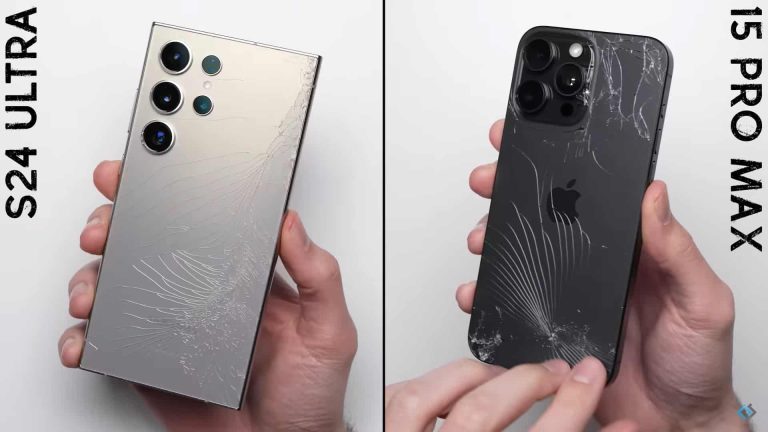
Samsung’s newly released Galaxy S24 Ultra is arguably the best Android smartphone you can buy today. The phone has all the ingredients to make it “near perfect.” Unsurprisingly, everyone is drawing its comparison with the best of the iOS world, i.e., the iPhone 15 Pro Max. People are comparing their cameras, battery life, performance, and more. A YouTuber recently pitted the two against each other in a drop test, and the results are fascinating.
Galaxy S24 Ultra and iPhone 15 Pro Max compared in a drop test
The Galaxy S24 Ultra and the iPhone 15 Pro Max have a lot of similarities in build quality. Both devices feature a titanium frame and a flat display—previous-gen Ultra flagships from Samsung had a curved display. The new Ultra also has Corning’s new Gorilla Armor glass on the front and back, which is said to be stronger than older solutions. At 221 grams, the iPhone has a weight advantage over the Galaxy (232 grams). Whether that helps, let’s find out.
The drop test by the YouTube channel PhoneBuff involved four rounds. The first round saw the devices drop from a height of about 1.4 meters onto a piece of concrete with their back facing down. Surprisingly, the back glasses of both phones shattered after the first drop. The damage on the Galaxy S24 Ultra looked worse than the iPhone 15 Pro Max. The Gorilla Armor glass made no difference as the whole panel cracked.
The Galaxy’s camera lenses also suffered more severe damage, helping the iPhone win the first round. Both phones remained fully functional, so the test moved to the second round where the devices were dropped on their corners from the same height. The titanium frames of the phones absorbed the pressure with a few minor dents and no functional damage. The iPhone lost a few chunks of its rear glass but the YouTuber called the round a draw.
The front glasses also shattered on the first drop
In the third round, the devices were dropped on their screens. Both phones had their front glasses shattered, with the Galaxy S24 Ultra suffering worse damage. The cracks on the Samsung flagship extended over the selfie camera and the new under-display fingerprint scanner, causing it to fail. The devices were still functional, although the Galaxy had a permanent glare in the selfie camera due to a cracked glass over it.
The iPhone 15 Pro Max won the third round too, gaining a healthier lead over its arch-rival. However, the Galaxy S24 Ultra came back strongly in the fourth and final round, aka the bonus round. In this round, the devices are dropped from the same height onto a plank of steel with their screens facing down ten times in a row or until they are no longer usable, whichever is earlier.
After the first drop, the cracks on the front and back extended further but the phones remained functional. However, the iPhone 15 Pro Max suffered minor display damage in the top left corner. The iPhone’s display picked up a pink vertical line on the second drop, while the Galaxy S24 Ultra suffered no display damage. And after seven consecutive drops, the iPhone gave out as the display went completely white.
The Galaxy S24 Ultra, on the other hand, kept on going. While its display picked up a white strip just one drop later, it was still responsive, so the test continued. After all ten drops, the Samsung flagship remained operational, though with some major limitations. The Galaxy won this round and the overall test with a score of 37 to 36. You can watch the full video below.
The tech world has been rife with headlines pertaining to Sam Altman’s ambition to expand AI technology. He recently visited Korea to speak with Samsung about manufacturing AI chips. Now, Altman is looking to raise money to help further expand AI chip manufacturing, and it looks like he needs a whopping $7 trillion to do it.
Sam Altman has been a busybody with different AI-centric endeavors. Recently, he partnered with Jony Ive to help create an AI device. He will provide the software expertise that will power this technology. He’s doing all of this while running OpenAI, and it appears that he’s not slowing down.
Sam Altman wants to raise $7 trillion dollars to help AI chip Manufacturing
According to reports, Sam Altman is not happy with the current selection of chips needed to push AI technology forward. Artificial intelligence requires powerful chips to train models. Well, there aren’t enough chips to go around and Altman has definitely been upset about that.
So, it appears that he’s talking to several potential investors about raising money for an absolutely enormous project. This project aims to increase world chip production. This could better supply AI chips to be used to help develop AGI (artificial general intelligence). This is basically human-level intelligence.
What is this project? We don’t know quite yet. What we do know is that Altman has contacted investors such as the UAE government to secure funds for this massive project.
If successful, then global AI chip manufacturing may be greatly increased. It appears that Altman blames the chip shortage on the lack of available AI chips.
There’s a very slim chance that he will be granted. However, it’s still exciting to see what he has planned.
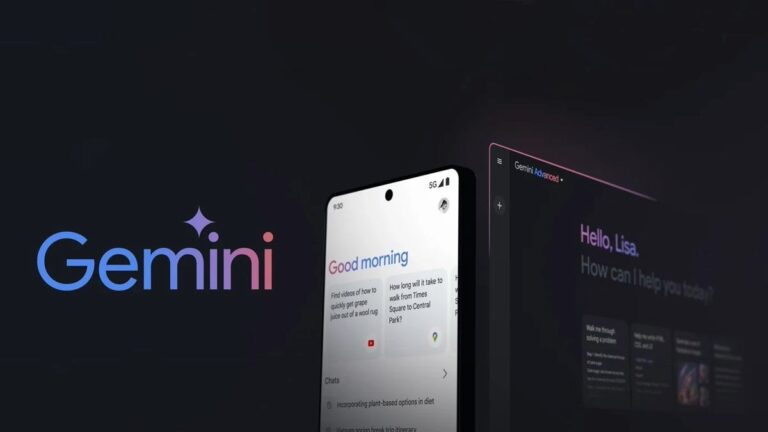
Google just launched its Gemini app for Android, and it wouldn’t be surprising if, sooner rather than later, it replaces the Google Assistant. I mean, the tech giant itself, hinted at this during the Pixel 8 launch last year when introducing the AI-powered Assistant with Bard. Now, Bard is no more, but Gemini is here. Wonder what Gemini is? If you ask it, it could tell you this:
I’m Gemini, the best way to directly access Google AI. I’m trained on large amounts of publicly available data, and I can communicate and generate human-like text in response to a wide range of questions.
The days of “Hey Google, set a timer” might be numbered with the new AI-powered chatbot shaking up the digital assistant scene. But will it rewrite the future completely? Let’s explore.
From ELIZA to Gemini: A history of human-computer conversation
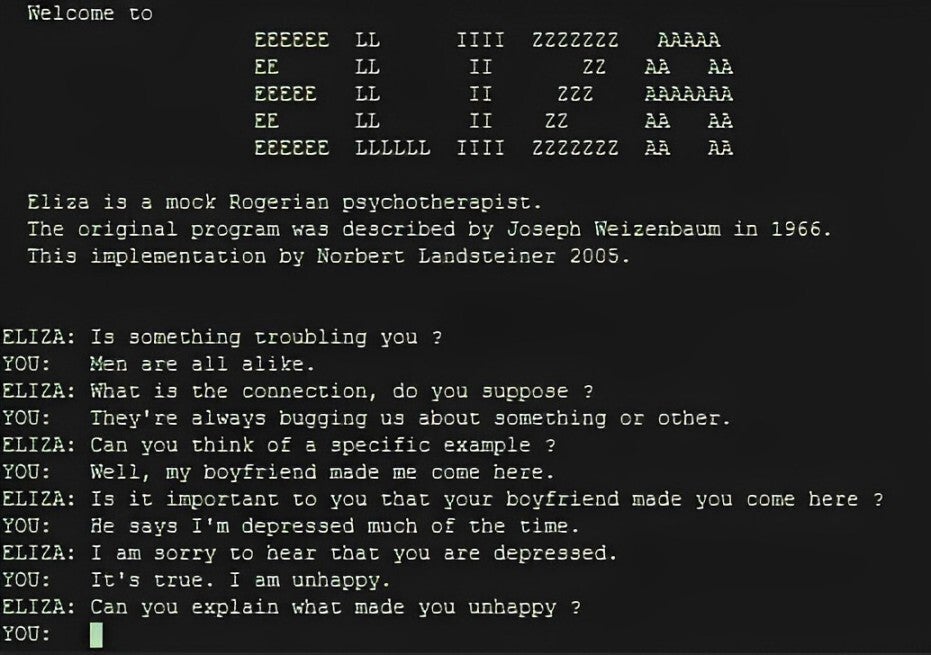
A chat with the ELIZA (Image Credit–Wikipedia)
To glimpse into the future, let’s take a trip back to the past first. It all started way back in the 1960s. ELIZA (female names seem to be the preferred choice), a primitive chatbot developed by Joseph Weizenbaum at MIT, laid the groundwork for how we interact with our devices today.
Fun fact: ELIZA even tricked people into thinking it was human. Imagine Weizenbaum’s shock when his own secretary kicked him out for some quality chat time with ELIZA. This experience birthed the ELIZA effect, where people see human-like qualities in computers. It is a reminder that even basic AI can tap into our deep desire for connection, blurring the lines between humans and machines in our interactions with virtual assistants (just watch the movie “Her”).
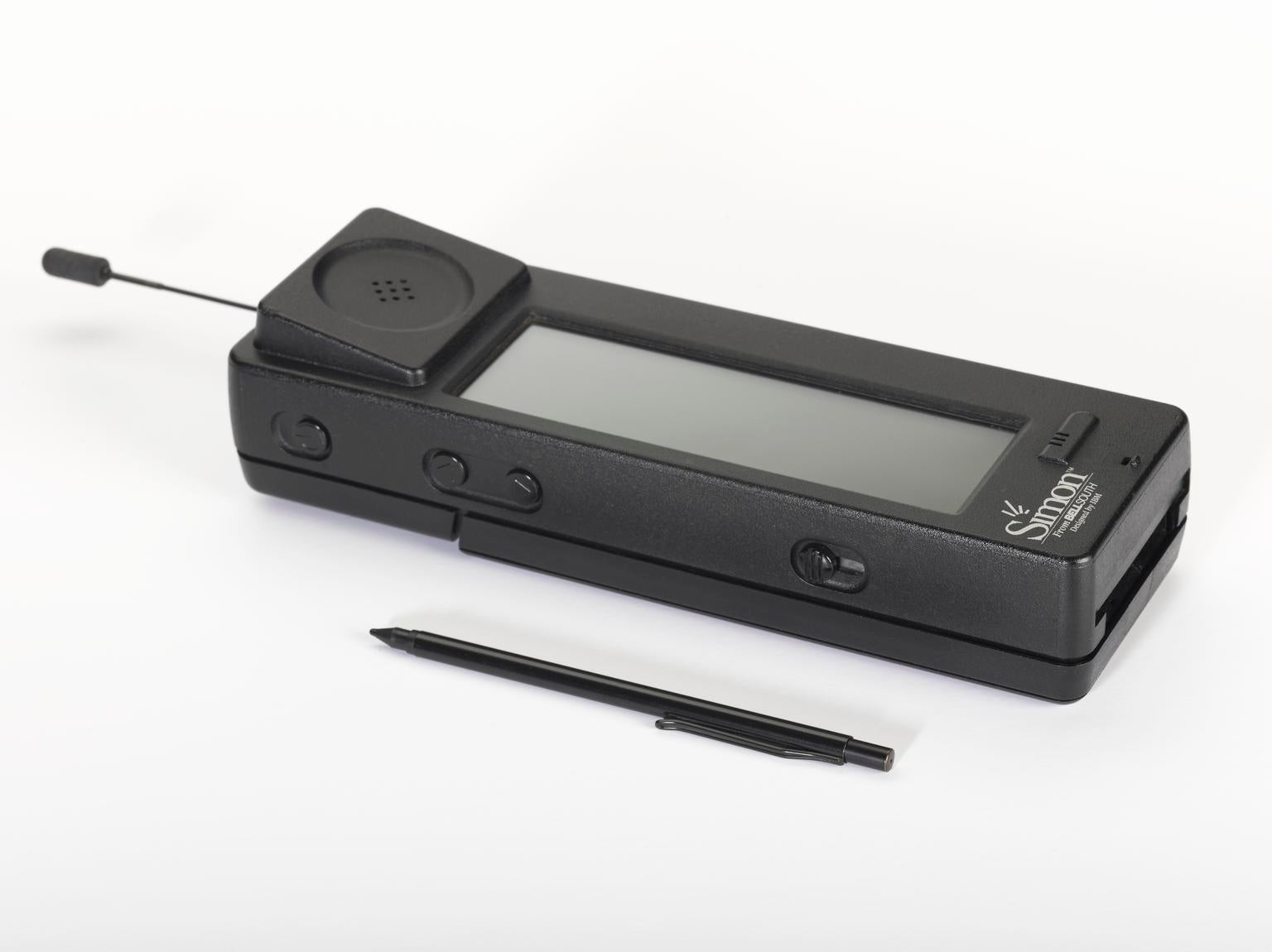
The first smartphone, Simon, manufactured by IBM (Image credit–The Board of Trustees of the Science Museum)
Voice recognition took things further, with programs like Harpy, understanding a whopping 1,000 words (impressive for the 70s!). Then came the 90s and IBM’s big moves: integrating speech recognition into PCs and launching Simon, the first smartphone that laid the foundation for integrating smart virtual assistants into mobile devices.
2011 was a game-changer: Siri arrived on the iPhone 4S, letting us chat with our devices like never before. Soon, Amazon’s Alexa, followed by Google Assistant joined the party. This tech race between giants fueled rapid advancements, making our assistants smarter and more integrated into our lives.In the 2020s, AI chatbots like ChatGPT are pushing the boundaries, generating surprisingly human-like conversations. Google’s Bard follows suit, using AI to craft responses based on real-world information. And that brings us to Gemini, the latest chapter in this evolving story of human-computer conversation.
A rewritten future? The potential impact
So, will apps like Gemini or OpenAI’s ChatGPT rewrite the future? Large language models (LLMs) like Gemini or ChatGPT are bringing a new level of sophistication to the digital assistant game. They process text, images, and context, allowing for open-ended dialogue and understanding. Ask them to analyze a poem, generate a creative story, or simply chat about the day, and they respond with surprising coherence and wit.
Unlike Alexa’s one-size-fits-all approach, Gemini and ChatGPT tailor their interactions to individual users, learning from every conversation. This future holds immense potential, from streamlining daily routines to unlocking new educational and creative avenues. However, like with any powerful technology, ethical considerations and potential job displacement concerns loom large.
Can AI assistants become true partners, or are we just feeding the tech giants more data?
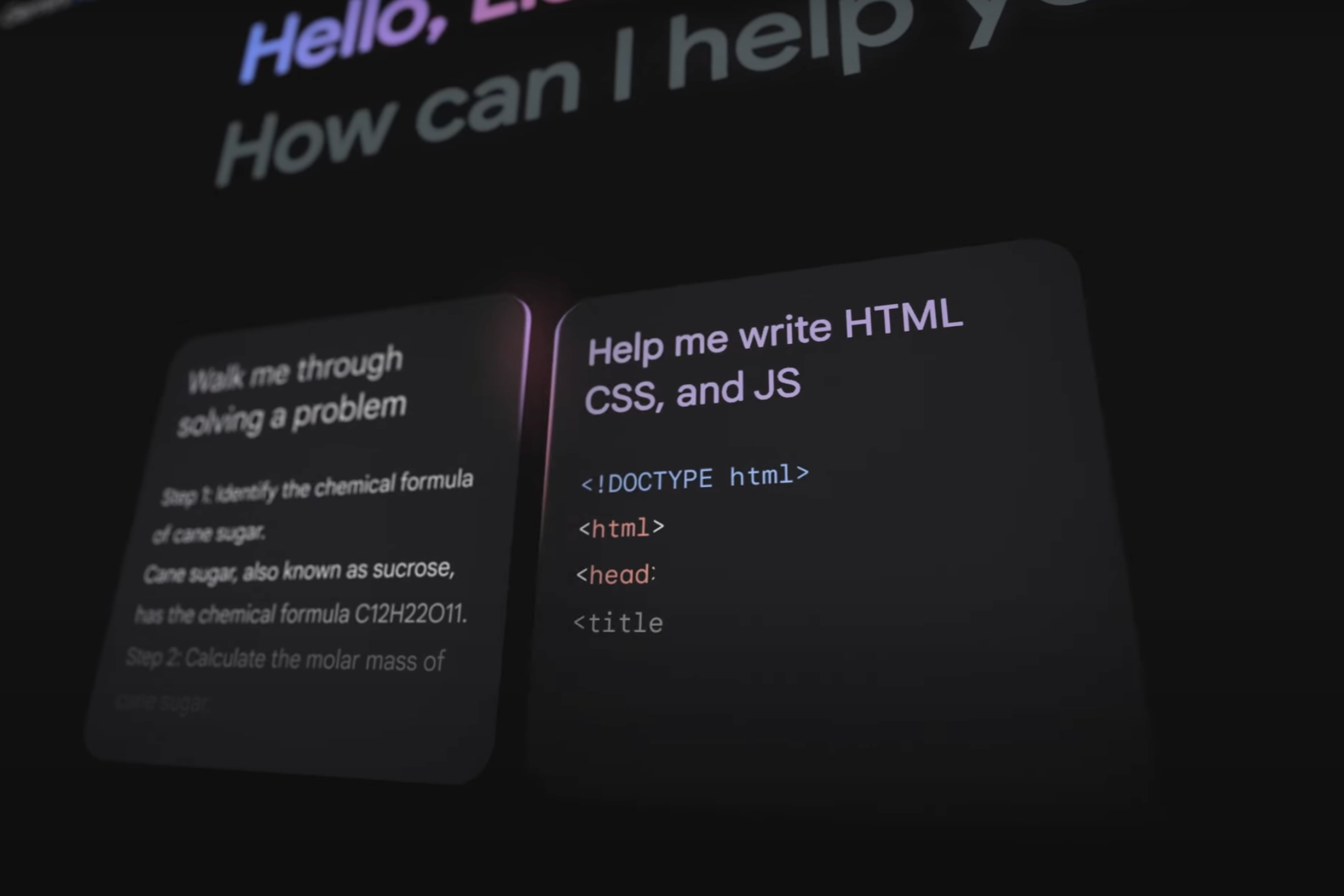
Image Credit–Google
This central question cuts to the heart of the future of digital assistants. On one hand the personalized and engaging nature of LLMs, like Gemini, suggests a deeper level of partnership. An AI companion that understands your goals, anticipates your needs, and supports you in achieving them could be a valuable asset, not just a tool.
However, concerns remain. The data-hungry nature of these LLMs raises questions about privacy and ownership. Are we merely feeding the tech giants more data in exchange for a digital friend? Can an AI truly understand and empathize with us, or are we simply creating ever-more sophisticated simulations?
The answer likely lies somewhere in between. While a true emotional connection with an AI might be a distant dream, LLMs can undoubtedly evolve into valuable collaborative tools. The key lies in responsible development, transparency, and user control over data. Open-source initiatives and decentralized models could offer solutions, ensuring that AI assistants empower us, not the other way around.
The road ahead: Challenges and opportunities
Building trust and ensuring responsible AI development are crucial challenges. But the opportunities seem to outweigh the concerns. Although the newly formed initiative called the US AI Safety Institute Consortium should address the concerns too. Responsible development and user awareness can pave the way for a symbiotic future where LLMs empower us to be more efficient, creative, and informed.While Gemini and its ilk won’t vanish your existing assistant overnight, they represent a significant leap forward. As we explore this evolving landscape, one thing is certain– the future of digital assistants is anything but simple. It’s a future where conversation, not commands, takes center stage, and the possibilities are truly exciting.
The Cybersecurity and Infrastructure Security Agency (CISA), National Security Agency (NSA), Federal Bureau of Investigation (FBI), and other authoring agencies have released a joint guidance about common living off the land (LOTL) techniques and common gaps in cyber defense capabilities.
Living Off The Land (LOTL) is a covert cyberattack technique in which criminals carry out malicious activities using legitimate IT administration tools.
This joint guidance comes alongside a joint Cybersecurity Advisory (CSA) called PRC State-Sponsored Actors Compromise and Maintain Persistent Access to US Critical Infrastructure.
These publications are a reaction to recent warnings about attacks on critical infrastructure by groups allegedly connected to the Chinese (PRC) government.
The FBI recently used a court order to remove malware from hundreds of routers across the US because it believed the attack was the work of an Advanced Persistent Threat (APT) group known as Volt Typhoon. US officials said the botnet was designed to give Chinese attackers persistent access to critical infrastructure. Routing their traffic through these gateways would hide the actual origin of malicious attempts to reach inside utilities and other targets.
In May of 2023, Microsoft uncovered stealthy and targeted malicious activity by Volt Typhoon. The activity focused on post-compromise credential access and network system discovery aimed at critical infrastructure organizations in the United States.
As Jen Easterly, the director of CISA put it in a hearing before the House Select Committee
“We have seen a deeply concerning evolution of Chinese targeting of US critical infrastructure. We have seen them burrowing deep into critical infrastructure to enable destructive attacks. This is a world where a crisis across the world could well endanger the lives of Americans here.”
And it’s not just the US. The Dutch Military Intelligence Service (MIVD) found a Remote Access Trojan (RAT) on one of their networks which they identified as Chinese malware.
The Living of the Land (LOTL) guide does not exclusively focus on Chinese state actors though. It also includes methods deployed by Russian Federation state-sponsored actors, and will likely apply to Ransomware-as-a-Service (RaaS) gangs that leverage legitimate tools to evade detection too.
So, it’s important to be aware of what your cybersecurity team, internal or managed (MDR) should be looking for when it comes to suspicious use of legitimate tools, unusual network connections, and other signs of malicious activities.
The guidance stipulates that LOTL is particularly effective because:
Many organizations lack effective security and network management practices (such as established baselines) that support detection of malicious LOTL activity—this makes it difficult for network defenders to discern legitimate behavior from malicious behavior and conduct behavioral analytics, anomaly detection, and proactive hunting.
There is a general lack of conventional indicators of compromise (IOCs) associated with the activity, complicating network defenders’ efforts to identify, track, and categorize malicious behavior.
It enables cyber threat actors to avoid investing in developing and deploying custom tools.
So, it provides some best practices for detecting and hardening that are all explained in detail.
Implement write once, read many detailed logging to avoid the risk of attackers modifying or erasing logs.
Establish and continuously maintain baselines of network, user, administrative, and application activity and least privilege restrictions.
Build or acquire automation to continually review all logs to compare current activities against established behavioral baselines and alert on specified anomalies.
Reduce alert noise by fine-tuning via priority (urgency and severity) and continuously review detections based on trending activity.
Leverage user and entity behavior analytics to identify abnormal and potentially dangerous user and device behavior.
Apply and consult vendor-recommended guidance for security hardening.
Enhance IT and OT network segmentation and monitoring.
Implement authentication and authorization controls for all human-to-software and software-to-software interactions regardless of network location.
Understanding the context of LOTL activities is crucial for accurate detection and response. Many of the tips that Malwarebytes provides for avoiding ransomware will prove to be useful in state sponsored attacks as well, although the latter can be even more targeted in some situations.
Prevent intrusions. Stop threats early before they can even infiltrate or infect your endpoints. Use endpoint security software that can prevent exploits and malware used to deliver ransomware.
Detect intrusions. Make it harder for intruders to operate inside your organization by segmenting networks and assigning access rights prudently. Use EDR or MDR to detect unusual activity before an attack occurs.
Stop malicious encryption. Deploy Endpoint Detection and Response software like ThreatDown EDR that uses multiple different detection techniques to identify ransomware, and ransomware rollback to restore damaged system files.
Create offsite, offline backups. Keep backups offsite and offline, beyond the reach of attackers. Test them regularly to make sure you can restore essential business functions swiftly.
Don’t get attacked twice. Once you’ve isolated the outbreak and stopped the first attack, you must remove every trace of the attackers, their malware, their tools, and their methods of entry, to avoid being attacked again.
Further on, CISA urges software manufacturers to implement secure by design rules in their software, to reduce the prevalence of weak default configurations and passwords, recognize the need for low or no-cost enhanced logging, and other exploitable issues identified in the guide.
Insecure software allows threat actors to leverage flaws to enable LOTL techniques and the responsibility should not solely be on the end user. By using secure by design principles, software manufacturers can make their product lines secure out of the box without requiring customers to spend additional resources making configuration changes, purchasing security software and logs, monitoring, and making routine updates.
Living off the Land is one of six cyberthreats that resource-constrained IT teams need to be ready to combat in 2024, covered in our 2024 State of Malware report.
Our business solutions remove all remnants of ransomware and prevent you from getting reinfected. Want to learn more about how we can help protect your business? Get a free trial below.
Yesterday, Samsung released the February 2024 security update for the Galaxy S23 series in the US. It appears the floodgates have now opened as the new security patch is rolling out to several more devices stateside. The Galaxy Z Fold 5, Galaxy Z Flip 5, Galaxy Z Fold 3, Galaxy Z Flip 3, and Galaxy A53 are all picking up the update. The Galaxy S23 lineup is also getting the update widely.
Samsung’s February 2024 update reaches more Galaxy devices in the US
Samsung started pushing the February SMR (Security Maintenance Release) to eligible Galaxy devices at the end of last week. The Galaxy Z Fold 3 and Galaxy Z Flip 3 were the first two phones to receive the update. Earlier this week, the company rolled out the new SMR to the Galaxy S21 series, Galaxy S23 FE, and more devices. However, in the US, the rollout began yesterday with the Galaxy S23 series.
The initial release covered factory-unlocked units of the 2023 flagship trio (build number S91*U1UES2BXAD). The update is now rolling out to carrier-locked units too. The new build number for the devices is S91xUSQS2BXAD. The Galaxy S23, Galaxy S23+, and Galaxy S23 Ultra have yet to receive this update in other countries. It shouldn’t be a long wait now, though.
In the meantime, Samsung has brought the February SMR for the Galaxy Z Fold 3 and Galaxy Z Flip 3 to the US. Both carrier-locked and unlocked units of the latter are receiving the update. The build numbers are F711USQS6HXAF and F711U1UES6HXAC, respectively. For the Fold model, the update is currently limited to carrier-locked units. The new build number is F926USQS5HXAC.
The latest security patch is also rolling out to the Galaxy Z Fold 5 and Galaxy Z Flip 5 in the US. Samsung is updating the carrier-locked and unlocked units of both models. The new build numbers for the former are F946USQS2BXAD and F946U1UES2BXAD, while those for the latter are F731USQS2BXAD and F731U1UES2BXAD. International versions of the phones should get this update soon.
The Galaxy A53 is also picking up the new SMR in the US
The Galaxy A53 is another Samsung smartphone that recently picked up the February security update in the US. The carrier-locked variants of this 2022 premium mid-range smartphone received the update with firmware version A536USQS9DXA9. The company should soon release the update for unlocked units as well as international versions of the phone. This month’s security release patches 69 vulnerabilities across the Galaxy family.
The iPhone 14 Pro Max was the best-selling smartphone of 2023
That detail probably won’t surprise many of you. What is interesting is that the iPhone 15 Pro Max almost beat it. Apple sold 34 million iPhone 14 Pro Max units, and 33 million iPhone 15 Pro Max units.
The iPhone 15 Pro Max launched in September last year, so it had only about three months to rake those numbers in. It managed to do a great job based on these numbers, actually.
You can check out the entire list below this paragraph if you want. Apple’s two ‘Pro Max’ devices take the first two spots, as already mentioned, but Apple takes the top 5 spots, actually.
The iPhone 14 took third place, while Apple claimed the first 5 spots
The iPhone 14 is third with 29 million units sold. Apple also sold 29 million units of the iPhone 14 Pro in 2023, while the iPhone 13 is fifth-placed with 23 million devices sold.
Samsung is breaking Apple’s streak in sixth place, as that’s the spot the Galaxy A14 4G took. The iPhone 15 Pro is seventh with 21 million units sold, and it’s followed by the Galaxy A54 5G.
Another Samsung smartphone sits in ninth place, the Galaxy A14 5G. Samsung sold 19 million units of that phone. The iPhone 15 closes out the top 10 list with 17 million units sold.
As you can see, not a single one of Samsung’s flagship devices is on this list. Furthermore, only Apple and Samsung are even listed here, which only shows how dominant the two companies still are.
Apple is definitely dominating the list, though. It managed to take 7 out of 10 spots and claim the top 5 spots as well. Apple was also the number one smartphone manufacturer in 2023 based on Canalys’ recent report.
It looks like Waze and Peloton have signed an agreement to bring fans a little bit of both worlds. After releasing a new driving experience voiced by Peloton instructor Matty Maggiacomo back in December, Waze is back at it with a similar theme.
This time around Waze users will have the option to choose to receive navigation instructions from Cody Rigsby, another Peloton famous instructor. Apparently, Cody won’t just offer you the necessary navigation instructions but also … dating advice, “in a sharp-tongued and gossipy tone.”
That being said, expect to hear prompts like “Flowers are great. But give anything but roses. Roses say <I don’t know what kind of flowers you like, and I don’t care enough to ask>.”
For those who get stressed fast during commuting, Cody has some special lines too, such as “You’re going to be your own hype man today. When you’re ready to go, say in a loud voice: <I’m fierce, I’m amazing, I’m going to slay this drive>.”
The Cody Rigsby driving experience comes with the Flouncy Mood and the Princess Carriage custom vehicle icon. The newly launched experience is now available worldwide with voice navigation in English.