Samsung planning to release a rollable smartphone in 2025

0
[ad_1]

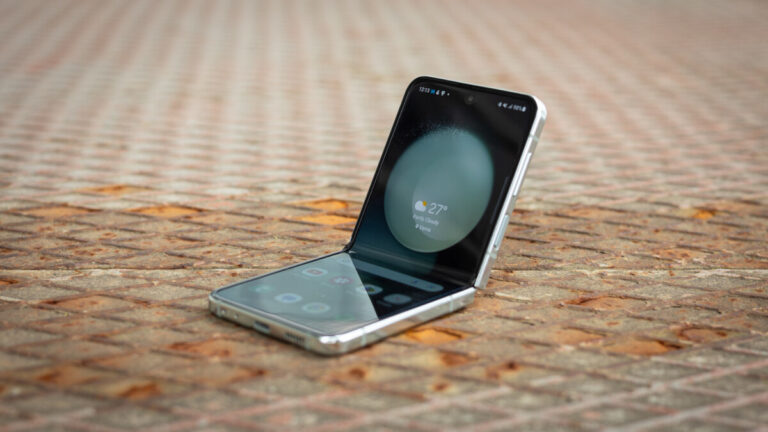
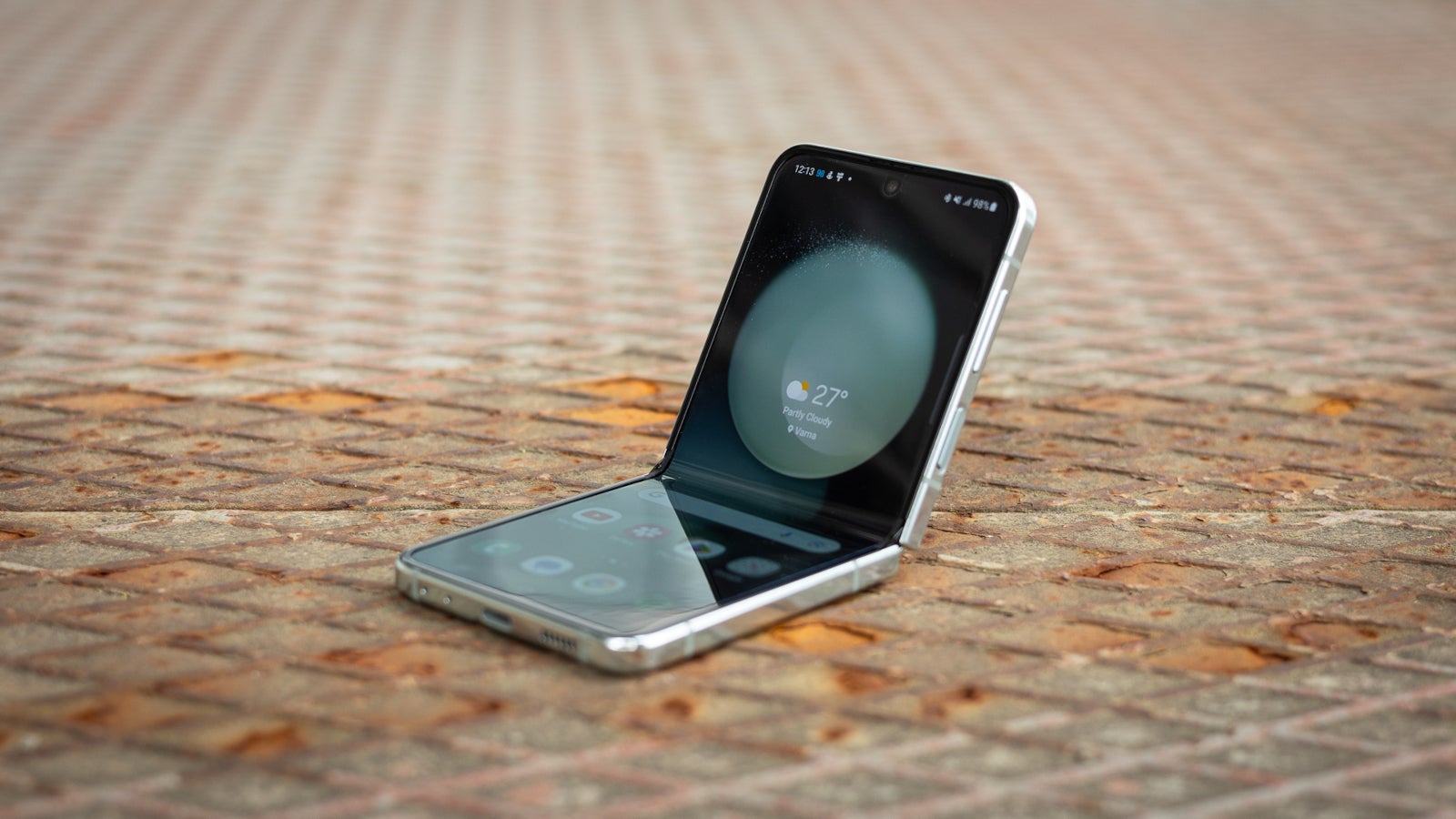
Samsung is reportedly planning to launch a rollable smartphone in 2025. The device will come with an under-display or under-panel camera (UPC) and feature a bezel-less design, noted industry insider @Tech_Reve reports. The product doesn’t yet have a name.

After foldables, rollable or slidable smartphones are said to be the next step in smartphone evolution. Several companies are exploring this design, with a few of them publicly showcasing prototypes and concept devices. Samsung has been toying with the idea for the past few years.

The Korean firm has already secured patents for various rollable and slidable smartphone designs. In the meantime, its display division, Samsung Display, has unveiled several big-size OLED panels that can be rolled into a small package when not in use. In May this year, the company took one such solution to the SID Display Week 2023 in California.

Called Rollable Flex, this OLED panel measures 254.4 mm (or ten inches) in length when extended fully. But if you want to roll it down, the whole screen can hide within a 49 mm (less than two inches) package. That’s a 5X scalability of the screen. It solves the portability issue with large-screen devices. Current foldable smartphones offer a 3X scalability, or even lower.

Of course, Samsung Display didn’t talk about the commercial availability of the Rollable Flex as a smartphone. That isn’t part of its business. The Korean firm’s mobile division (called MX or Mobile Experience) handles that. However, it was only a matter of time before the two units of the Samsung Group came together and worked on a real-world product. And they seem to have something in the pipeline.

Samsung is readying its first rollable smartphone

According to the new rumor, Samsung will begin the mass production of its first-gen rollable smartphone in 2025. The source didn’t share a more precise timeline, but the device will probably arrive alongside the company’s foldables — Galaxy Z Fold 7 and Galaxy Z Flip 7 — around August. That’s unless Samsung plans to give the new rollable more space in the market. In that case, it could arrive separately earlier or later than that.

Alongside the new rollable, Samsung is also working on improving its UPC tech. The company has used an under-panel camera on its Fold series foldables since the Galaxy Z Fold 3 in 2021. Two years on, the image quality is still quite poor. There have been improvements, but not big enough. We’ll have to wait and see what changes over the next couple of years.


[ad_2]
Source link

VirusTotal hacking – Hackers can access trove of stolen credentials on VirusTotal

0
[ad_1]

Dubbed VirusTotal Hacking; the attack allowed researchers to access 1,000,000 login credentials exfiltrated by unencrypted crypto wallets and different types of malware.

Security researchers at SafeBreach have discovered a way to collect huge amounts of stolen user credentials only by executing searches on VirusTotal. For your information, VirusTotal is an online platform used to examine suspicious URLs and documents. 

The problem with this new finding is that VirusTotal can be exploited to steal large amounts of credentials without hacking an organization’s network or buying the credentials.

Research Findings

According to SafeBreach researchers, they could collect over 1,000,000 credentials exfiltrated by unencrypted cryptocurrency wallets and different types of malware. The researchers managed to conduct the hack by executing simple searches using a $679 VirusTotal license and tools.

It all started with the curiosity to identify the kind of data a cybercriminal or hacker could collect if they have a VirusTotal license. A user with this license can perform a wide range of tasks such as searching for the service’s dataset with several queries to reveal the file type, submitted data, file name, country, file content, etc.

How Was The Hacking Planned?

SafeBreach researchers decided to hack VirusTotal to determine if a cybercriminal could exploit this service to steal credentials. Their research was based on the Google Hacking method. 

This method is used by criminals to scan for vulnerable websites, web shells, Internet of things devices, and sensitive data leaks. Researchers revealed in their report that most information stealers collect credentials from various platforms like forums, browsers, and mail accounts and write them to a hard-coded filename, for instance, all_credentials.txt. 

This file is then exfiltrated to the attacker’s C2 server from the targeted device. SafeBreach’s team of researchers used VirusTotal tools and APIs like VirusTotal Graph, Search, and Retrohunt to find files containing stolen data. SafeBreach’s director of security research, Tomer Bar, stated that this is a pretty straightforward technique to steal data from VirusTotal.

It is quite a straightforward technique, which doesn’t require a strong understanding of malware. All you need is to choose one of the most common info stealers and read about it online.

Tomer Bar – SafeBreach

Malware Used in the Research

According to SafeBreach’s report, researchers used known malware like Azorult, RedLine Stealer, Raccoon Stealer, and Hawkeye in their experiment. They also used popular forums like Snatch_Cloud, DrDark to uncover sensitive data that is readily available to criminals in VirusTotal.

Furthermore, researchers used VirusTotal Query to look for binaries identified by an antivirus engine. They got 800 results in return. Then they searched for files titled DomainDetects.txt. This is one of the file names that the RedLine malware can exfiltrate. They received hundreds of exfiltrated files in return.

Example of password file exfiltrated by RedLine malware (left) – One of the ZIP files, when extracted, contained plain text login credentials for Snapchat, Apple, Facebook, and other sensitive data (middle) – One of the RAR files when extracted contained data on 500 victims, including 22,715 passwords from several different websites (right) (Source: SafeBreach)

Thereupon, they used VirusTotal Graph to explore the dataset visually and found a RAR file containing exfiltrated data belonging to around 500 victims, including 22,715 passwords from different websites, larger files with more passwords, and government-related website URLs as well.

We proved that the “VirusTotal hacking” method works at scale. A criminal who uses this method can gather an almost unlimited number of credentials and other user-sensitive data with very little effort in a short period of time using an infection-free approach. We called it the perfect cybercrime, not just due to the fact that there is no risk and the effort is very low, but also due to the inability of victims to protect themselves from this type of activity.

Tomer Bar – SafeBreach

No action from Google

Bar also revealed that the company informed Google (since Google’s subsidiary company Chronicle Security owns VirusTotal) about their findings with recommendations that the sensitive data on the website should be immediately deleted. 

However, after a month, Google thanked researchers for the alert but did not delete any of the reported data/files. Therefore, at the time of writing, the reported data was still accessible to malicious elements.

Take away:

  • VirusTotal hosts our data
  • Google will not delete that data
  • Cybercriminals can access that data

[ad_2]
Source link

How to find and follow your favorite news on Google News

0
[ad_1]

Google News is one of the most overlooked apps in Google’s arsenal of products. Realistically, you can get news from just about everywhere, but Google allows you to customize your news experience by following topics, locations, and sources. Most people who get the app only rely on the algorithmically curated list of headlines, but you can tailor your news feed to your liking. Here’s how to find your favorite news on Google News.

We’ll be taking a quick tour of what Google News is, how to navigate the app, and how to tweak your feed to your liking. If you want to download the app to your Android device, you can follow the link below.

Download Google News

How to find your favorite news on Google News

When it comes to companies that curate news headlines, there’s always the chance that you’ll see some (or a bunch) that you don’t want to see. You’re given political headlines when you want the latest trend in cooking; you’re given articles about celebrities when you want to see what video games are coming out.

This is why you want to be able to fine-tune your results to your preferences. You can funnel in the headlines you want and screen out the ones you don’t. Google News gives you the ability to do that.

Following the news you want

There are three ways of getting news in the app. You can get it from topics, sources, and locations. Topics are broad subjects that could be the center of news headlines. They could be people, industries, companies, products, etc. Sources are particular news outlets like Android Headlines, Deadline, Variety, etc. Locations give you local news specifically from different cities.

When you open the app, you’ll see a list of headlines from different places based on your Google Search history. It’s called the For You feed. On the bottom of the screen, you’ll see the Following tab. When you tap on it, you’ll see two sections. The first section will show a carousel with the sources that you recently followed. The first item in this carousel is the Add interest button. It will let you search for sources to find. 

Google News follow 3

If you want to see a list of all of the sources you follow, tap on the Library button on the carousel. It’s right next to the Add interest button. When you tap on it, you’ll see a page showing all of your sources divided into categories (topics, sources, and locations).

The second section will show you a feed of headlines from the sources you follow. You’ll see three articles from each source with the option to view more.

To follow a source, tap on the Add interest button. This will bring up a search bar. Here, you can search for the news that you want. After you type in your query, you’ll see a list of different types of results. Under each result’s name, you’ll see what type it is (whether it’s a topic, source, or location). You’ll also see general terms that will bring up headlines when you tap on them.


When you tap on a result, one that’s either a topic, source, or location, you’ll see a page that almost looks like a social media profile. You’ll see a profile picture with the name below. Under that, you’ll see a feed of relevant articles that you can check out.

On the right side of the screen, you’ll see a star icon. When you tap on that, you’ll follow that news source. When you exit that screen, you’ll see the source added to your Library in your Following tab.

Unfollowing news sources

If you accidentally followed a source or if you had a change of heart, you can reverse this. From the Following tab, look for the source you want to unfollow. Each source’s icon will have a three-dot menu on the top right. Tapping on that will summon a dropdown menu. You’ll see the “Stop following this source” button. Tap on that. If you’re on the source’s profile page, you can simply tap on the star icon again to unfollow.

How to screen out the headlines you don’t want to see

So, you’ve found all of the sources that you want to see headlines from, but you’re still dodging ones that you don’t want to see. Well, this process can be a little tedious, but it’ll pay off. You’re going to have to go in and tell Google what kind of news you don’t want.

In your For You feed, scan through for headlines that you don’t want to see. Tap on the three-dot menu for the article. From here, you’ll have two options. Firstly, you can choose to hide all articles from that source. This is the best if you have a certain outlet that you don’t want to see news from. It’s good for certain sources, but it’s not as effective if you want to adjust your entire feed.

Google News follow 2

If you want to fix your feed on a deeper level, go to the three-dot menu again. Instead of hiding it, you’ll go down to the bottom of the menu. You’ll see two hand icons (one thumbs up and one thumbs down). Tap on the thumbs-down option. This will tell Google to show you fewer headlines like that one.

You’ll want to go through and do this to as many articles as you can. The more you do this, the more you’ll train the algorithm to block them from your feed. This process might take a few days as the app will need to learn your patterns.

In order to help this process, go to articles you do want to see and tap on the thumbs-up button. This will help Google choose the right articles to throw your way.

Saving articles for later

Say, there’s an article you want to read, but you don’t have the time to do it at that point. You can save articles to read at a later time. Tap on the article’s three-dot menu and tap on the top option. This will store the article so you can access it later.

In order to see it again, go to your Following tab, and tap on the Library button. On the resulting page, scroll all the way to the bottom. You’ll see the Saved stories section. Tap on the View all and manage button on the bottom to see all of your saved stories.

The Newsstand

If you want to see a selection of stories selected by real newsroom editors, you can go to the Newsstand. On the bottom bar right next to the Following tab, you’ll see the Newsstand tab.

Here, you can look through the stories that are making headlines. You’ll see stories from different publications. Along with viewing stories from them, you’ll also be able to follow them. When you do, they will pop up in the Sources section of your Library.


[ad_2]
Source link

Smoke Loader Botnet Drops Location Tracker Whiffy Recon Malware

0
[ad_1]

KEY FINDINGS

  • A new custom, Wi-Fi scanning payload called Whiffy Recon has been detected.
  • Whiffy Recon is used by the Smoke Loader botnet to infect compromised devices.
  • Whiffy Recon triangulates the positions of infected devices using nearby Wi-Fi access points.
  • Whiffy Recon then uses the Google Geolocation API to get the device’s coordinates.
  • Whiffy Recon creates a wlan.Ink shortcut in the Startup folder to maintain persistence on the device.
  • The purpose of obtaining this information is unclear, but researchers suspect that it could be used to intimidate victims or pressure them to comply with demands.

The cybersecurity researchers at Secureworks have detected a new custom, Wi-Fi scanning payload that they have named Whiffy Recon. The malicious executable hunts for the geolocation of compromised systems – In the case of Whiffy Recon malware, the targeted devices are Windows based.

Secureworks’ Counter Threat Unit has shared details of a brand-new Smoke Loader botnet that infects compromised devices with a custom Wi-Fi scanning executable. They observed this malicious activity on 8th August 2023.

For your information, Smoke Loader, also known as Dofoil, is a type of botnet malware that is often used to deliver various payloads to compromised computers. It’s categorized as a downloader and is commonly associated with the distribution of other types of malware, such as banking Trojans, ransomware, and cryptocurrency miners.

Previously, in April 2019, the Smoke Loader botnet was found spreading a banking trojan to steal $4.6 million from victims. Another campaign exposed in July 2018, saw the use of the botnet to drop the Kronos banking trojan against unsuspecting victims.

As for the latest campaign; Whiffy Recon malware triangulates the positions of infected devices using any nearby Wi-Fi access points as its data point to access Google geolocation API. For your information, the Google Geolocation service triangulates a system’s location and returns coordinates using the mobile network and Wi-Fi access points data.

Smoke Loader Botnet Drops Location Tracker Whiffy Recon Malware
JSON-structured scan results in HTTPS POST request sent to Google Geolocation API. (Source: Secureworks)

According to Secureworks’ blog post, the payload starts its operation by scanning for the WLANSVC service on the compromised device. This is performed to confirm the Windows-based device has a wireless capability and exits if it isn’t present. It must be noted that Whiffy Recon only scans for the feature’s presence and not whether it is working or not.

It maintains persistence on the device by creating the wlan.Ink shortcut in the Startup folder that points to the Whiffy Recon malware’s exact location on the system. The malware’s main code has two loops- one of these registers the bot with the attacker’s C2 server and the other scans for Wi-Fi capability using the Windows WLAN API.

The second loop runs repeatedly with 60-second intervals to keep obtaining geolocation data. The scanning results are mapped to a JSON structure, which is transmitted to the Google Geolocation API through an HTTP Post request.

This information is then mapped to another JSON structure that contains information about every wireless access point present in that area, and the encryption methods these use.

What’s the purpose behind obtaining this information is still unclear to researchers. However, they suspect that attackers might want to “intimidate victims or pressure them to comply with demands.” Secureworks researchers urge organizations to use available controls and restrict access to Wi-Fi.

  1. Generation Z least likely to share their location data with Govt
  2. Researcher exposes how a US firm collected his location data
  3. Wikileaks Exposes CIA’s Linux Hacking, Geolocation Tracker Malware

[ad_2]
Source link

The Pixel 8 may get a few new AI camera features

0
[ad_1]

Google has recently sent a survey out to Pixel Superfans asking questions regarding AI-related camera features. AI camera features are of course, nothing new to the Pixel lineup. It’s part of what makes the Pixel such a good phone for photos. Because Google bakes in all these features that help the Pixel lineup edge out competing smartphones. At least when it comes to picture quality, if nothing else.

This new survey seems to suggest that the Pixel 8 series could release with some new AI camera features that aren’t currently available on the Pixel 7 series. According to Android Police, Google could be working on a feature that uses AI to merge multiple photos together to improve the look of everyone in the photo. The details come from X user @Za_Raczke, who posted an image of the complete list of the survey’s scenario options.

One of them mentions the AI-powered photo merging feature. “Create the perfect team picture by merging everyone’s best shot, so everyone looks great. No worries if someone’s distracted during a group photo, your phone’s AI can still make it into a perfect group photo.” The option reads. This is all the detail about the potential feature. But it’s also clearly labeled as ‘AI Photo Merging.’ So this might be something Google is playing around with.

Pixel superfan survey reveals more potential AI camera features

While the one above sounds interesting, it’s far from the only potential new feature on the way. One page in the survey asks fans to select scenarios that would influence their decision on what smartphone to buy. And the full list of options has plenty of intriguing scenarios in addition to the AI photo merging.

For example, one scenario hints at an AI editing tool that would let you swap people’s clothes out. But more than that it would also allow for instantly changing photo backgrounds. The scenario even mentions the ability to “truly change anything else in the photo.”

Another scenario mentions the Audio Eraser. Which was recently shown off in a leaked promo video. That one is most assuredly going to be included. As Google already offers a similar feature for erasing stuff in the image. In short, the new Pixel 8 series cameras could be quite a bit more interesting.


[ad_2]
Source link

Chrome is testing a bottom address bar, but not if you use Android

0
[ad_1]

People who use Google Chrome for mobile are used to reaching to the top of the screen to access the address bar. While that’s the case, it looks like Google is looking to change that. According to 9To5Google, Google is testing a bottom-mounted address bar for Chrome, but you can’t try it if you’re an Android user.

That’s right, Google is testing this out for iOS users. This should come as no shock, however, it always seems to surprise us when we’re talking about a Google-made app. Realistically, it’s easier to test on iPhones because there are fewer variations of iPhones than there are Android phones.

While Google is testing this out for iPhone users, it doesn’t mean that the feature isn’t coming for Android users. We may see a test eventually or it might just launch.

Google is testing a bottom-mounted address bar in Chrome for iOS

This will give Chrome a new look, but it isn’t something we haven’t seen before. Actually, several of the top mobile browsers have the address bar on the bottom. This includes Safari, Firefox, Vivaldi, Brave, and so on.

It’s an intuitive change, as it makes the address bar easier to reach. Phone screens are large to the point where reaching across them is just about impossible. Moving the address bar down to the bottom eliminates gratuitous hand gymnastics.

As for the test, only a limited selection of users will be able to access it. The feature is hidden behind a flag that you’ll have to activate.

When you activate the flag, you’ll have the option to move the address bar to the bottom or leave it at the top. It’s good that the company gives you the choice between the top or bottom-mounted bar. To change the setting, you’ll go to your settings, and go to the Address bar section. There, you’ll see a simple UI letting you choose.

How to activate the setting

If you want to try out this feature, you’ll need to enroll in the TestFlight program. It’s the beta testing program on Chrome for iOS (you can do that here). When you do that, update the app to the beta version.

In the beta version of the app, paste chrome://flags in the address bar. On the resulting page, you’ll want to search for “bottom-omnibox-steady-state”. When that result pops up, you’ll then want to set it to Enable. Relaunch the program and go to the setting where you’ll change the address bar.


[ad_2]
Source link

Hidden code reveals that emoji reactions are coming to Gmail

0
[ad_1]
A new report says that Google is working on a feature for Gmail that would allow the recipient of an email to respond to it with an emoji reaction. According to The Tape Drive with Steve Moser, code hidden in the iOS Gmail app reveals that an emoji reaction button would be found on the email. Once tapped, the user would see a selection of emoji reactions that he/she could choose from. 
Using an emoji can help someone respond appropriately to an email without having to spend the time and effort to tap out a response. We wouldn’t suggest using an emoji to respond to all emails. For example, if your boss sends you an email asking why the department you head was deeply in the red last quarter, you wouldn’t send the “laughing with tears” emoji as a response-unless you were looking to get fired. But if you’re having an email conversation with a friend, family member, or even a co-worker that isn’t serious, you can show a range of emotions and save plenty of time by using an emoji reaction.

Since the code for this feature was hidden in the latest Gmail for iOS update, emoji reactions for Gmail is something that could be pushed out at any time. Currently, you can use emojis to react to email in Microsoft’s Outlook by tapping on the smiley face icon found on the top right of the message window. When you tap that button, a bar appears with six emoji that you can choose from. The Tape Drive says that the emoji reactions coming to Gmail will work in a similar fashion.

Emoji reactions have become commonplace on messaging platforms and some email apps (like Outlook) which means that it certainly makes sense for Google to roll out this feature to Gmail users. While it isn’t clear whether both iOS and Android Gmail users will get this feature at the same time, the only thing we do know is that the hidden code was spotted in the iOS version of the Gmail app.

[ad_2]
Source link

You can now use Threads on the web

0
[ad_1]

Since Threads peaked several weeks ago, the platform has been losing active users by the boatload. However, that’s not stopping Meta from pushing forward and adding more functionality to the platform. Threads is now available to use on the web.

This was one of the features that people really wanted from Threads. Most people use social media services on their phones, but being able to log on using a computer is still nice.

Threads for web is available, but how is it?

As you would guess, the web experience for Threads is pretty straightforward. It’s pretty bare-bones compared to Twitter. The feed sits as a slender column in the middle of the screen. There’s empty space on either side of the feed, and that makes it feel pretty empty.

The navigation bar that’s on the bottom of the mobile version sits at the top of the feed. You have your Home, Search, New Post, Notifications, and Profile buttons at the top of the interface. Also, right below that bar, you’ll see the text field to start writing a new post.

On the top right of the UI, you’ll see the button that summons the main dropdown menu. You’ll use it to access your settings, read the About page, report a post, and log out.

On the bottom left, you’ll see the option to switch from the For You feed to the Following feed. Just know that when you reload the page, the feed will automatically switch back to the For You page. That’ll be an issue for people who don’t like the For You feed.

You can go ahead and sign in to the website. Just follow this link and you’ll be taken to the login page. Once you do that, you’ll just use your Instagram credentials to get started. Since this is still in the process of rolling out, there’s a slight chance that you won’t see the site. If you don’t, then you’ll just want to wait a day or two.


[ad_2]
Source link

Galaxy SmartTag 2 color options and pricing revealed by retailer

0
[ad_1]

Samsung‘s second-gen smart object tracker, the Galaxy SmartTag 2, is nearing its market release. The company hasn’t officially announced the device but it has popped up on MobileFun, a UK-based accessory retailer. The retailer has revealed the color variants and alleged local pricing of the product. It has also shared a tentative launch timeline and given us a better look at the Galaxy SmartTag 2, which has undergone a complete redesign.

According to MobileFun, the Galaxy SmartTag 2 will be available in Black and White colors. They have the manufacturer part numbers EI-T5600BBEGEU and EI-T5600BWEGEU, respectively. The EIT5600 is the model number of the product. It’s unclear if Samsung will add more colorful options for the tracker later on. The first-gen model, which came in two versions, was available in some brighter shades as well, including Mint and Pink.

The two versions of the original Galaxy SmartTag, which debuted in January 2021, differed in connectivity technologies (and price, of course). The standard version only had Bluetooth connectivity, while the Plus version added UWB (Ultra-Wide Band) support. With Samsung only releasing a single version of the Galaxy SmartTag 2, UWB will come as standard along with Bluetooth.

Coming to the price, MobileFun has listed the Galaxy SmartTag 2 with a price tag of £52.99. That’s a bit higher than what Samsung charged for the Galaxy SmartTag+ (£39/$39.99/€39.90). Perhaps the pricing is inaccurate. That seems more likely when you consider the alleged pricing of a four-pack Galaxy SmartTag 2 (£129.99). We’ll have to wait for confirmation on that. The accurate pricing structure may emerge closer to its launch.

The Galaxy SmartTag 2 is rumored to launch in October

Samsung is reportedly planning to release the Galaxy SmartTag 2 in October. We don’t have a precise launch date yet, but the retailer is confident that the tracker won’t be delayed any further. Meanwhile, it has shared images showing the device’s new design, which we first saw in an FCC certification earlier this month. The Korean firm has made it larger with a big hole where you can easily put a lanyard or key rings.

The Galaxy SmartTag 2 can be tracked using Samsung’s SmartThings Find app. Thanks to UWB support, you can see its location even when the tracker is not in your Bluetooth range. You can create a virtual fence around your home to receive notifications every time it enters or leaves the designated area. The upcoming Samsung smart object tracker is also expected to work with Google’s Find My Device network.


[ad_2]
Source link

Threads for Web begins to roll out for users

0
[ad_1]
After teasing a web based version of Threads, the recently unveiled social media app positioned to compete with X (formerly known as Twitter), Meta has finally followed through and delivered on its promise today. As of this afternoon, Threads is now officially available to be used via your favorite browser.
The web based version is available by navigating to threads.net and logging in with your Instagram account. Once logged in, you’ll be able to add photos and videos to your posts, reply and repost, search for profiles and view your own, and see your notifications. It looks pretty much just as the web viewer version of the app did, which looks exactly like the app, except you can now perform more tasks.

If you are into creating a separate web app and not just having your Threads displayed in a browser tab, you’ll be happy to know that Threads on Chrome will prompt you to create a PWA (Progressive Web App) so you can load the app in a separate window. This is important because the app’s biggest competitor, X (formerly known as Twitter), does offer this functionality as well.

However, the web app does not offer every single one of the features that the iOS and Android app does. While you can do most of the things you would normally do within the app, the web version does lack mobile features that the company states it is working on. One that was obvious to me right away is the lack of browser notifications on posts.

As barebones as it is at the moment, the app does feel smooth running in my browser and the features currently offered are sufficient and work well enough for a version one effort. There is even a toggle on the bottom left to switch between the “For You” and “Following” feeds.


[ad_2]
Source link